Timetable
Overview
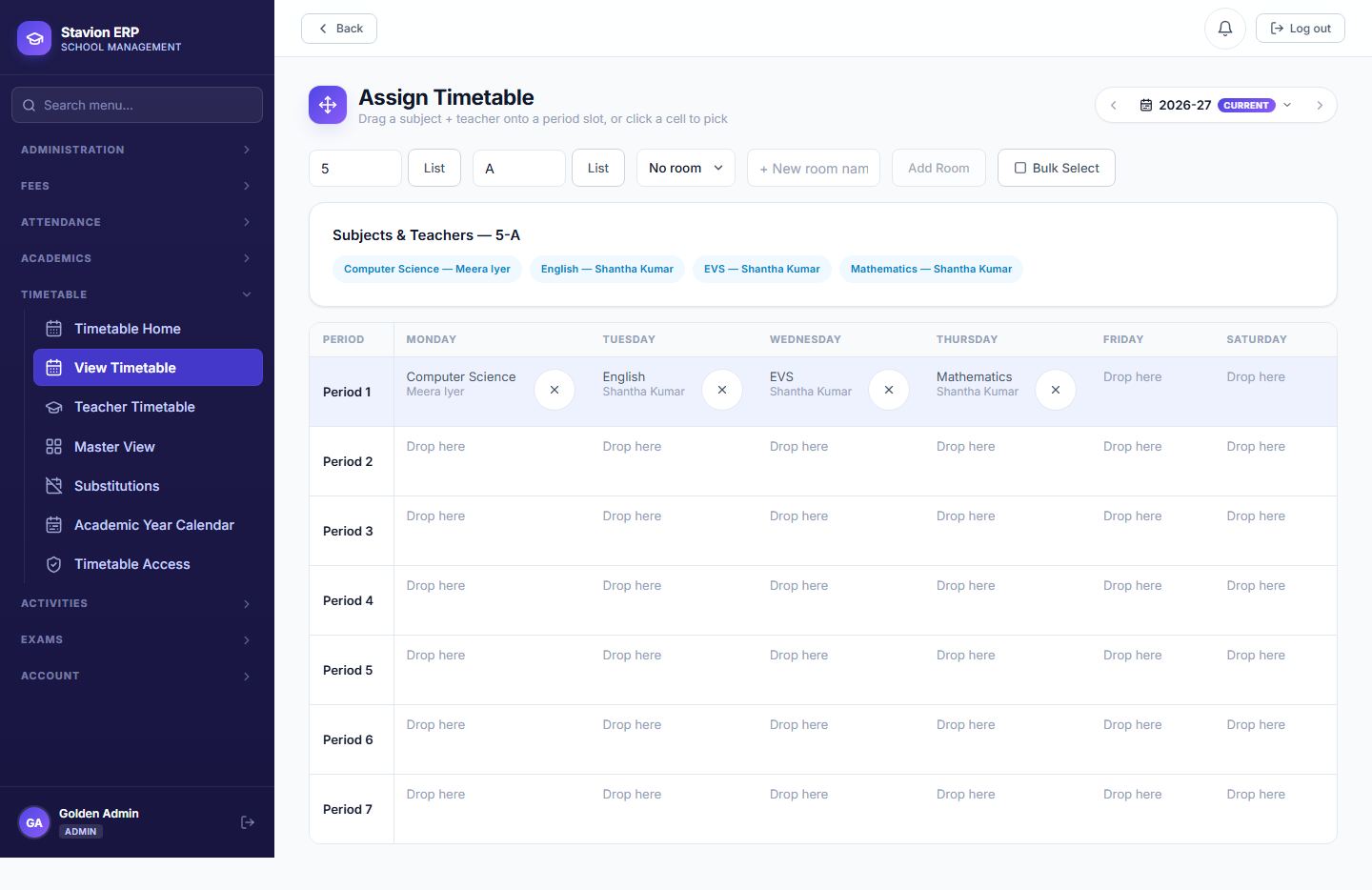
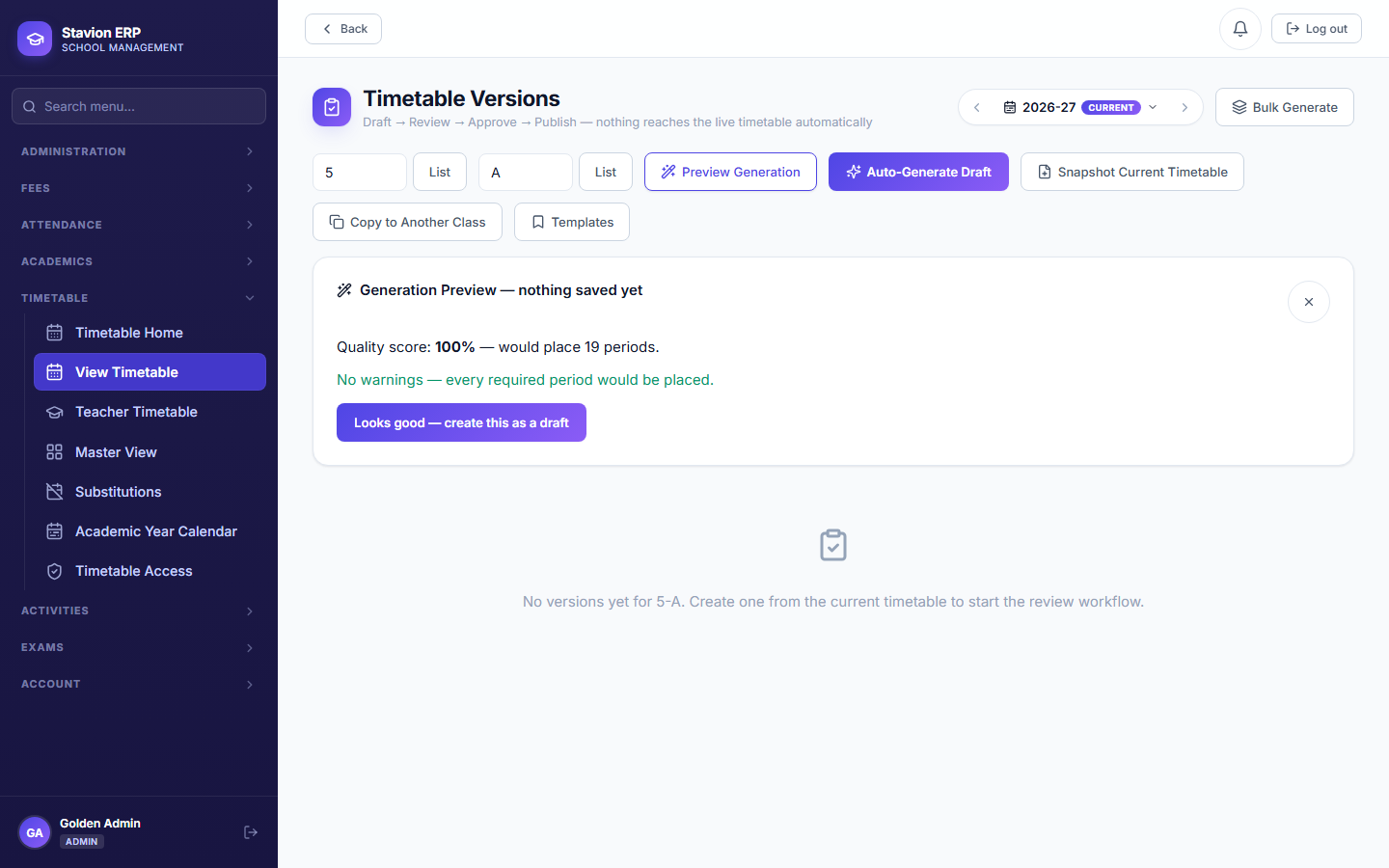
Building a timetable has four stages, each one feeding the next: define the daily period grid, declare how many periods per week each subject needs, map teachers to subjects/classes, then assign the actual weekly grid (either manually or via generate-and-approve). This chapter builds all four for Class 5A.
Key concepts
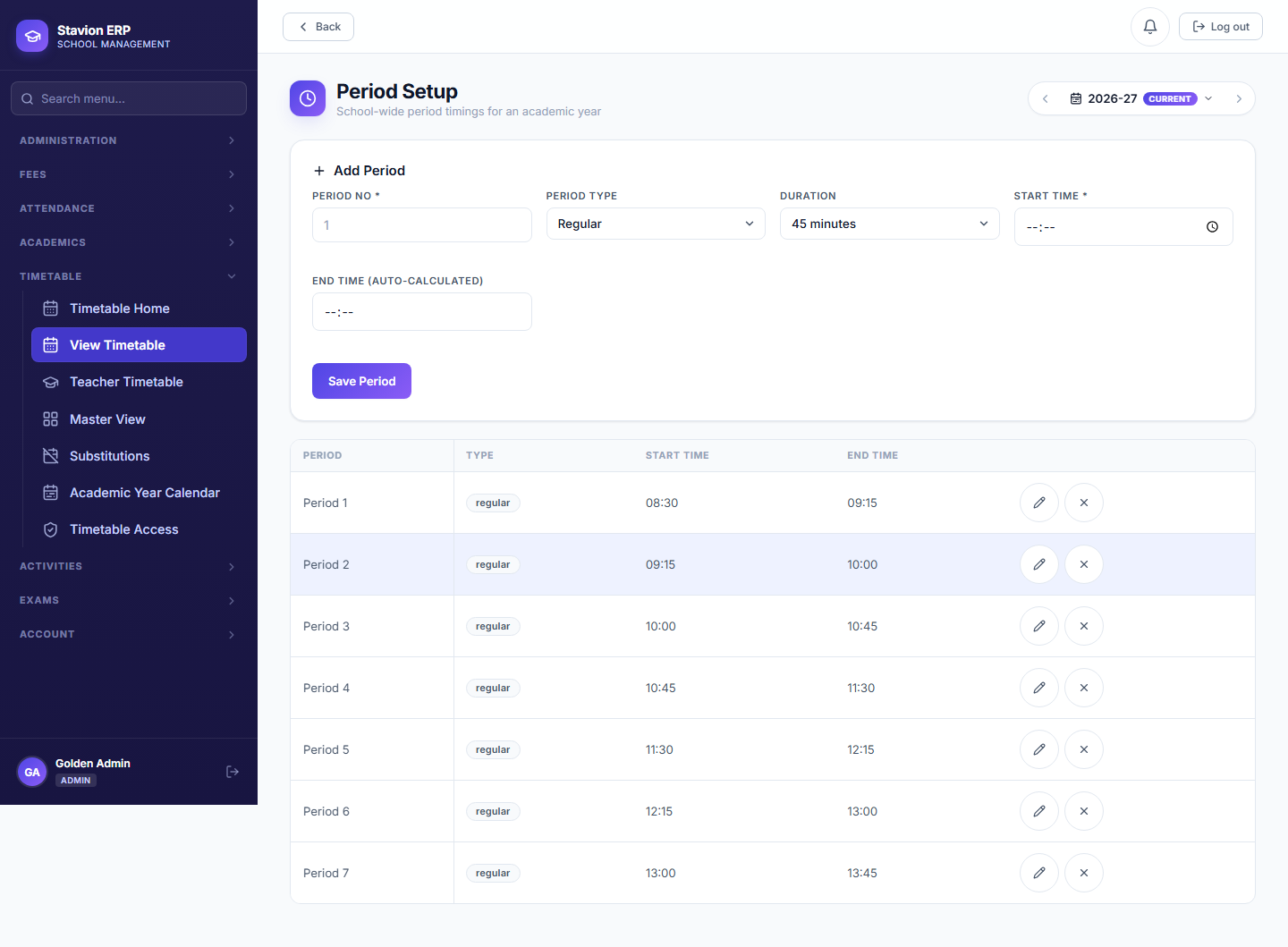
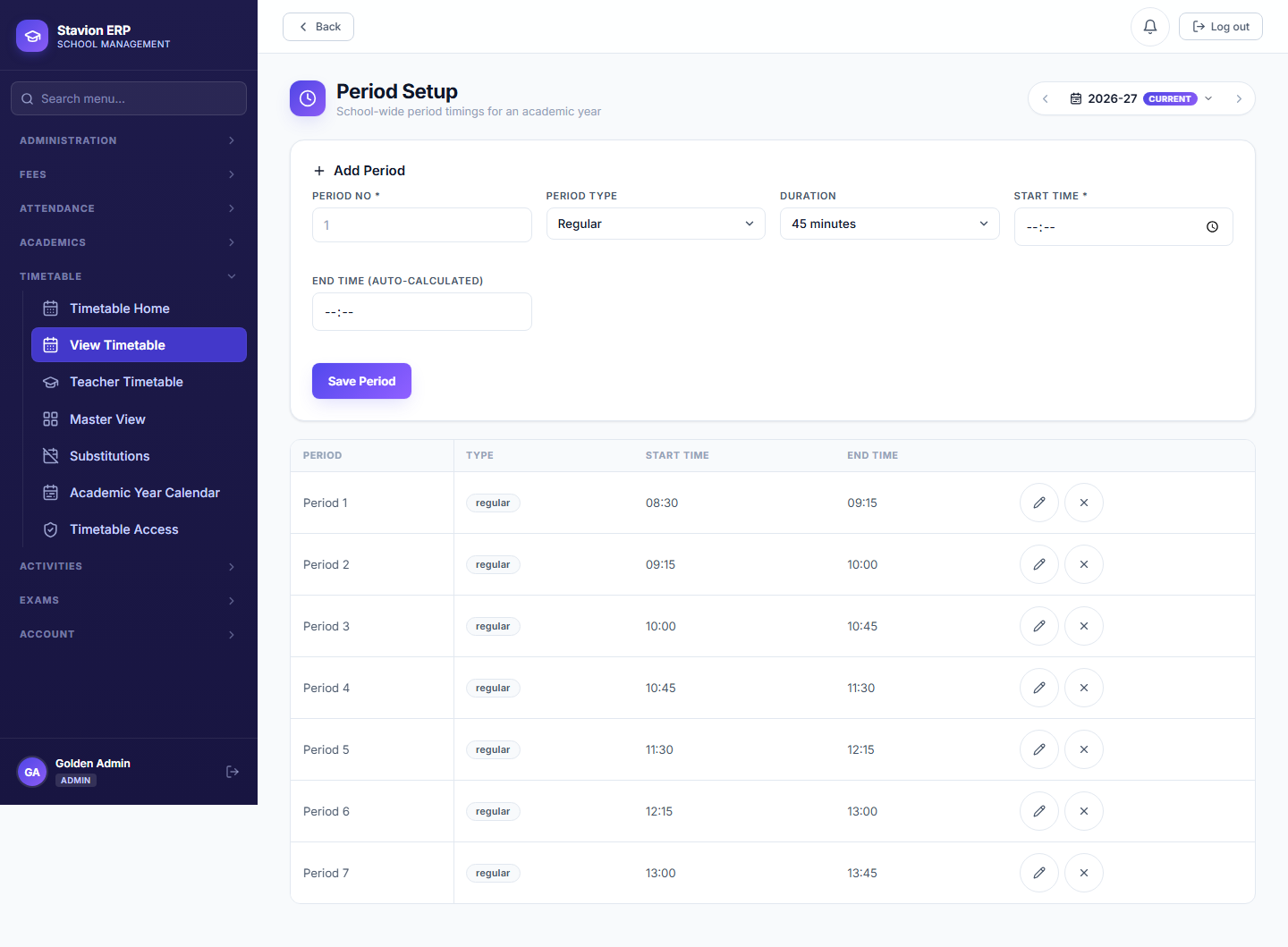
- Period SettingThe school's daily time grid — what time each numbered period starts and ends, and where the breaks fall. One grid, shared by every class.
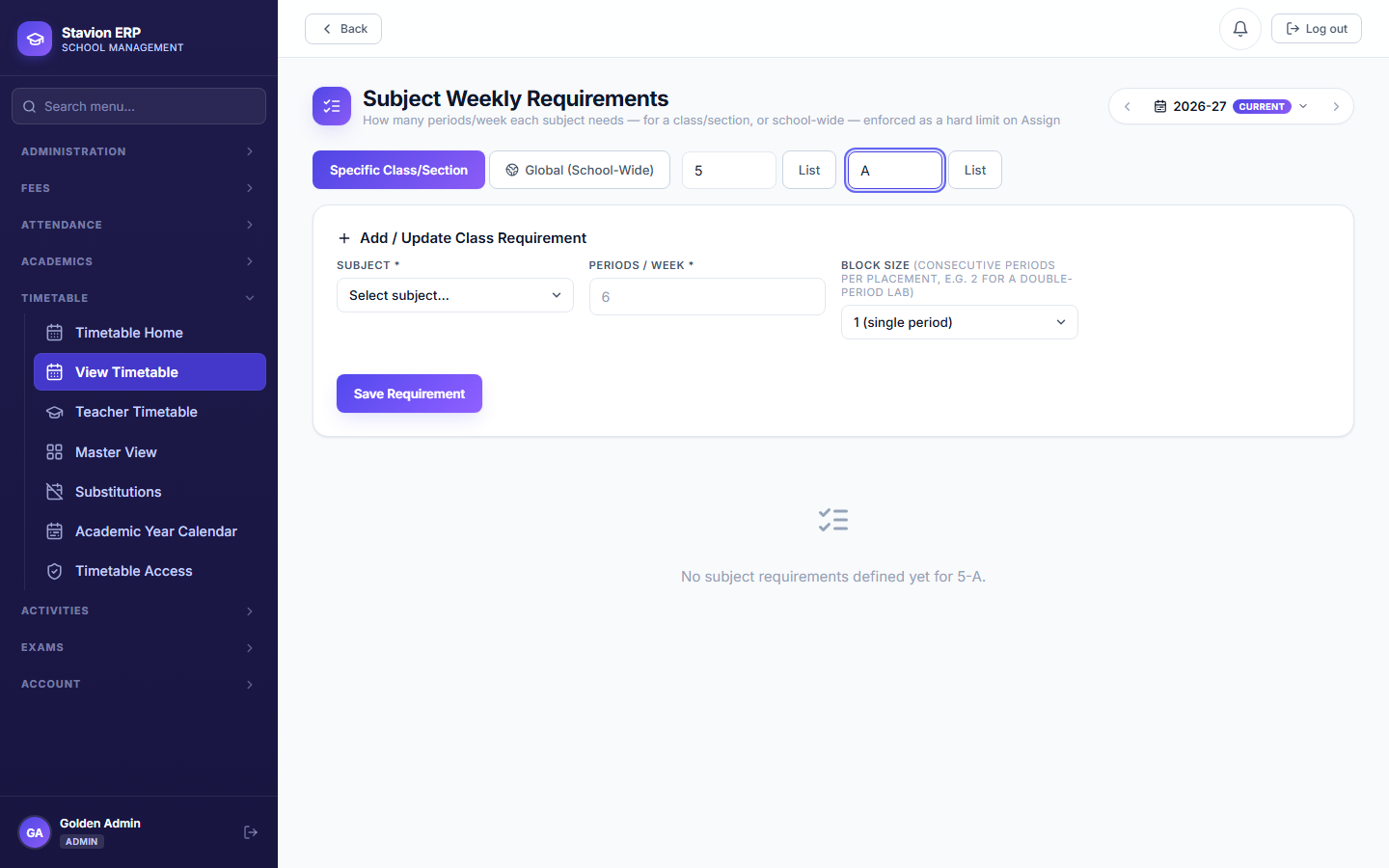
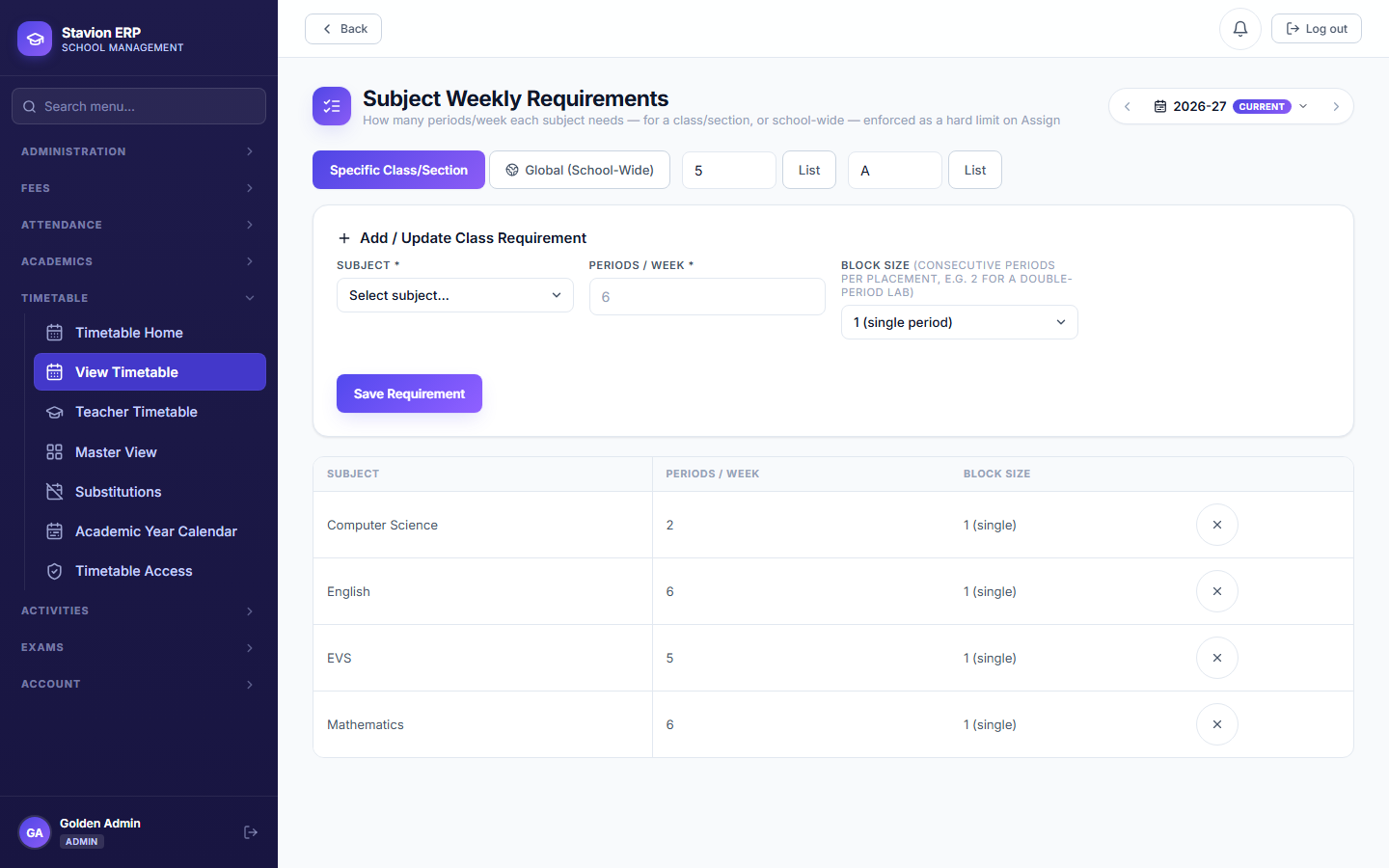
- Subject Period RequirementHow many periods per week a given subject needs for a given class, e.g. "Maths — 6 periods/week for Class 5A." This is the target the Assign/Generate step tries to satisfy.
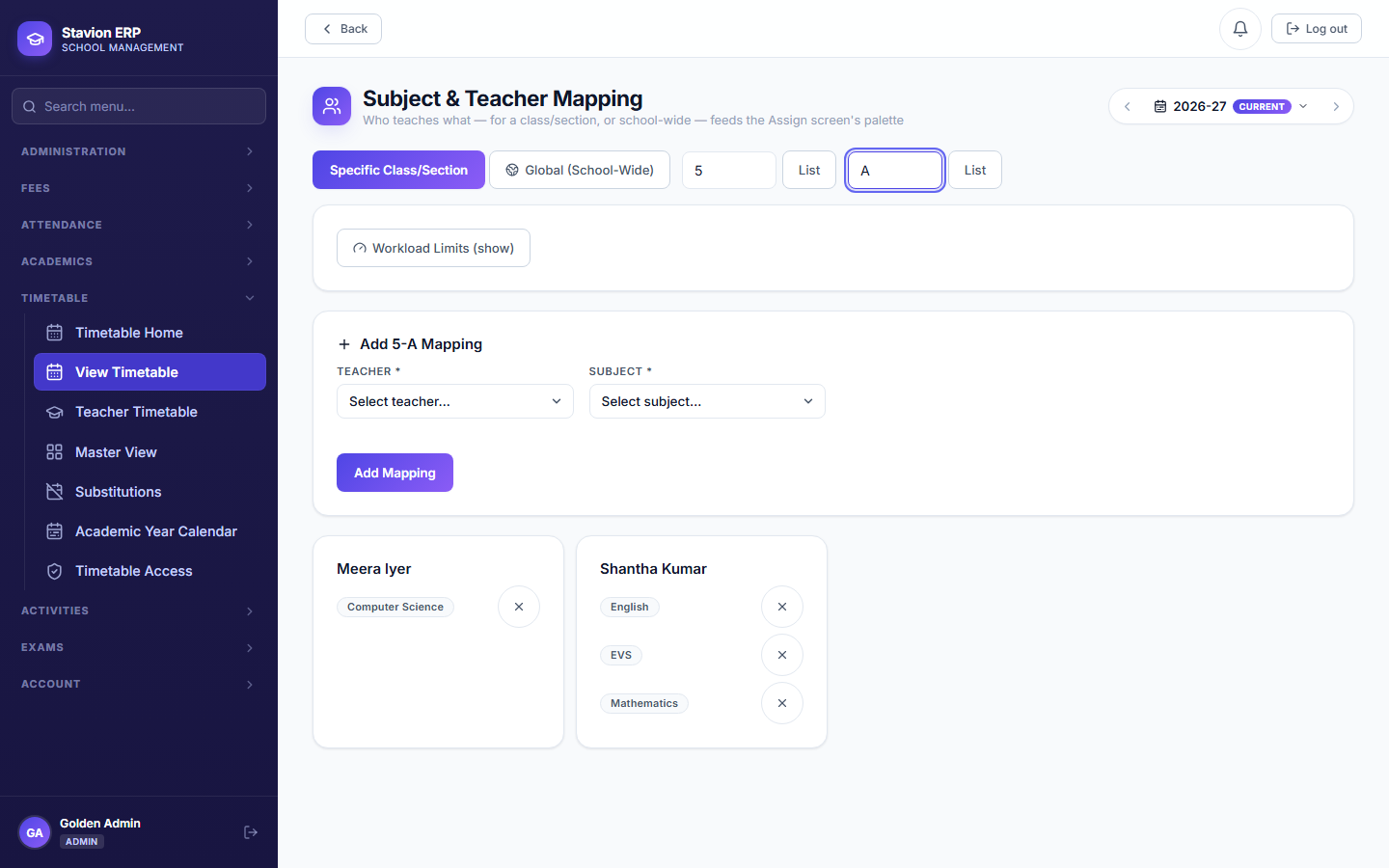
- Teacher-Subject MappingWhich teacher teaches which subject in which class/section. This is the same table that Attendance's subject-teacher access scoping and this chapter's own timetable-visibility rules are checked against (Chapter 7).
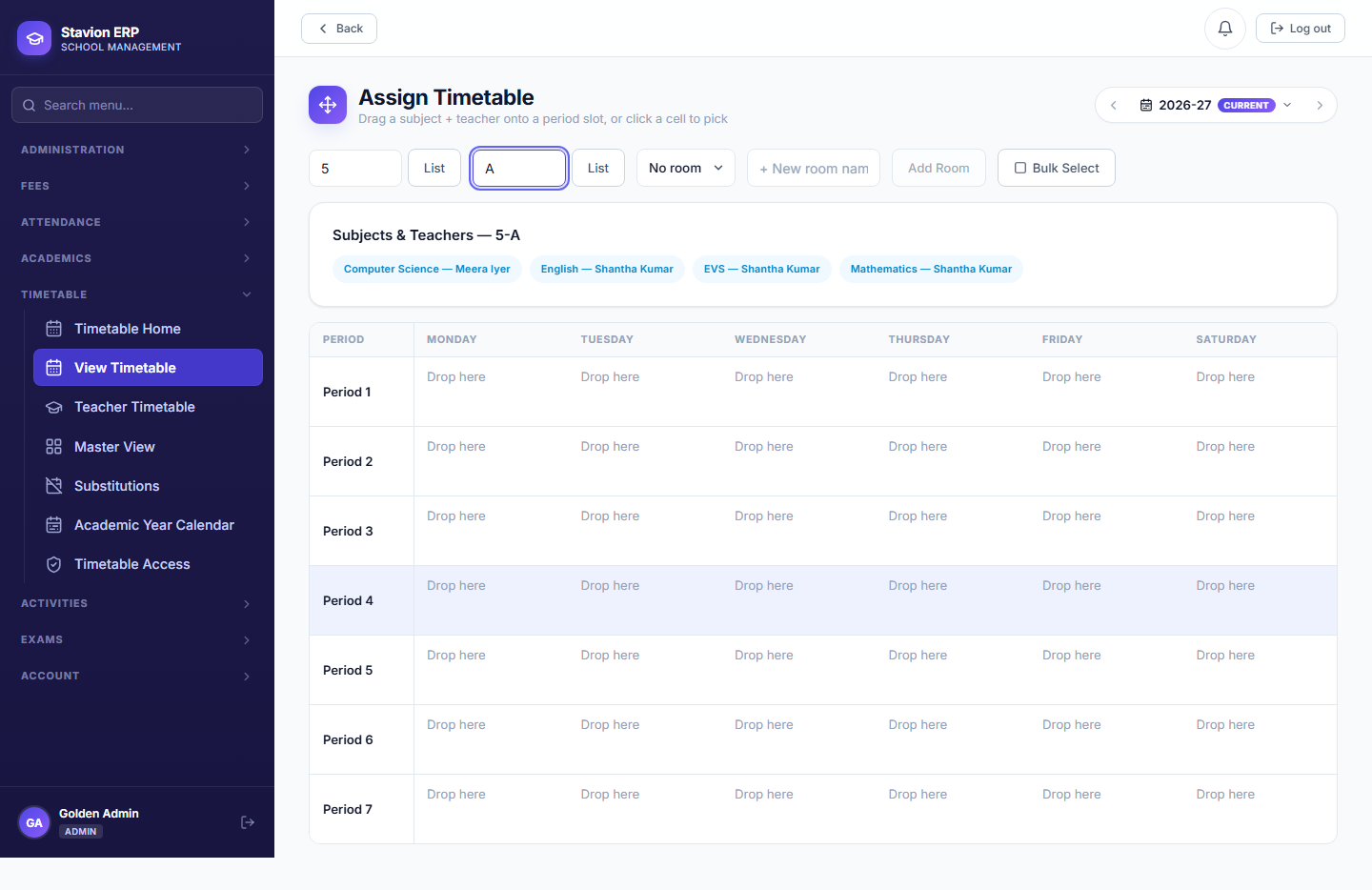
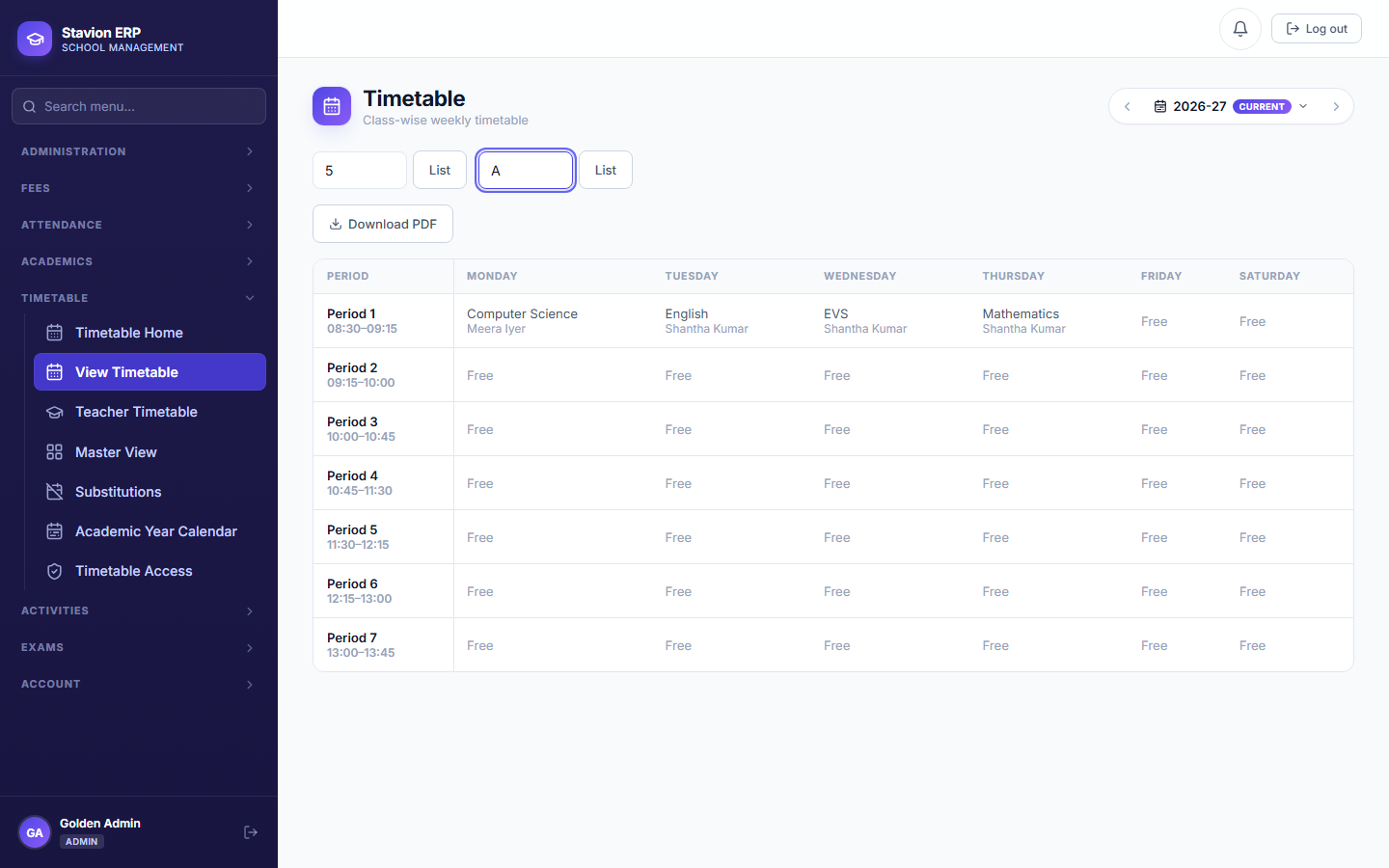
- Timetable SlotOne actual cell in the weekly grid: a specific class/section, day, and period, filled with a subject + teacher. Assign fills these in one at a time; Generate & Approve fills all of them at once from the requirements and mappings above.
Prerequisites
At least one teacher account must exist to be mapped to subjects (Chapter 2). This walkthrough also requests and approves a second, dedicated Subject Teacher account.
Period Setup
Define the daily time grid and breaks, once for the whole school.
Subject Requirements
Declare weekly period counts per subject, per class.
Teacher-Subject Mapping
Assign teachers to the subjects/classes they teach.
Assign / Generate
Fill the weekly grid manually, or generate it from the above.
Each stage is a prerequisite for the next — Assign/Generate has nothing to work with until the first three exist.
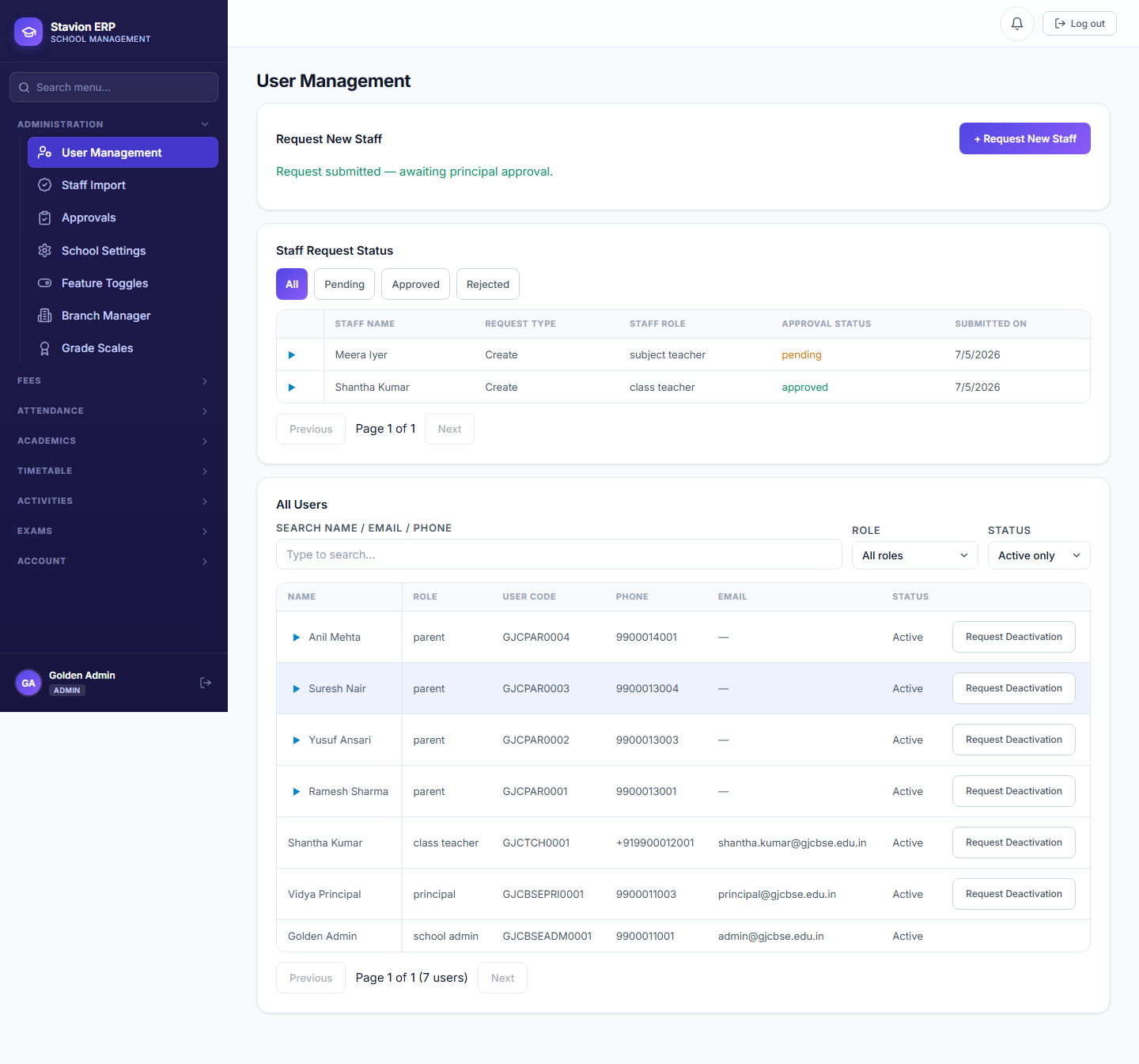
6.1 Period setup & subject requirements
6.2 Teacher-subject mapping
6.3 Assign & generate
6.4 Role views
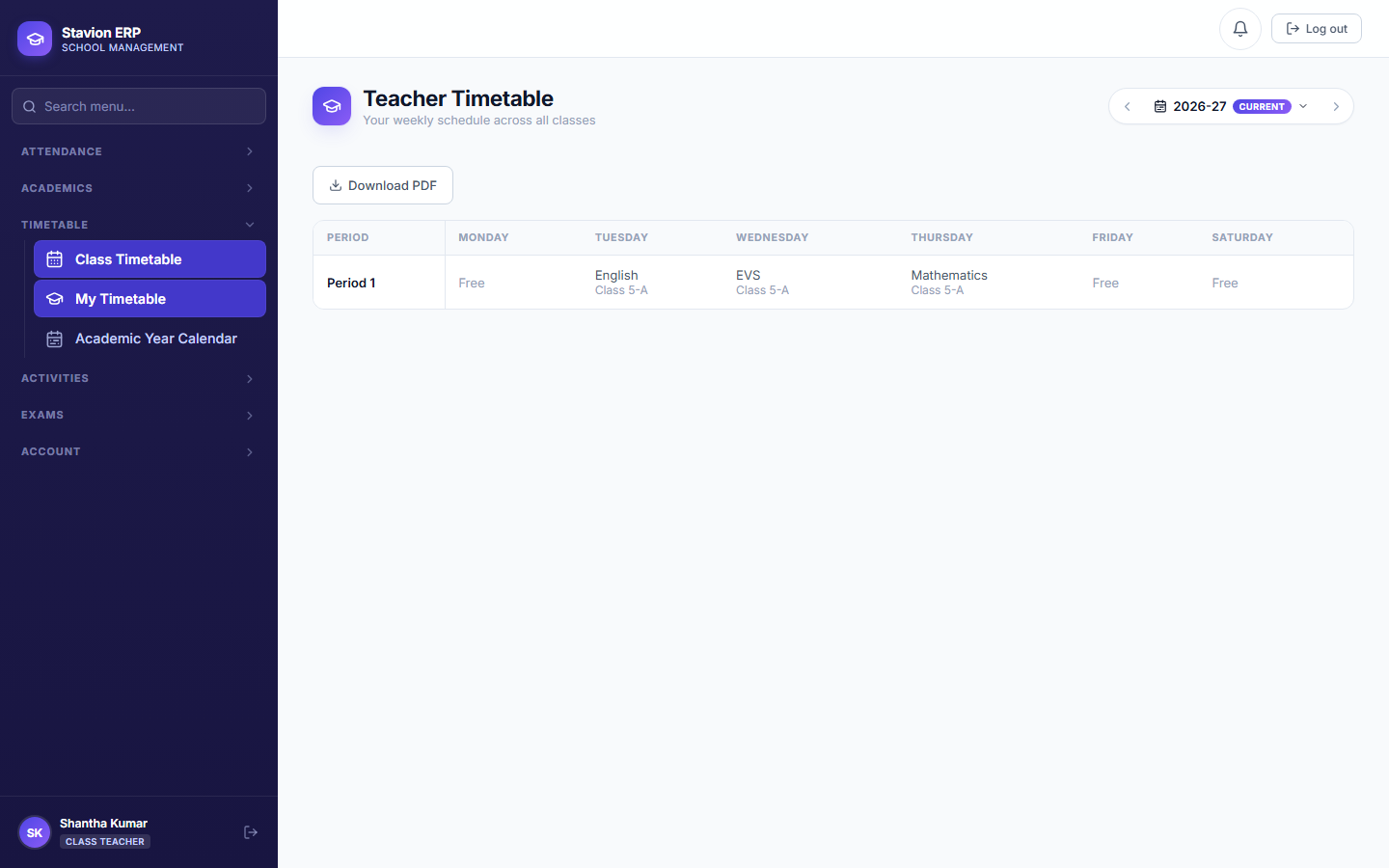
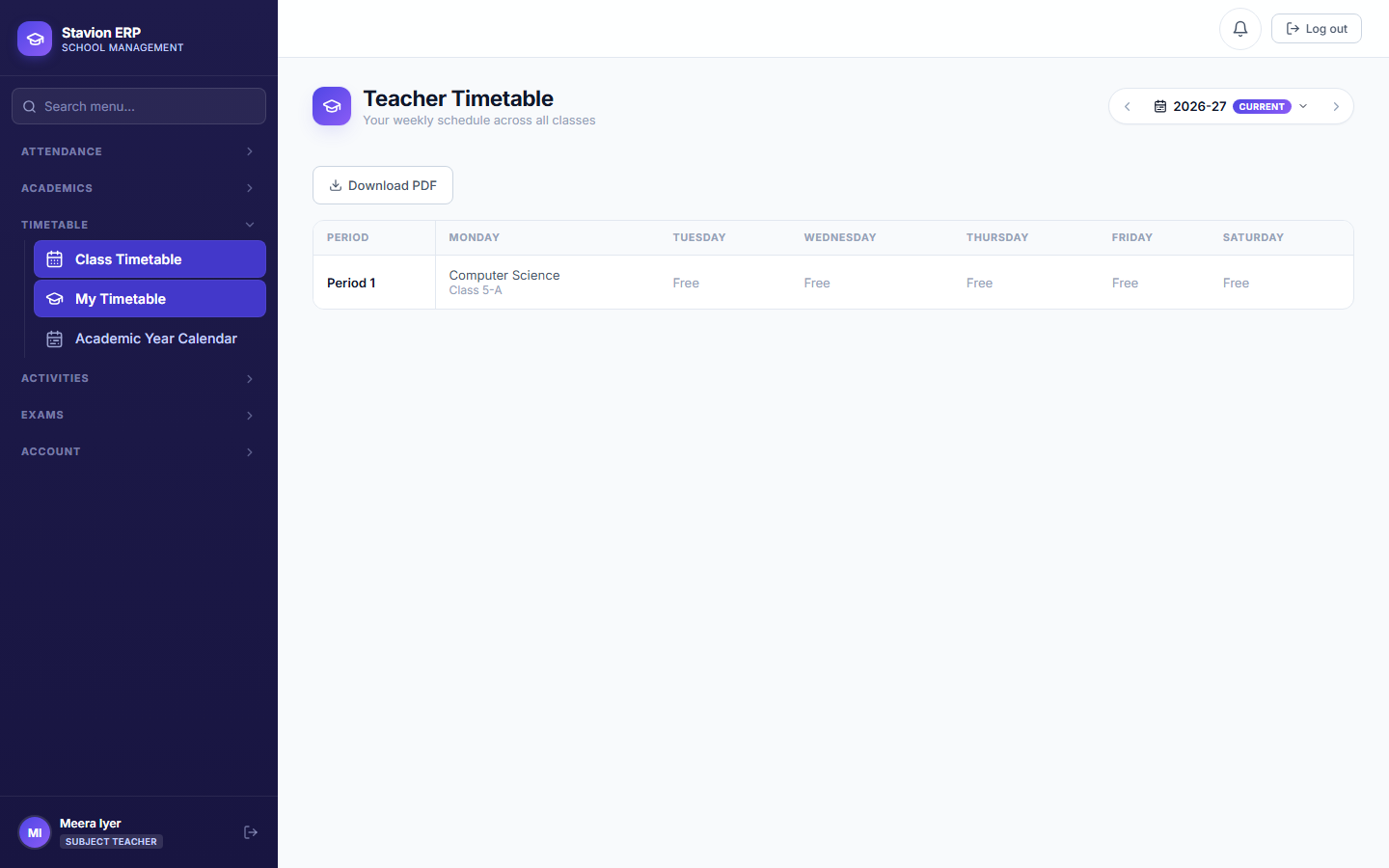
A Class Teacher can view the full weekly grid only for the class/section they are assigned to in Chapter 7.1; a Subject Teacher can view the full grid only for classes/sections they appear in via Teacher-Subject Mapping above. Both get an explicit "only their own periods" view via "My Timetable" regardless. See the Roles & Permissions appendix for the full matrix.