Staff Onboarding
Overview
New staff accounts in CampusOS never get created directly by one person acting alone. Instead they go through a maker-checker workflow: one person (the "maker" — typically the School Admin) submits a request, and a different person (the "checker" — typically the Principal) must review and approve it before the account is actually created and login credentials are issued.
Key concepts
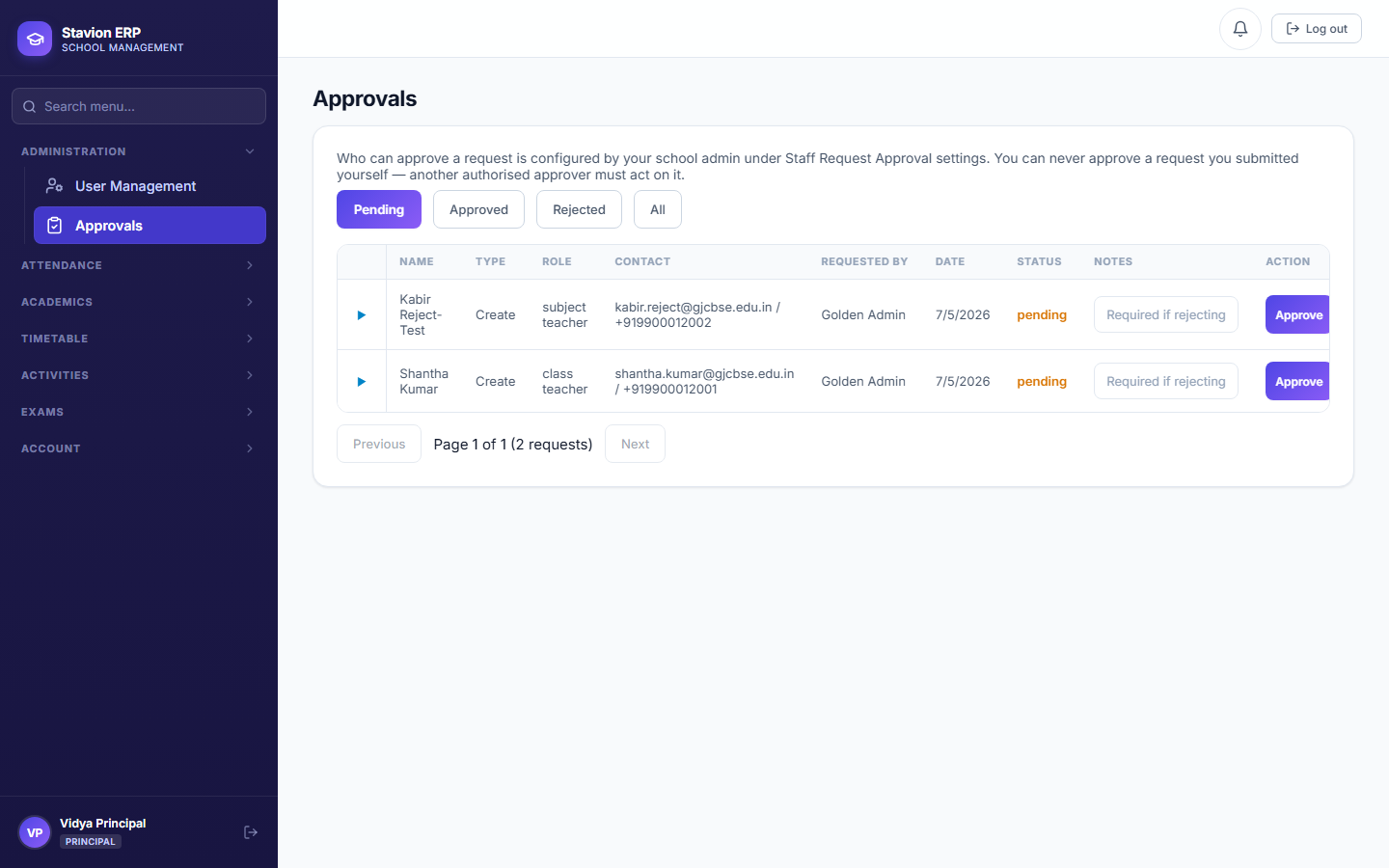
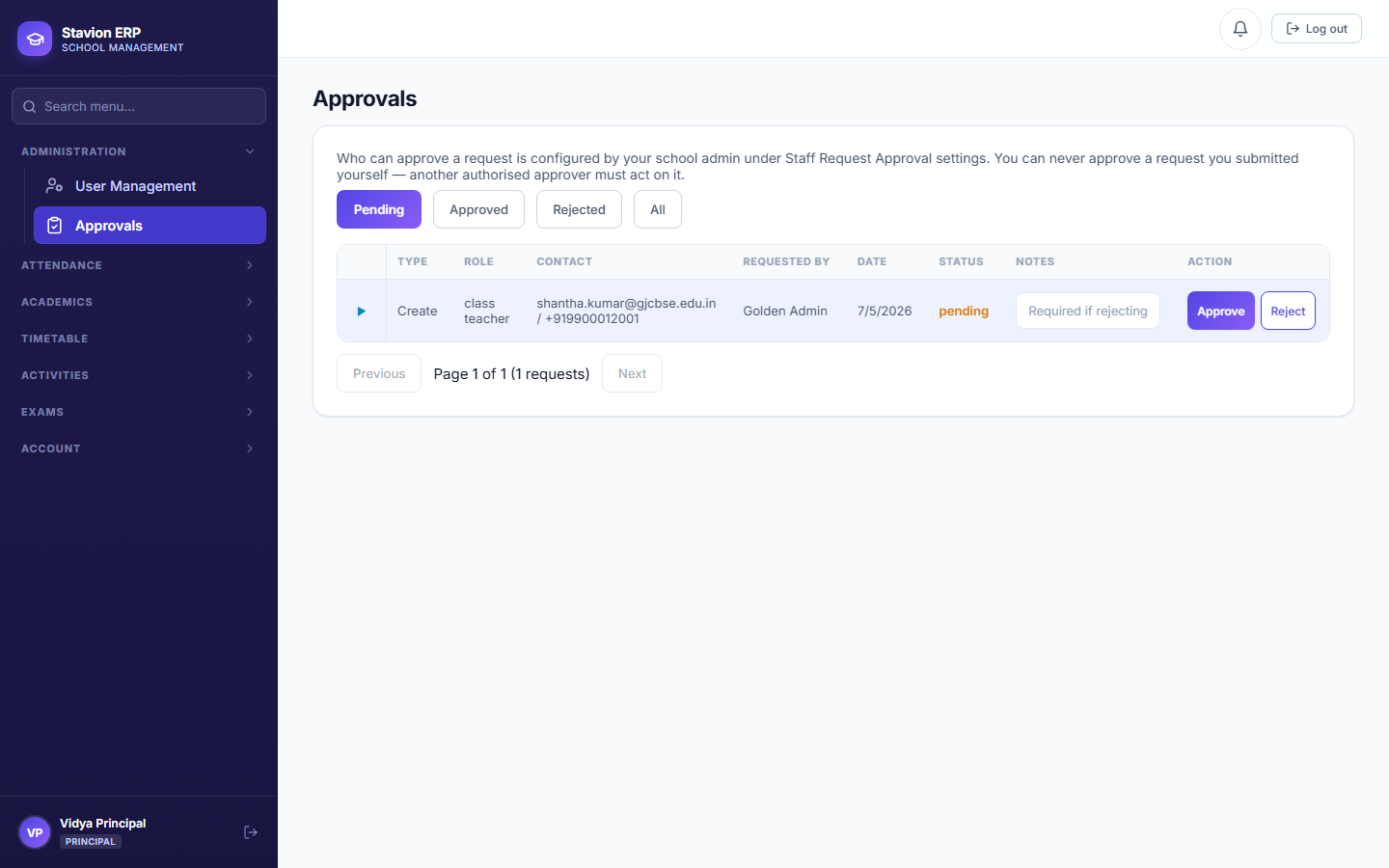
- Maker-checkerA control pattern, common in finance and school administration, where the person who initiates an action can never also be the one who approves it. It exists to prevent a single compromised or careless account from unilaterally creating staff logins — CampusOS enforces this at the system level, not just as a UI convention (Figure 2.4 below shows the block in action).
- Requester (maker)The person who fills in and submits the "Request New User" form.
- Approver (checker)A different person — with Principal or School Admin authority — who reviews the pending request and either approves or rejects it.
2.1 Requesting a new user
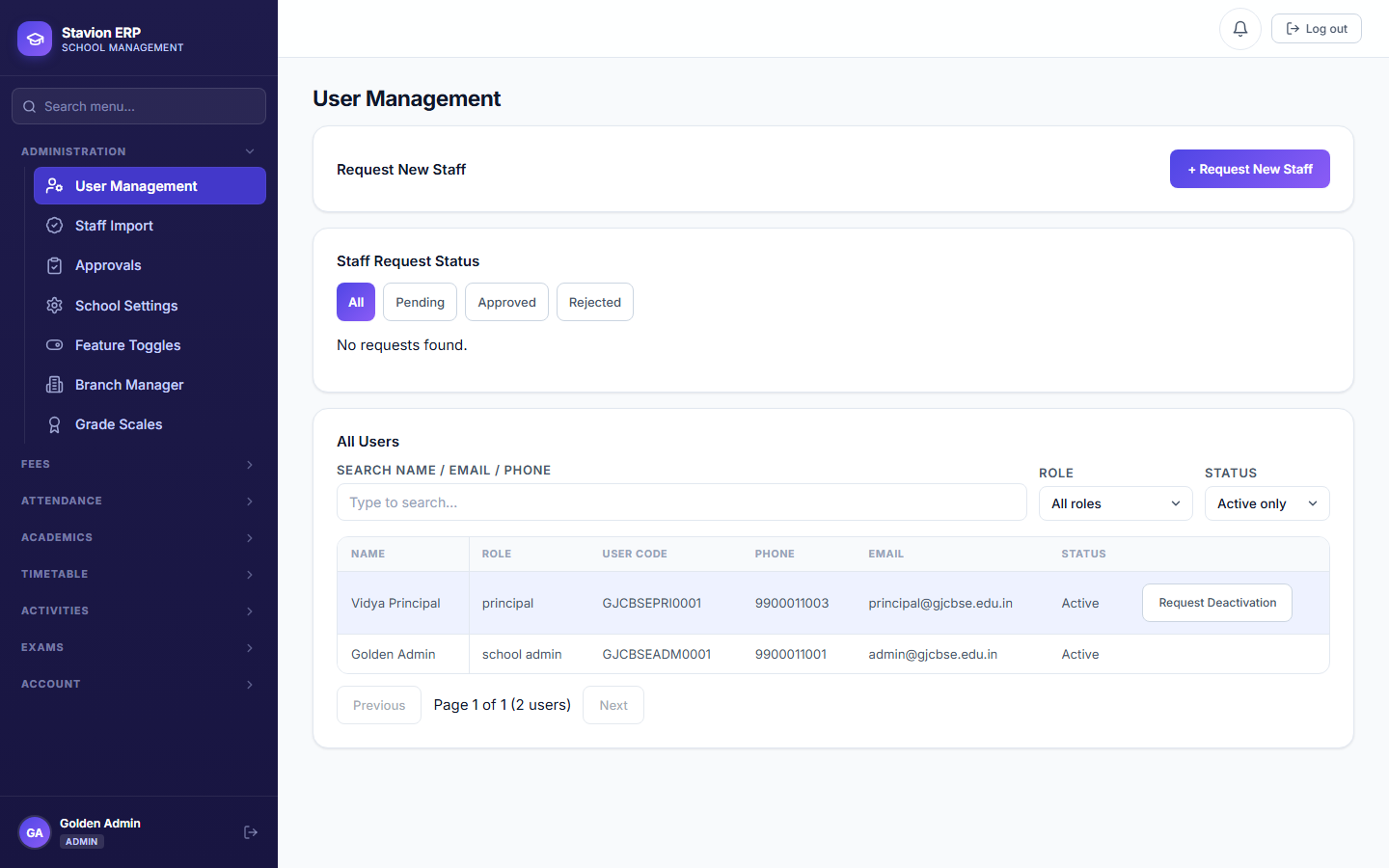
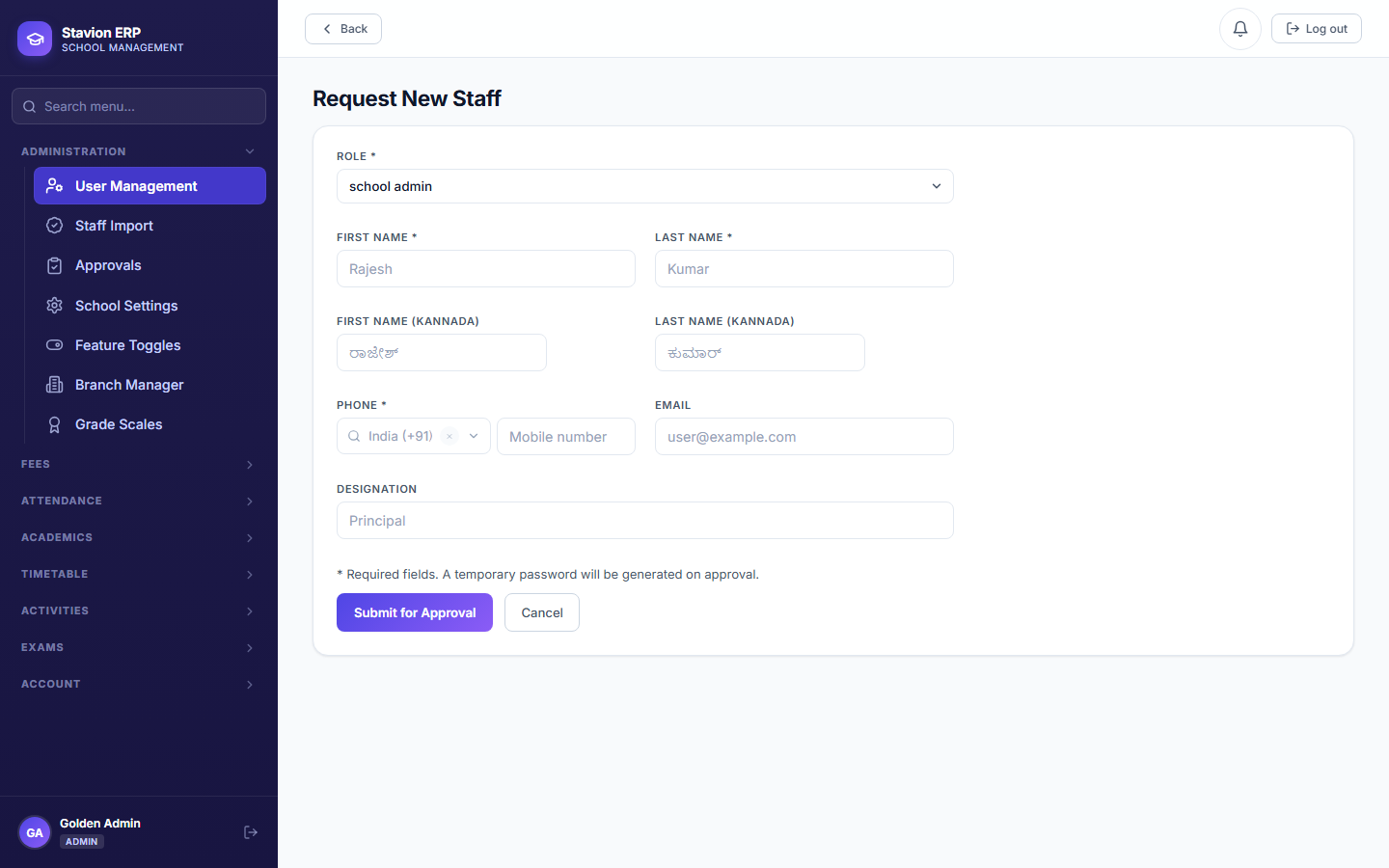
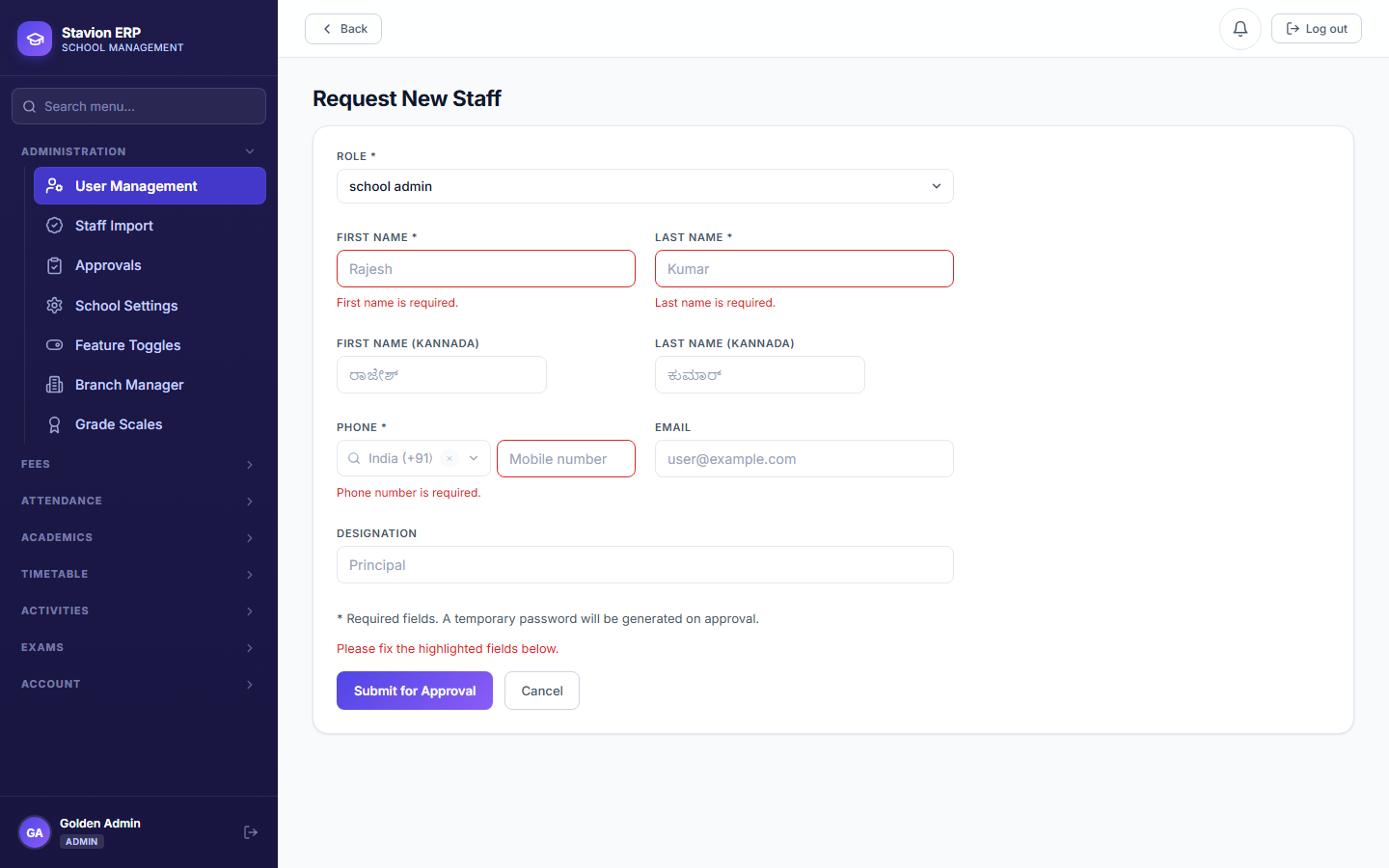
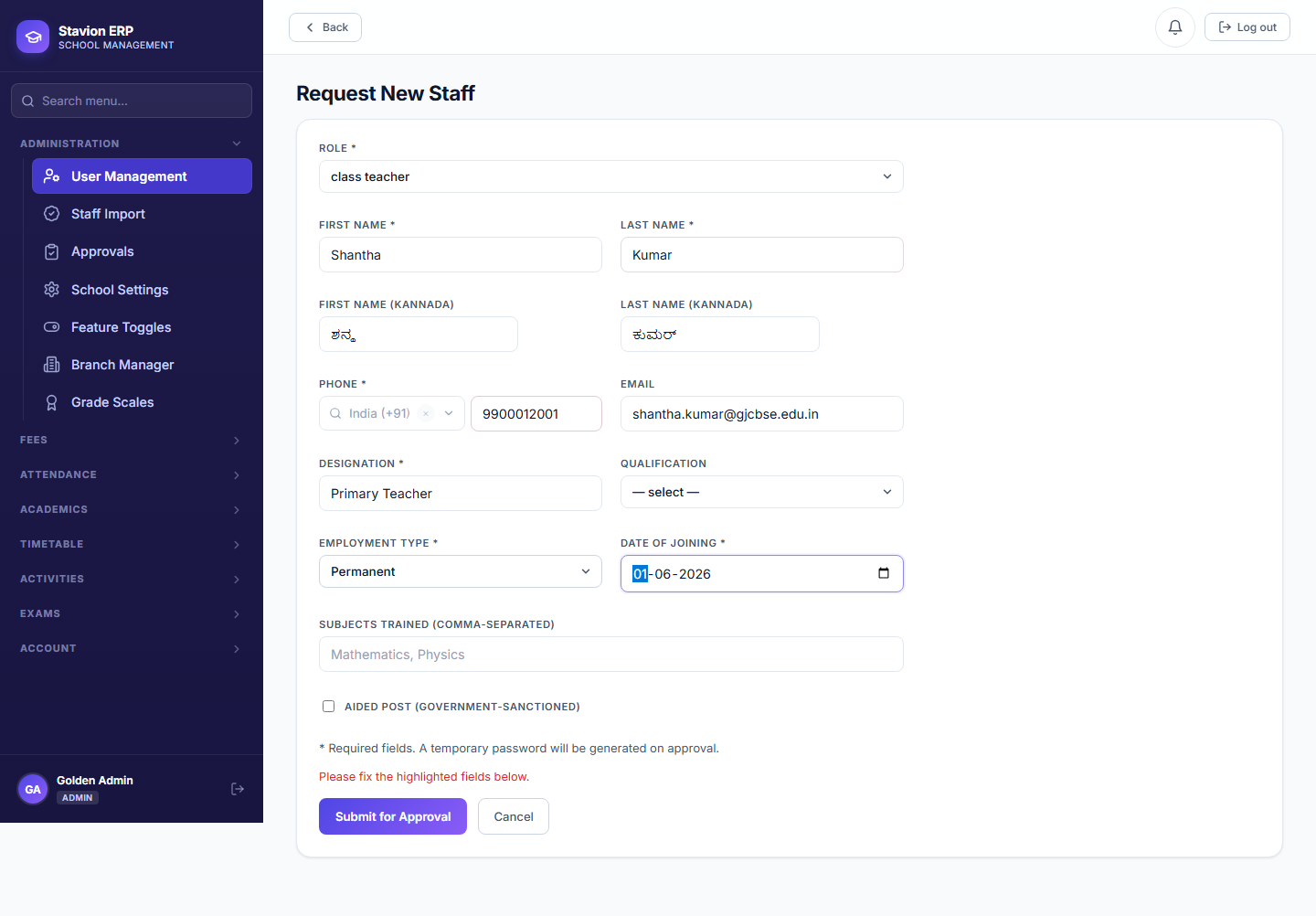
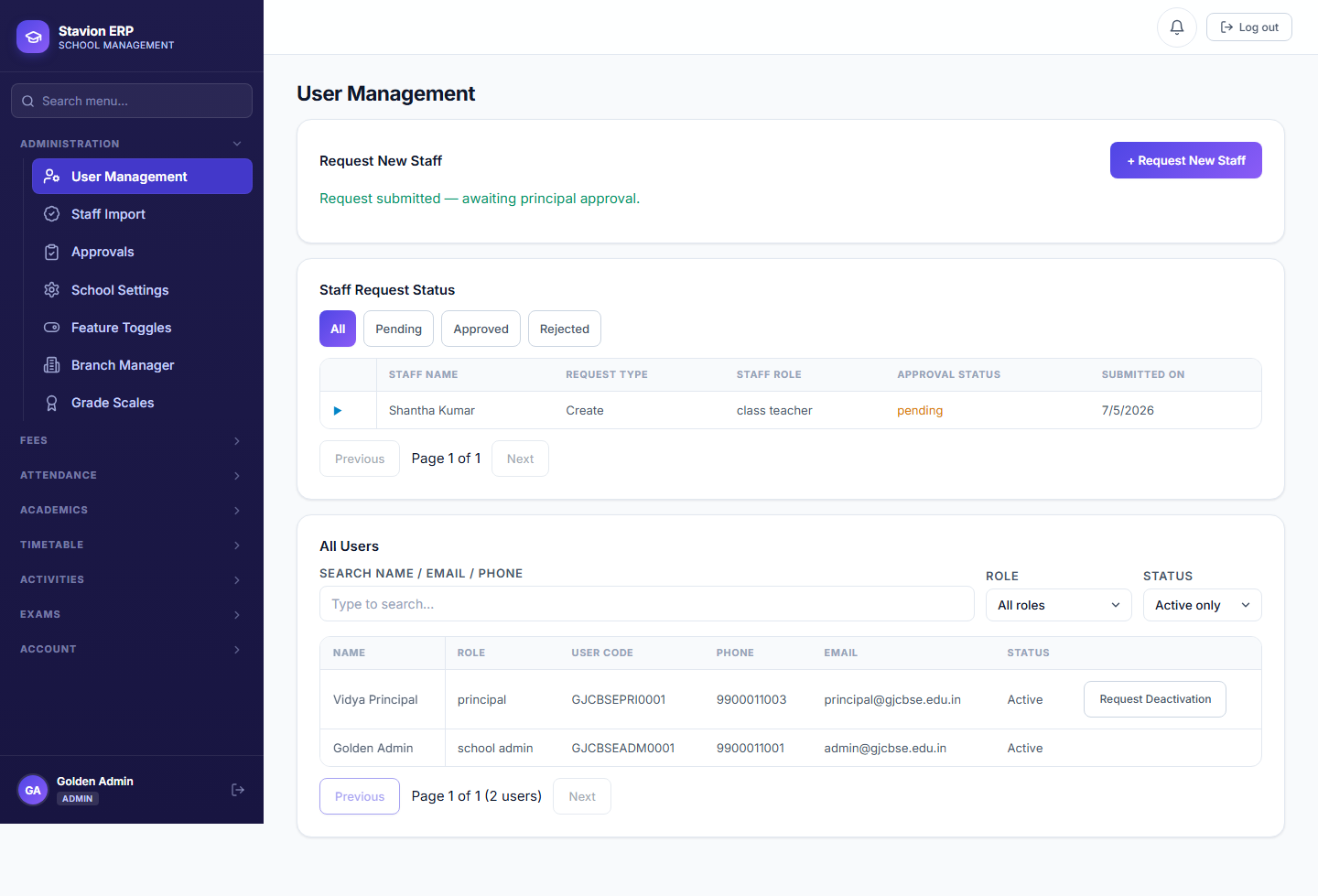
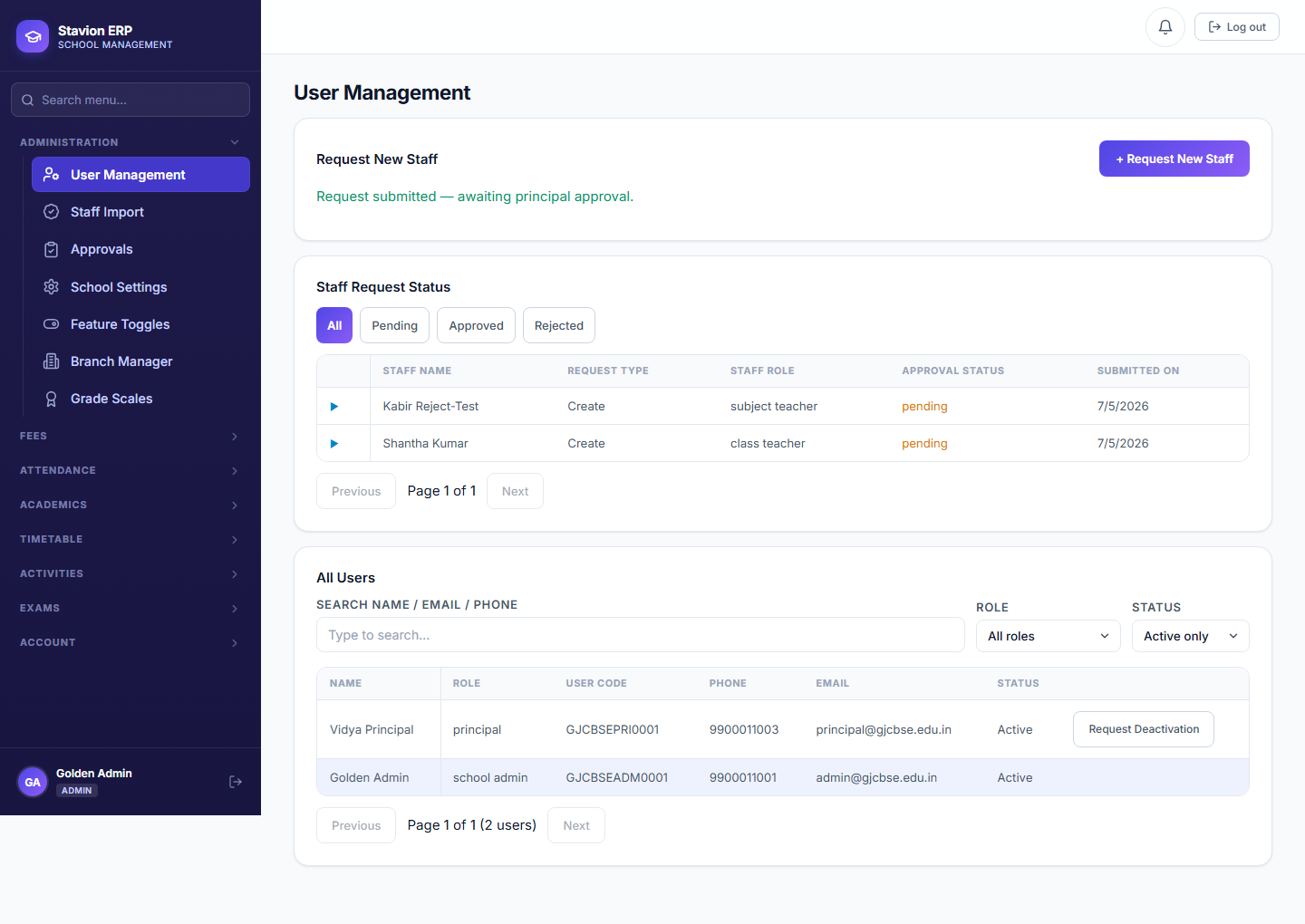
| Field | Required | Description | Example |
|---|---|---|---|
Full Name |
Required | The staff member’s name. | — |
Role |
Required | e.g. Class Teacher, Subject Teacher, Principal, Accountant. | — |
Email / Phone |
Required | Used for the account’s login identity and notifications. | — |
2.2 Maker-checker approval
Request submitted
The maker fills in the form and submits — nothing is created yet.
Pending review
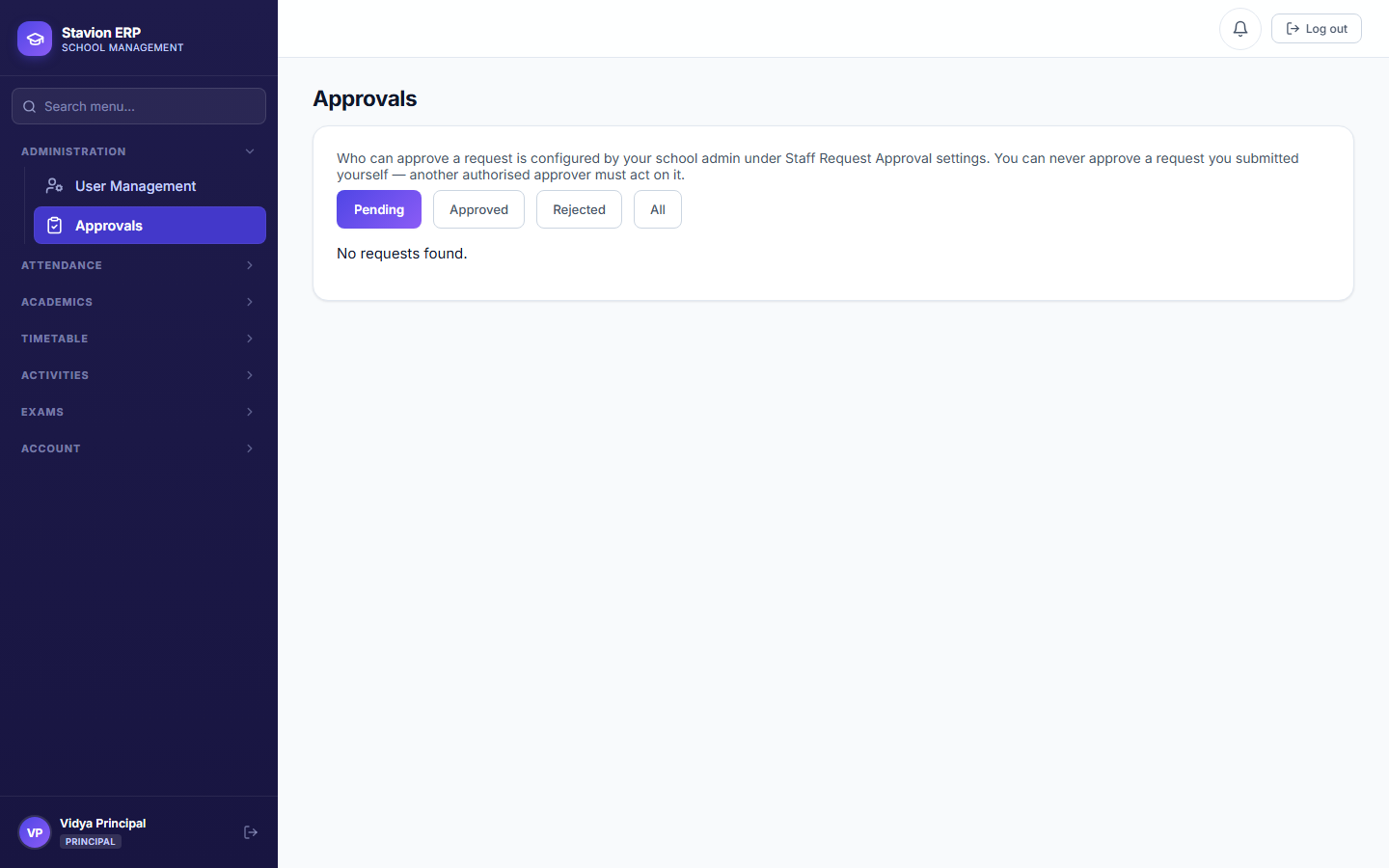
The request sits in Approvals until a different person opens it.
Reviewed by a checker
A Principal or Admin — never the same person as the maker — decides.
Approved or rejected
Approved creates the real account with a temp password; rejected creates nothing.
The maker-checker approval flow every staff request goes through.
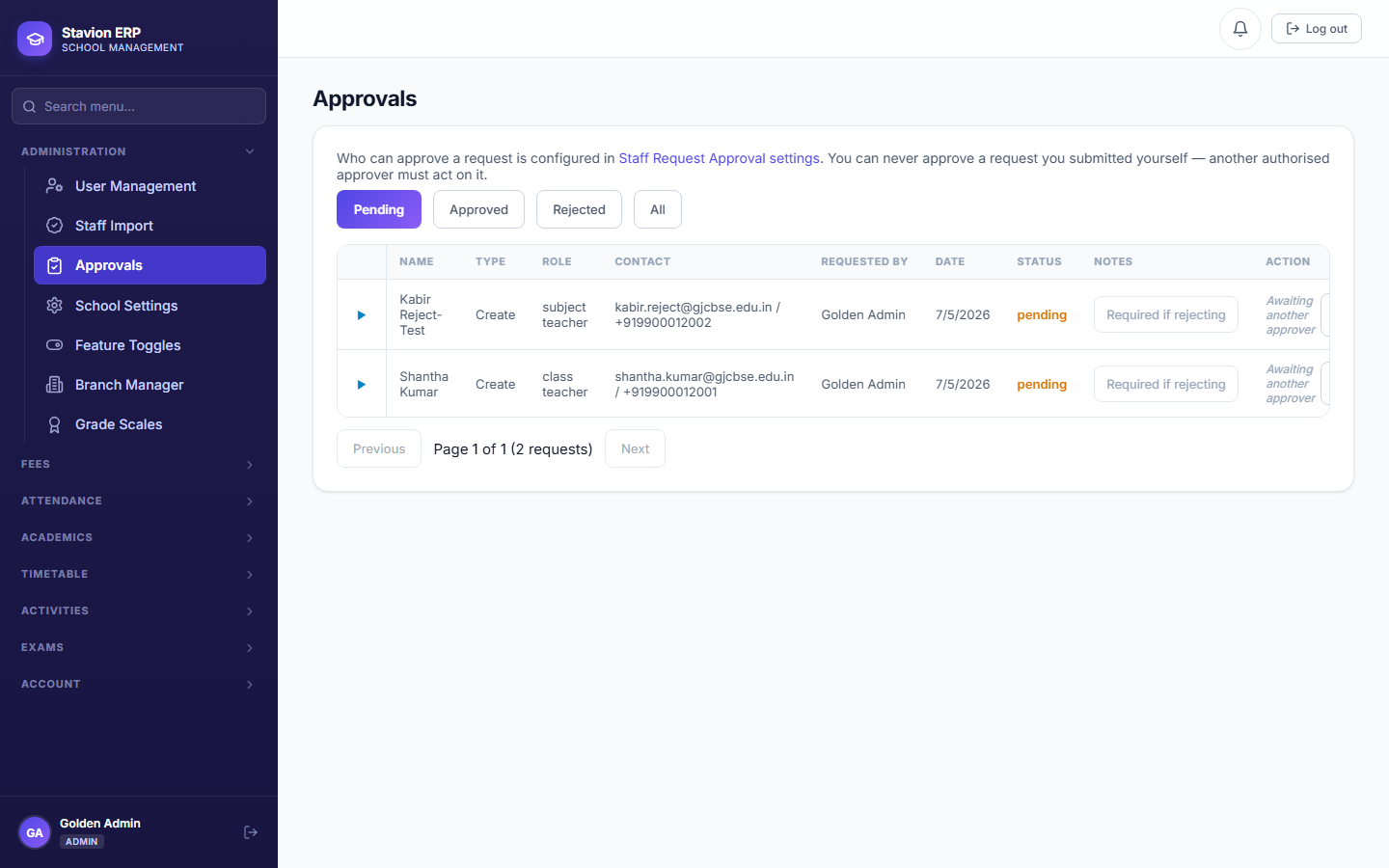
CampusOS checks the approver's identity against the request's creator on every approval attempt, server-side — not just by hiding the button in the UI.
The approval is blocked outright, regardless of the reviewer's role.
The request can be approved or rejected normally.
Validation rules & common errors
| Trigger | Error shown | Resolution |
|---|---|---|
| Required field left blank on the request form | Field-level "required" message | Fill in every required field. |
| The requester tries to approve their own request | You cannot approve your own request | A different Principal/Admin account must review it. |
| Duplicate email or phone submitted on a second request | This email/phone is already in use | Use a unique email and phone per staff member. |
On approval, CampusOS generates a random temporary password for the new account. It is not shown anywhere retrievable afterward — communicate it to the staff member at the moment of approval, or use the password-reset flow if it is lost.
2.3 Non-teaching staff designations
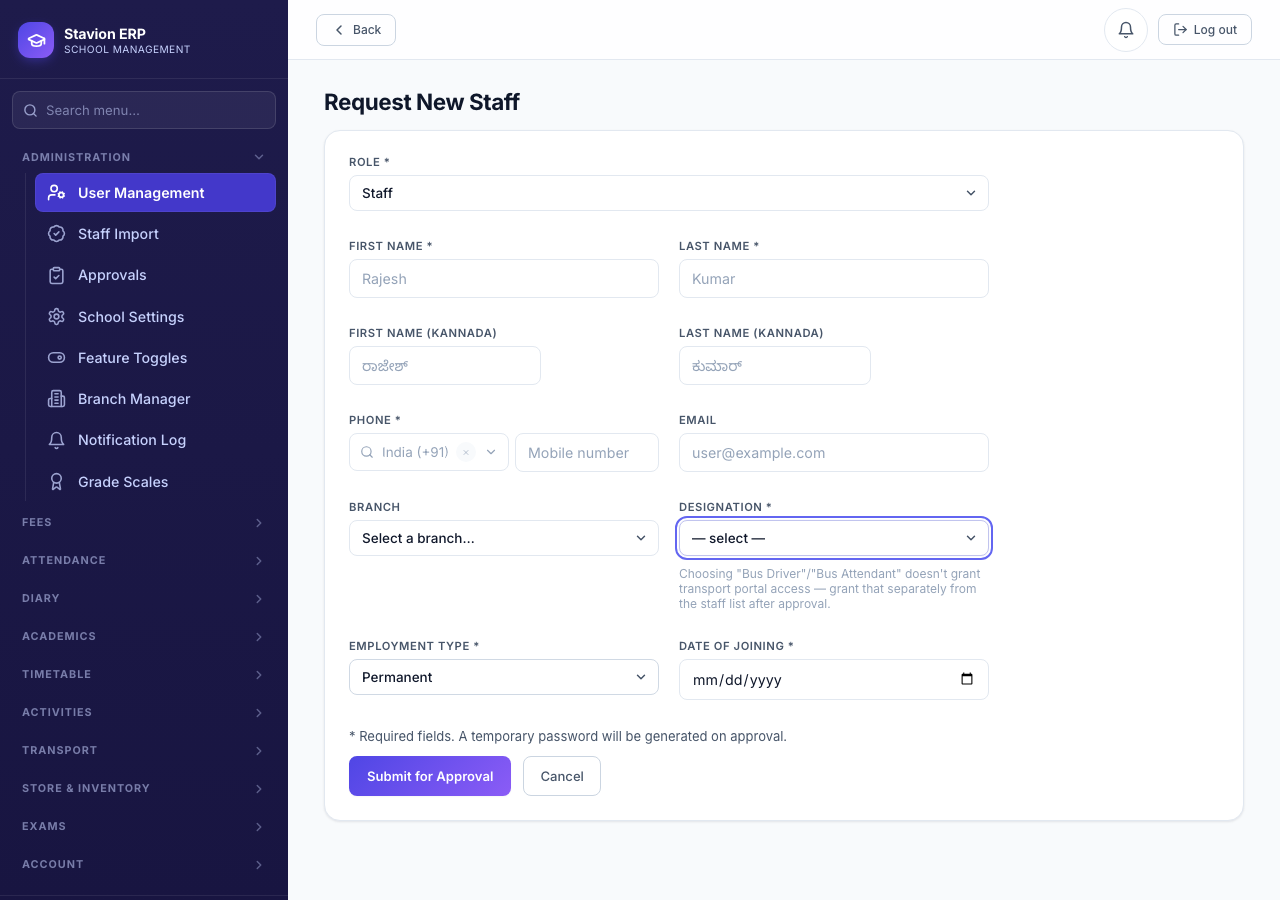
"Driver" and "Attendant" have no dedicated role in CampusOS — a bus driver or attendant is a Non Teaching Staff account, with their actual job title stored as a Designation. When Role is set to Non Teaching Staff, the Designation field becomes a dropdown of common titles (Bus Driver, Bus Attendant, Office Assistant, Security Guard, Lab Assistant, Librarian, Peon, Attender, Housekeeping Staff, Accountant), plus an "Other" option that reveals a free-text box for anything not on the list.
Key concepts
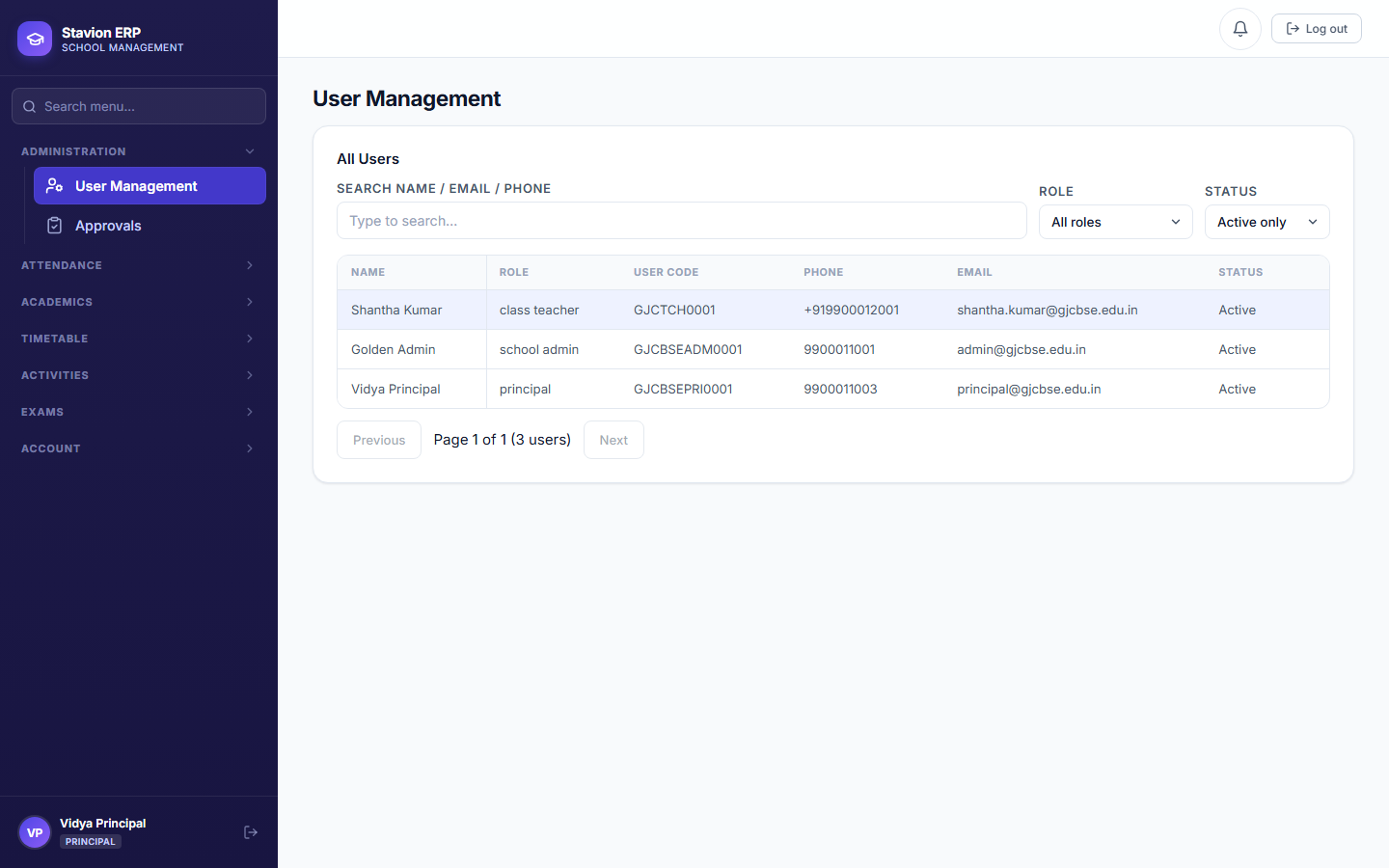
- DesignationThe staff member's job title, shown alongside their Role in the Users list. Two accounts can share the same Role (and therefore the same access) but carry different Designations — e.g. two Non Teaching Staff accounts, one a Bus Driver and one a Librarian.
- Transport Portal accessChoosing "Bus Driver" or "Bus Attendant" as the designation does not by itself let that account log into the Transport module. That is a separate grant — after the account is approved, an admin turns it on from the Users list ("Grant Transport Portal").
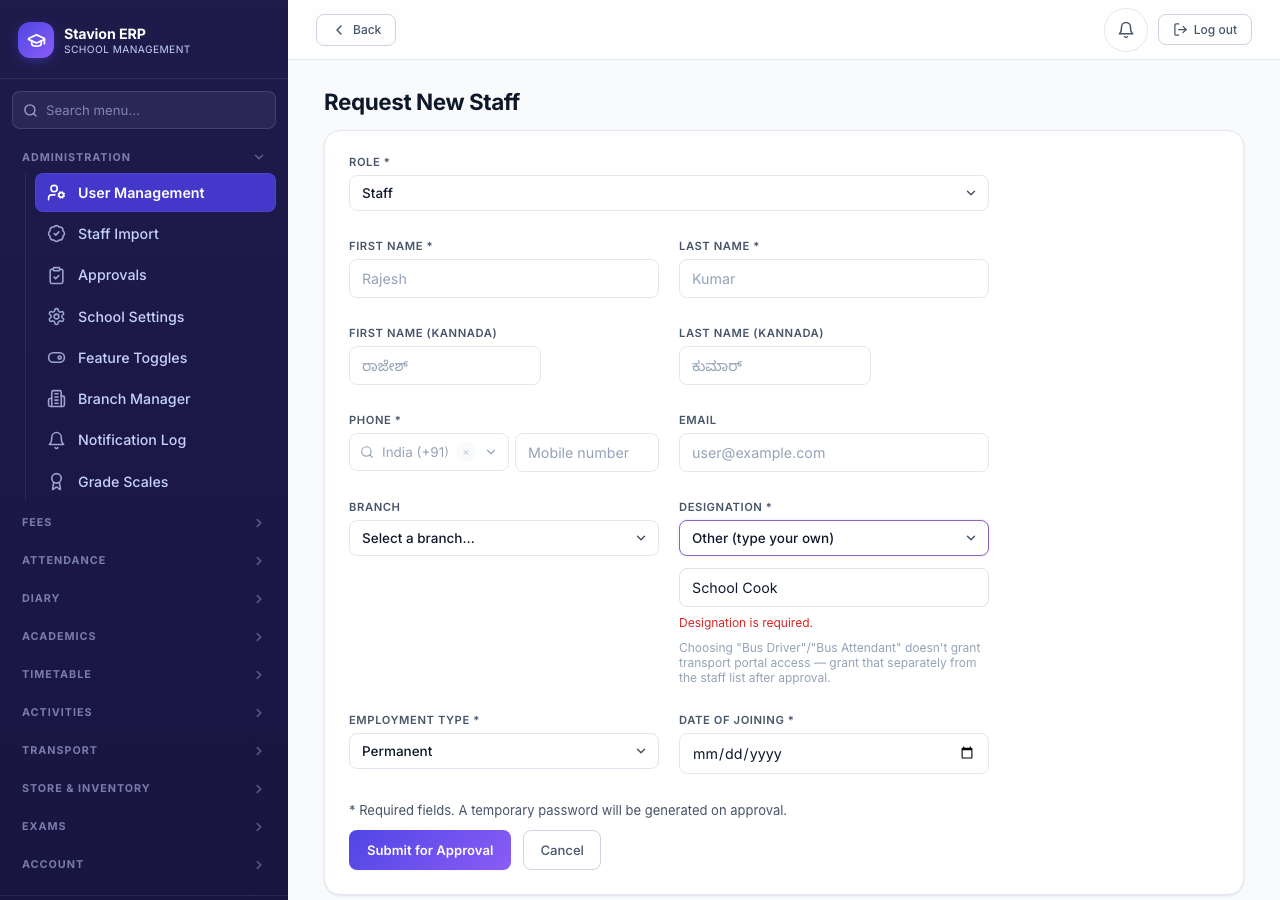
2.4 Editing an existing staff member
Every active staff row in the Users list has an Edit button. It opens the same Role and profile fields as the Request New Staff form — pre-filled with that person's current data — so an admin can reassign someone between roles (e.g. promoting a Subject Teacher to Class Teacher) and update their designation/qualification/subjects/employment details together, in one step, without creating a brand-new account. Changing your own role is blocked (the Role field is disabled when editing yourself) — a different admin/principal account must do it.
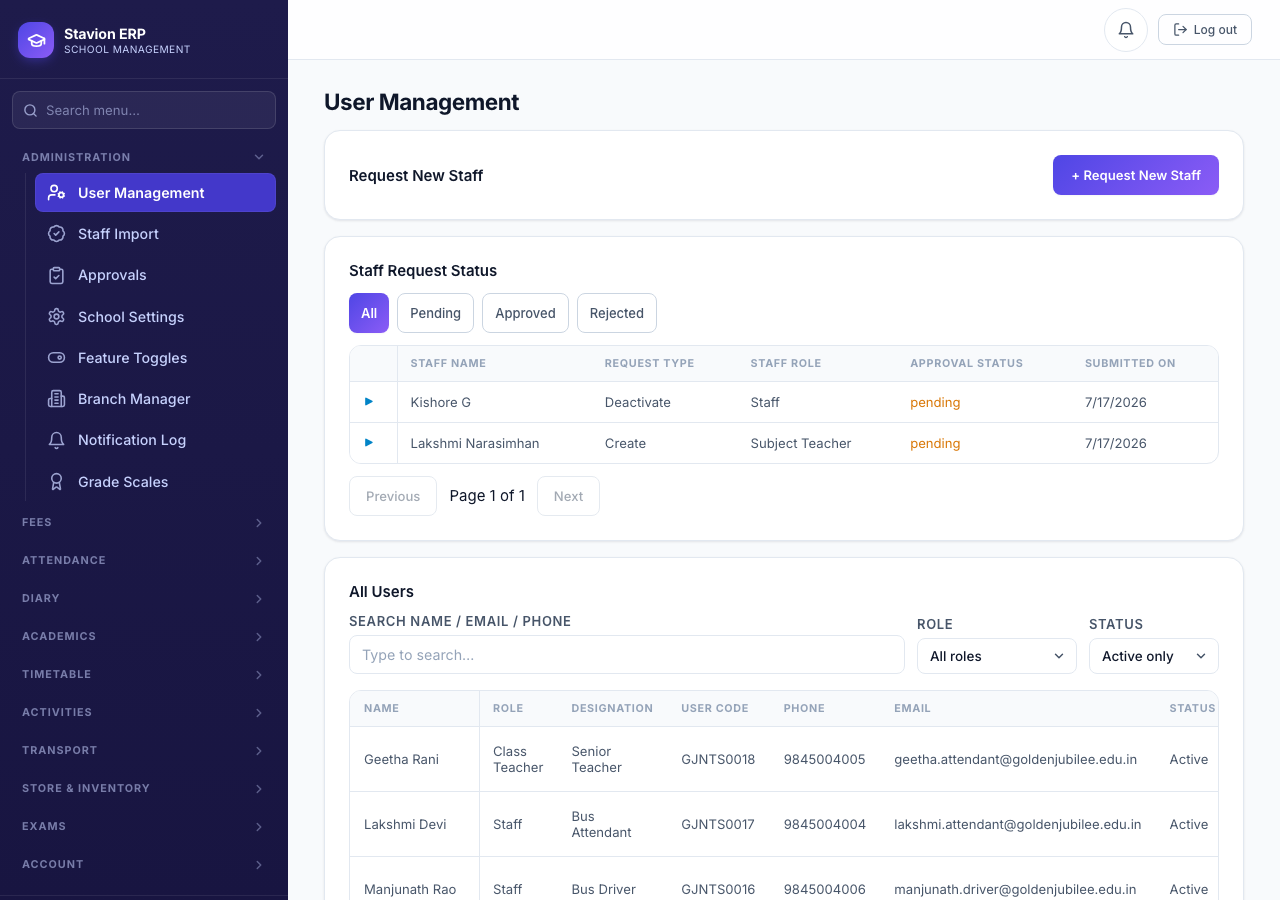
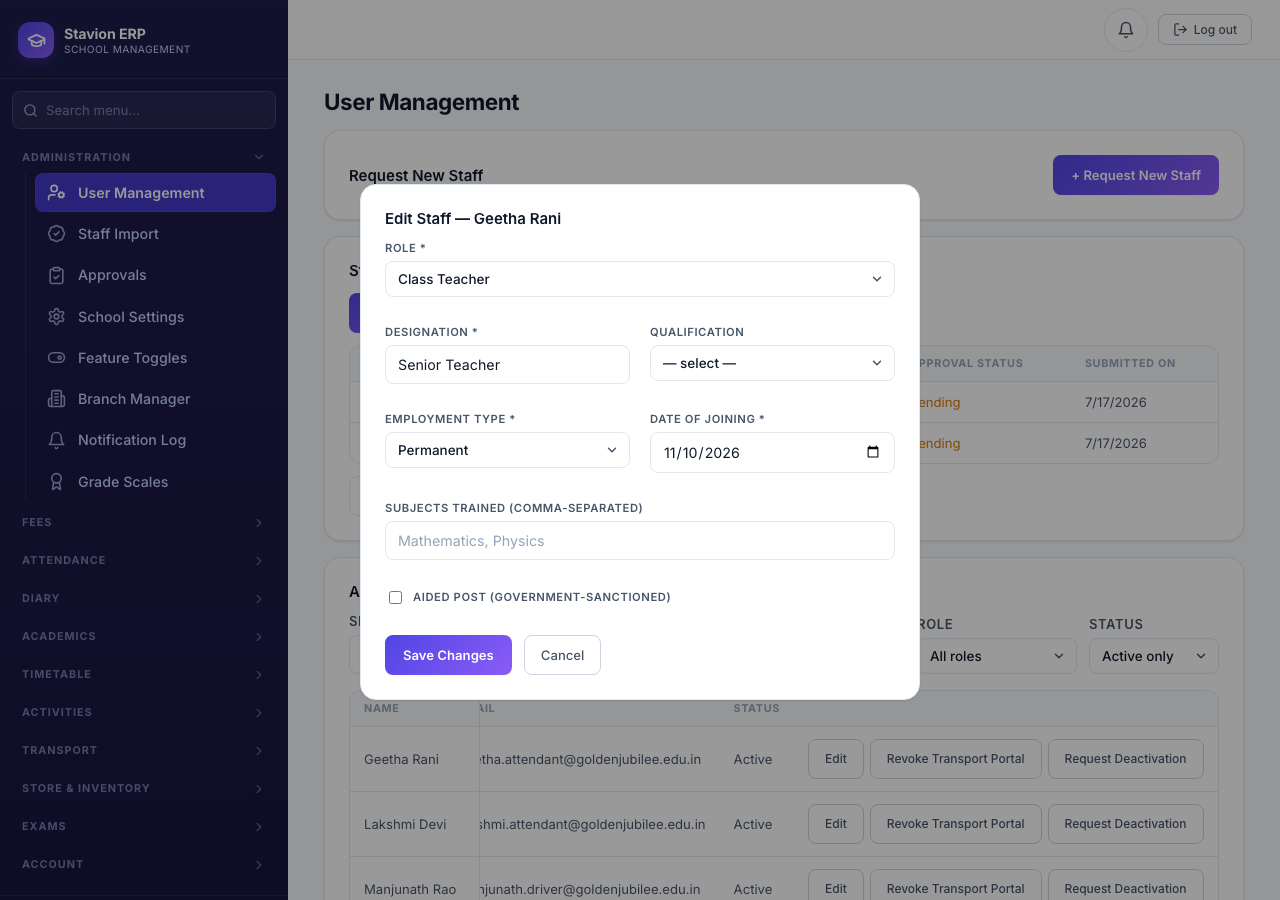
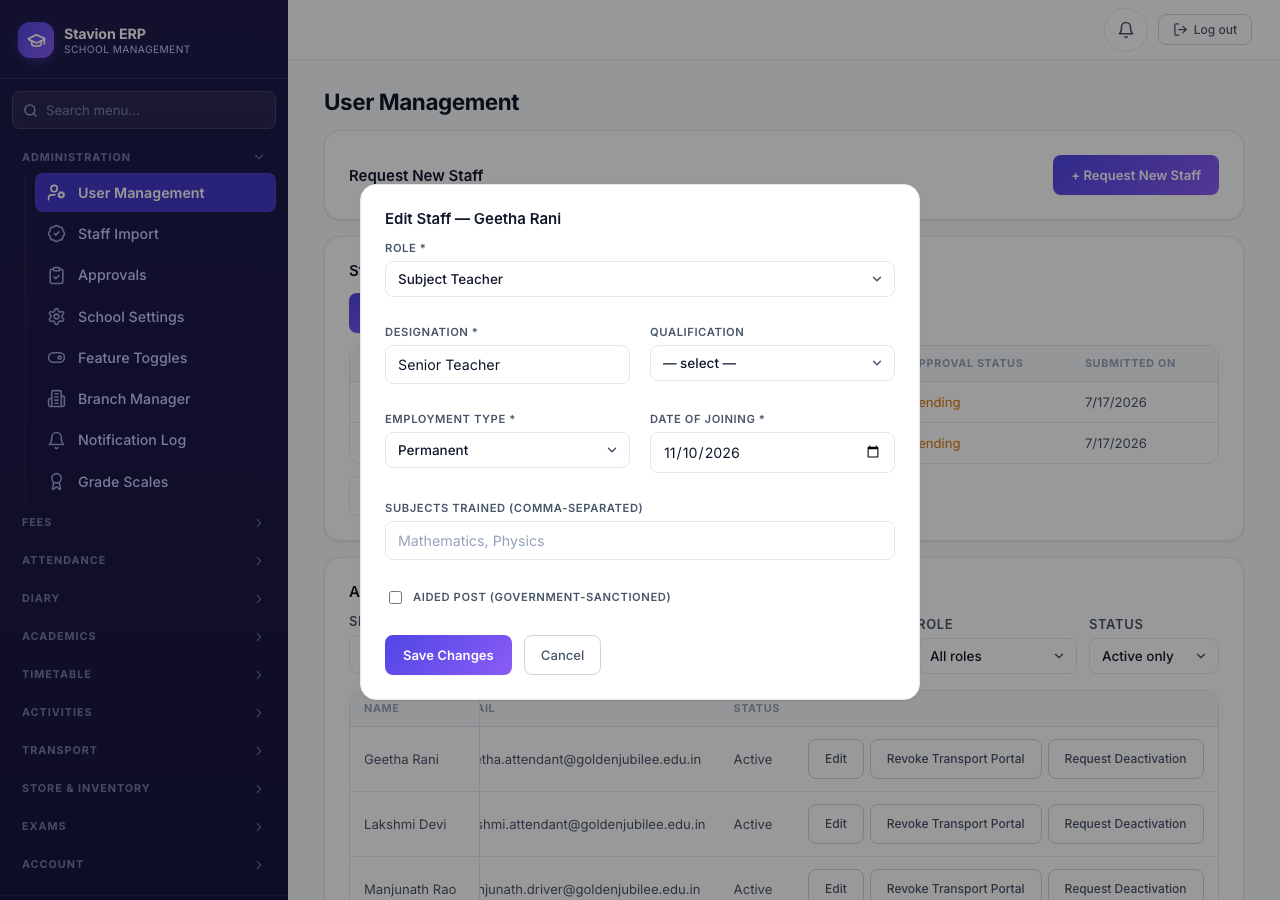
2.5 Role display names & per-person titles
Two related but different ways to change what a role is called:
| Mechanism | Scope | Access effect | Where to set it |
|---|---|---|---|
| Role display name | Whole school — every account with that role is shown under the new name (e.g. every Principal is called "Headmaster"). | None — purely cosmetic. The underlying role, and everything it can access, is unchanged. | School Settings → Role Display Names. |
| Designation | Per person — two accounts with the identical role can carry different designations (e.g. one School Admin tagged "Senior Admin", another just "Admin"). | None — same role, same access either way. | Request New Staff, or Edit Staff for an existing account. |
Use a role display name when everyone in a role should be called something else school-wide. Use Designation when different people who share a role need different titles — a seniority distinction (Senior Teacher vs. Teacher, Senior Admin vs. Admin) without creating a new role or changing anyone's access.
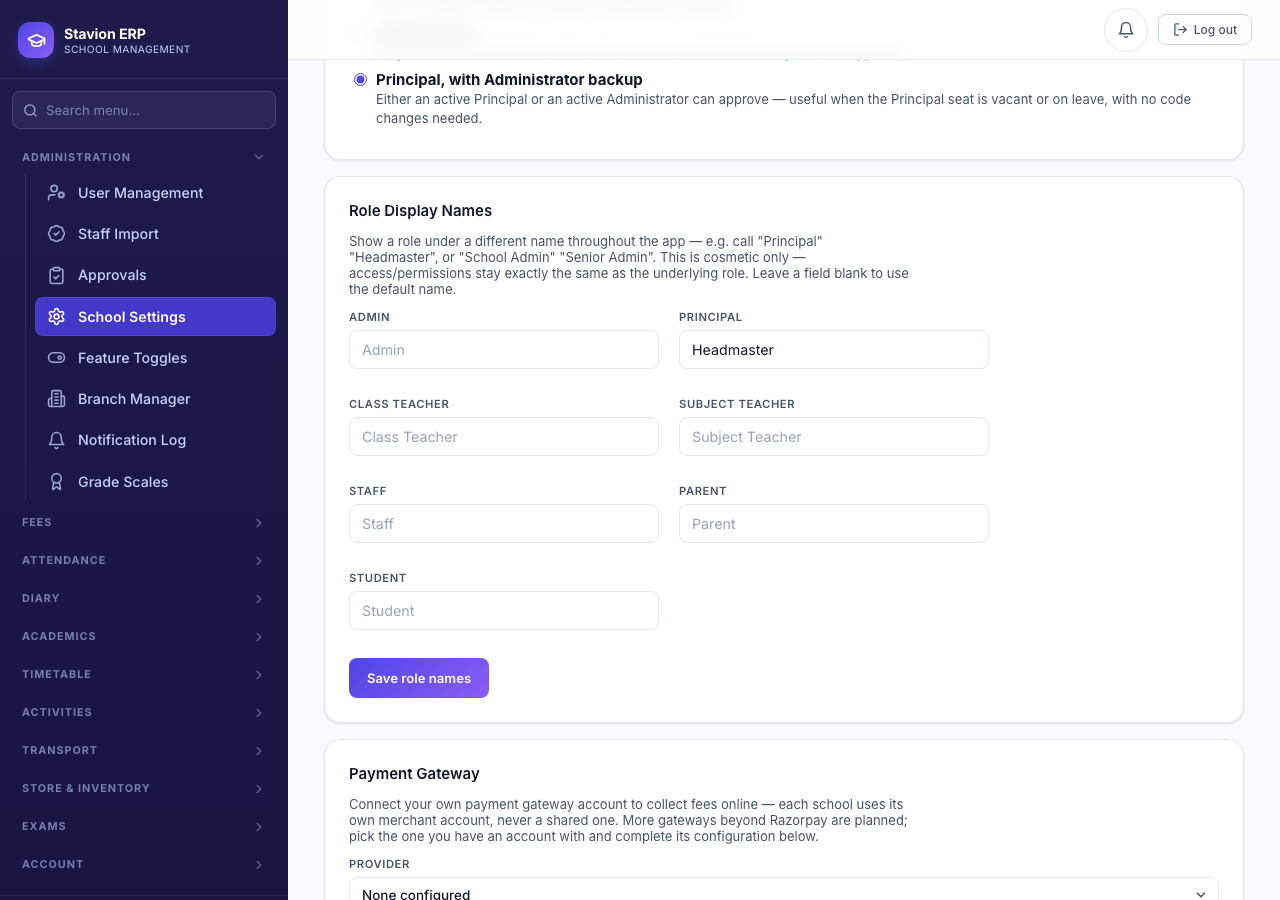
CampusOS has 7 fixed roles (School Admin, Principal, Class Teacher, Subject Teacher, Non Teaching Staff, Parent, Student). Role display names and Designations both change what text is shown, never what an account can actually do — every permission check still matches the real underlying role.