Fee Management
Overview
Fees in CampusOS are built in layers rather than as one flat "fee amount" field, because real schools need to change one part (say, this year's Library Fee) without rebuilding everything, discount an individual student without touching the whole class's plan, and add a new charge (a school trip, a uniform set) without writing code. This chapter also covers the biggest change to this module recently: a Fee Structure's due-date calendar is no longer something you build by hand — saving Group Configuration now keeps it in sync automatically, and every structure moves through a real Draft → Active → Archived lifecycle that controls exactly when it can be assigned, edited, or deleted.
Key concepts
- 1. Fee ComponentA single named charge, e.g. "Tuition Fee," "Computer Lab Fee," or a Transport route's own fee. Components are reusable — the same component can appear in every class's Fee Structure. The amount you enter is always the annual figure, however often the student actually gets billed.
- 2. Fee StructureA class's complete fee plan for an academic year. You no longer build its Installments by hand — you configure which groups (Academic, Transport, Hostel, Miscellaneous) are enabled and how often each bills, and the due-date calendar generates and stays in sync automatically.
- 3. Structure LifecycleEvery Fee Structure is
draft,active, orarchived. Onlyactivecan be assigned to a student or billed; once active, its own setup is locked; archiving requires zero students still assigned. - 4. ConcessionA discount rule (percentage or fixed amount) applied to one student — e.g. a 10% Sibling Discount — optionally requiring a real uploaded document before it can be applied. Applying one after invoices already exist offers an explicit choice: recompute those too, or start from the next Generate.
- 5. InvoiceThe final, computed, per-student bill for one due date: every attached component's amount, minus whatever concessions apply to that student. Consolidated mode merges every group's charges due on the same date onto one invoice; Group-wise never merges them.
Components
Define the named charges once (Tuition, Transport, Uniform…).
Structure
Configure each group's cadence — the calendar builds itself.
Activate
Only an Active structure can ever be assigned or billed.
Tag & Concede
Assign the student, apply any discount that applies to them.
Generate
Produce the real invoice and verify the math.
Why this order matters: a Structure can't be activated with nothing configured, and Generate needs an Active structure with at least one enabled group — Concessions can be created any time, but only change what's billed once applied to a student.
4.1 Fee Components
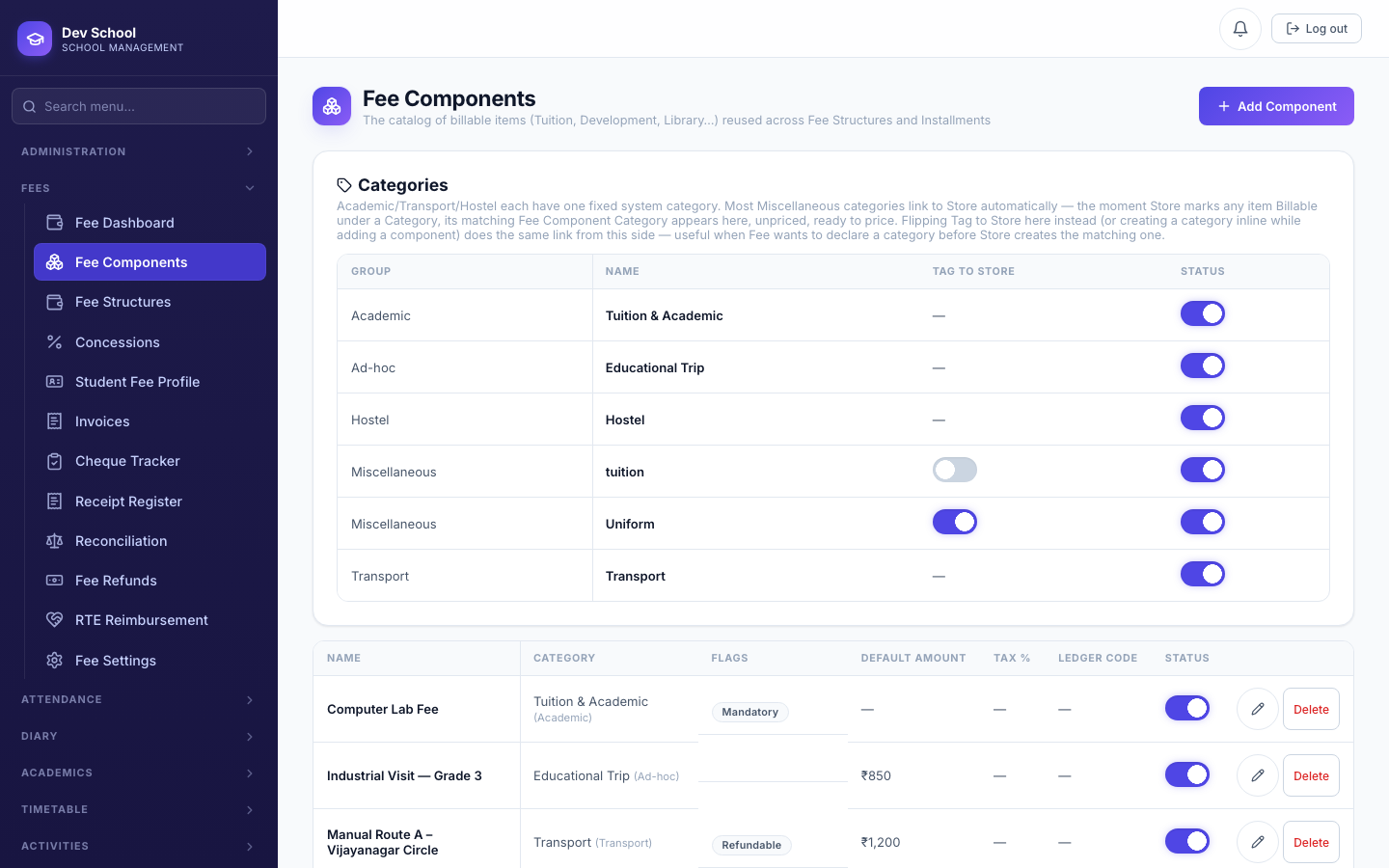
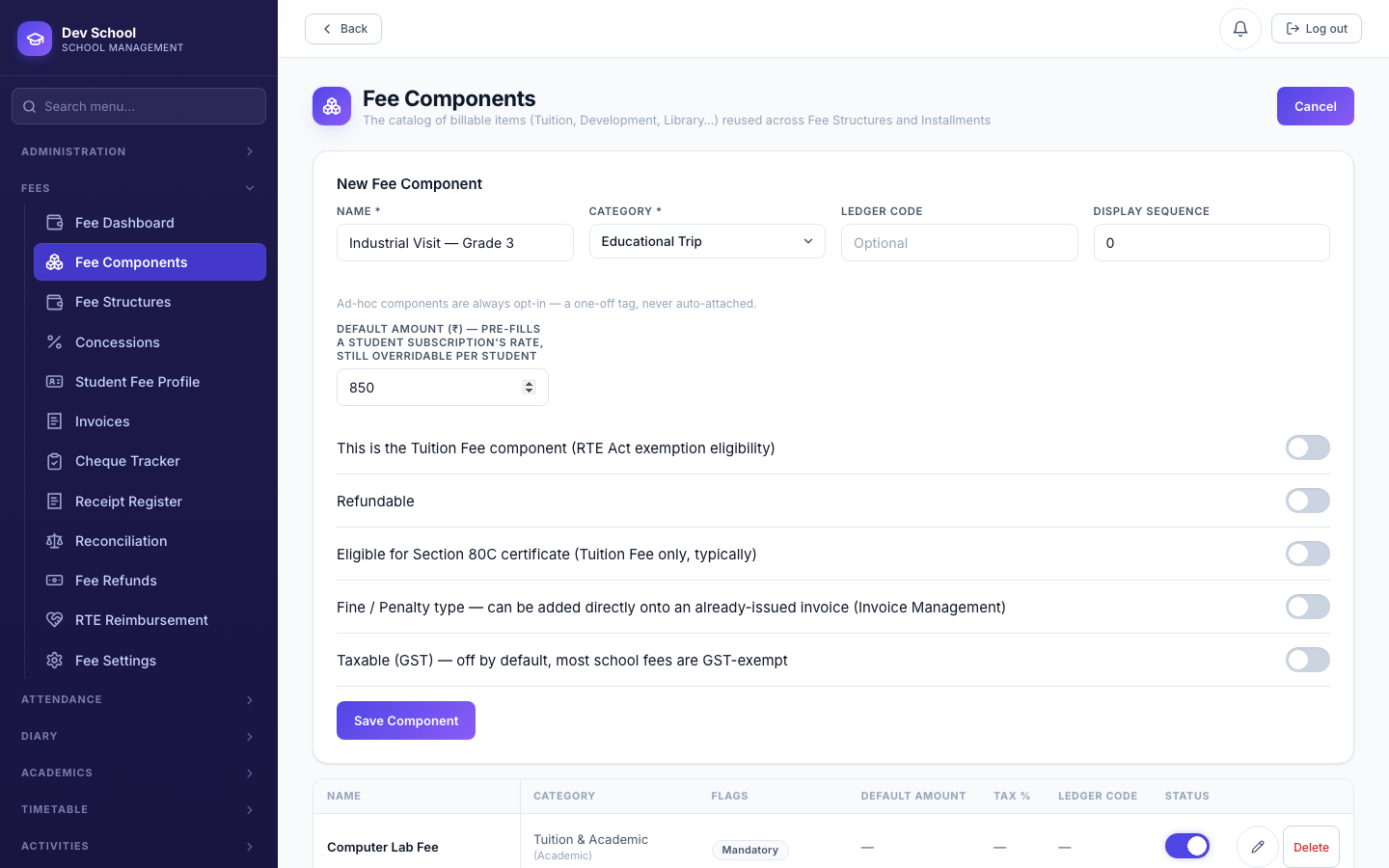
A Fee Component is the reusable building block every Fee Structure, Transport route, Store item, and ad-hoc charge is ultimately made of. Create the ones your school actually charges once, then reuse them everywhere.
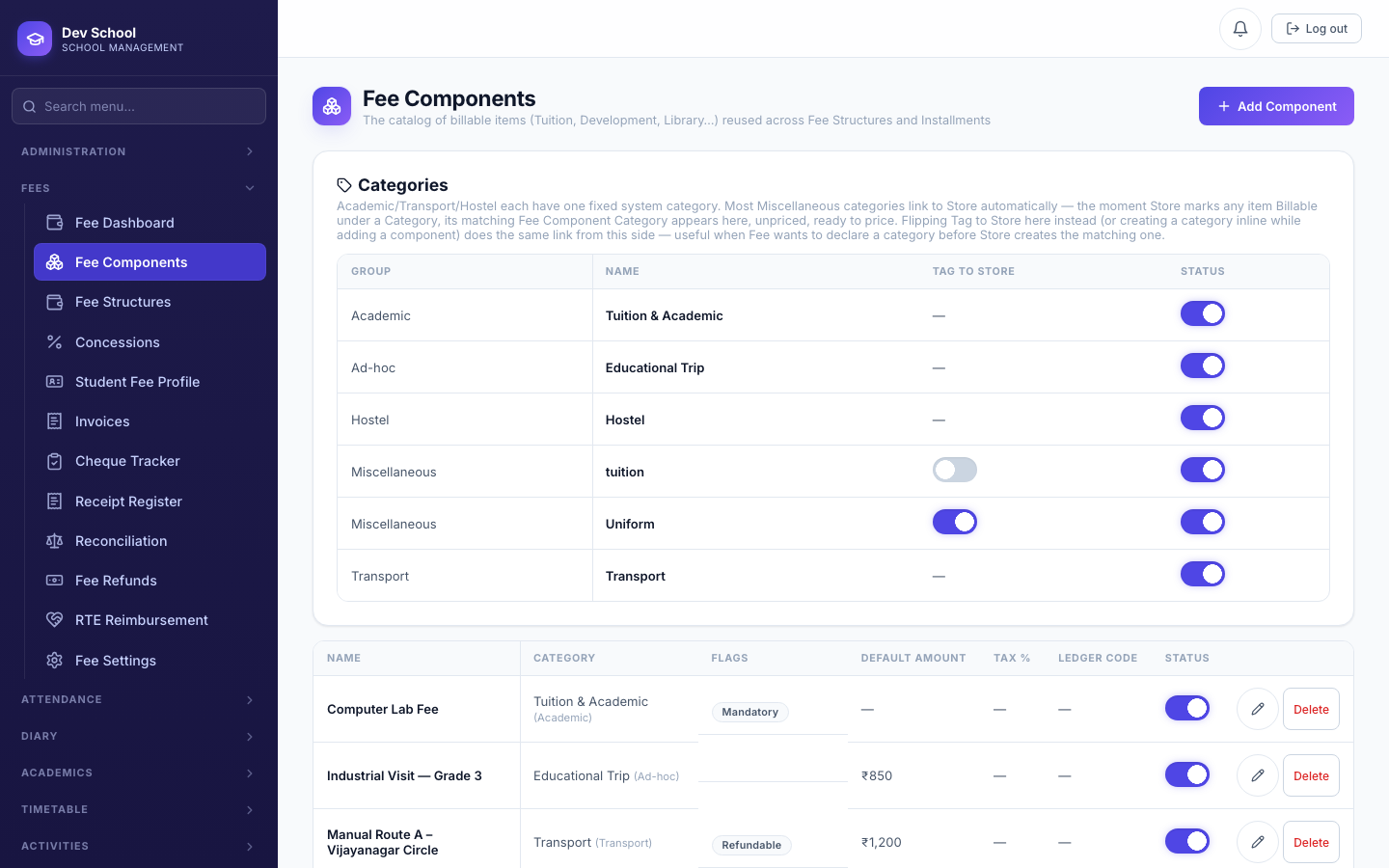
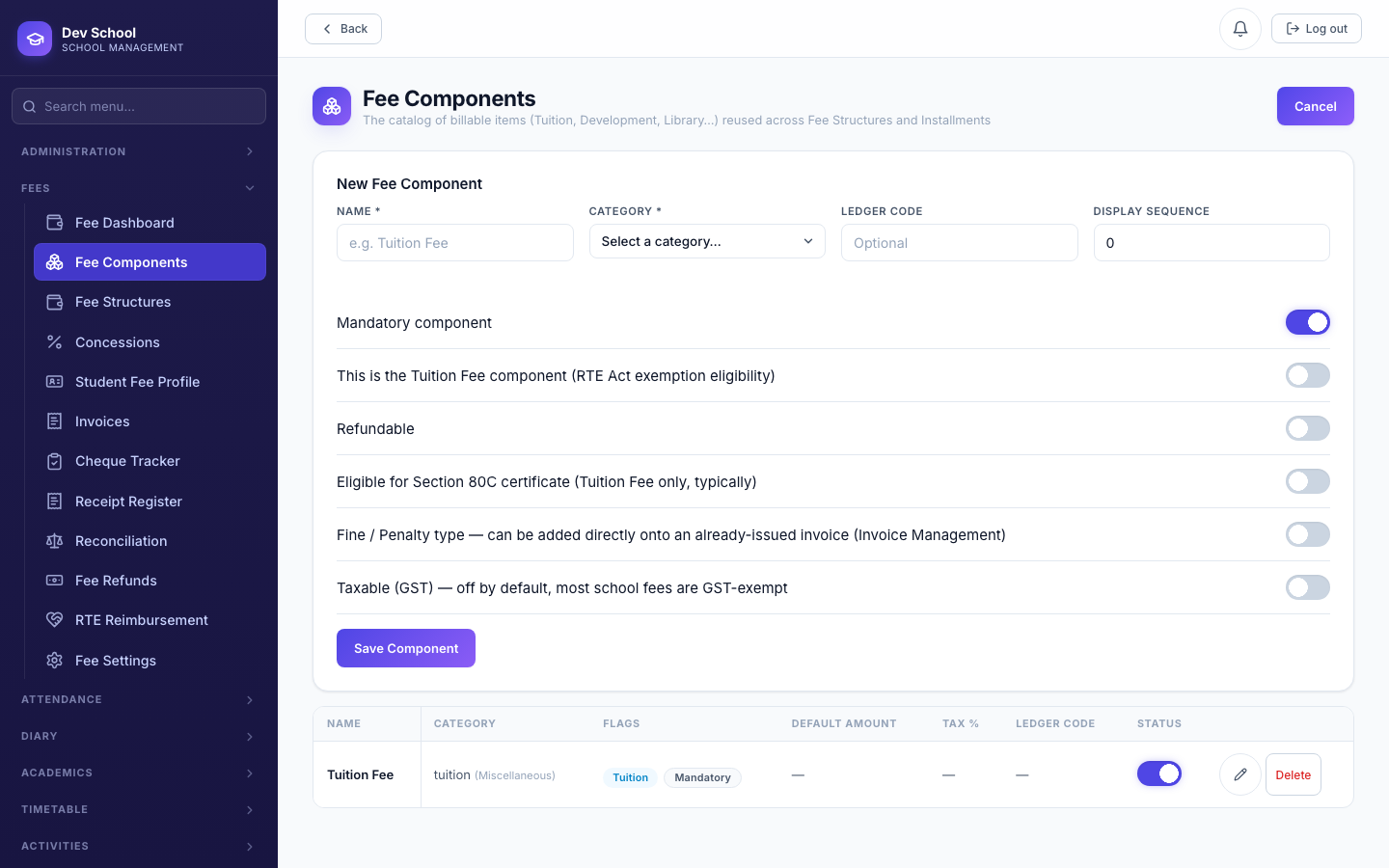
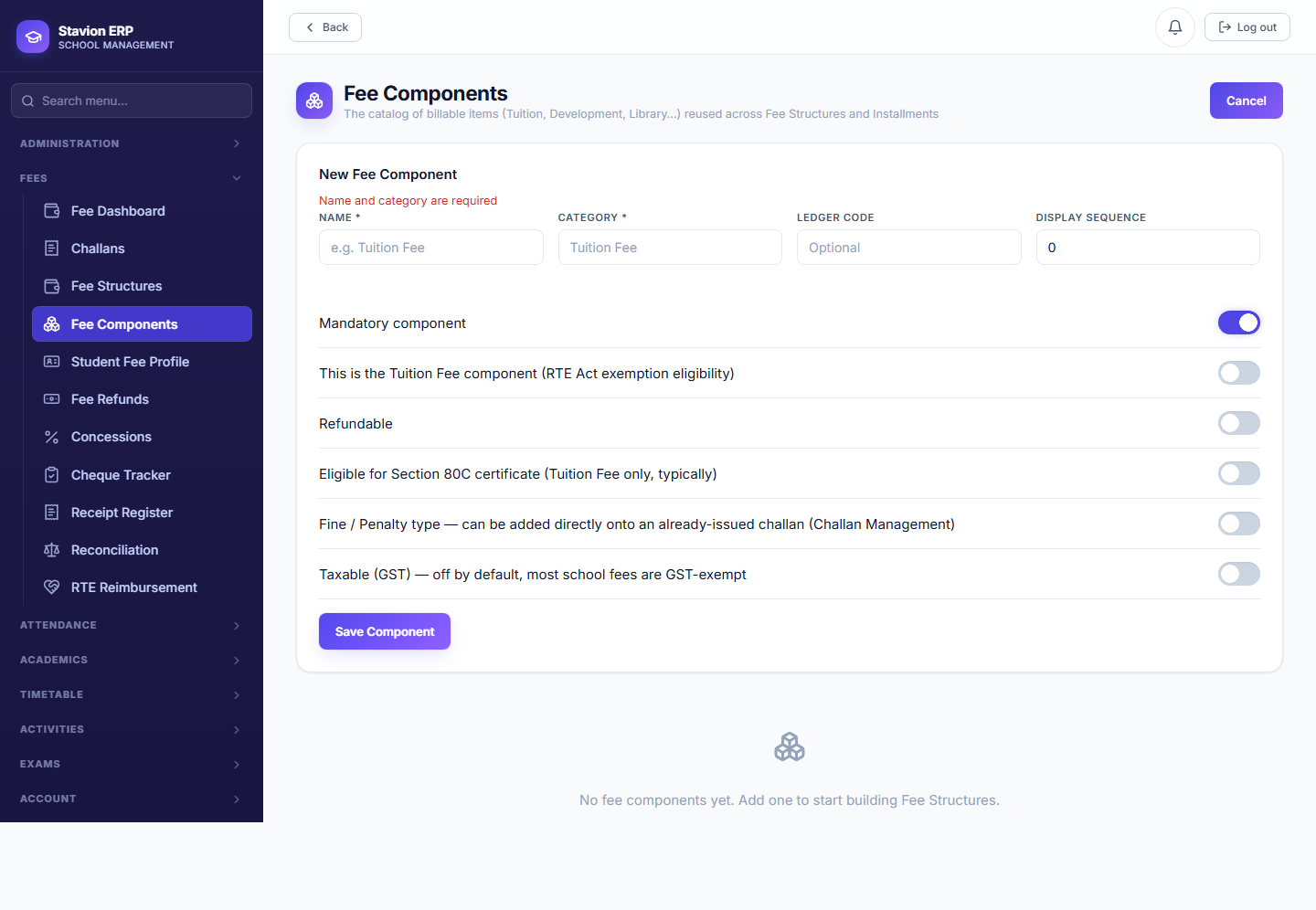
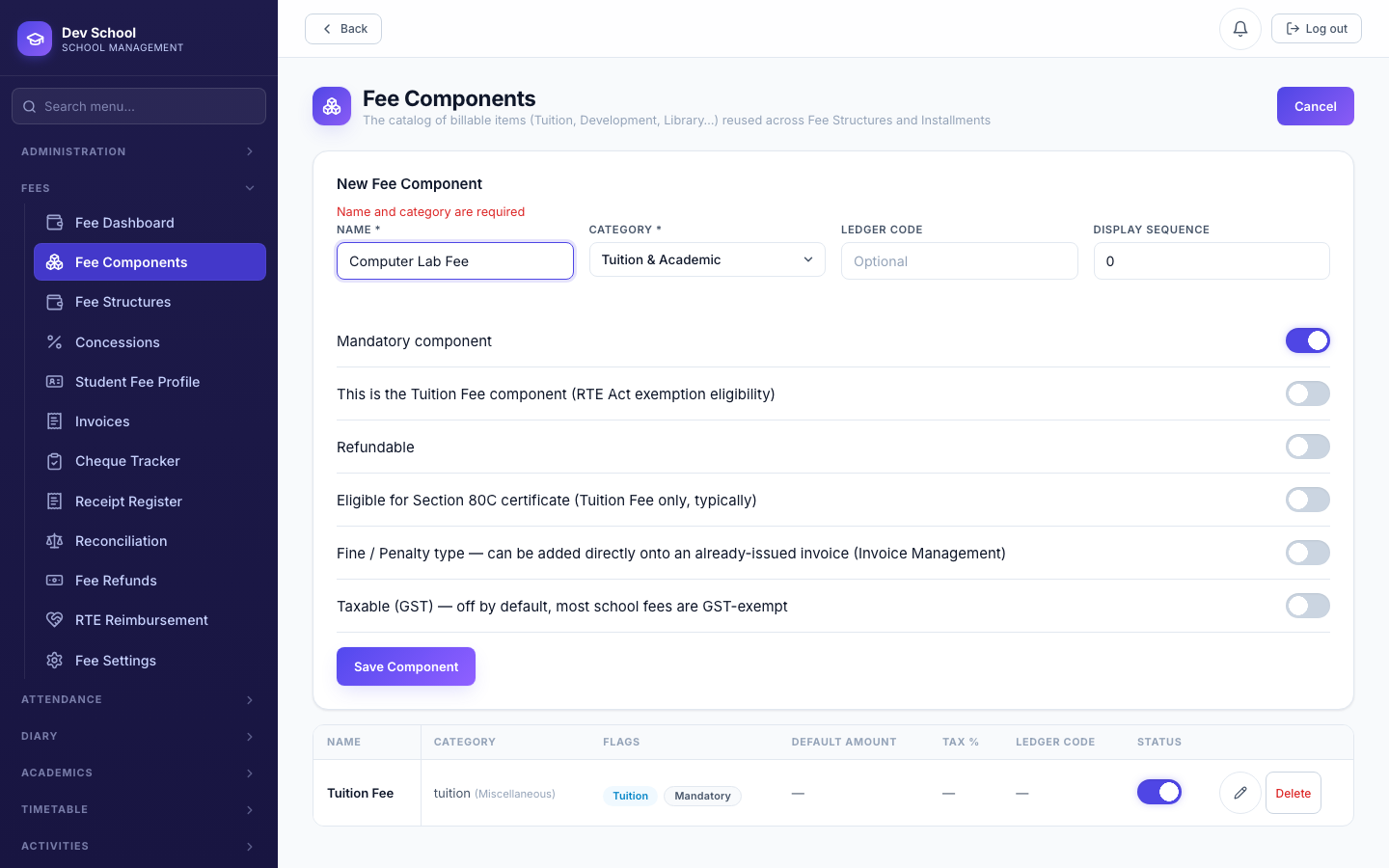
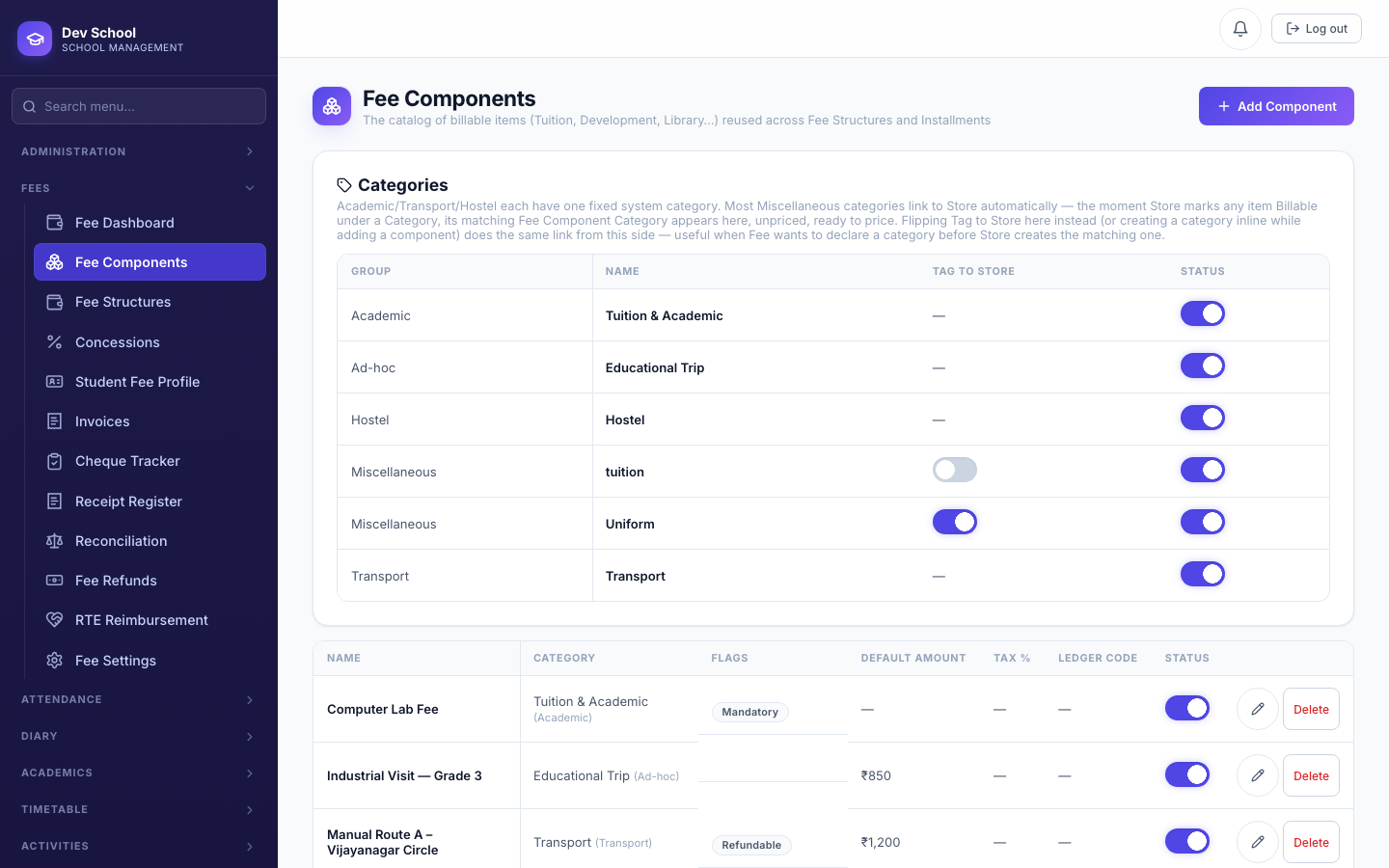
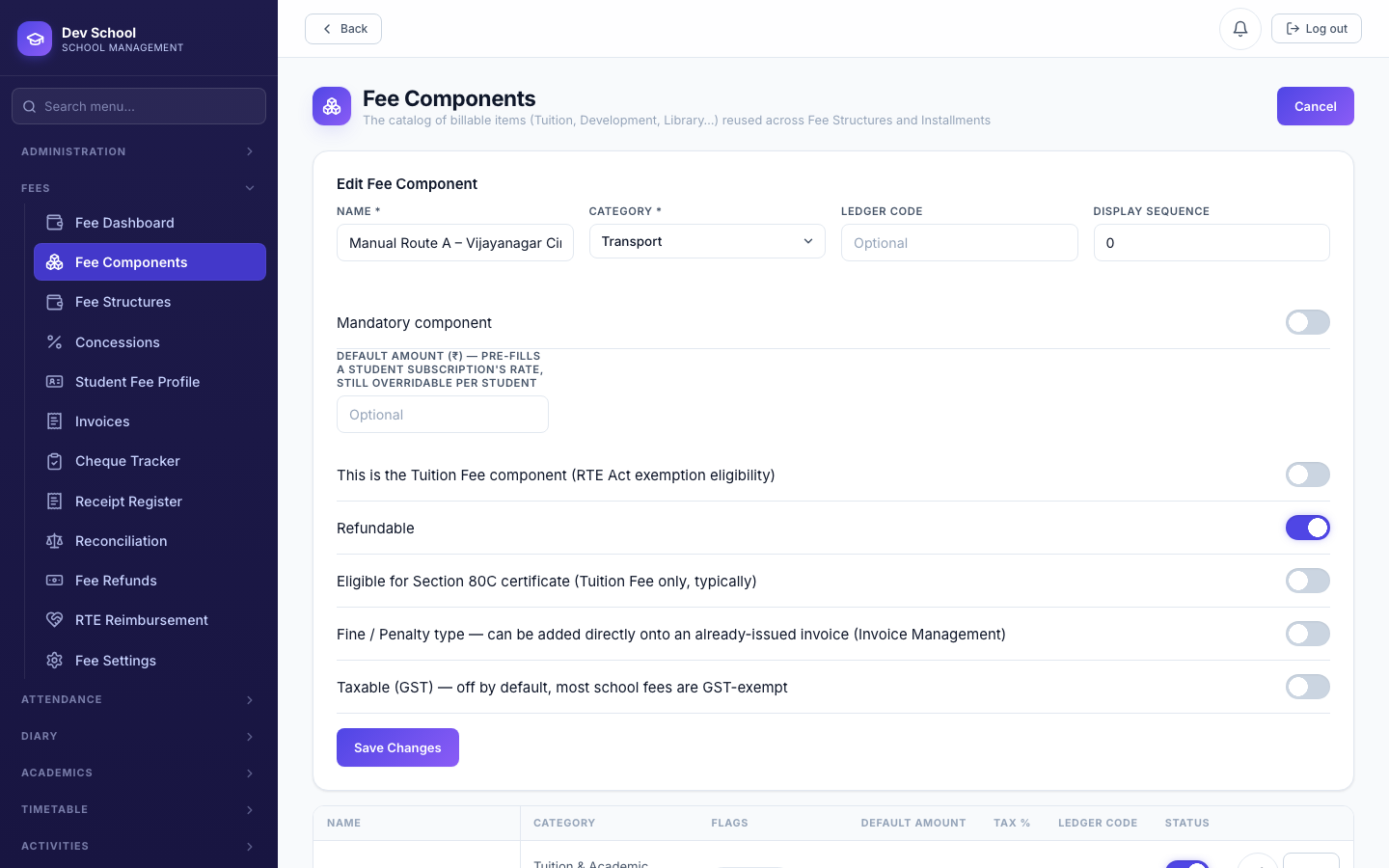
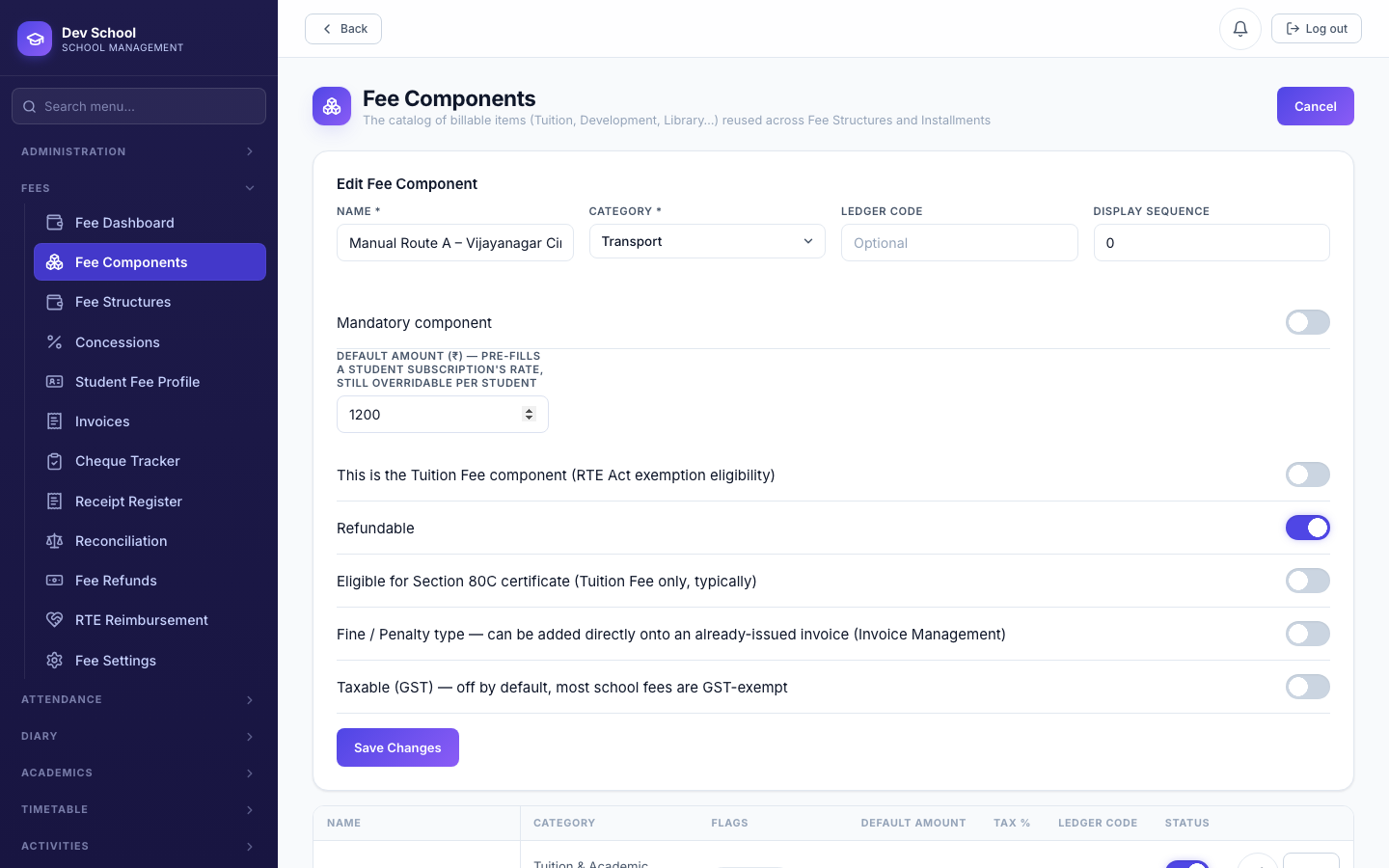
For any opt-in (non-mandatory) component, Default Amount pre-fills a student's subscription rate — but whatever number you enter is always interpreted as the annual total, however often the group actually bills. ₹1,200 entered here becomes ₹100/month if the group is monthly, or the full ₹1,200 if annual. It's also now a required field for an opt-in component — you cannot save one, or tag a student to it, without a real positive amount first.
| Field | Required | Description |
|---|---|---|
Name | Required | Must be unique. |
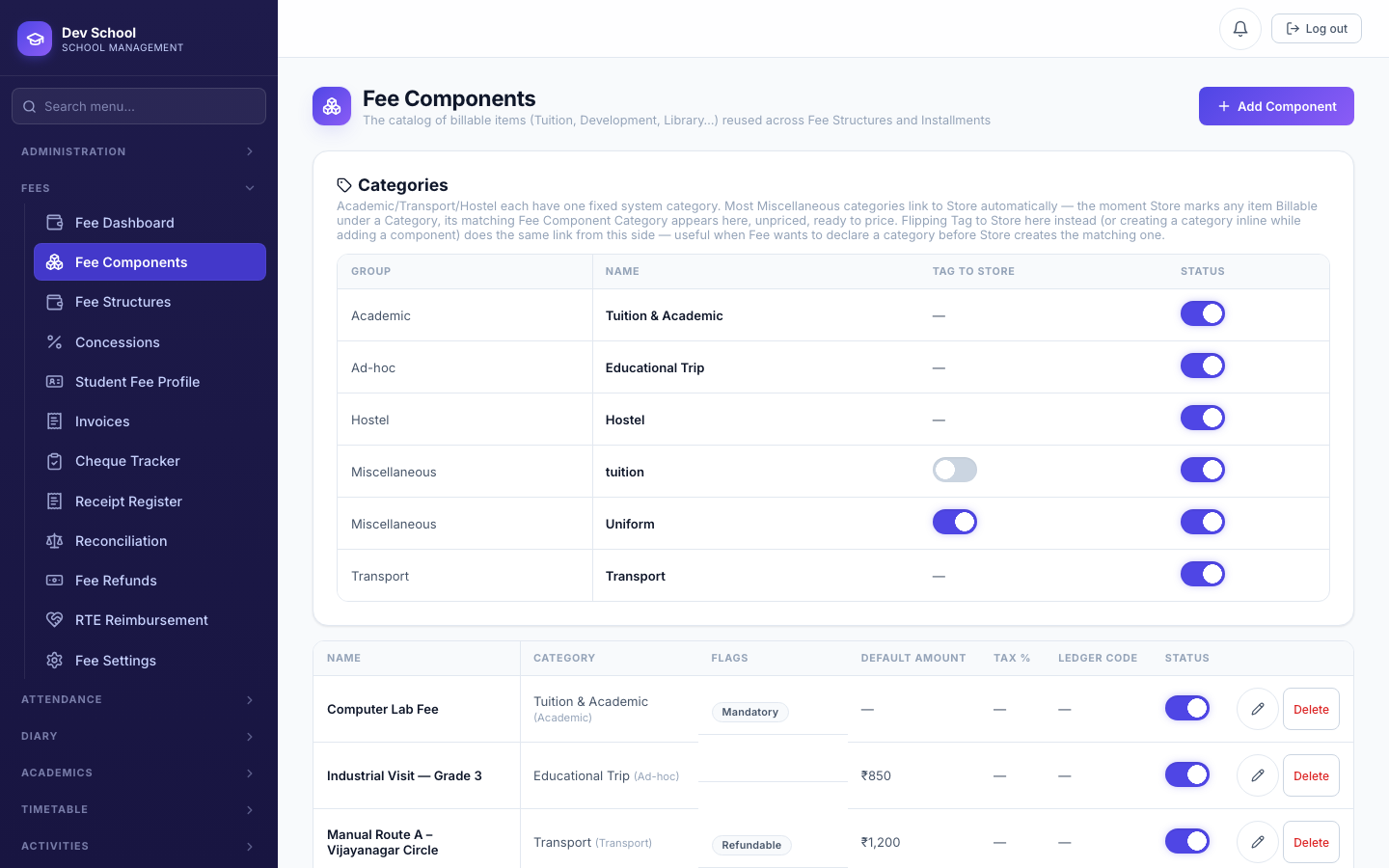
Category | Required | Which group (Academic, Transport, Hostel, Miscellaneous, Ad-hoc) this component belongs to — or create a new category inline. |
Default Amount (₹) | Required for opt-in components | The annual figure a subscription defaults to; not shown at all for Mandatory components (their price lives on the Fee Structure's own Academic Components list instead). |
Ledger Code | Optional | For accounting/export reconciliation. |
Display Sequence | Optional | Controls ordering on invoices and lists. |
Mandatory component | — | On: every student on a Fee Structure that includes it is billed automatically. Off: opt-in — a specific student must be tagged (a subscription) before it ever bills. |
4.2 Linking Transport & Store items to a fee
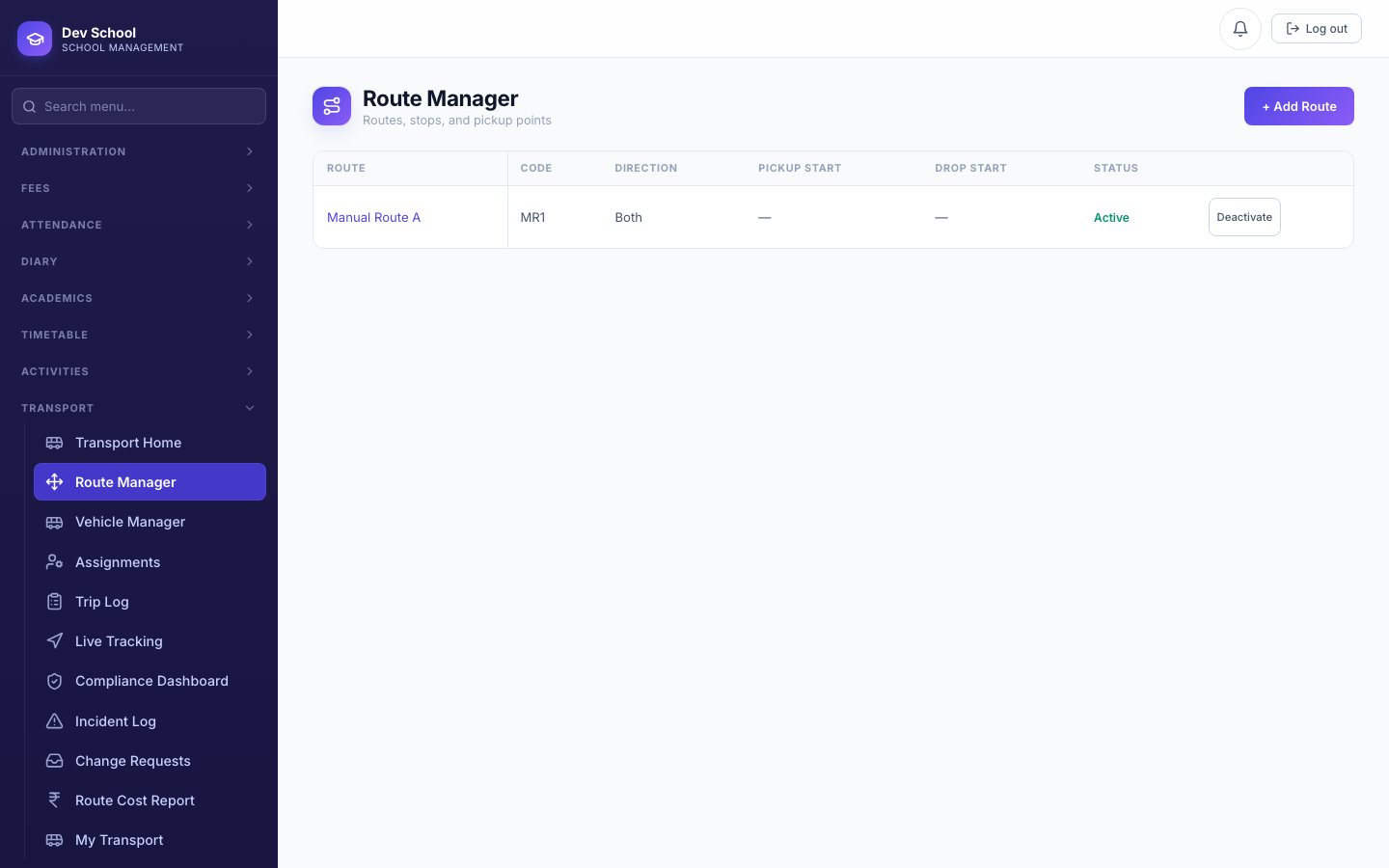
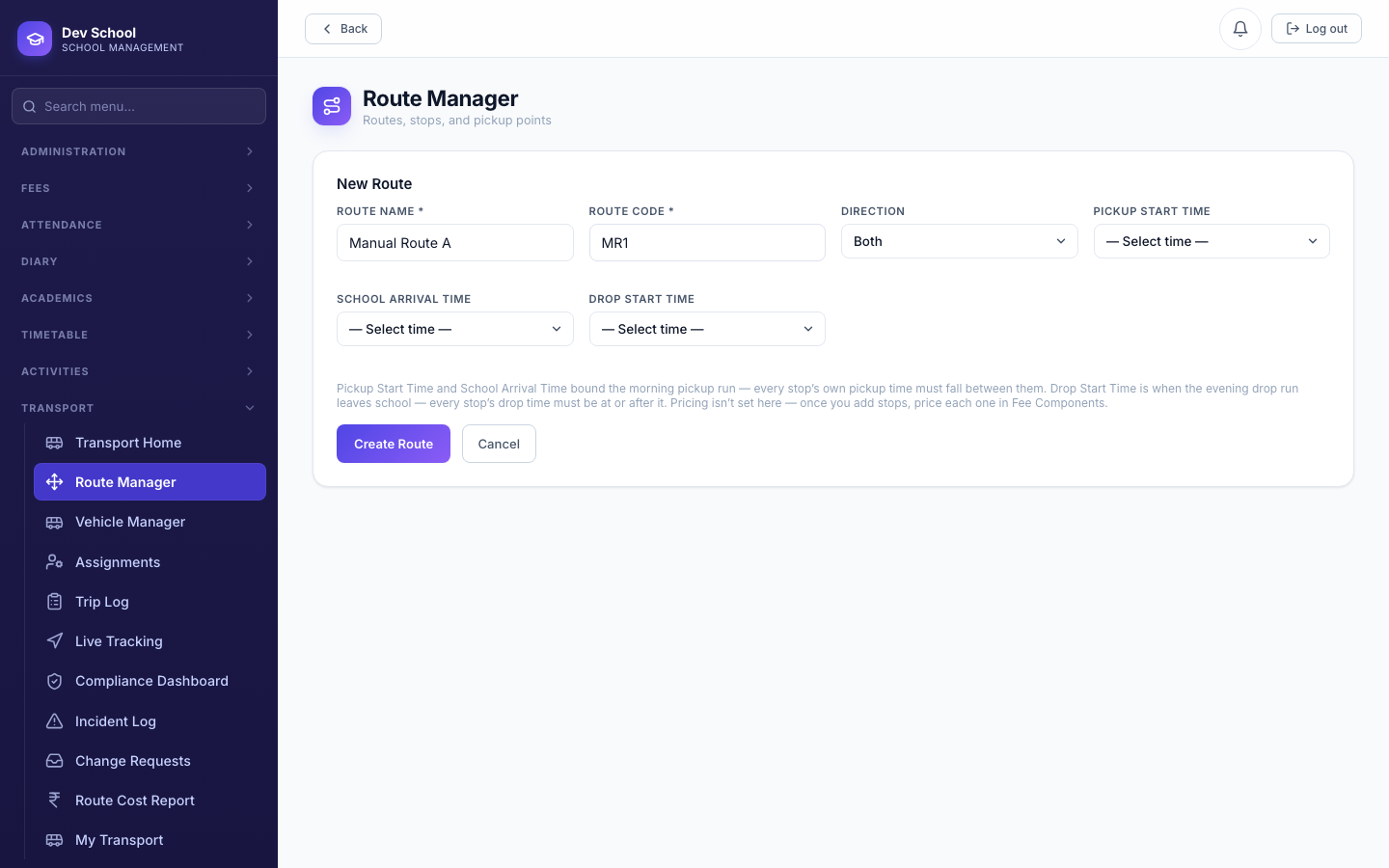
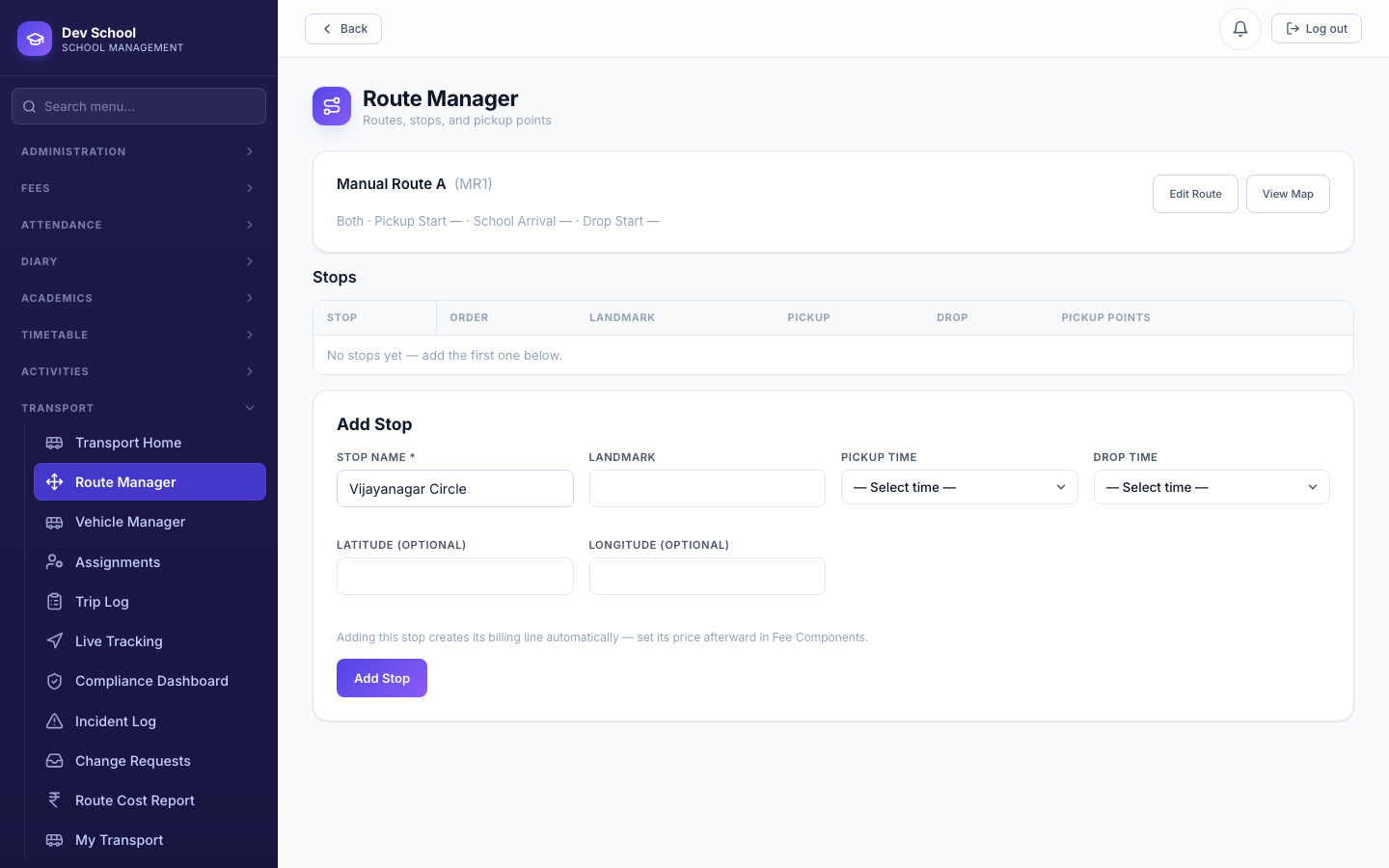
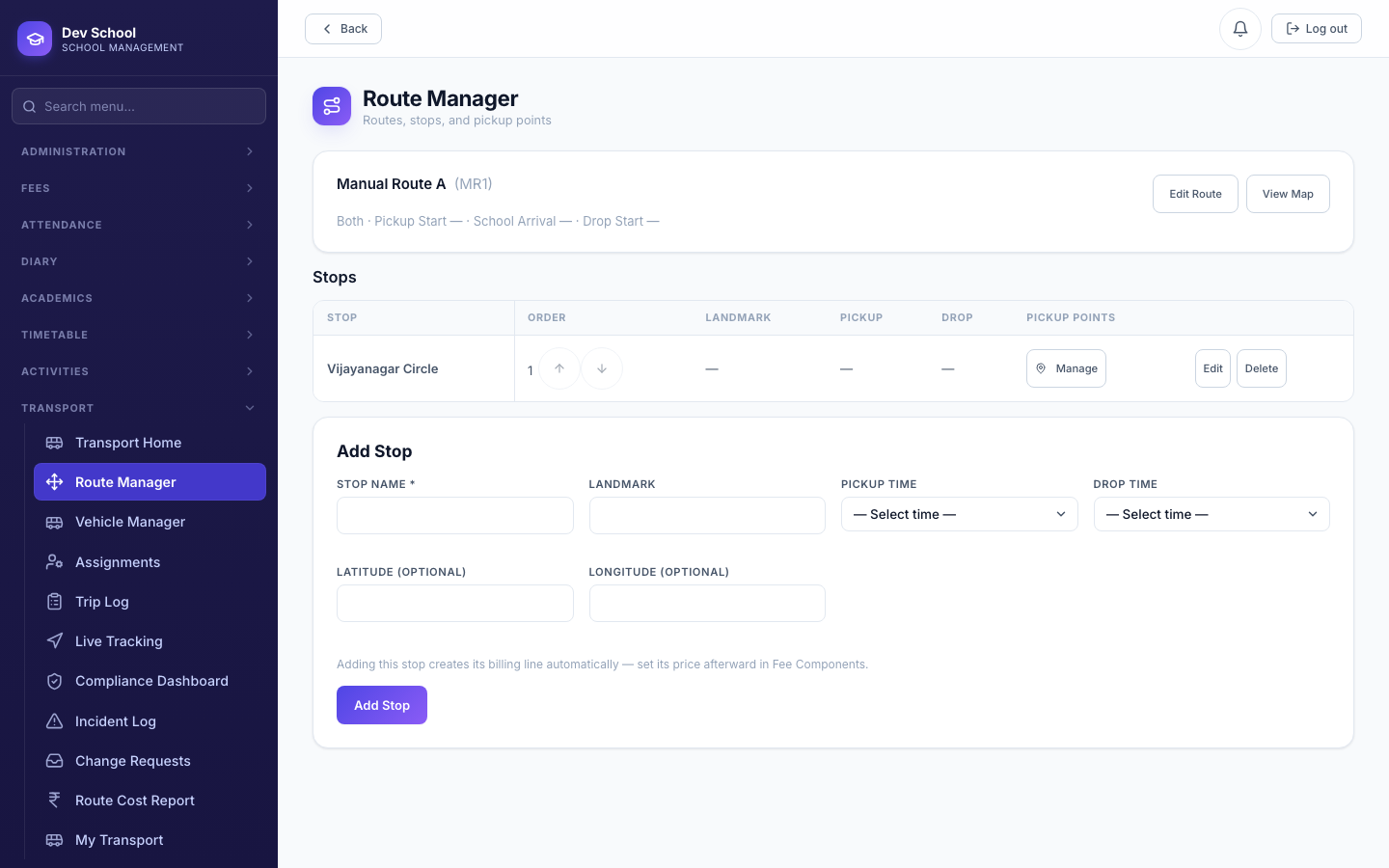
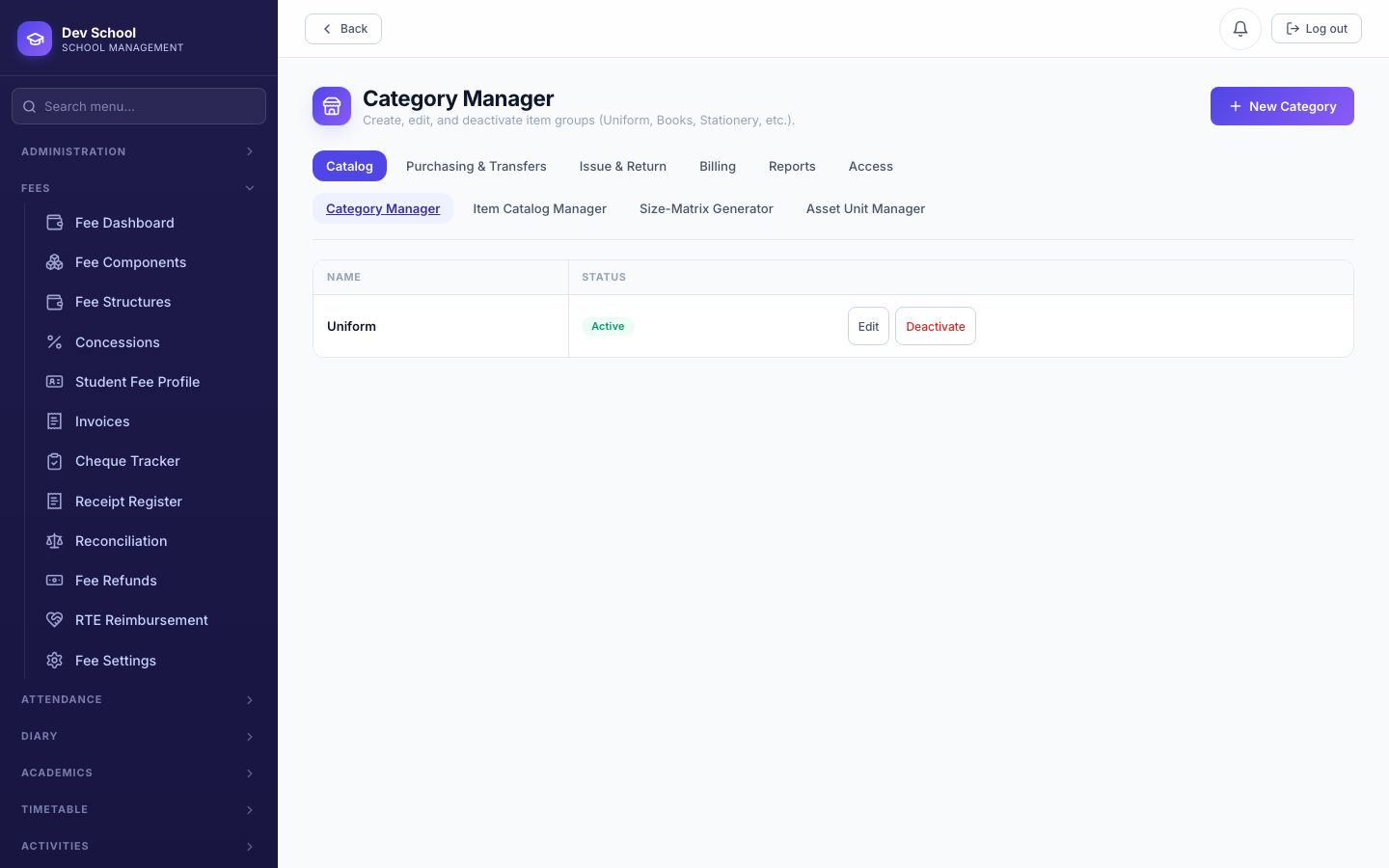
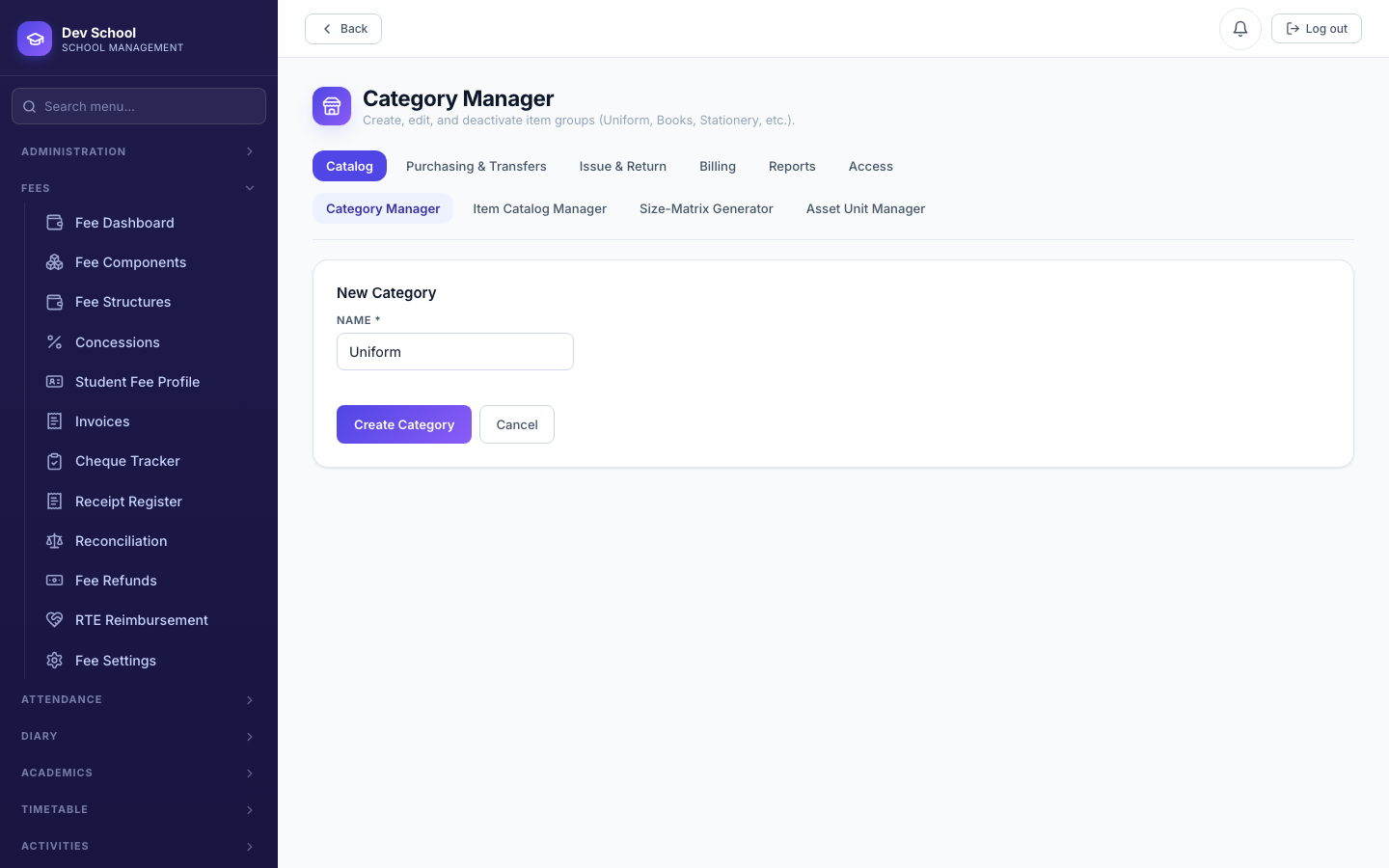
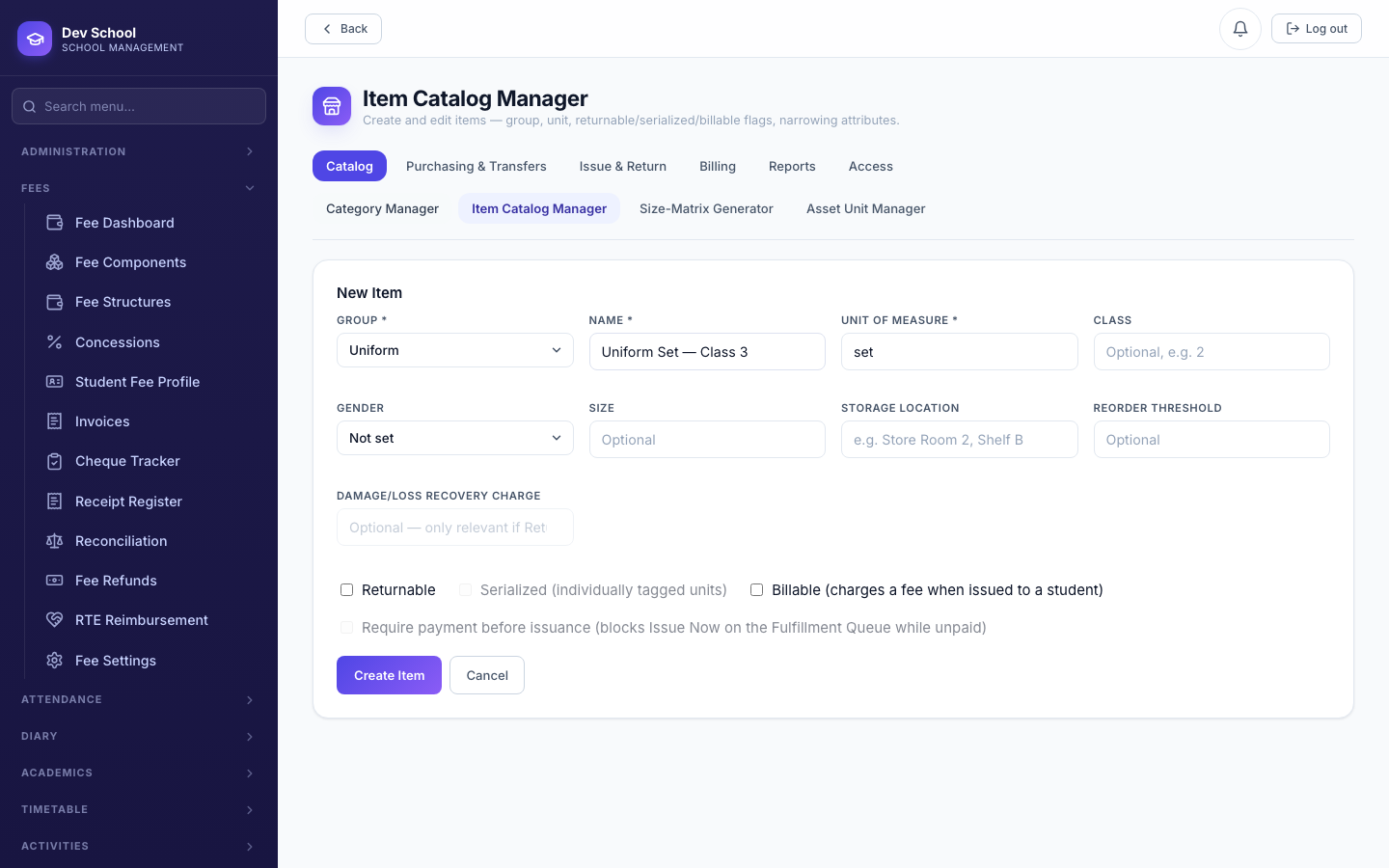
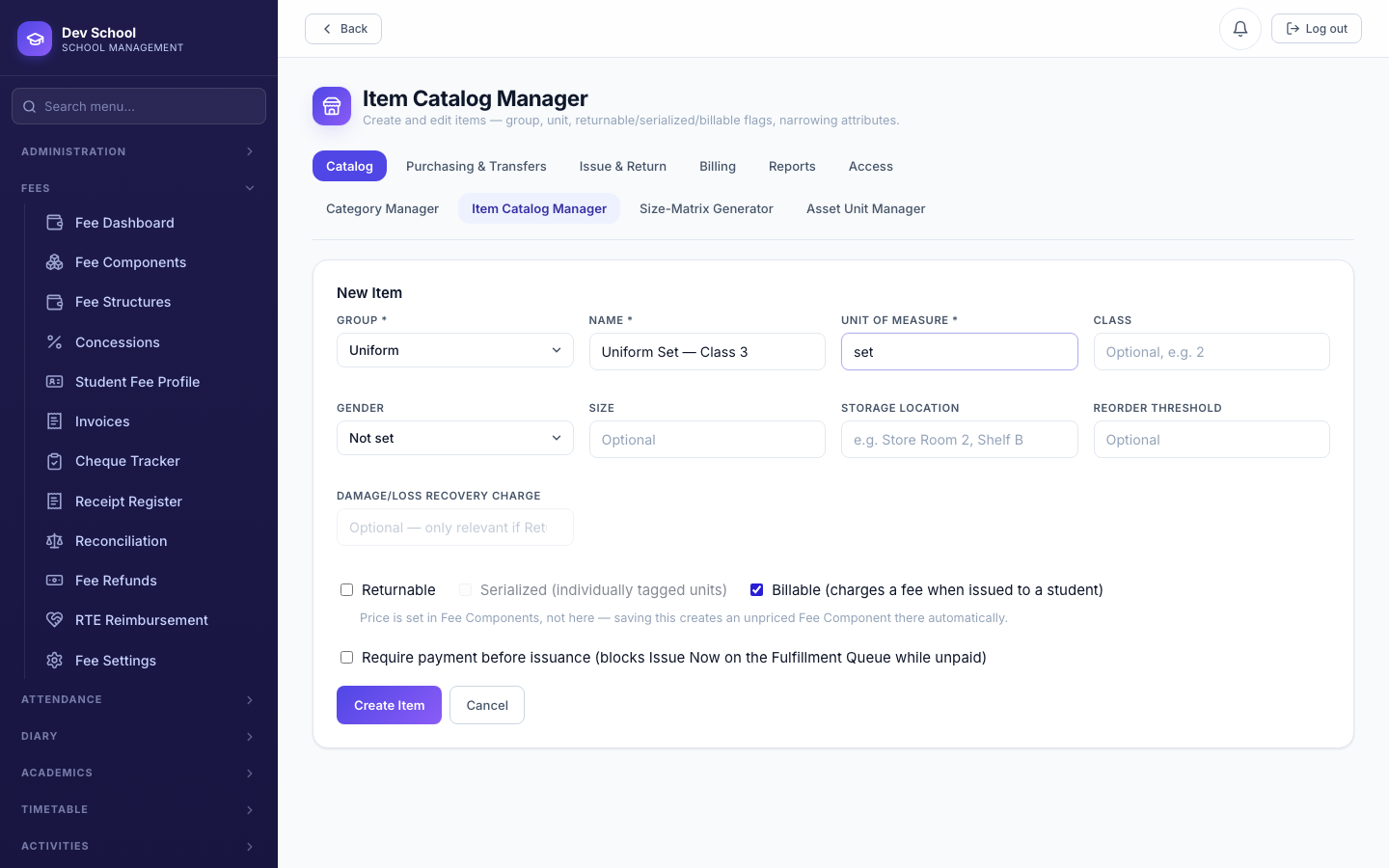
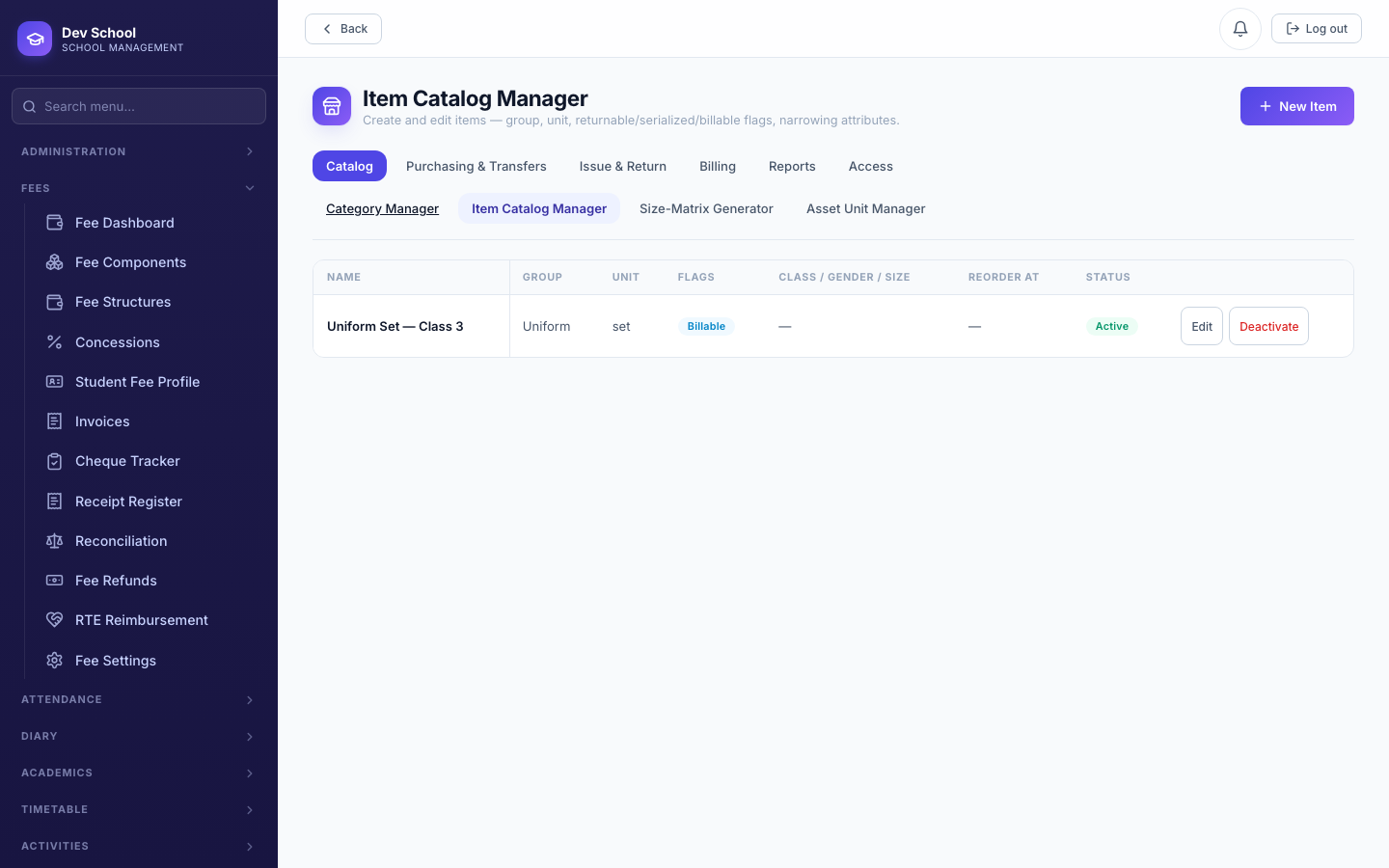
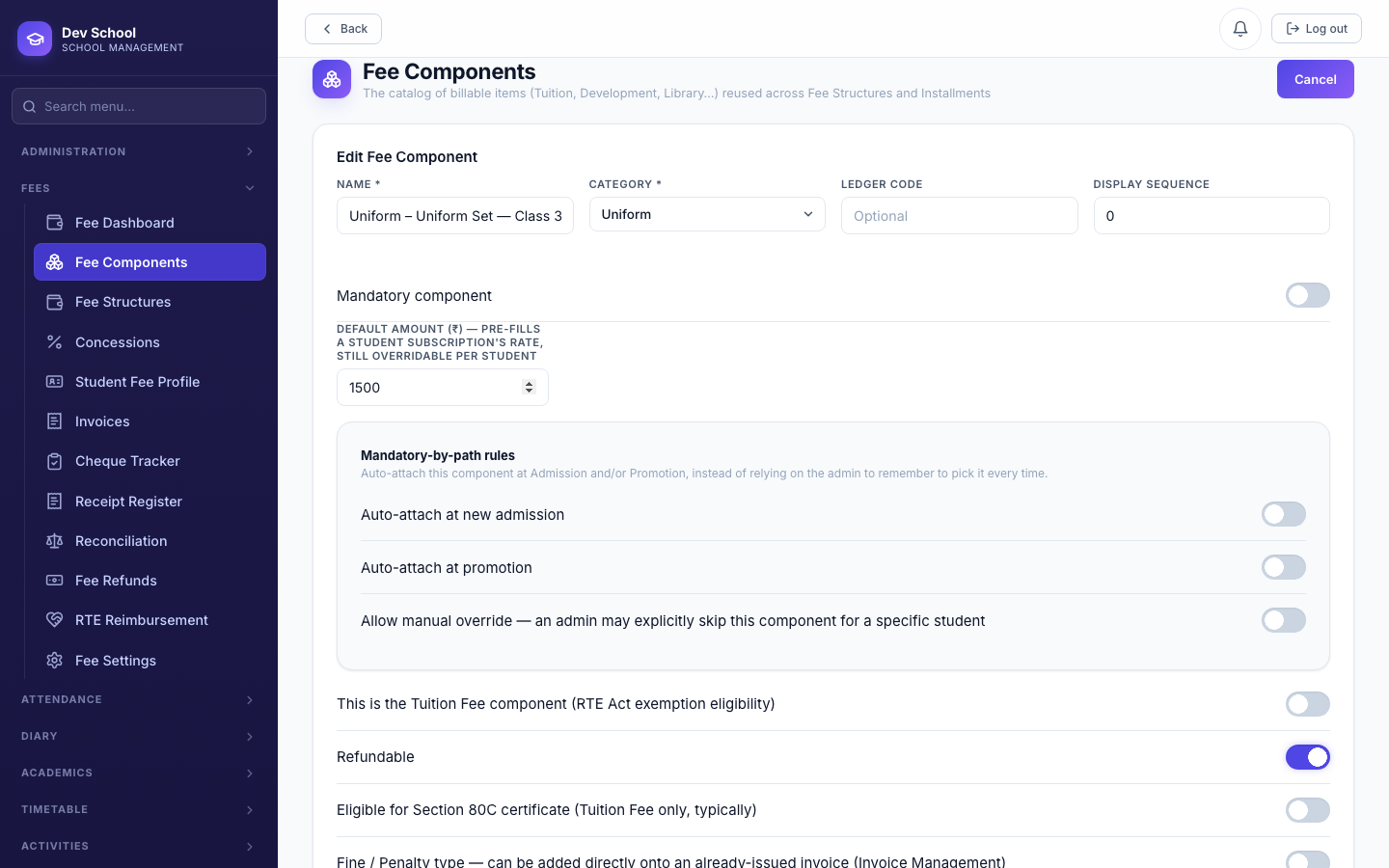
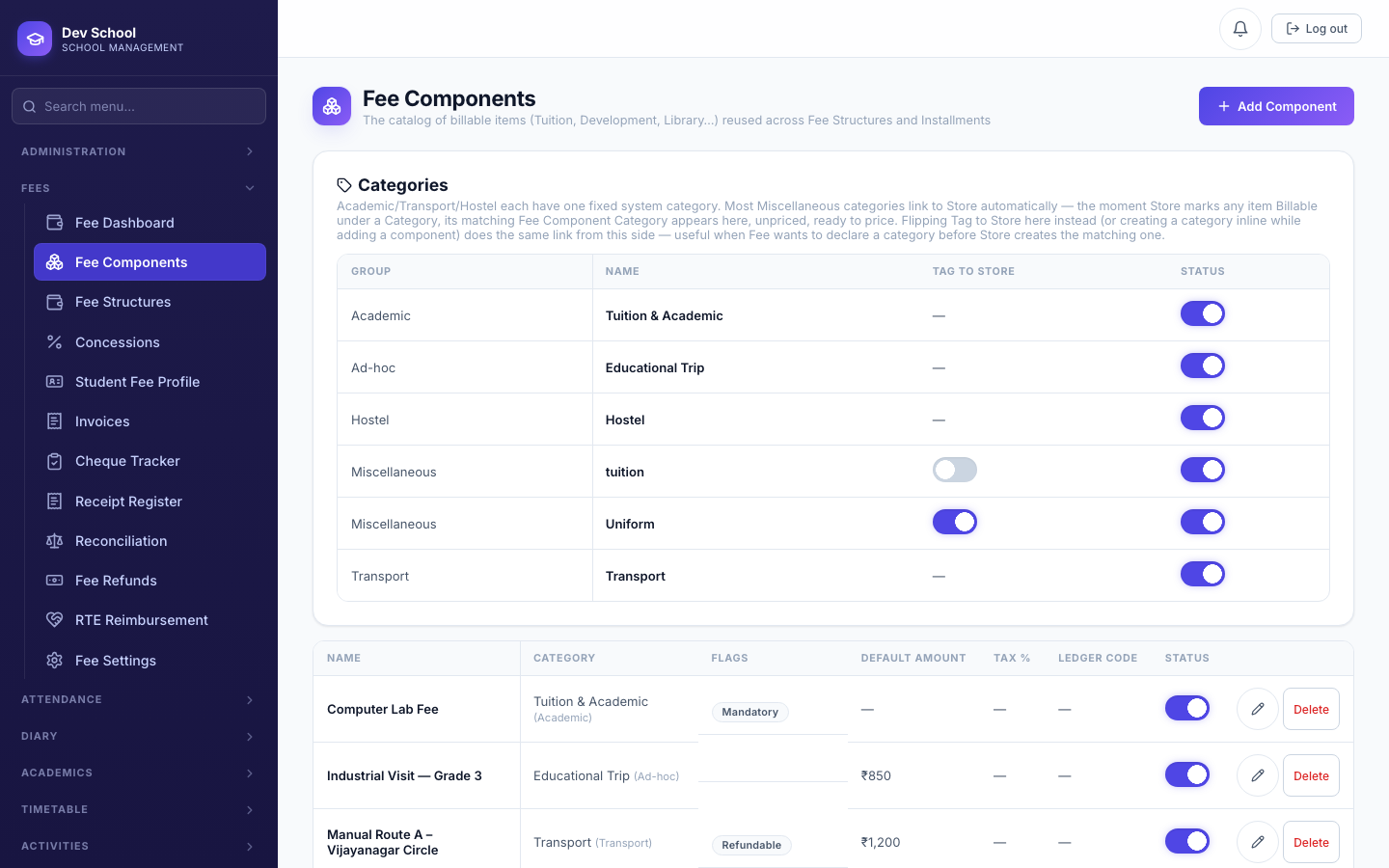
A Transport route's stop and a Store item (Uniform, Books) each automatically get their own linked Fee Component the moment you create them — you never create these fee components directly. Price them right here on the Fee Components page, exactly like any other component.
Transport
Store (Uniform, Books)
Ad-hoc charges (one-off, no Store item)
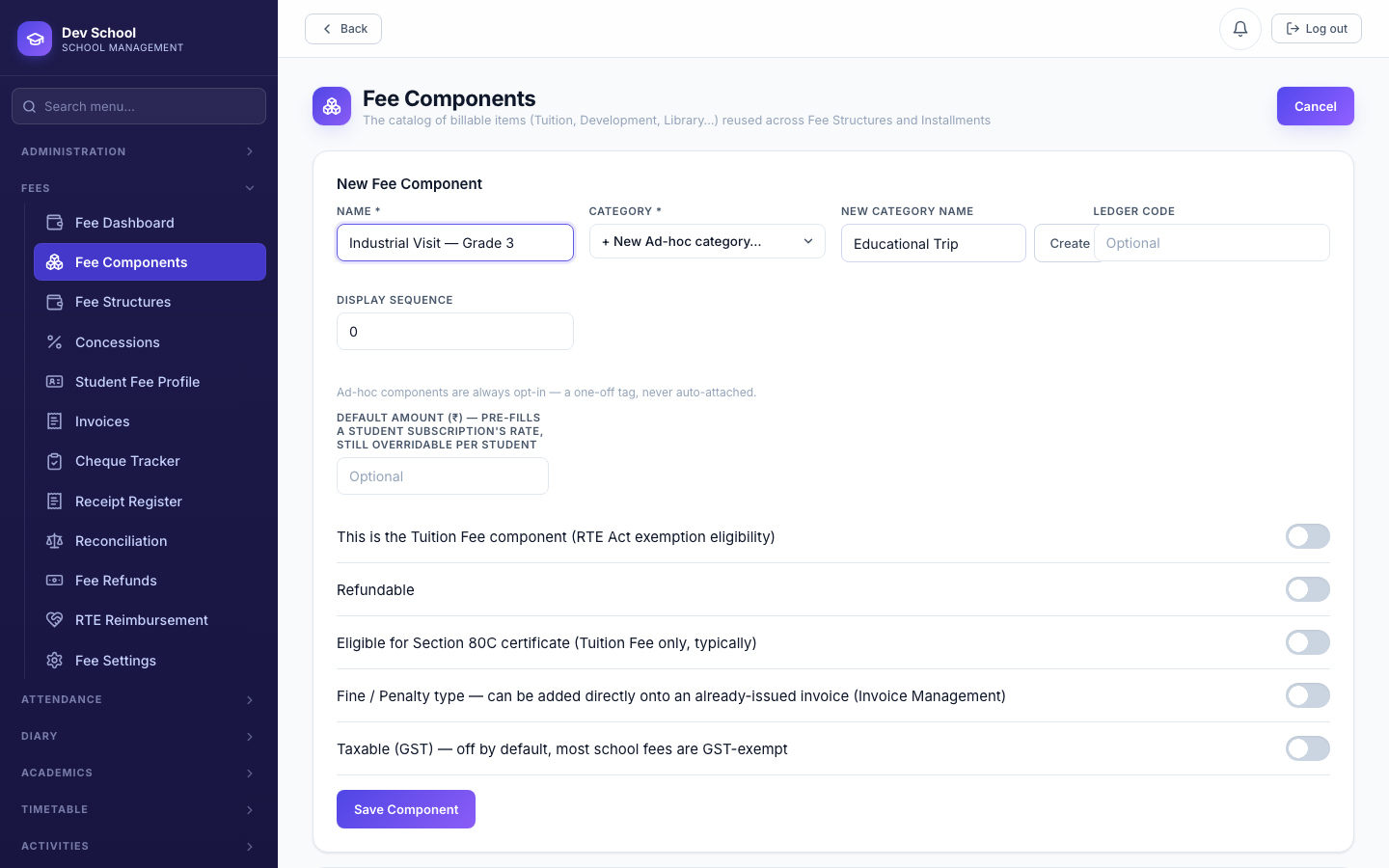
For a genuine one-off (a school trip, a special event fee) that doesn't need a Store item or Transport route behind it, create the component directly under a new Ad-hoc category.
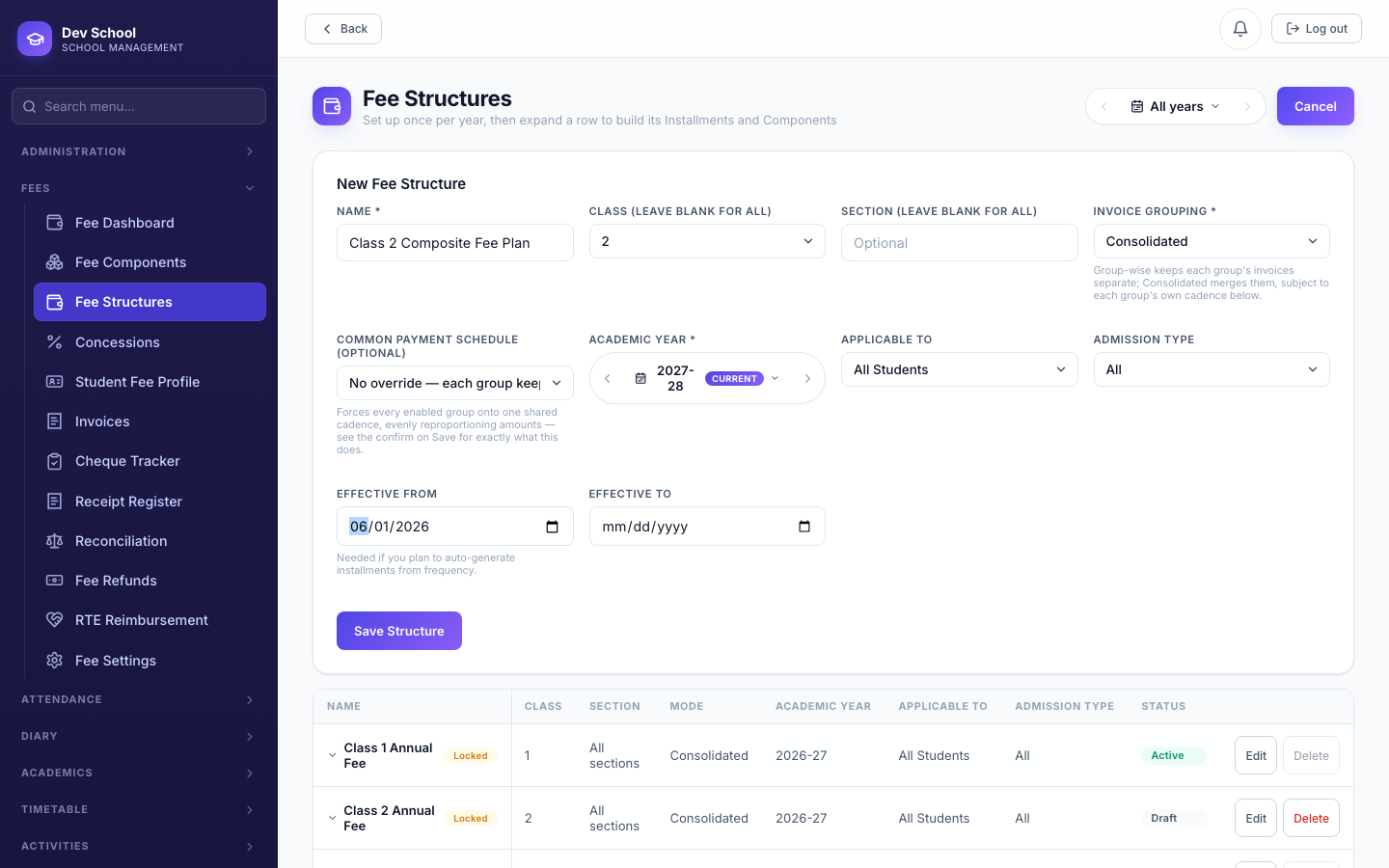
4.3 Fee Structure — Group Configuration auto-syncs the calendar
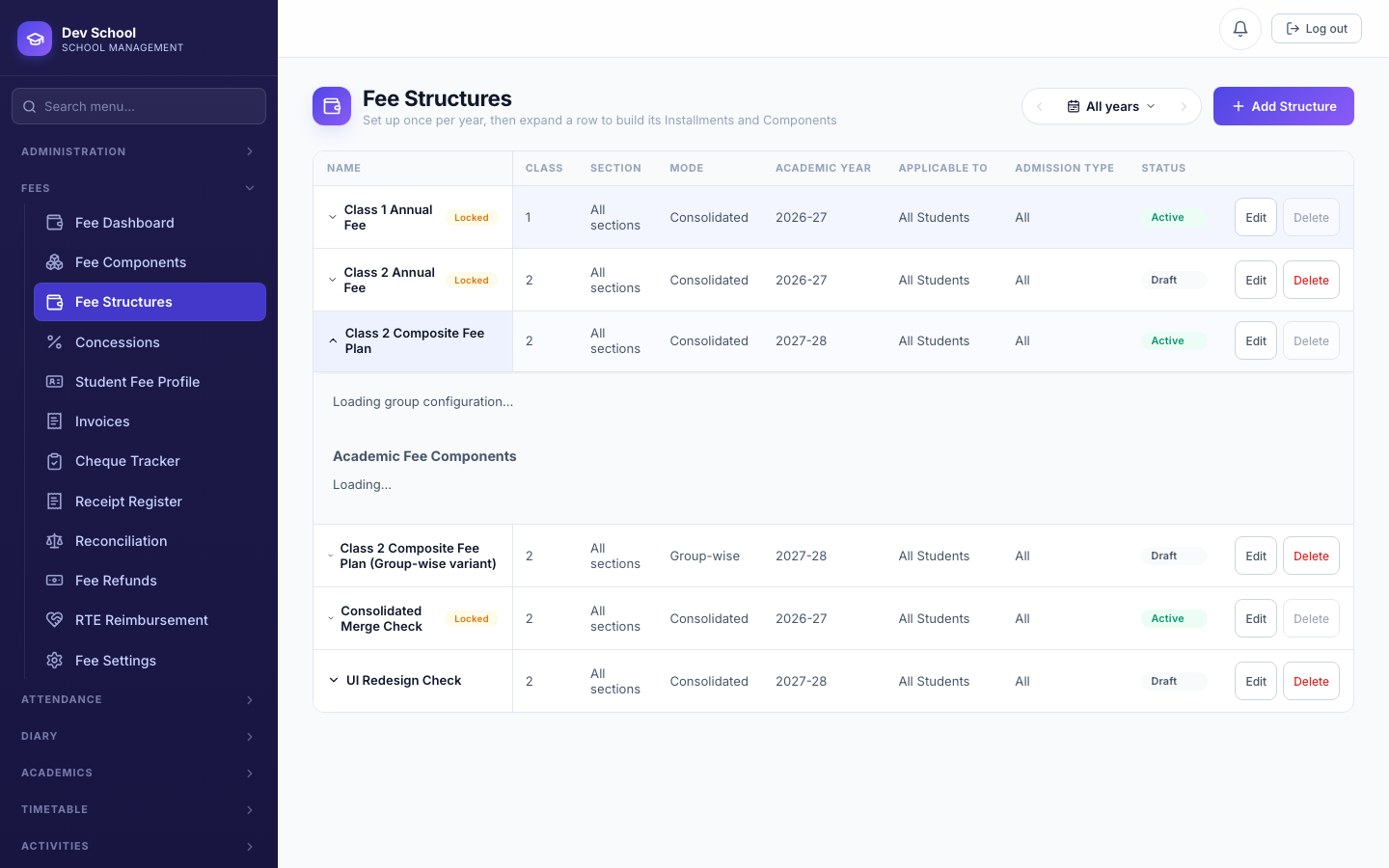
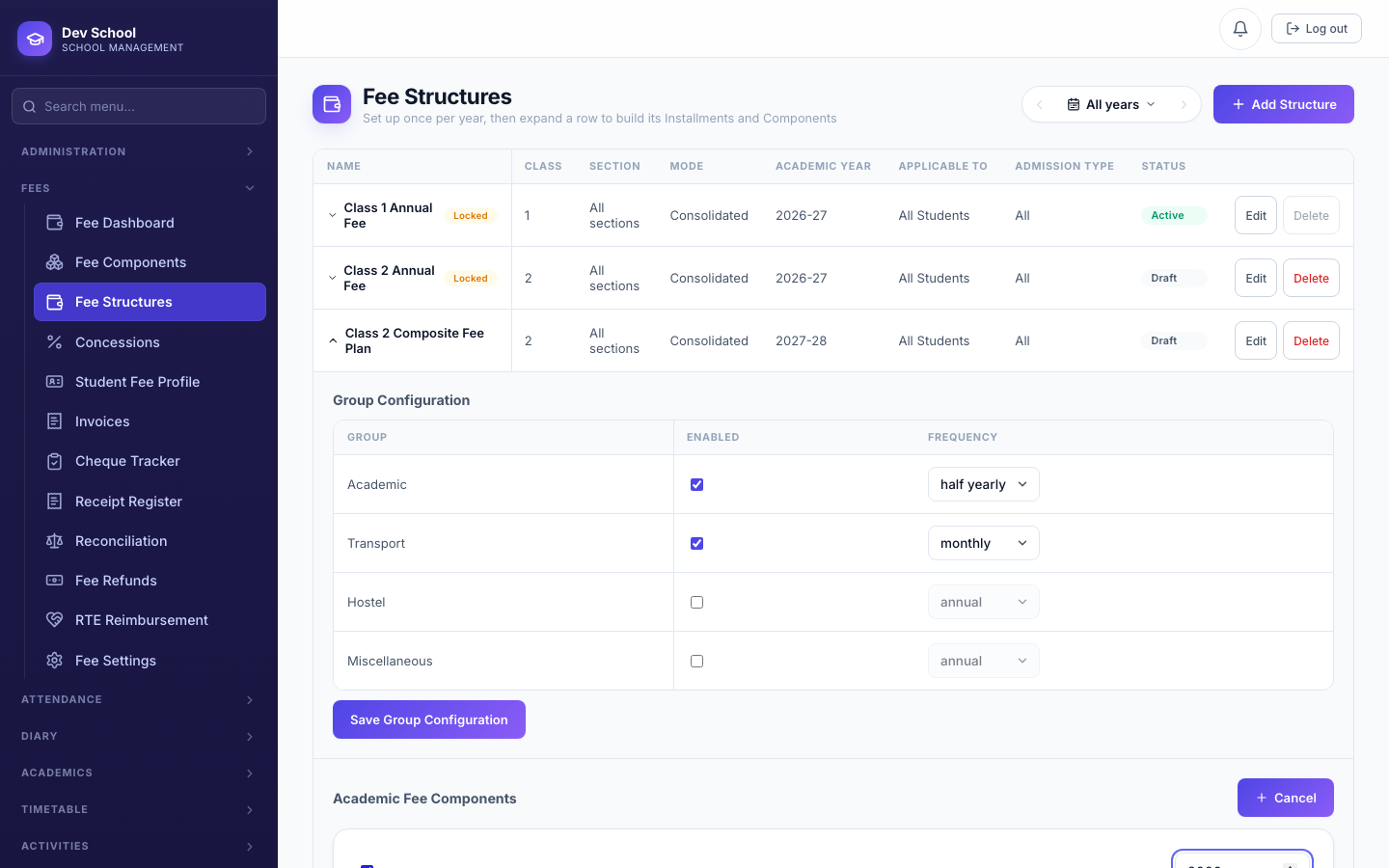
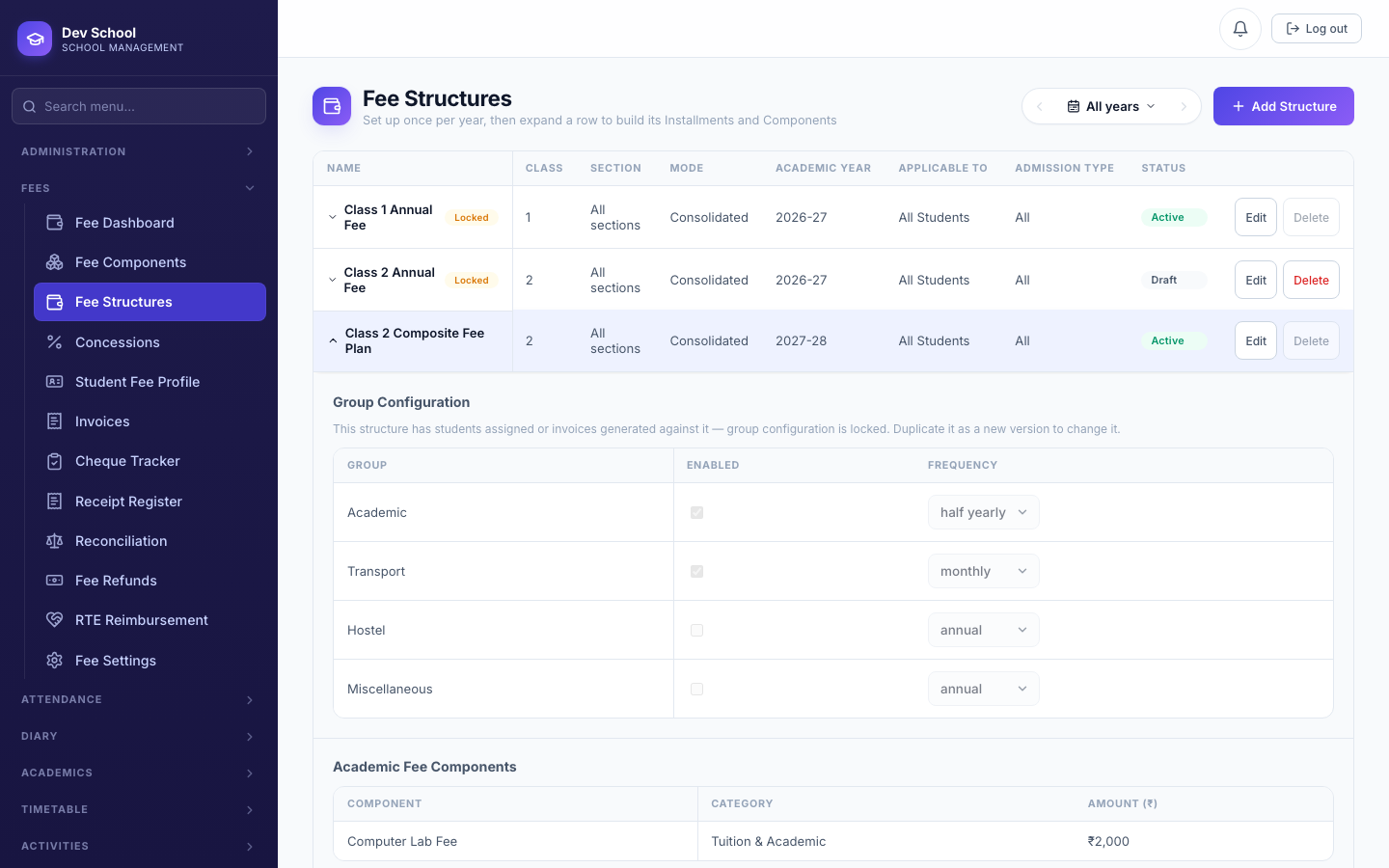
This is the biggest change to this module: Installments are no longer a screen you manage by hand. A Fee Structure has one real per-group setting screen — Group Configuration — and saving it is the only action that ever touches the underlying due-date calendar. Enable Academic at Half-yearly and Transport at Monthly, click Save, and both calendars generate themselves; change Academic to Quarterly later and its calendar regenerates automatically, reproportioning the same annual total across the new number of cycles instead of silently changing what each cycle costs.
Group Configuration
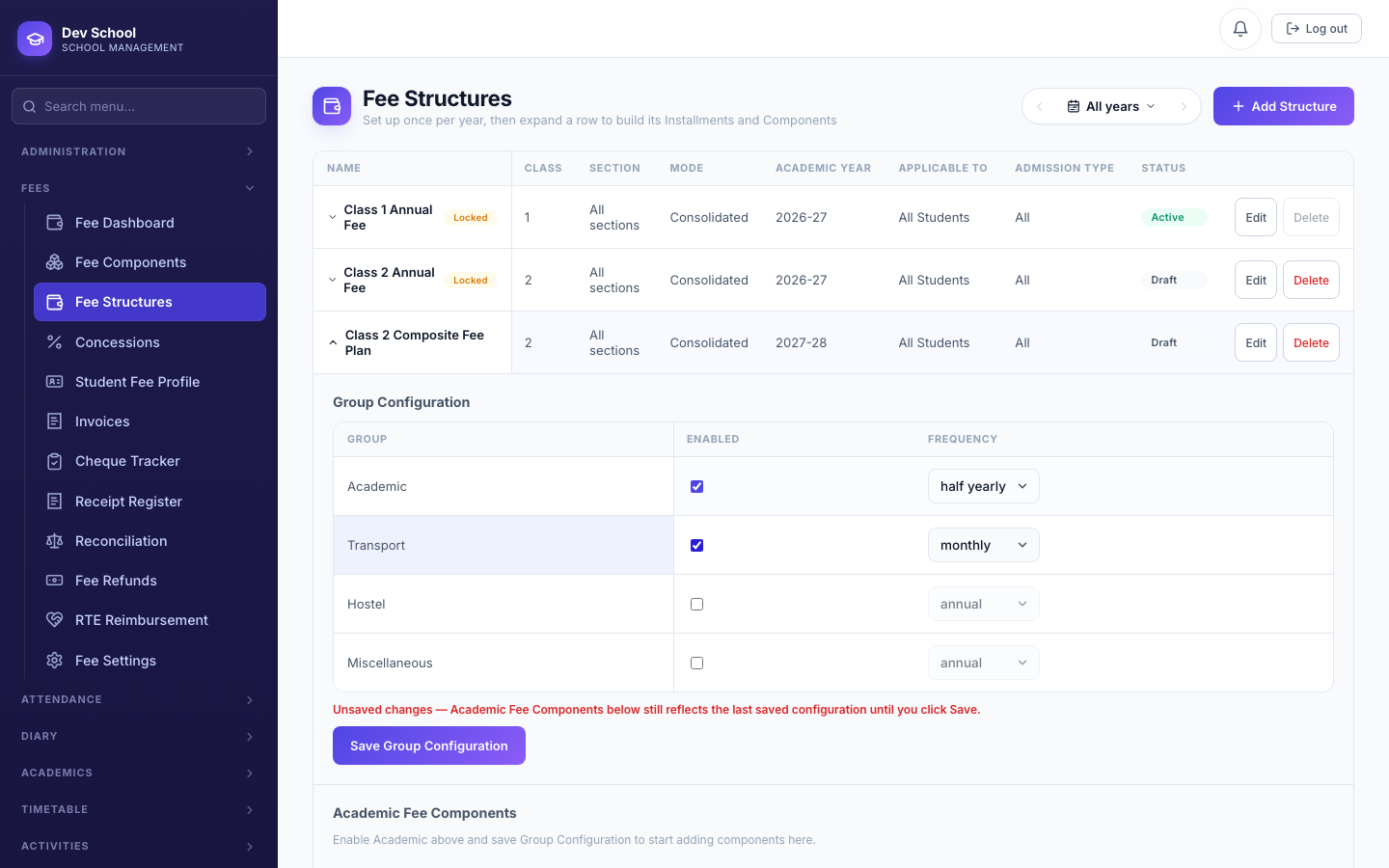
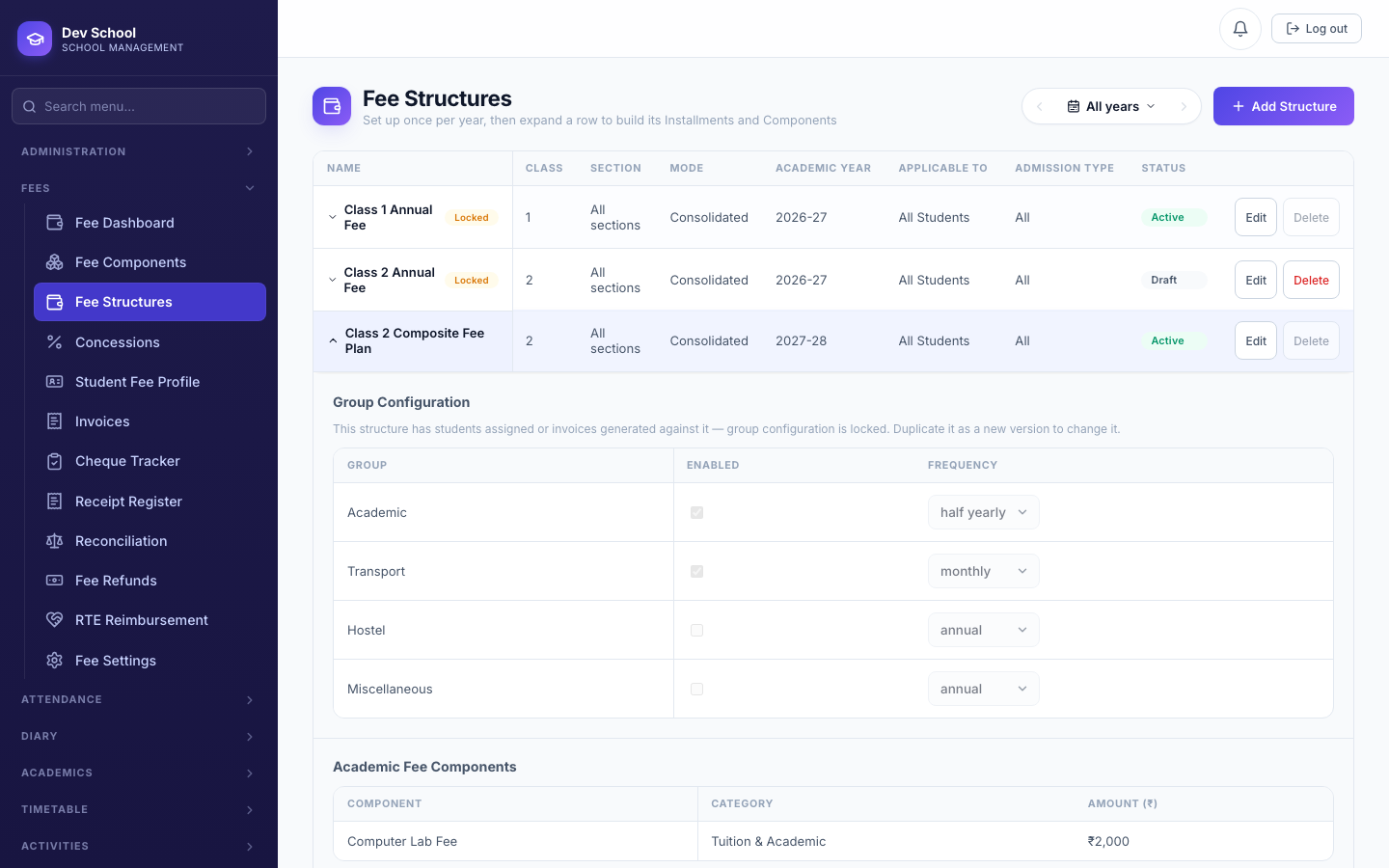
Selecting a new frequency in the dropdown updates what you see, but the calendar behind it only changes once you actually click Save Group Configuration. A red "Unsaved changes" warning appears the moment your on-screen selection diverges from what's actually saved, specifically so this can't happen silently.
Academic Fee Components
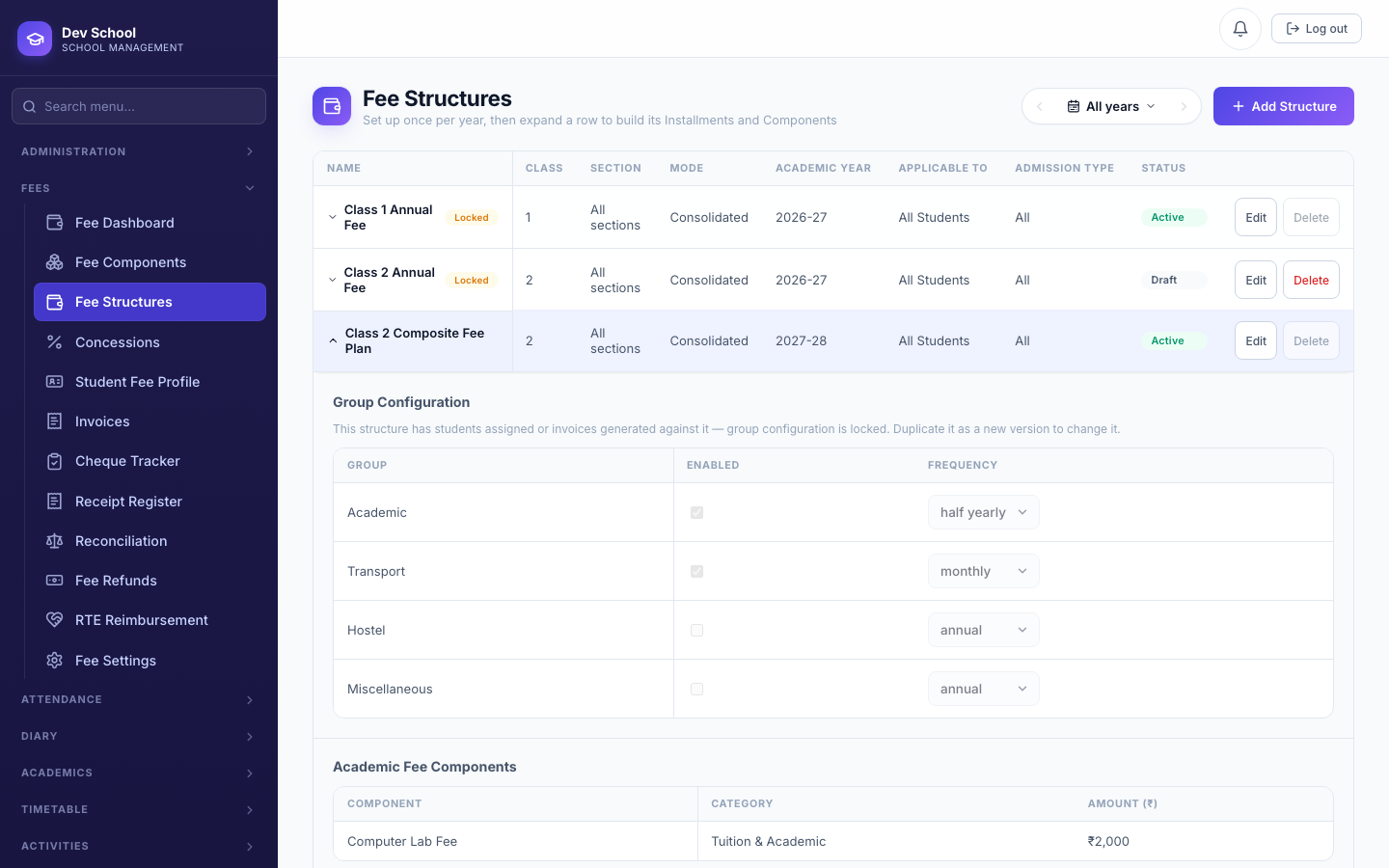
Transport, Hostel, and Miscellaneous each get their price from the Fee Component's own Default Amount the moment a student subscribes. Academic is different — its components are attached directly to the structure, in one action that fans them out across every Academic installment at once.
Consolidated vs. Group-wise
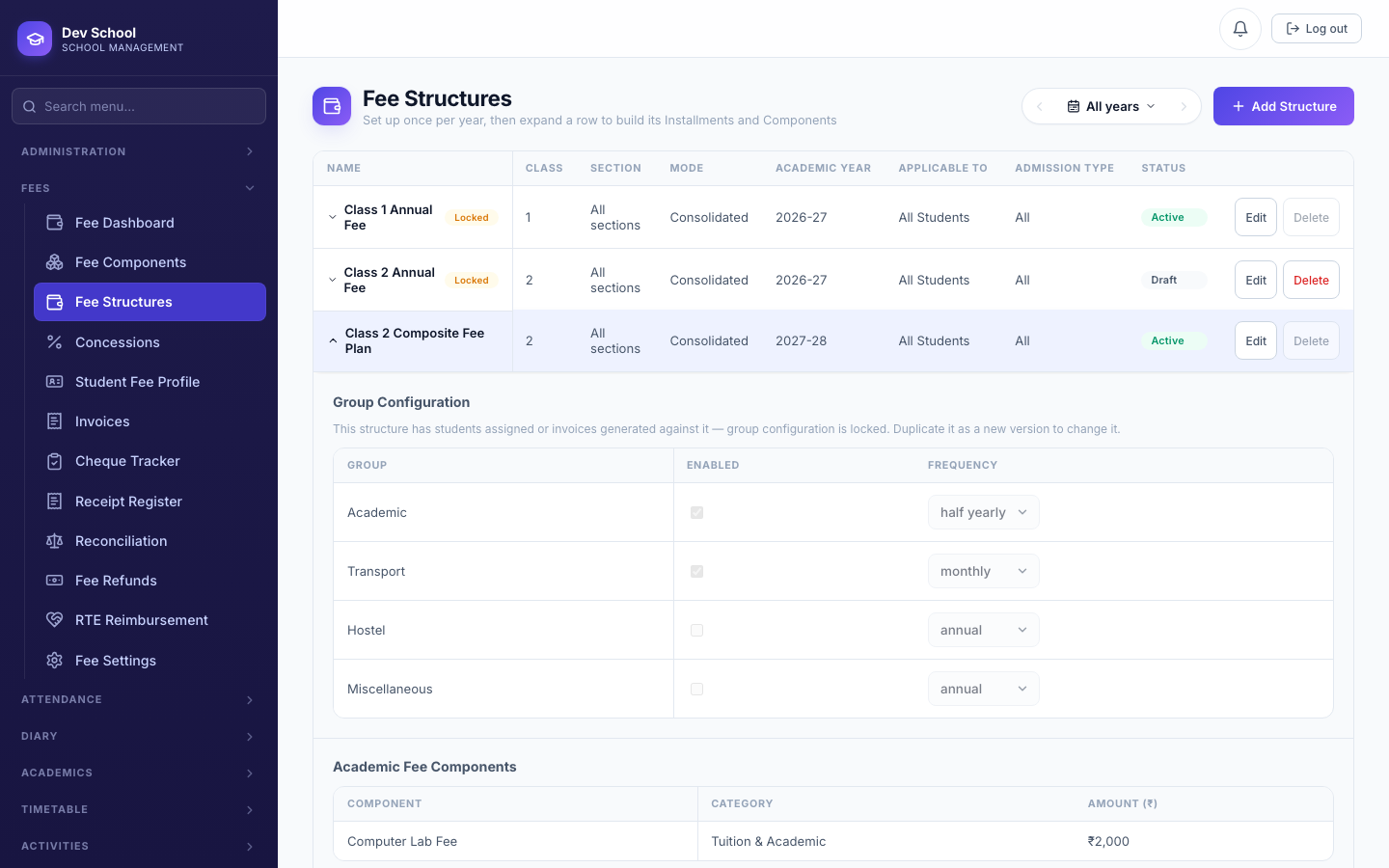
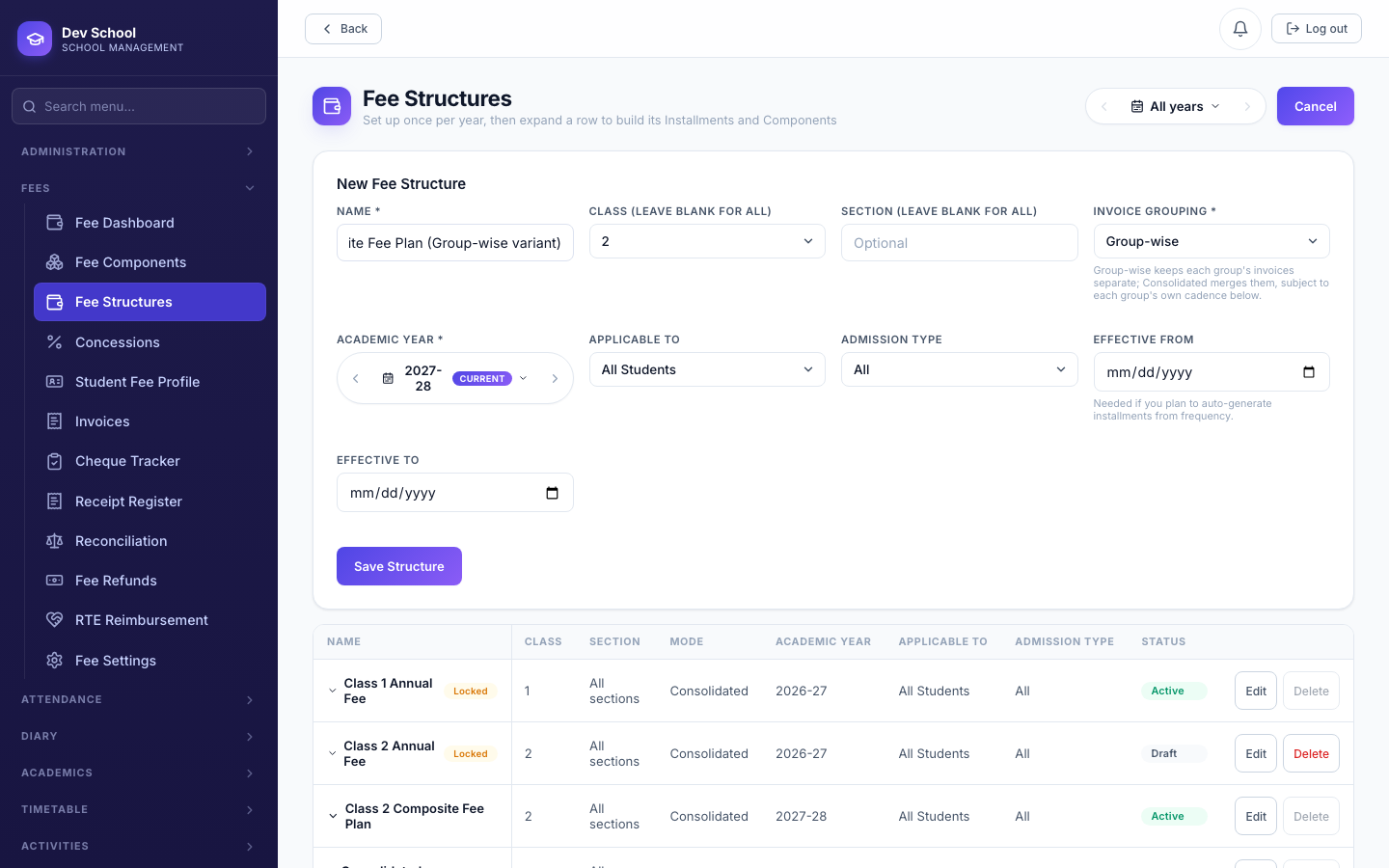
The generation mode lives on the Fee Structure itself (Consolidated is the default), and can be overridden for one specific run.
Every group due that date lands on one invoice — e.g. Academic (quarterly) + Transport (quarterly, same effective date) merge onto a single ₹3,300 invoice instead of two.
Each group gets its own invoice. This is also why a Transport/Hostel tag can look like it's "not showing" under Consolidated — see Billing Diagnostics below.
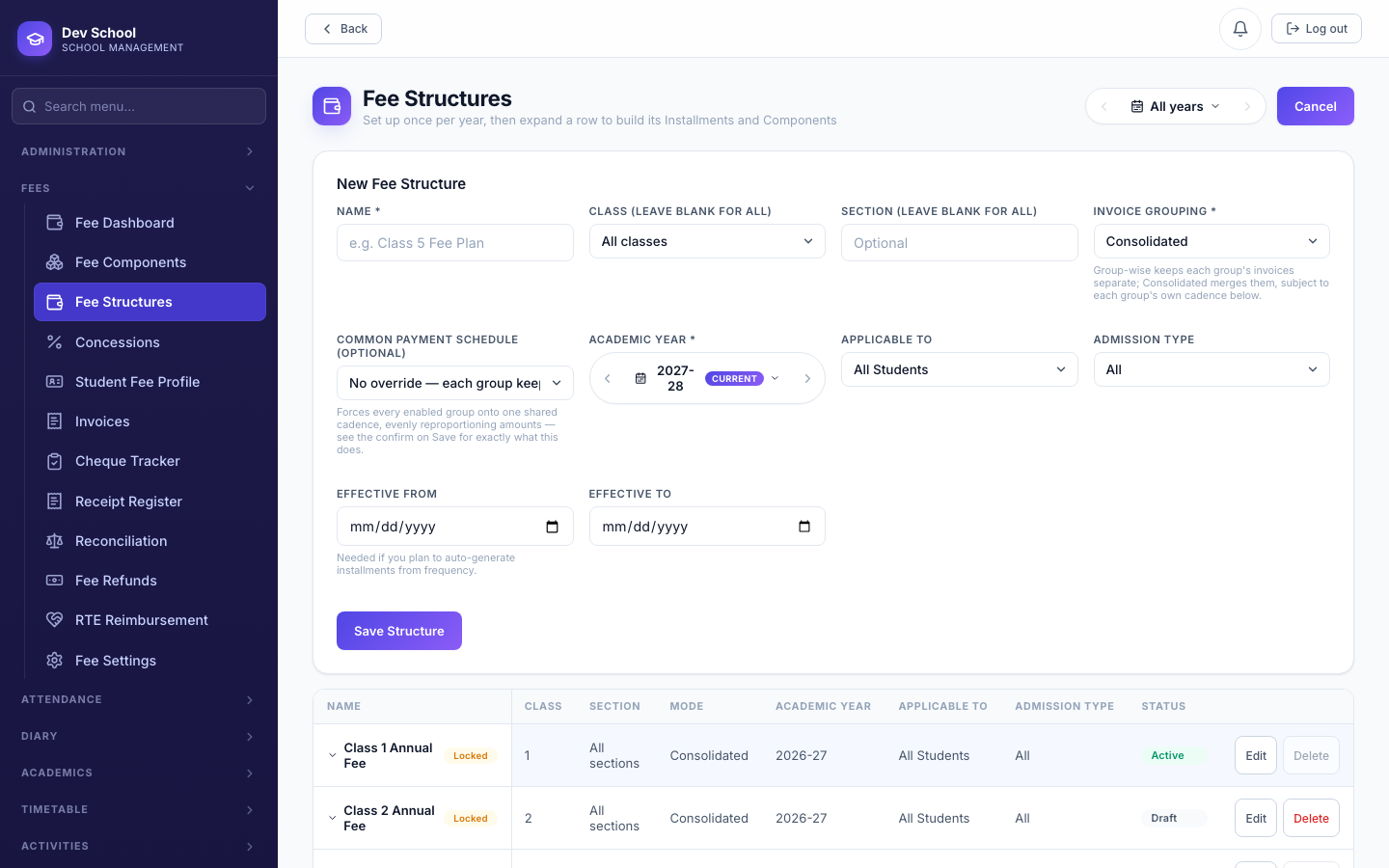
| Field | Required | Description |
|---|---|---|
Name | Required | |
Academic Year | Required | |
Invoice Grouping | Required | Consolidated (merge same-due-date groups) or Group-wise (never merge). |
Class / Section | Optional | Leave blank for "all" — applies school-wide until a more specific one exists. |
Group Configuration (per group) | At least one enabled | Each enabled group needs its own frequency; saving with none enabled is rejected. |
4.4 Fee Structure Lifecycle
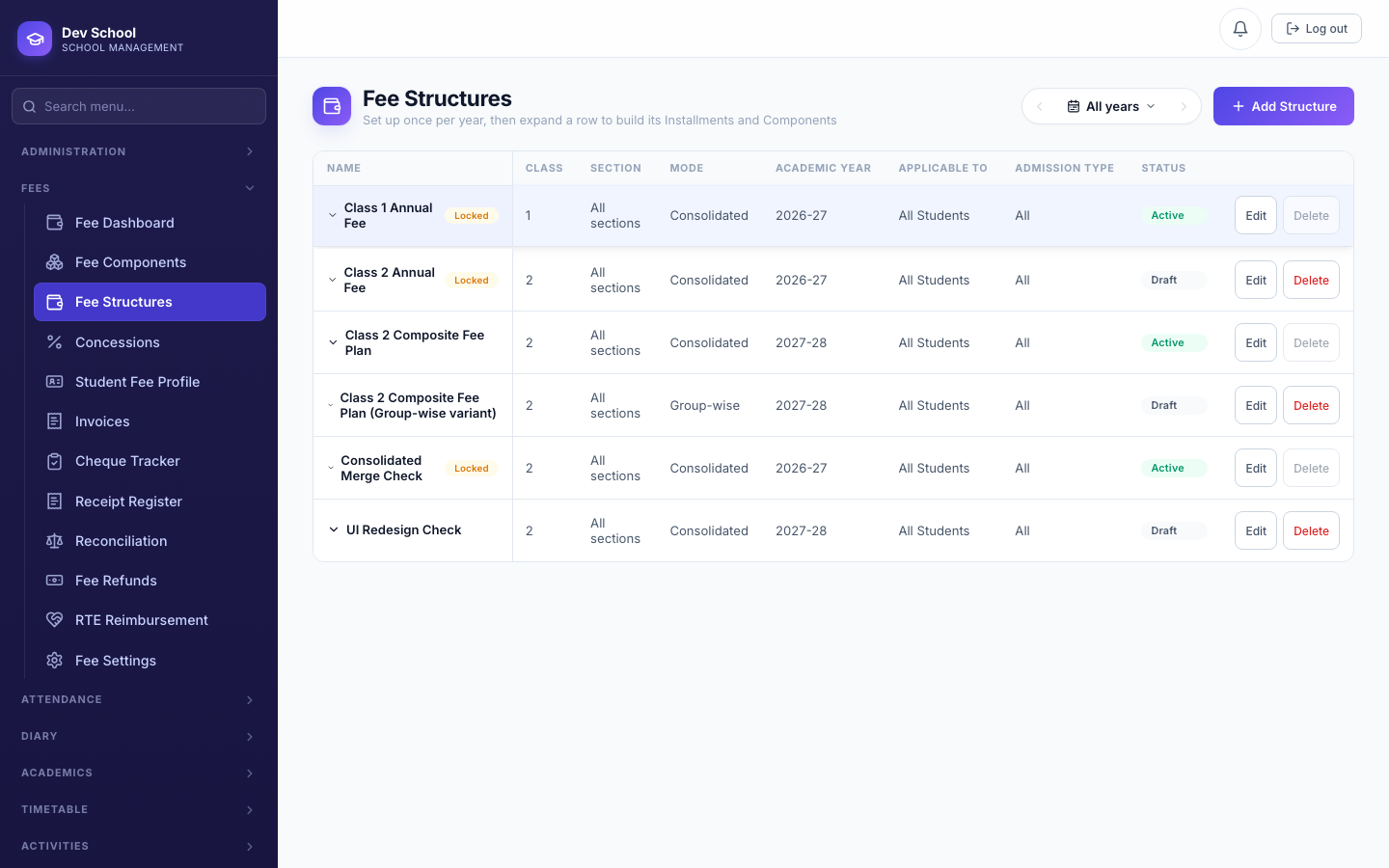
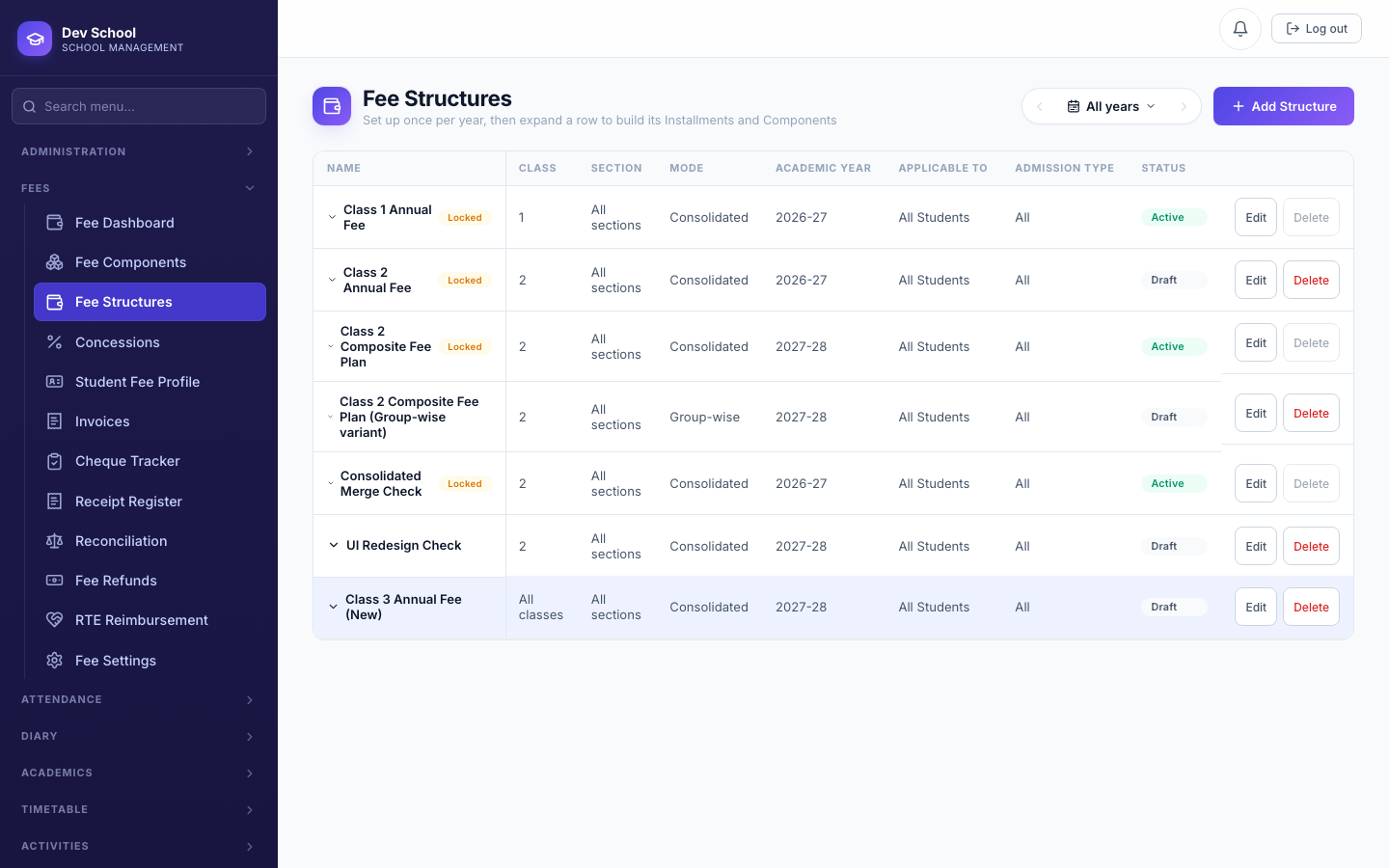
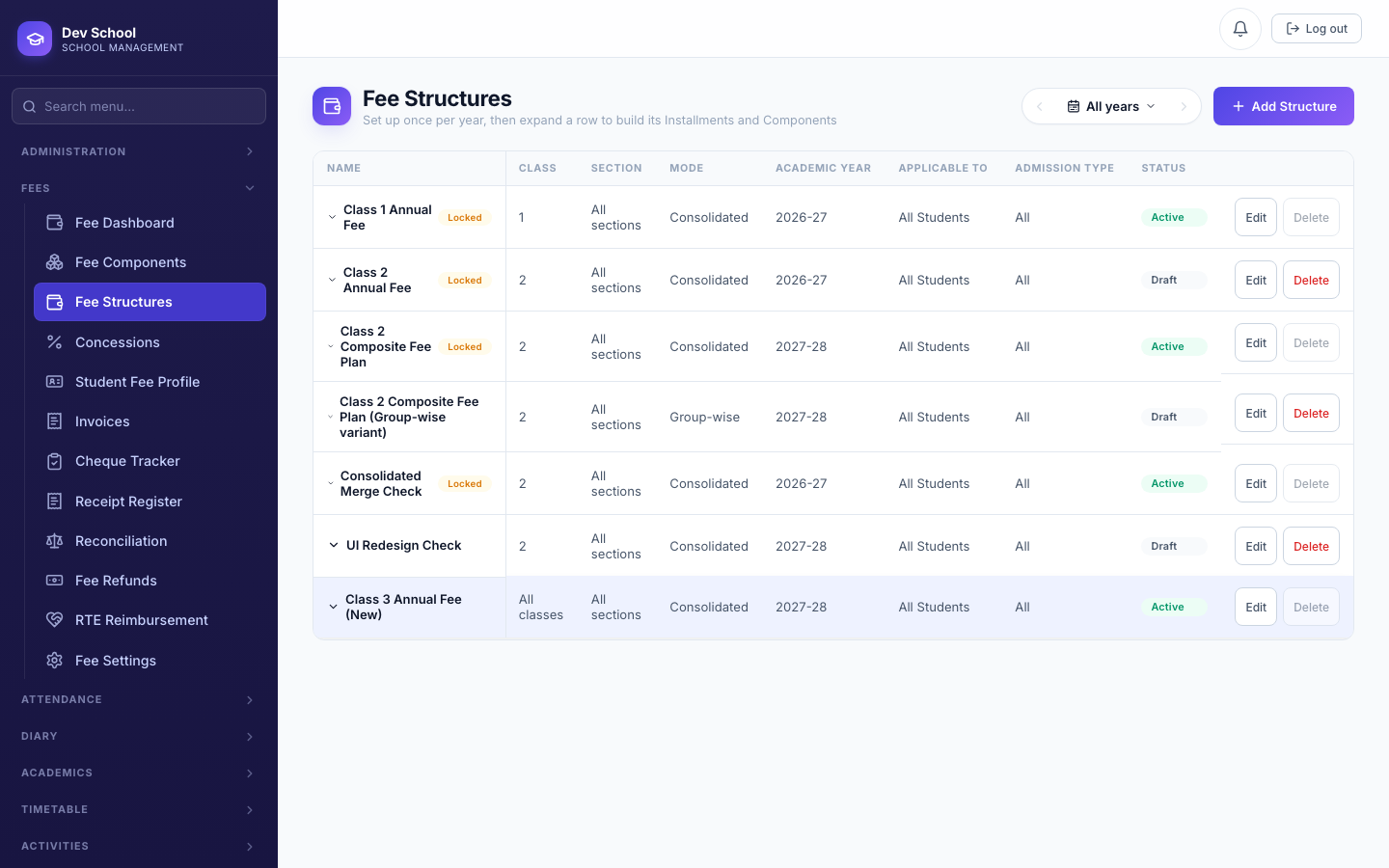
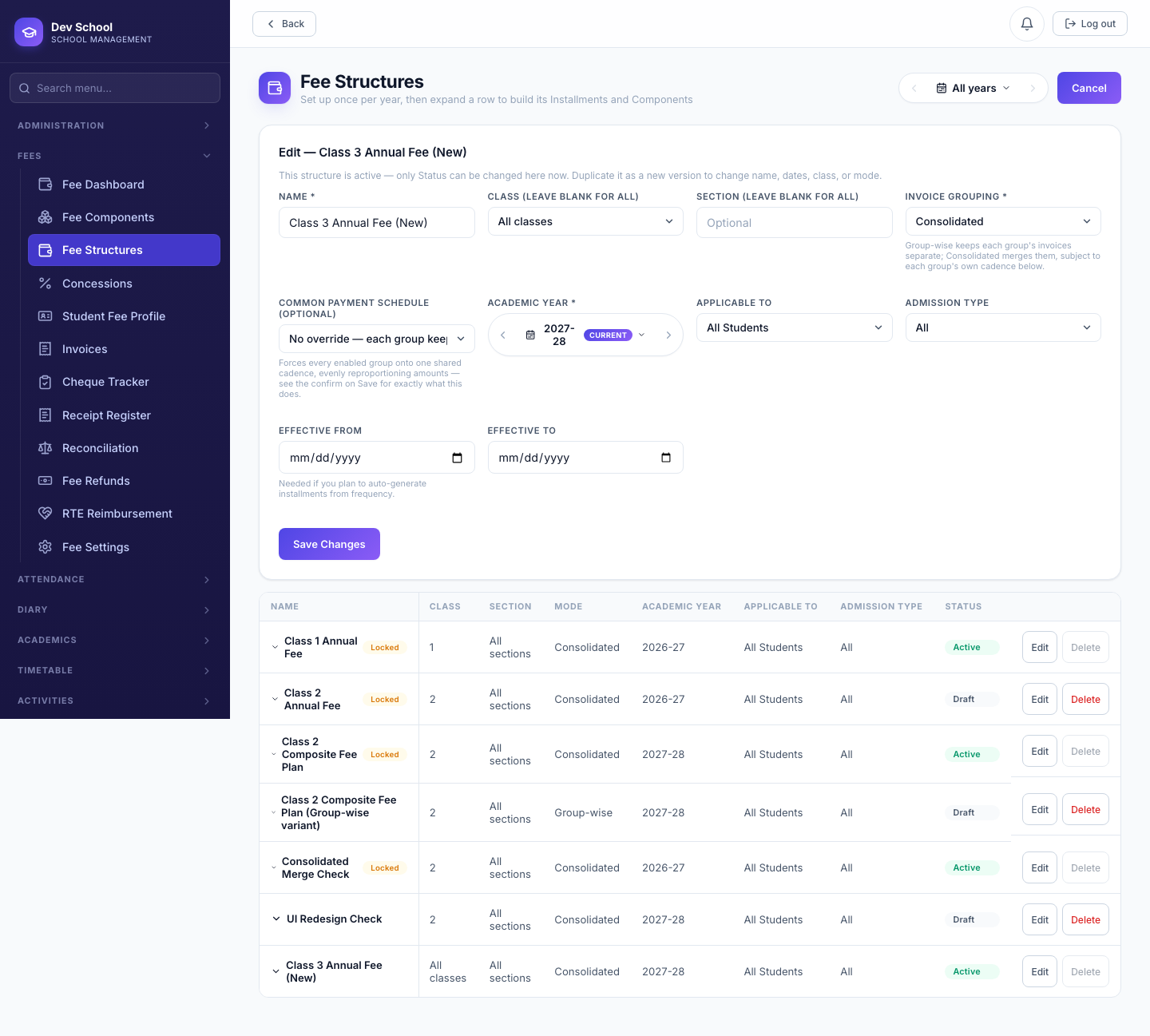
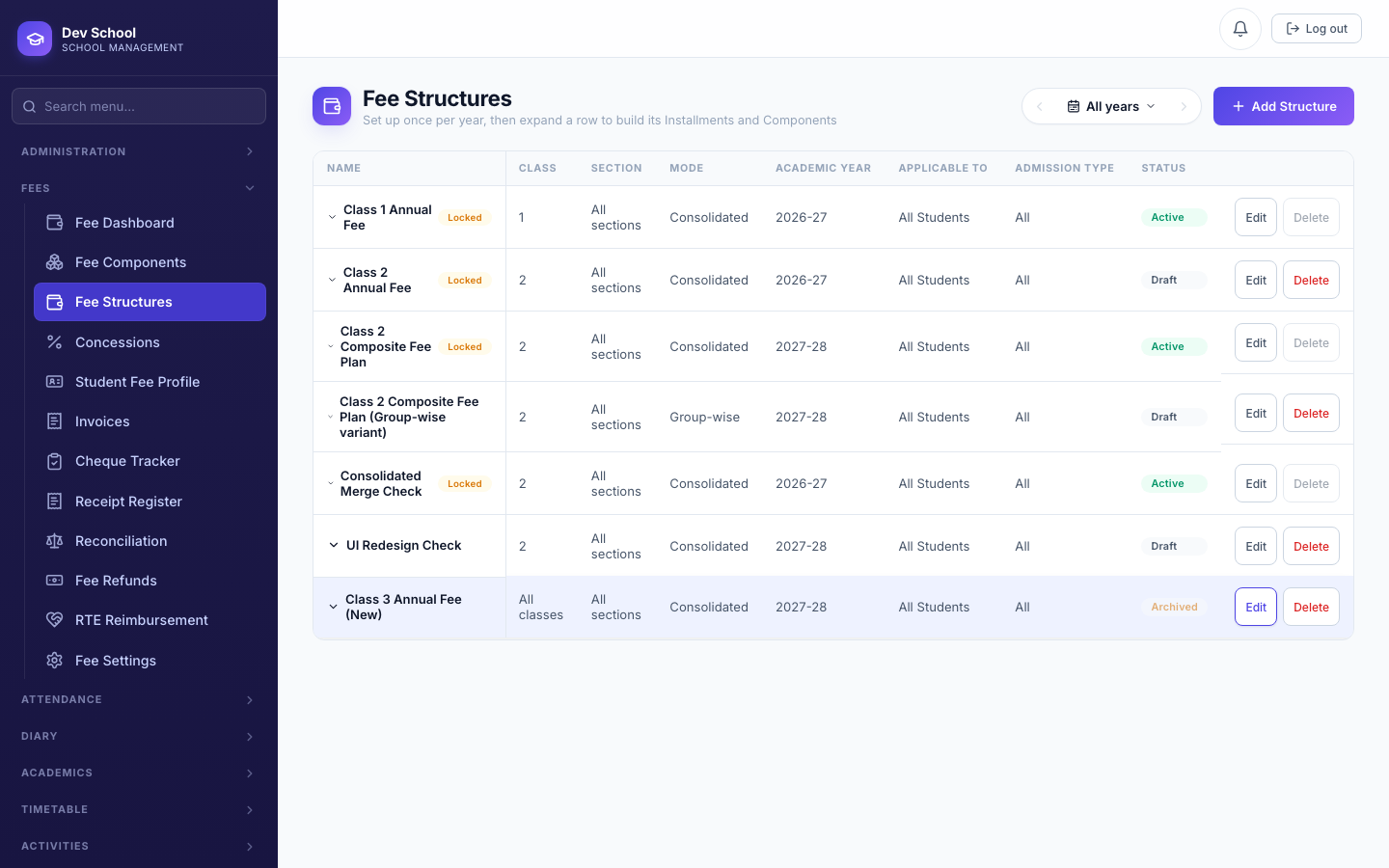
Every Fee Structure moves through exactly one forward path: Draft → Active → Archived. This exists specifically so a structure that's still being set up can never accidentally get assigned to a student or billed, and so a structure that's finished being used can be retired without anyone accidentally reviving or editing it.
| Status | Editable? | Assignable / billable? | Deletable? | Can move to |
|---|---|---|---|---|
| Draft | Yes, freely | No | Yes | Active, Archived |
| Active | No — not at all | Yes | No — archive first | Archived only |
| Archived | No | No | Yes | Nowhere — terminal |
Archived is deliberately a dead end — there is no "reactivate." If you need a similar structure again, duplicate an existing one as a new version instead of trying to revive an old one.
4.5 Concessions
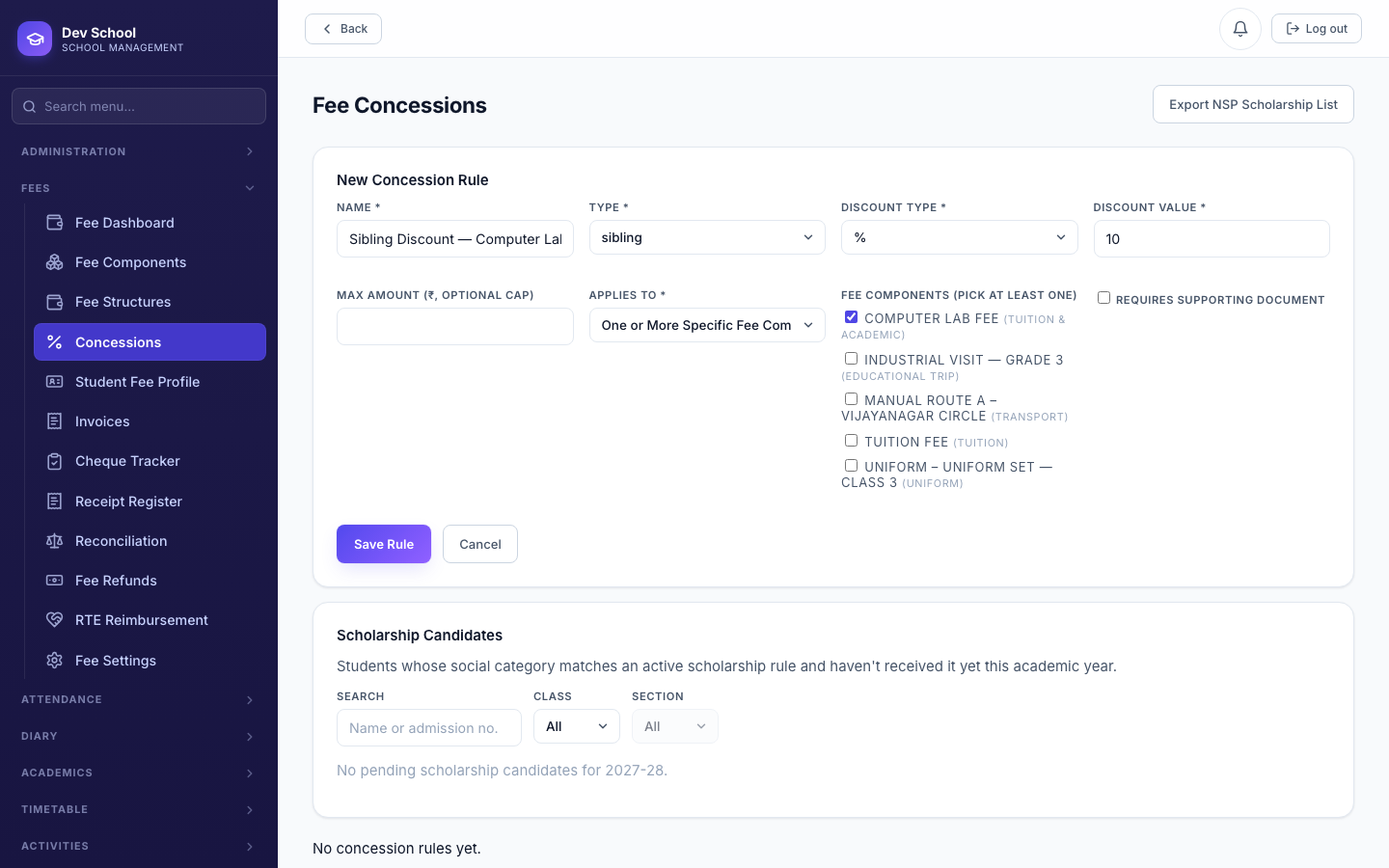
| Field | Required | Description |
|---|---|---|
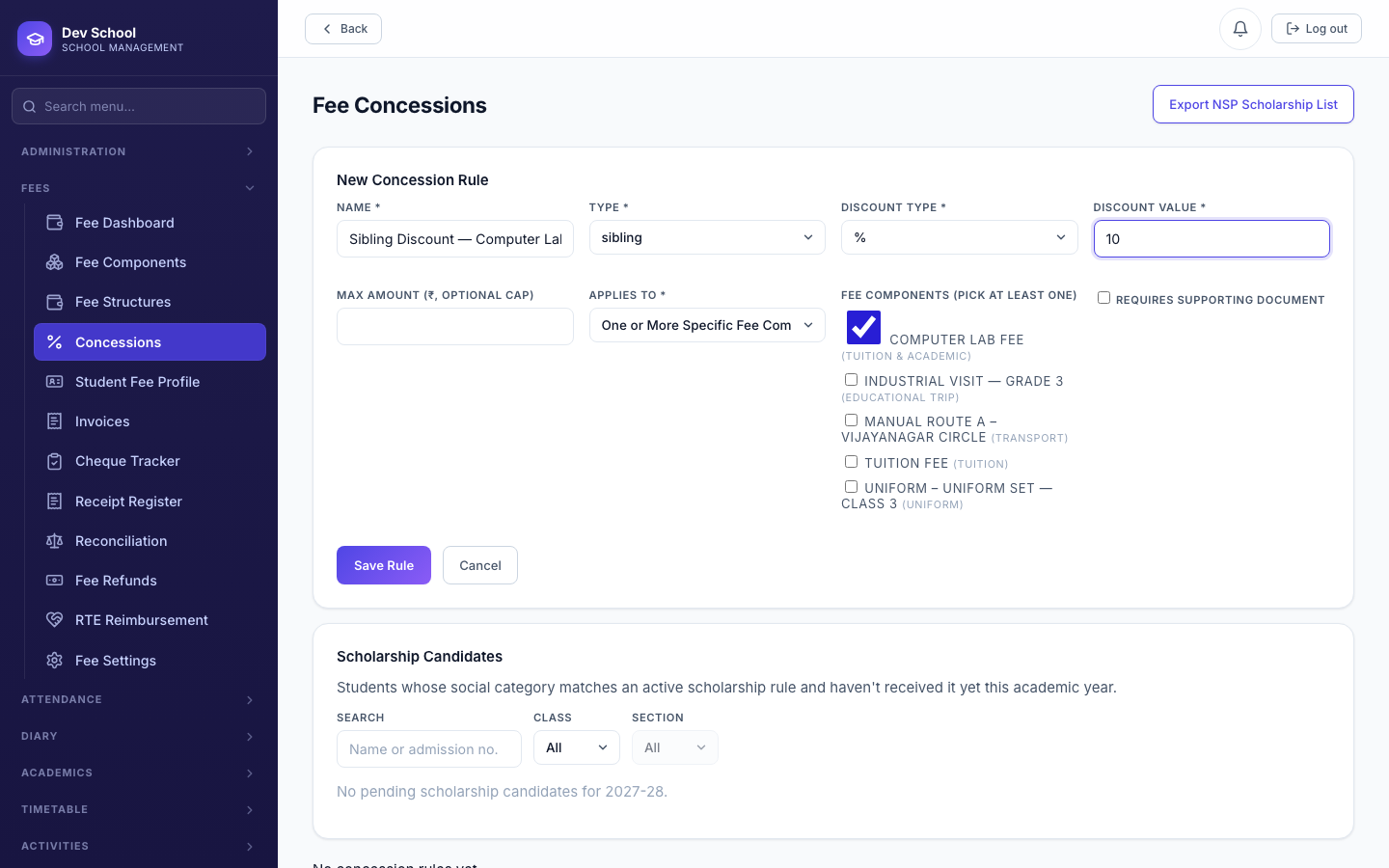
Name | Required | |
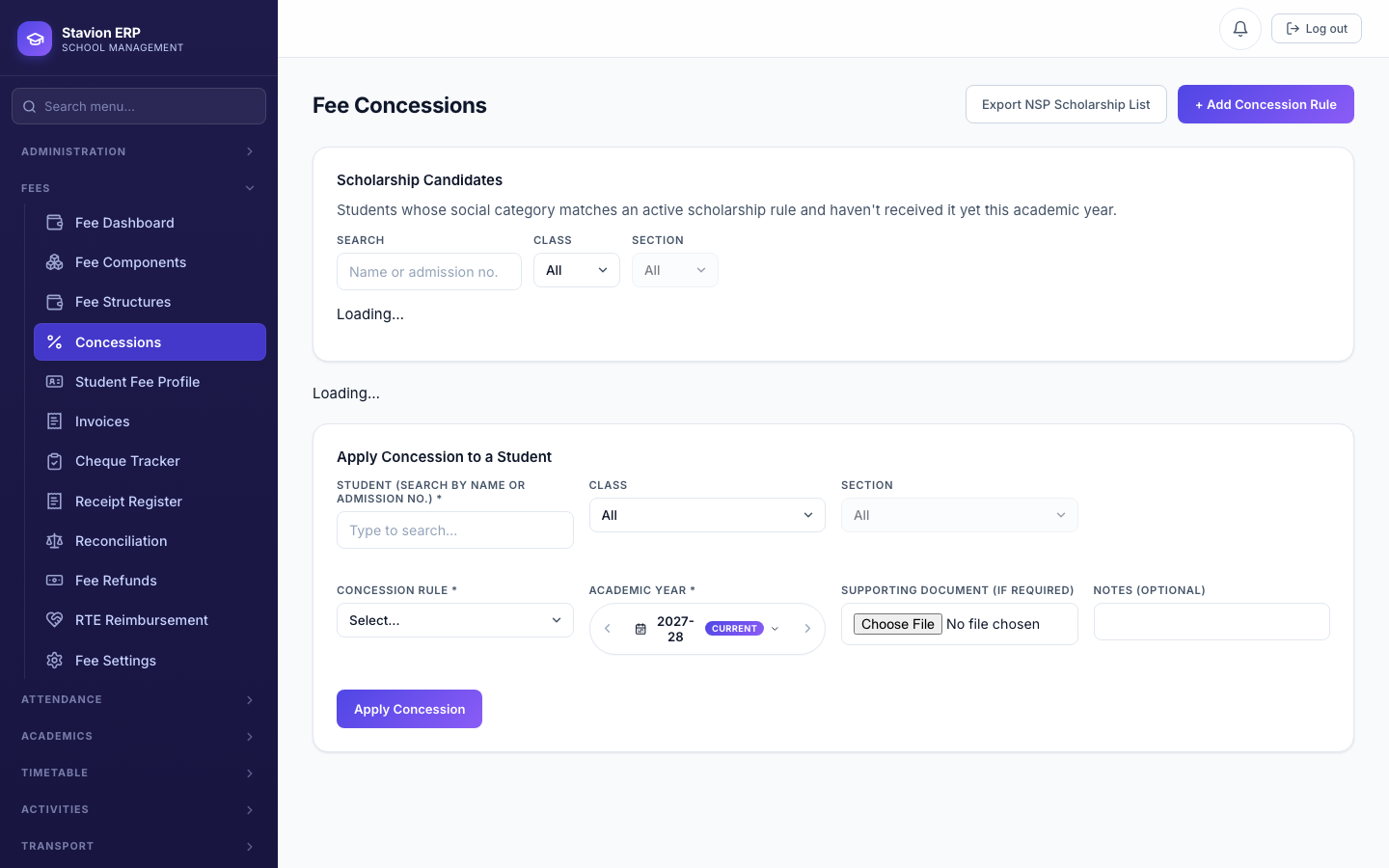
Discount Value | Required | 0–100 for a percentage rule; any positive figure for a fixed amount. |
Applies To | Required | Whole Invoice, a Fee Category, or specific Fee Components — scopes exactly what the discount reduces. |
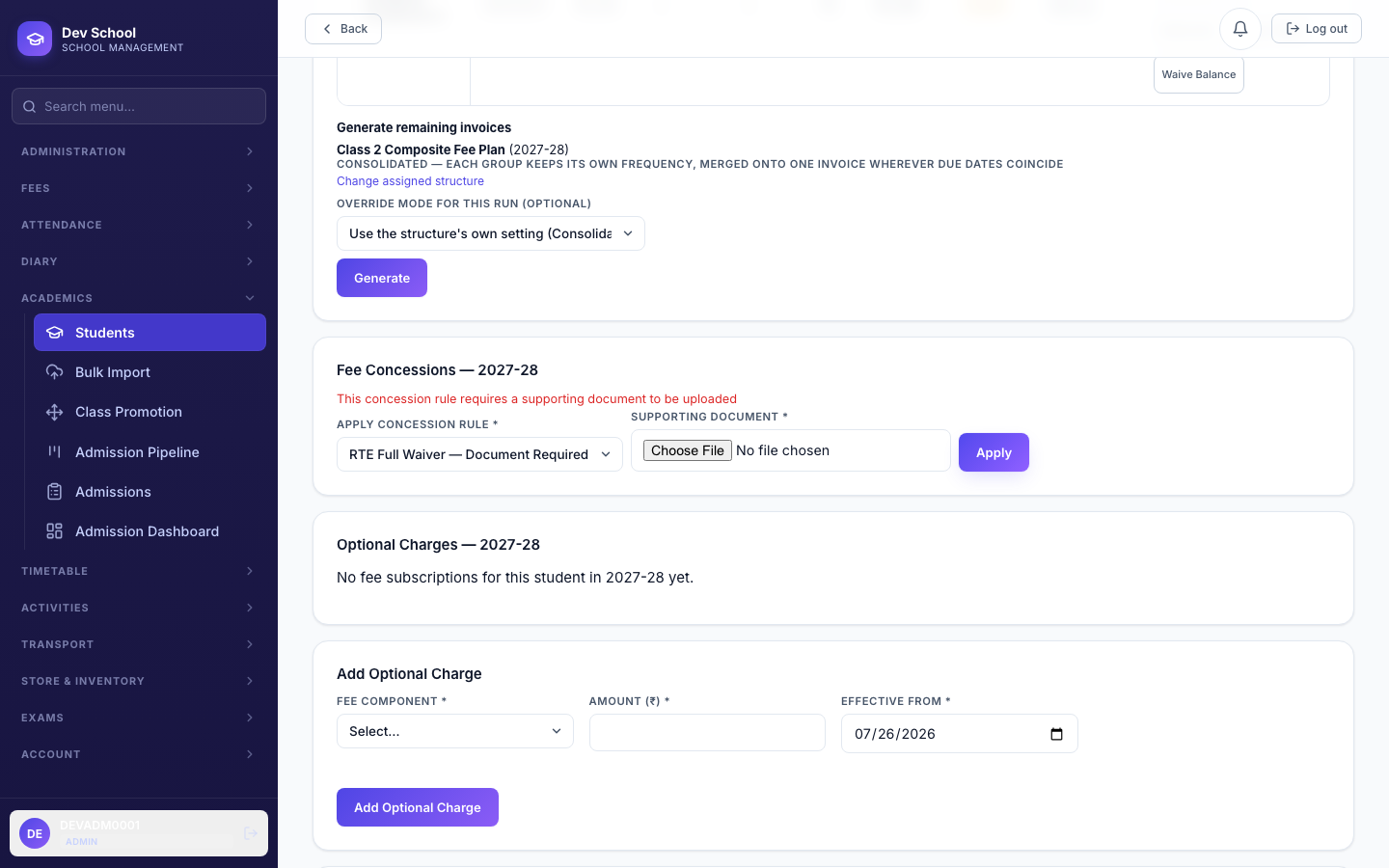
Document Required | Optional | When on, applying the rule requires a real uploaded file — not a typed-in link. |
Applying a concession — before vs. after Generate
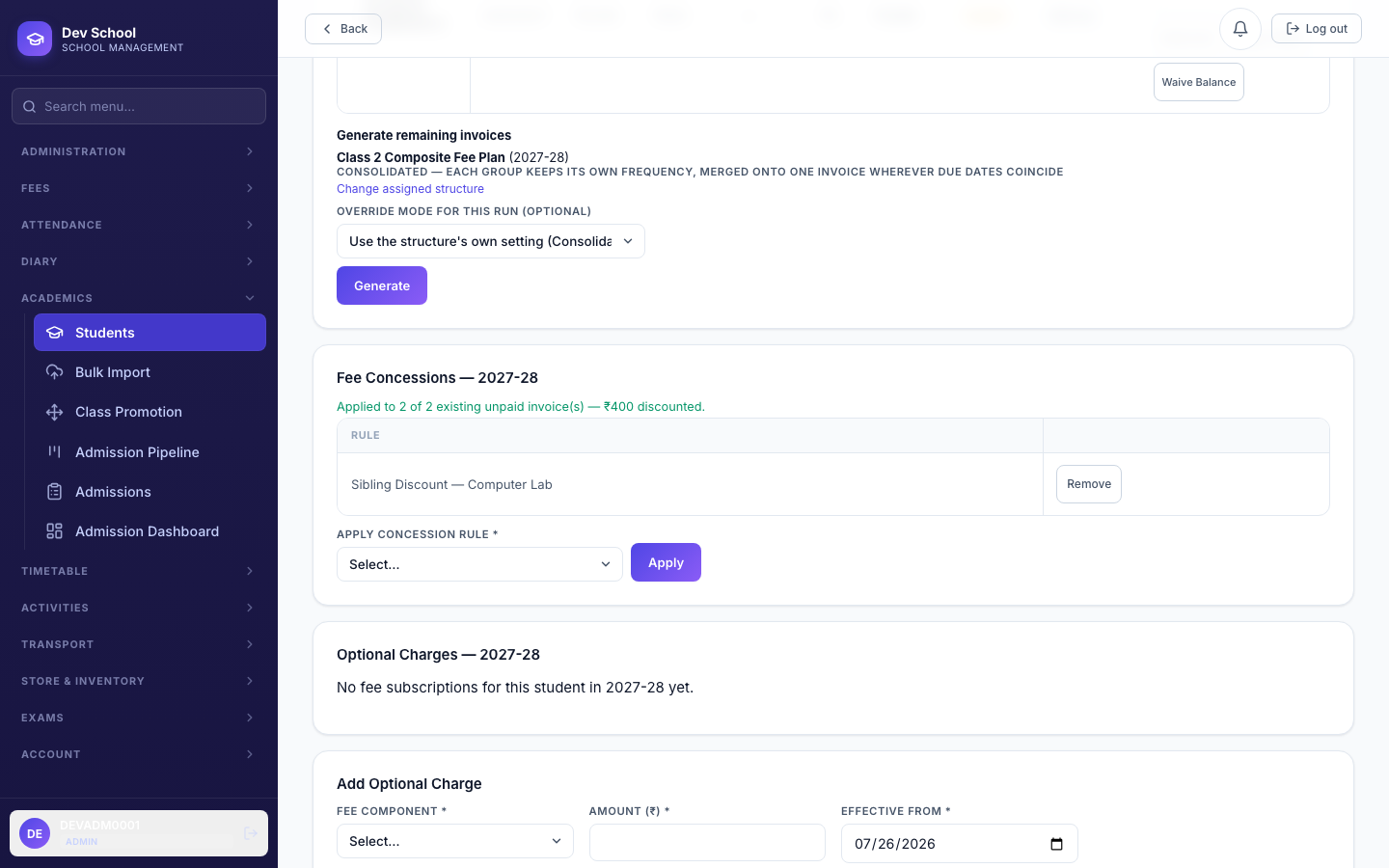
Applying a concession before a student's invoices exist bakes it in automatically, exactly as before. Applying one after real invoices already exist now offers an explicit choice: recompute those existing unpaid invoices too, or leave them as-is and only apply from the next Generate onward. A partially-paid invoice is always excluded — its charges are already frozen the moment any payment lands on it.
4.6 Tagging a student at Admission
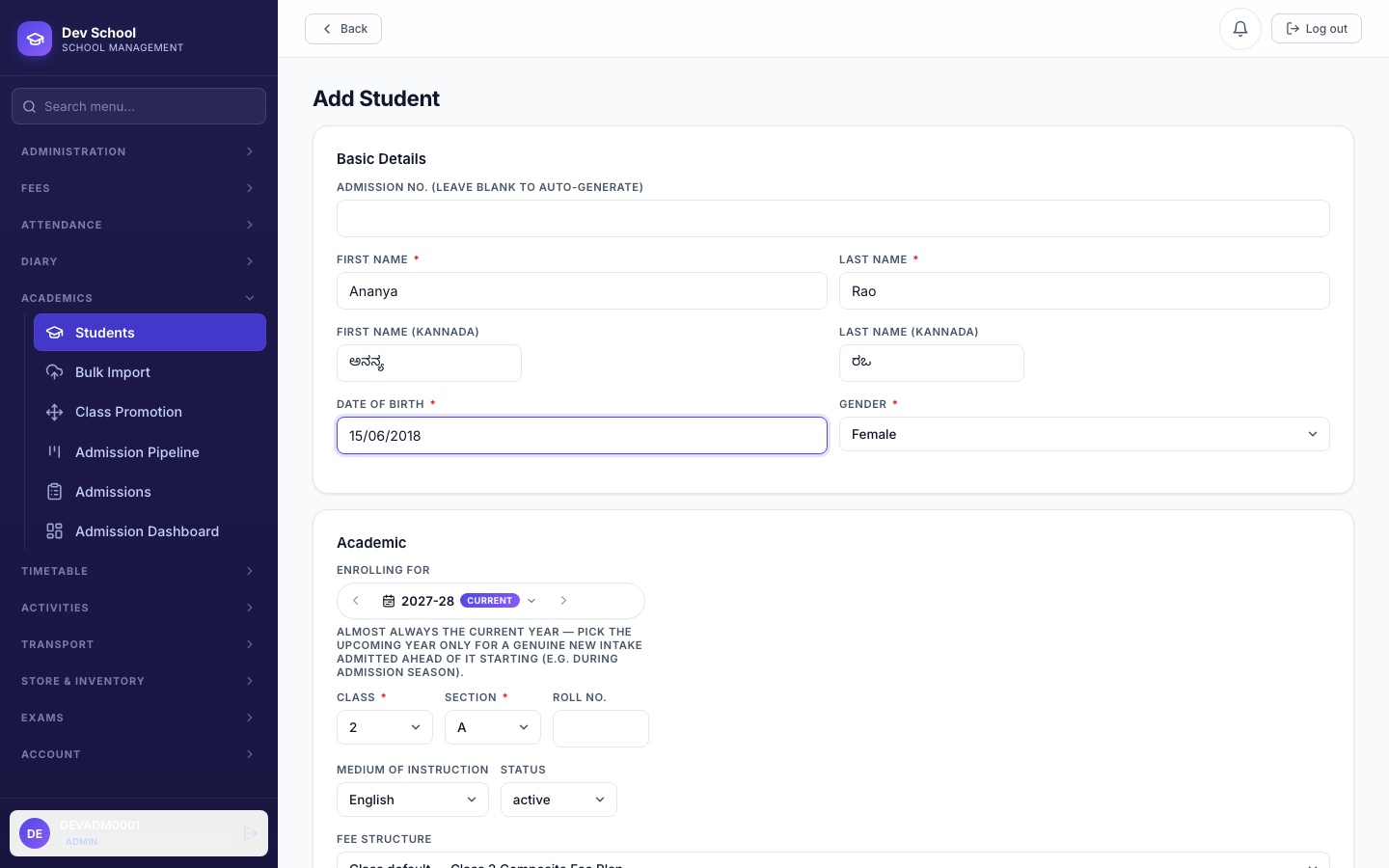
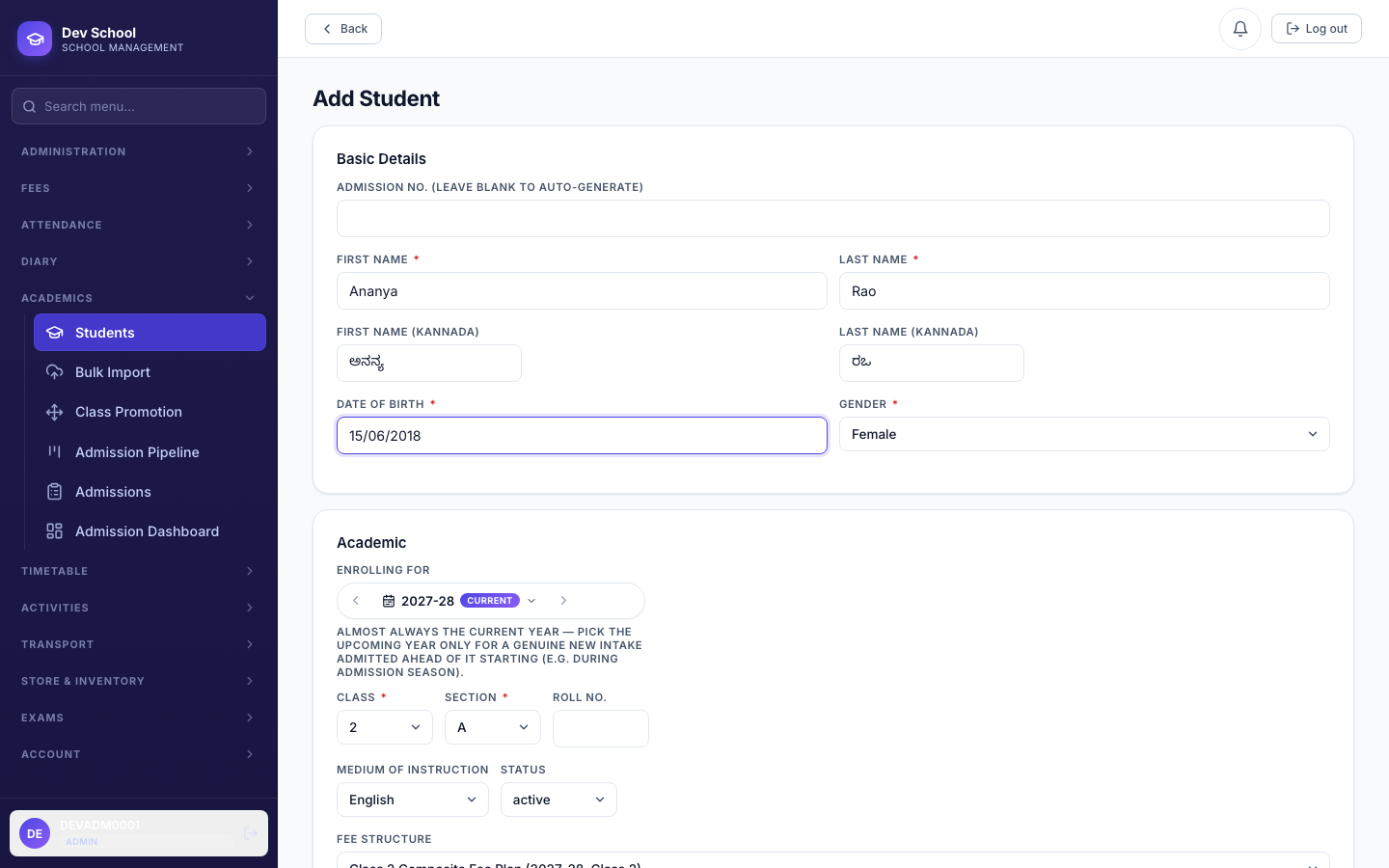
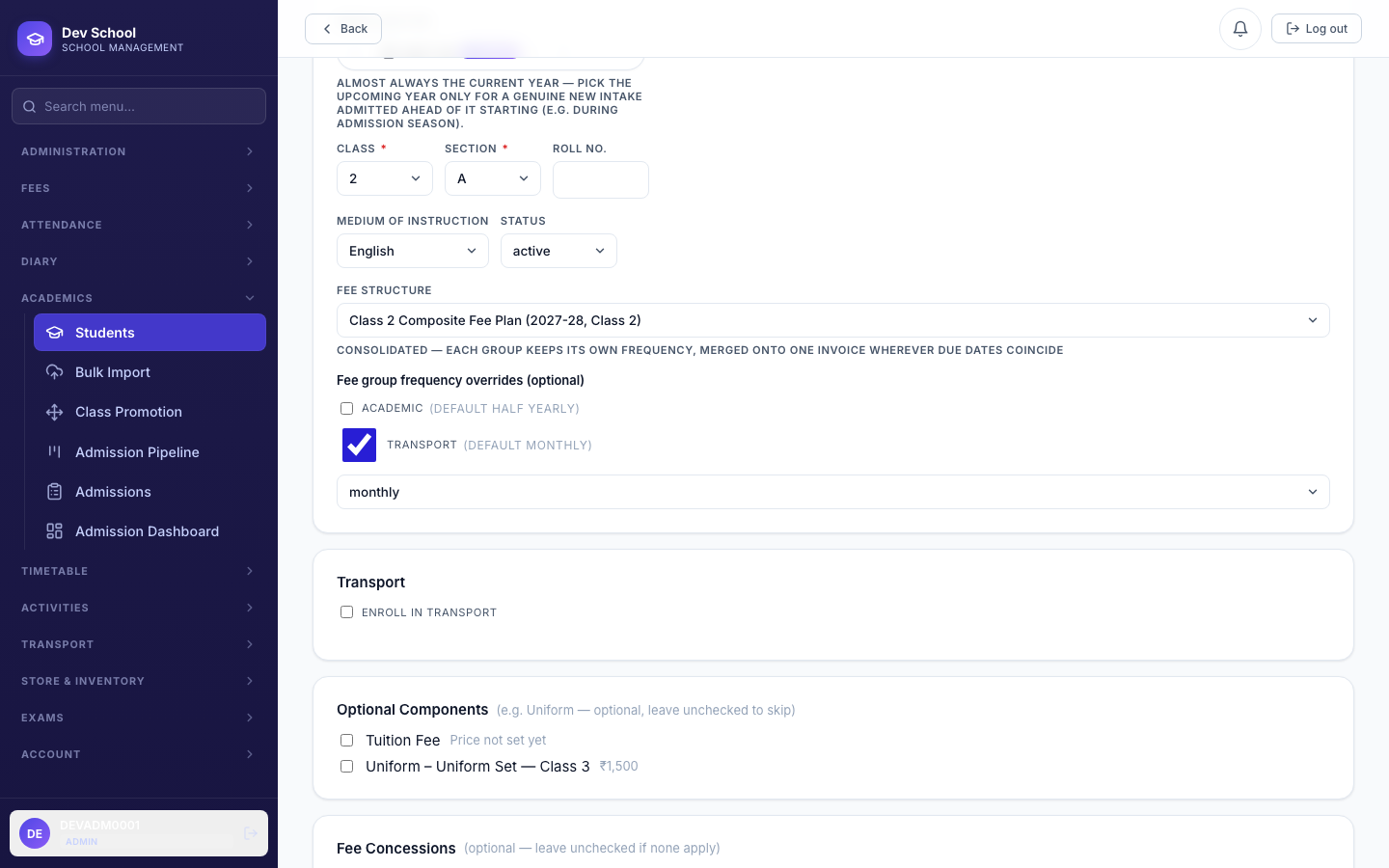
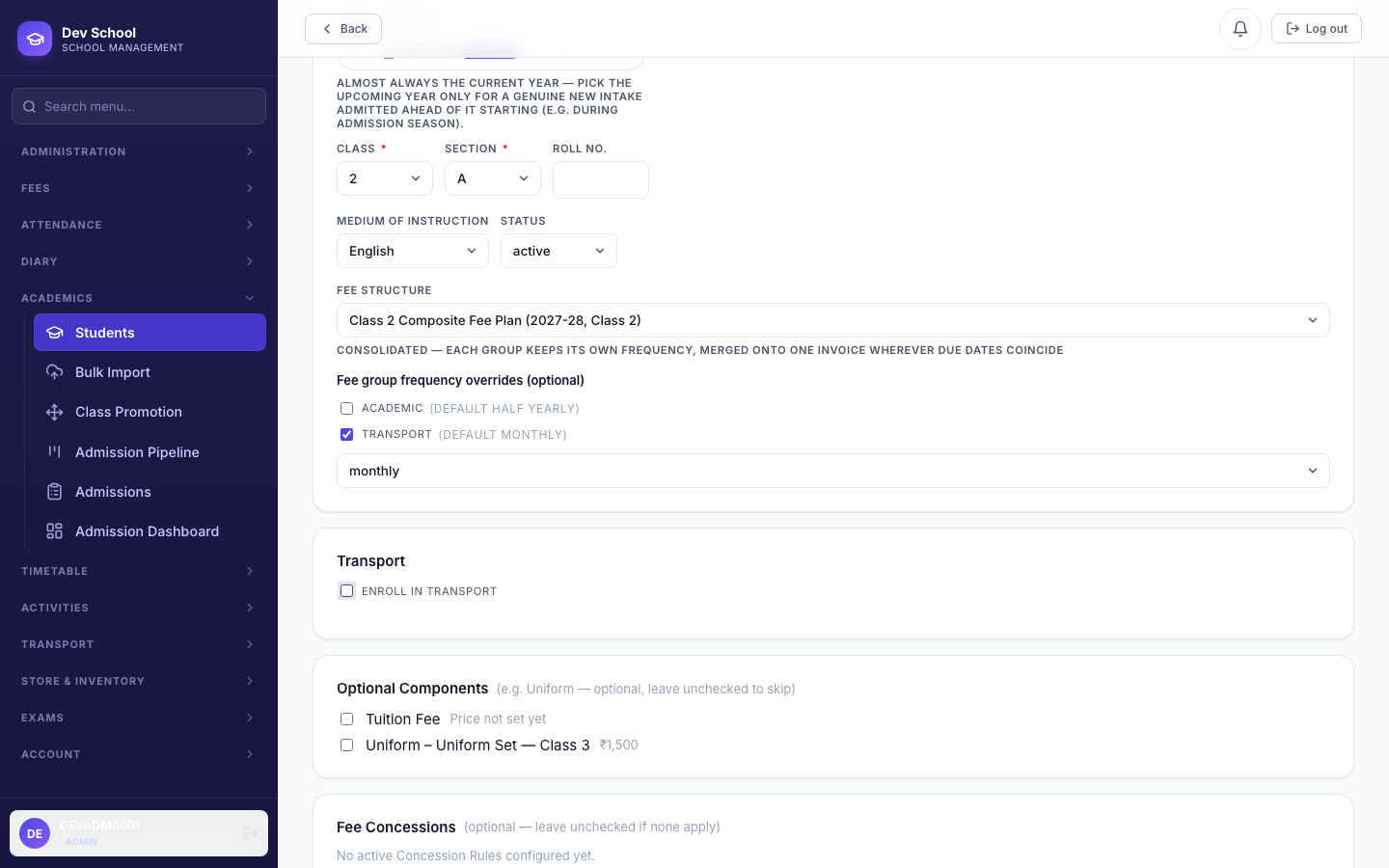
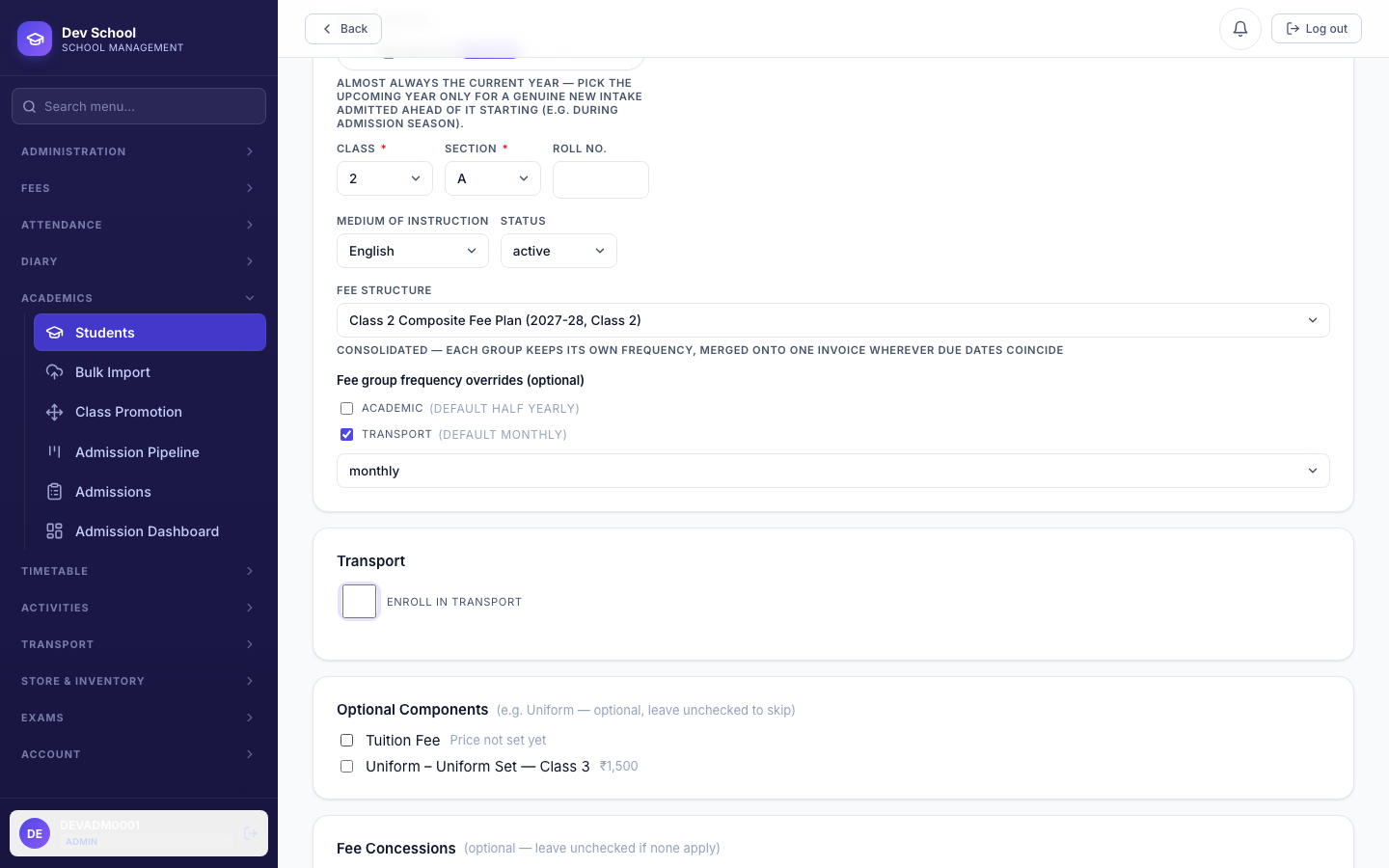
Everything above comes together at Add Student: pick (or override) the Fee Structure, override a specific group's cadence just for this student if needed, enroll them in Transport, tick any optional components (Uniform), and apply a concession — all in the same form, before the student even has an ID.
4.7 The Student Fee Profile & Generating Invoices
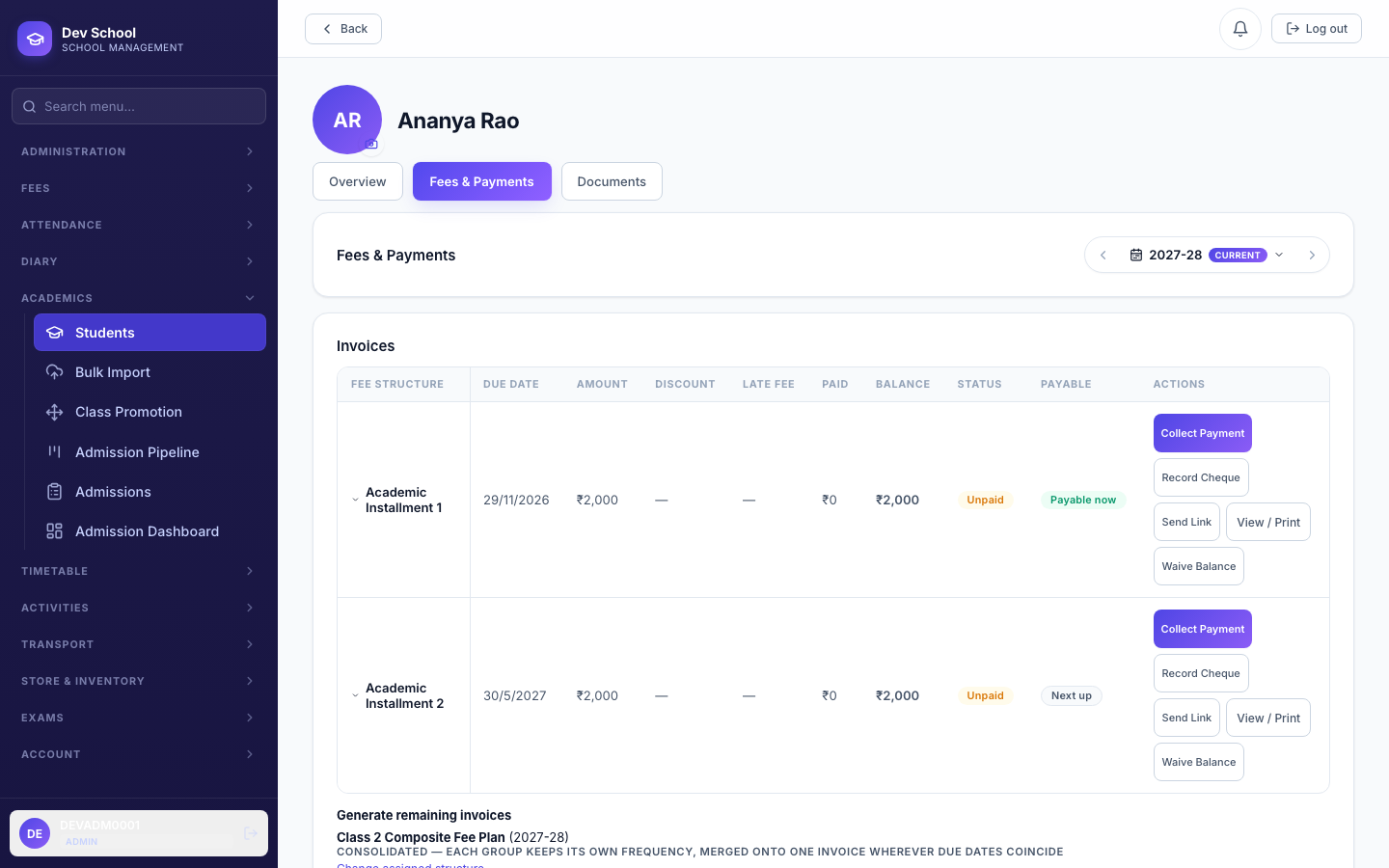
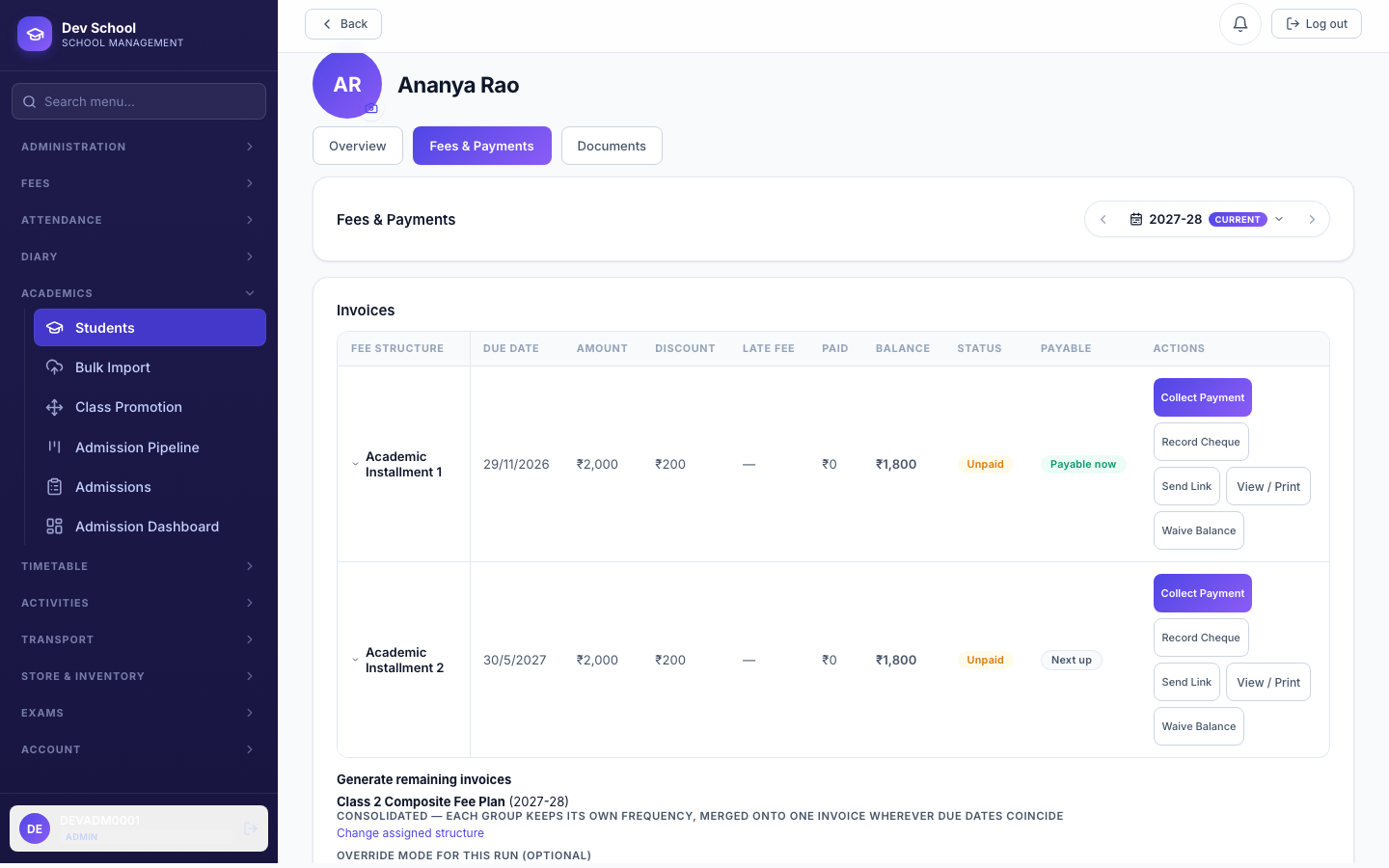
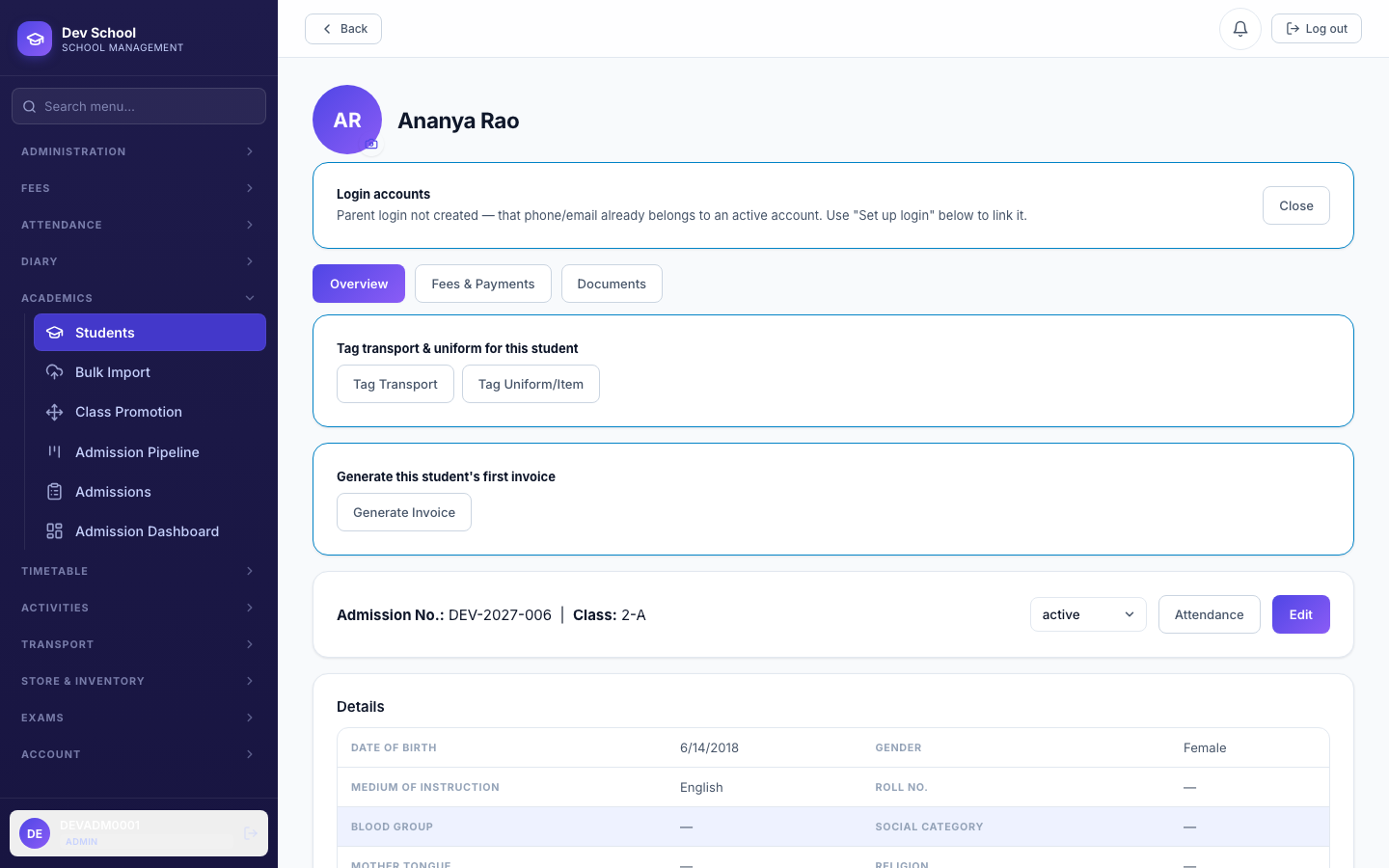
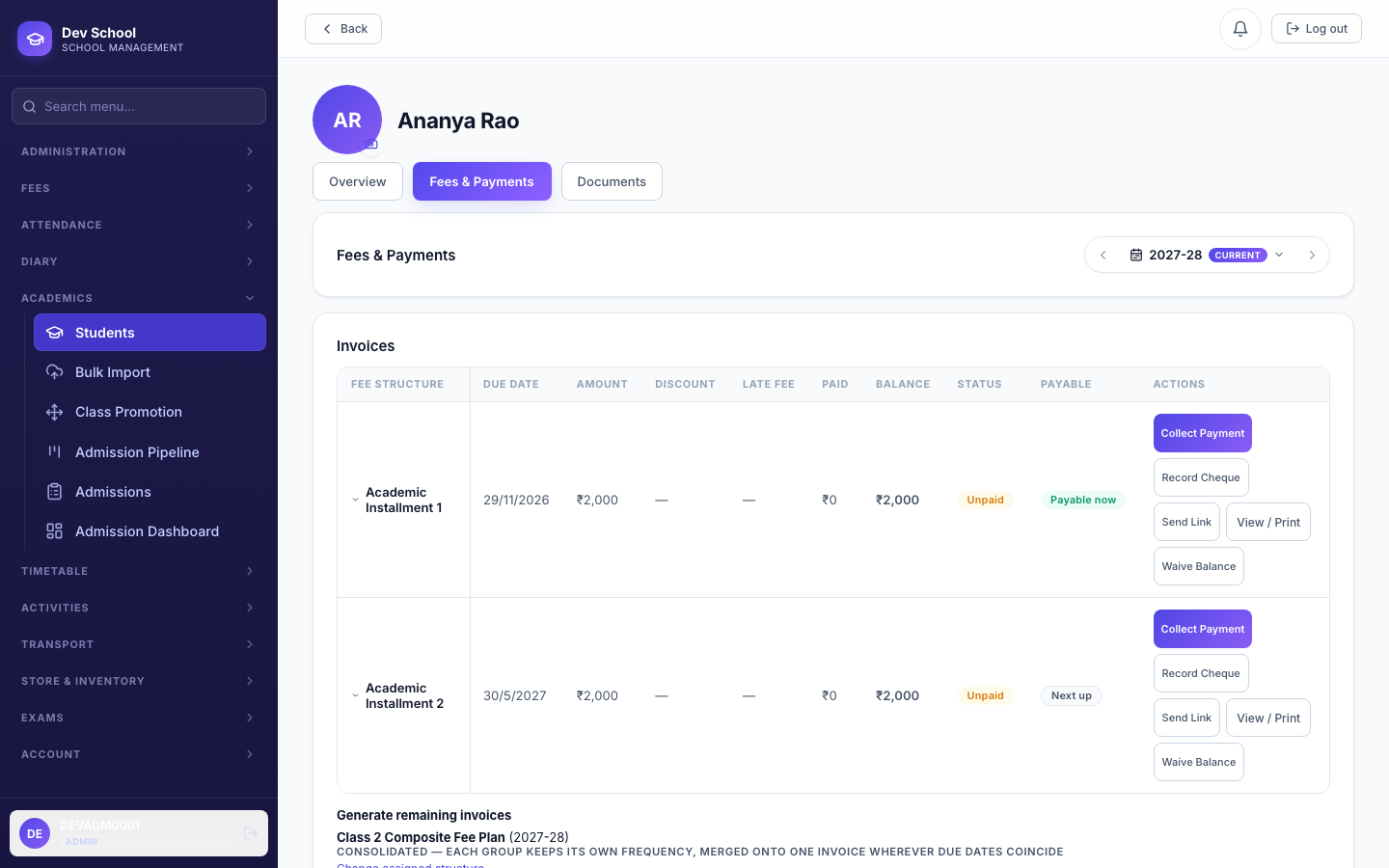
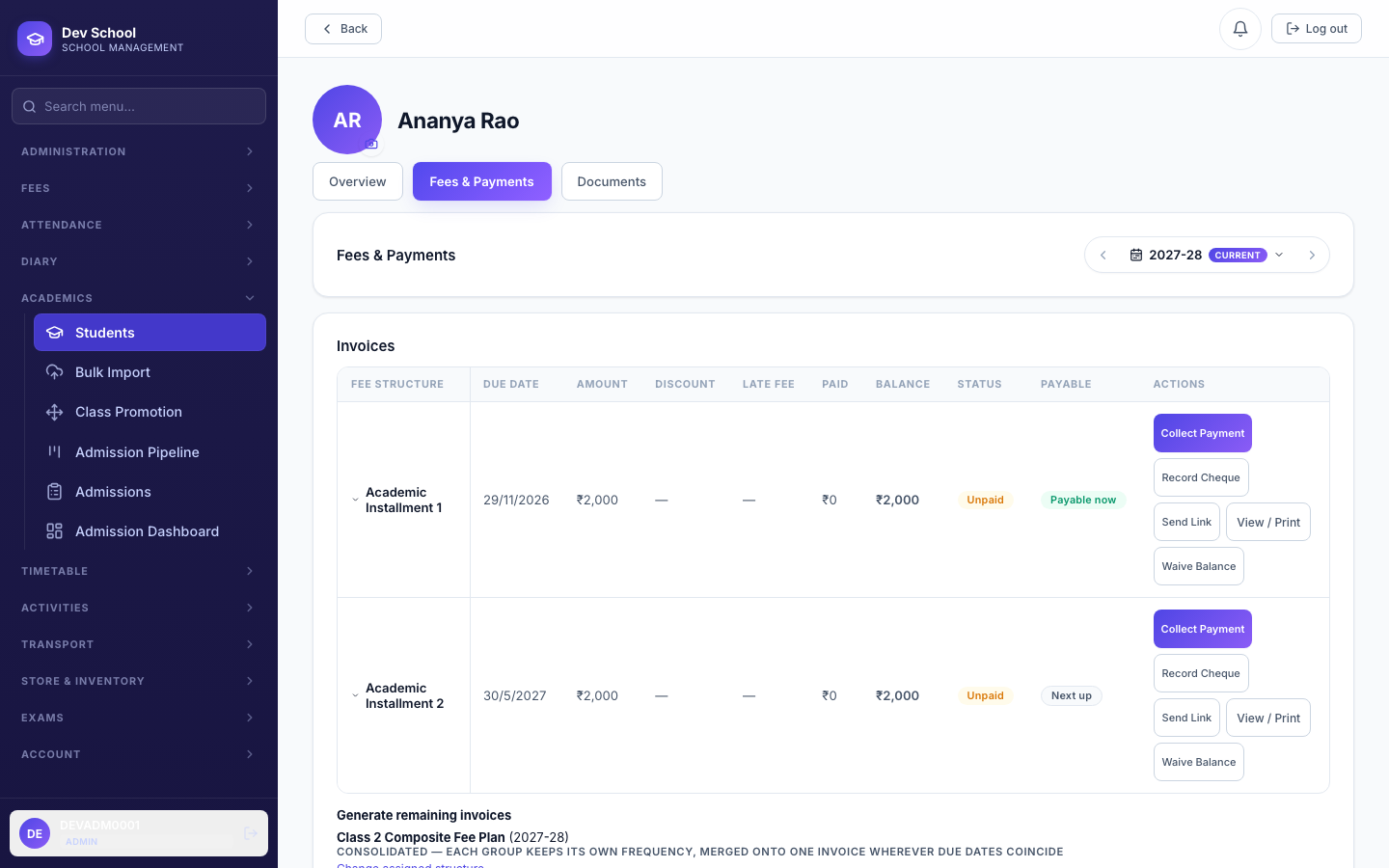
Right after a student is created, a "Generate this student's first invoice" shortcut appears on their Overview tab — a fast path into Fees & Payments without hunting through menus. From there, Generate always targets whatever Fee Structure is actually assigned, using its own Consolidated/Group-wise setting unless you override it for this one run.
4.8 Billing Diagnostics — "why isn't this billing?"
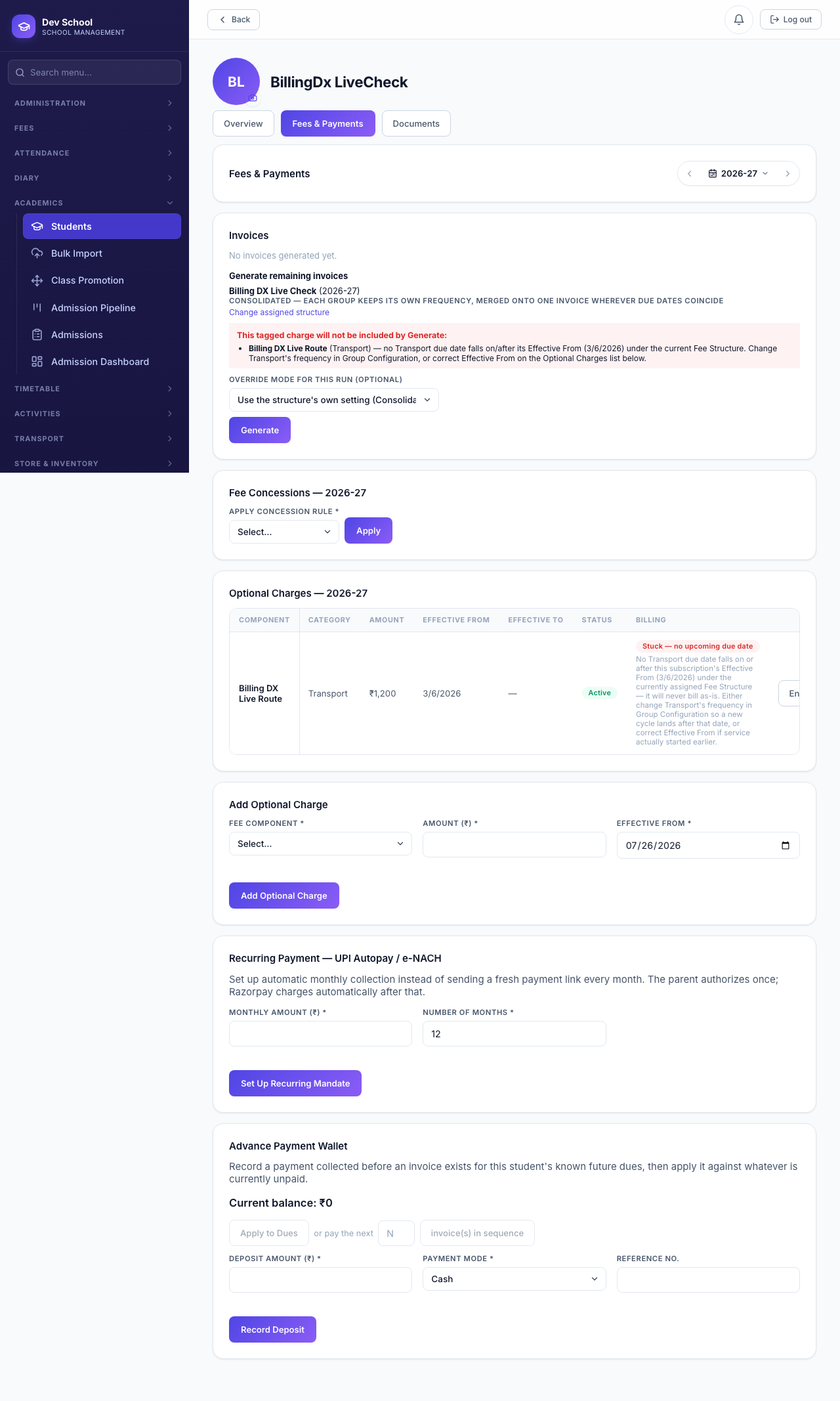
A student can be tagged for Transport, Hostel, or a Uniform, yet see nothing charged for it — usually because the subscription started after that group's only due date under the current cadence (an annual group only gets one due date a year). This used to be silent. It no longer is: both the Optional Charges list and the Generate screen now say exactly what's wrong and what to change.
| Status | Meaning |
|---|---|
| Invoiced | A real invoice already carries this charge. |
| Pending — bills {date} | Not yet billed, but a real upcoming due date exists — the next Generate will pick it up. |
| Stuck — no upcoming due date | No due date under the group's current frequency falls on/after this subscription's Effective From. Change the group's frequency in Group Configuration so a new cycle lands after that date, or correct Effective From if service genuinely started earlier. |
Validation rules & common errors
| Trigger | Error shown | Resolution |
|---|---|---|
| Fee Component saved with no Name/Category | Name and category are required | Fill both before saving. |
| Opt-in component saved with no Default Amount | Default Amount is required for an opt-in (non-mandatory) component | Enter a positive annual amount. |
| Group Configuration saved with nothing enabled | Enable at least one group before saving | Enable at least one group and give it a frequency. |
| Editing an Active or Archived Fee Structure | Cannot edit a Fee Structure once it is active/archived | Duplicate it as a new version instead. |
| Archiving a structure with students still assigned | N student(s) are still assigned to this Fee Structure — reassign them first before archiving | Reassign or unassign every student first. |
| Deleting an Active Fee Structure | Cannot delete an Active Fee Structure — archive it first | Archive it, then delete. |
| Generating invoices against a draft/archived structure | This Fee Structure is not Active | Activate it first. |
| Assigning a draft/archived structure to a student | Only an Active Fee Structure can be assigned to a student | Only Active structures ever appear in the picker — activate the one you need. |
| Concession discount value out of range | Discount value out of range | Enter a percentage between 0 and 100 (or switch to a fixed amount). |
| Document-required concession applied without an upload | A supporting document is required for this concession | Attach a real file before applying. |
After building or changing a Fee Structure or Concession, generate one real invoice for a real student and check the breakdown — it's the fastest way to catch a misconfigured group cadence or a concession that isn't computing as expected.