Chapter 9

Parent Portal

parent

Overview

Every parent automatically gets a login when their child is admitted (Chapter 3). This chapter shows what a parent sees: their children, fees (including any concession applied), timetable, attendance, and how to submit a leave request.
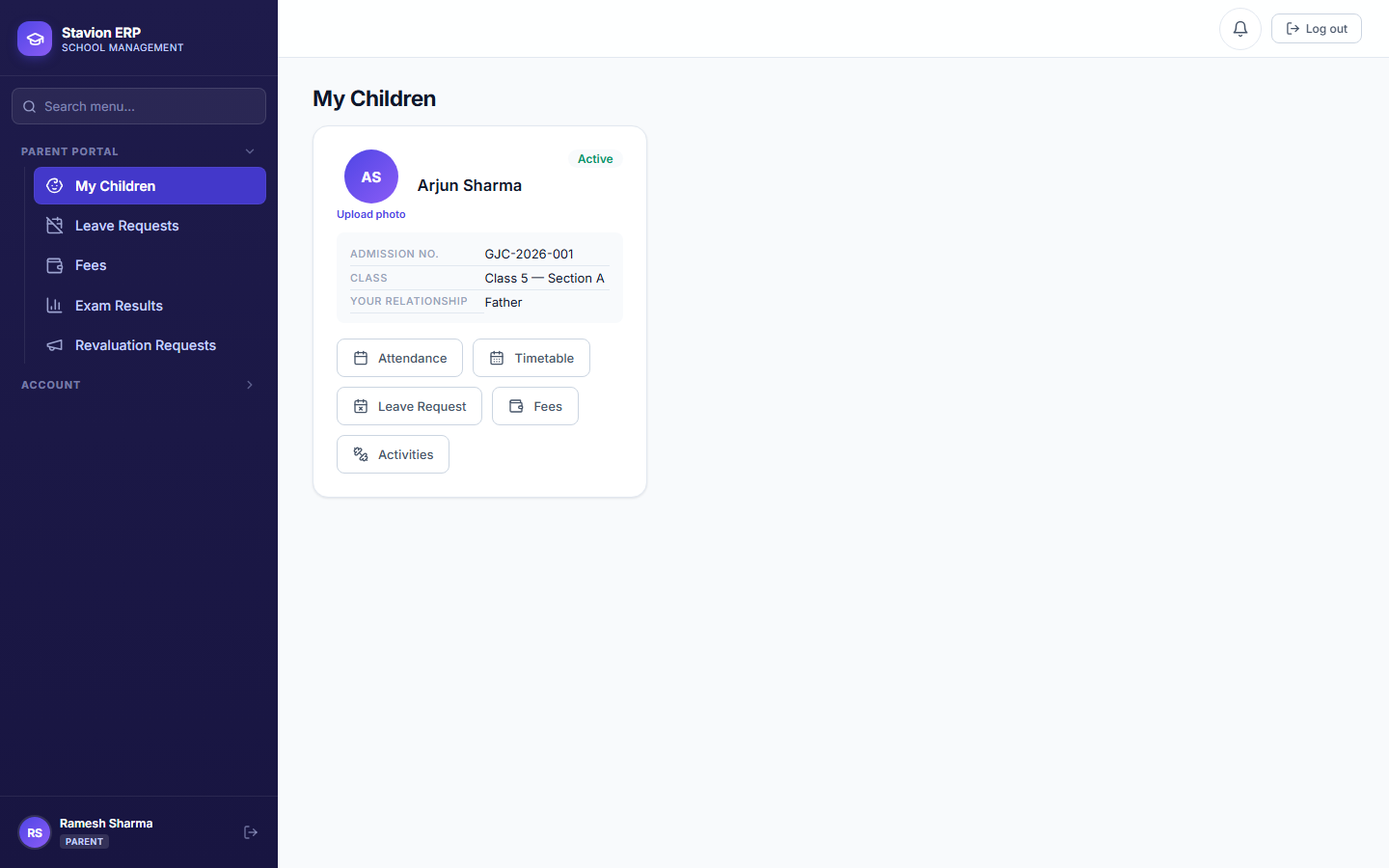
The Parent Dashboard, showing a
Figure 9.118. The Parent Dashboard — a card per child, with Fees / Timetable / Attendance / Leave Request actions.
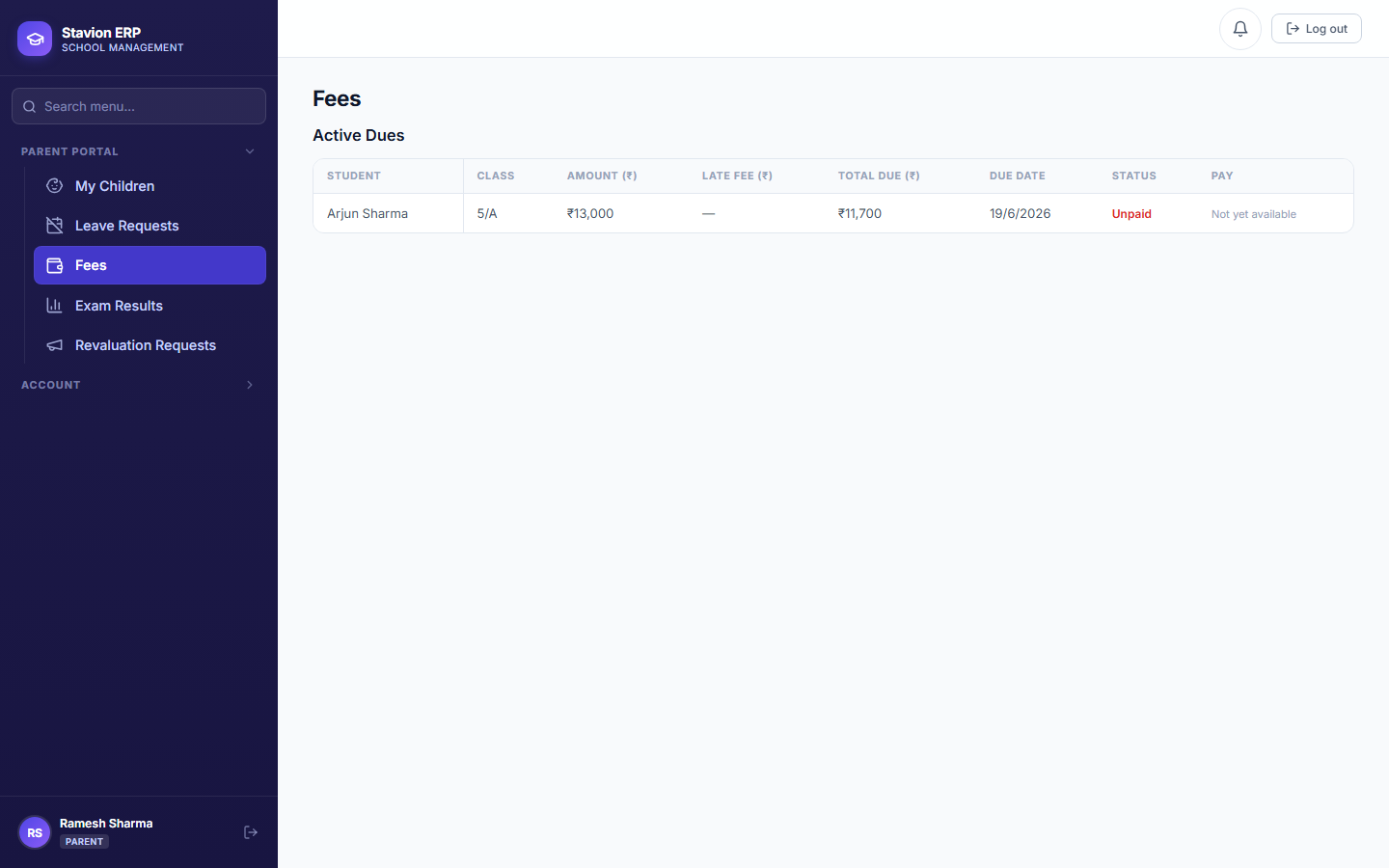
The parent’s view of their child’s fees, showing the Sibling Discount applied
Figure 9.119. The parent’s Fees view — the Sibling Discount from Chapter 4 is visible on the child’s own challan.
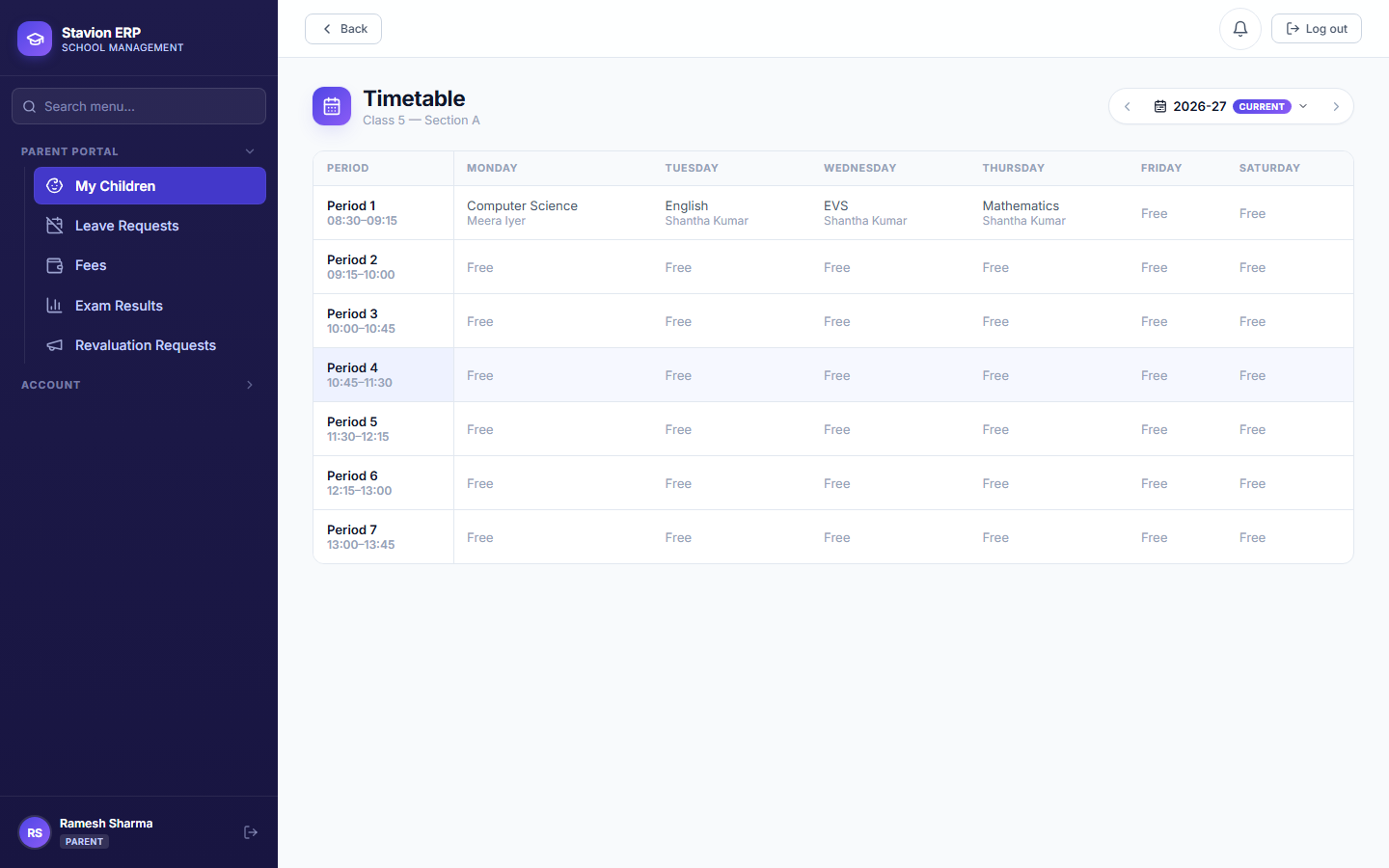
The parent’s view of their child’s class timetable
Figure 9.120. The parent’s Timetable view — the child’s own class/section only, with no class picker (a parent can never browse another class’s timetable).
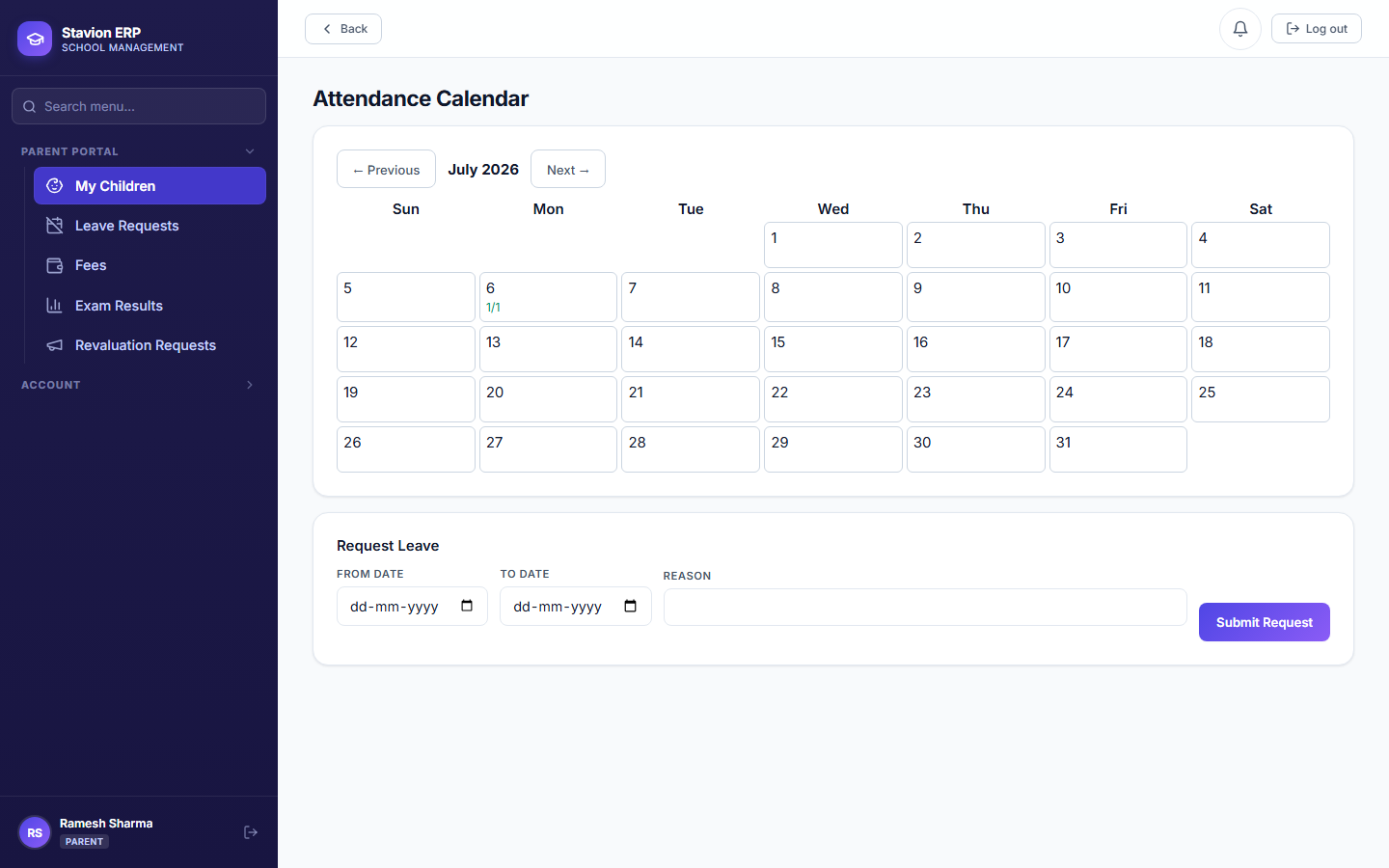
The parent’s Attendance calendar, showing marks recorded in Chapter 7
Figure 9.121. The parent’s Attendance calendar — showing the marks recorded back in Chapter 7.
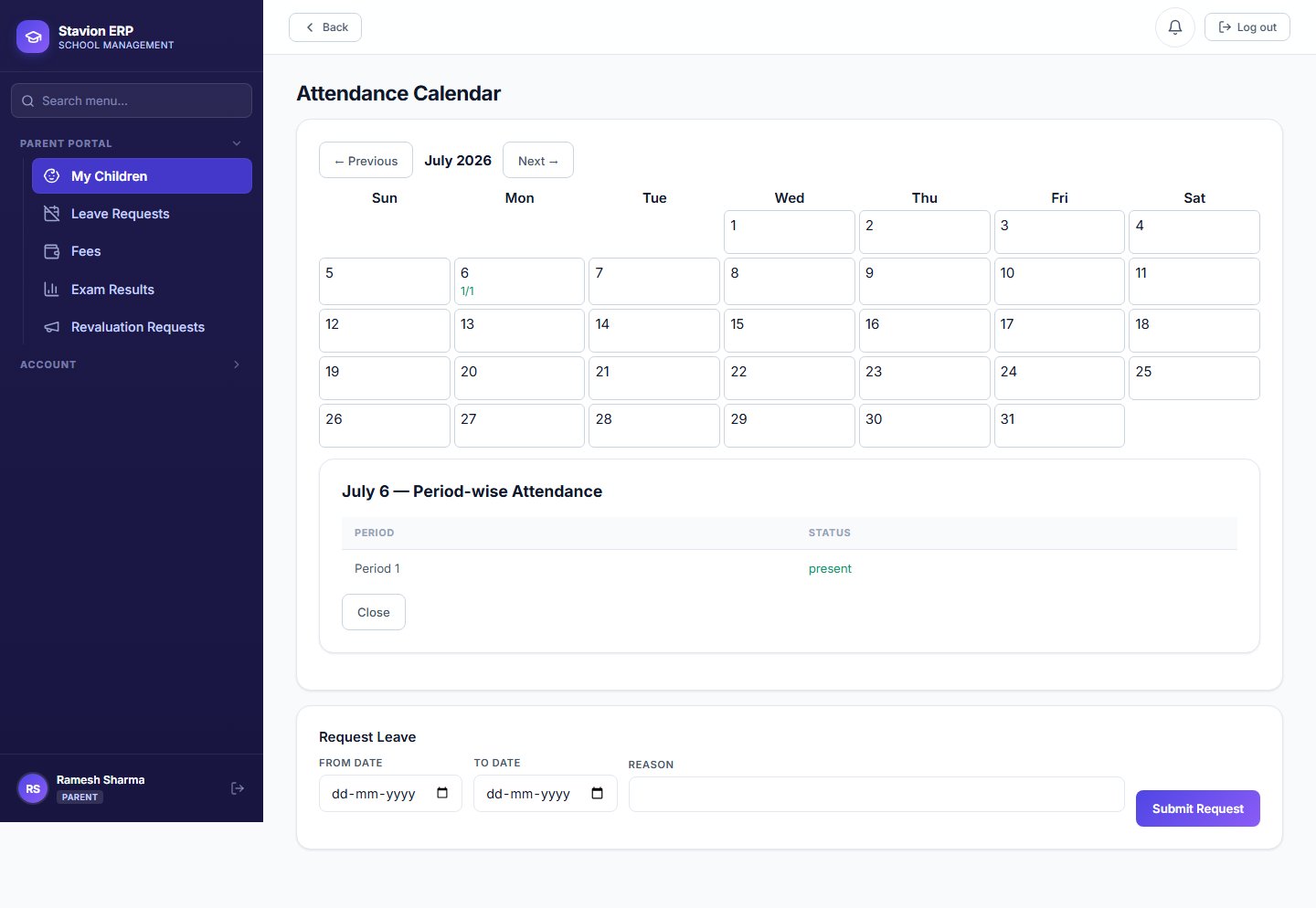
Drilling into a specific day’s attendance from the calendar
Figure 9.122. Drilling into a specific day for the per-period detail.
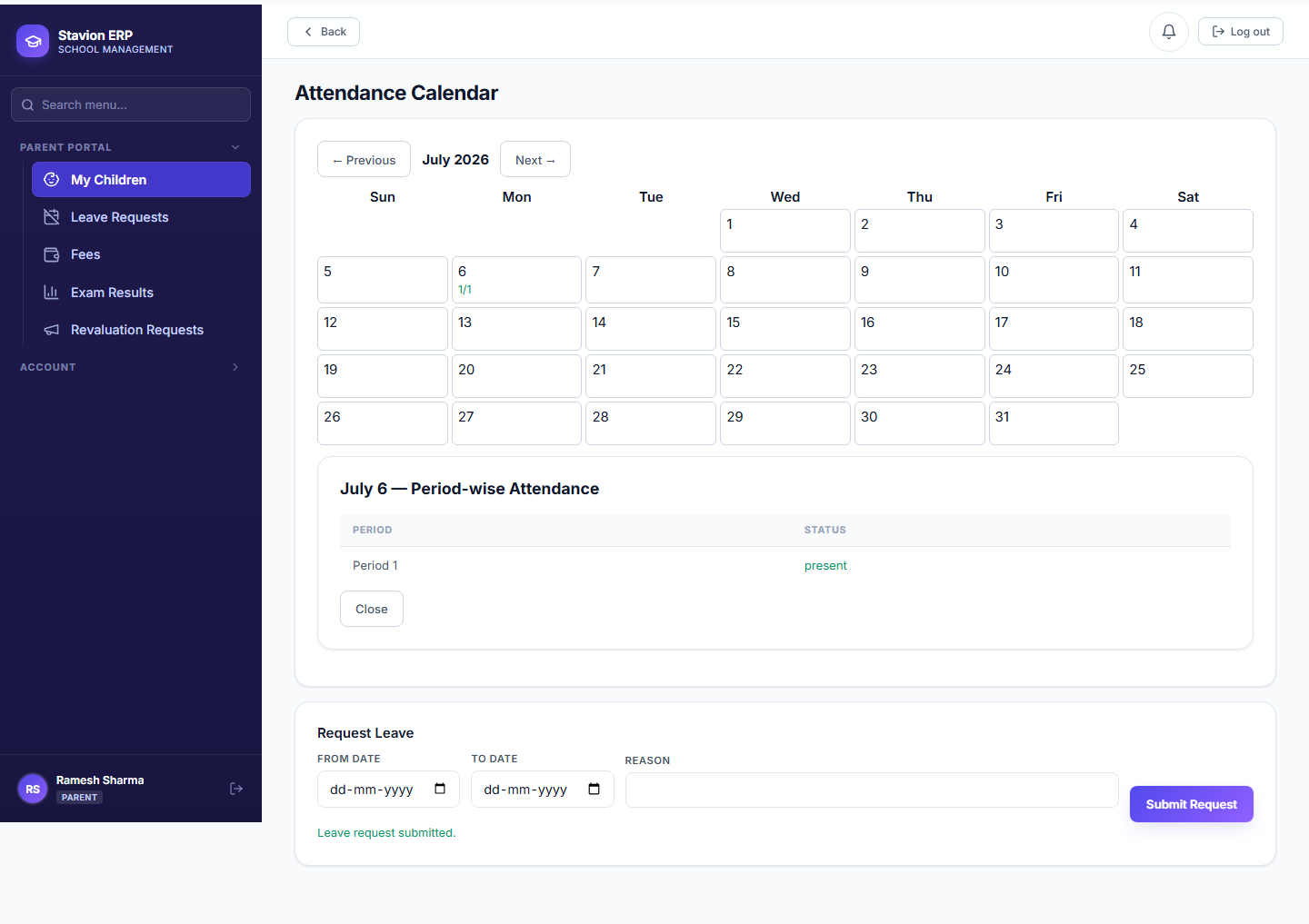
A leave request submitted by the parent directly from the Attendance Calendar
Figure 9.123. A leave request submitted directly from the Attendance Calendar.
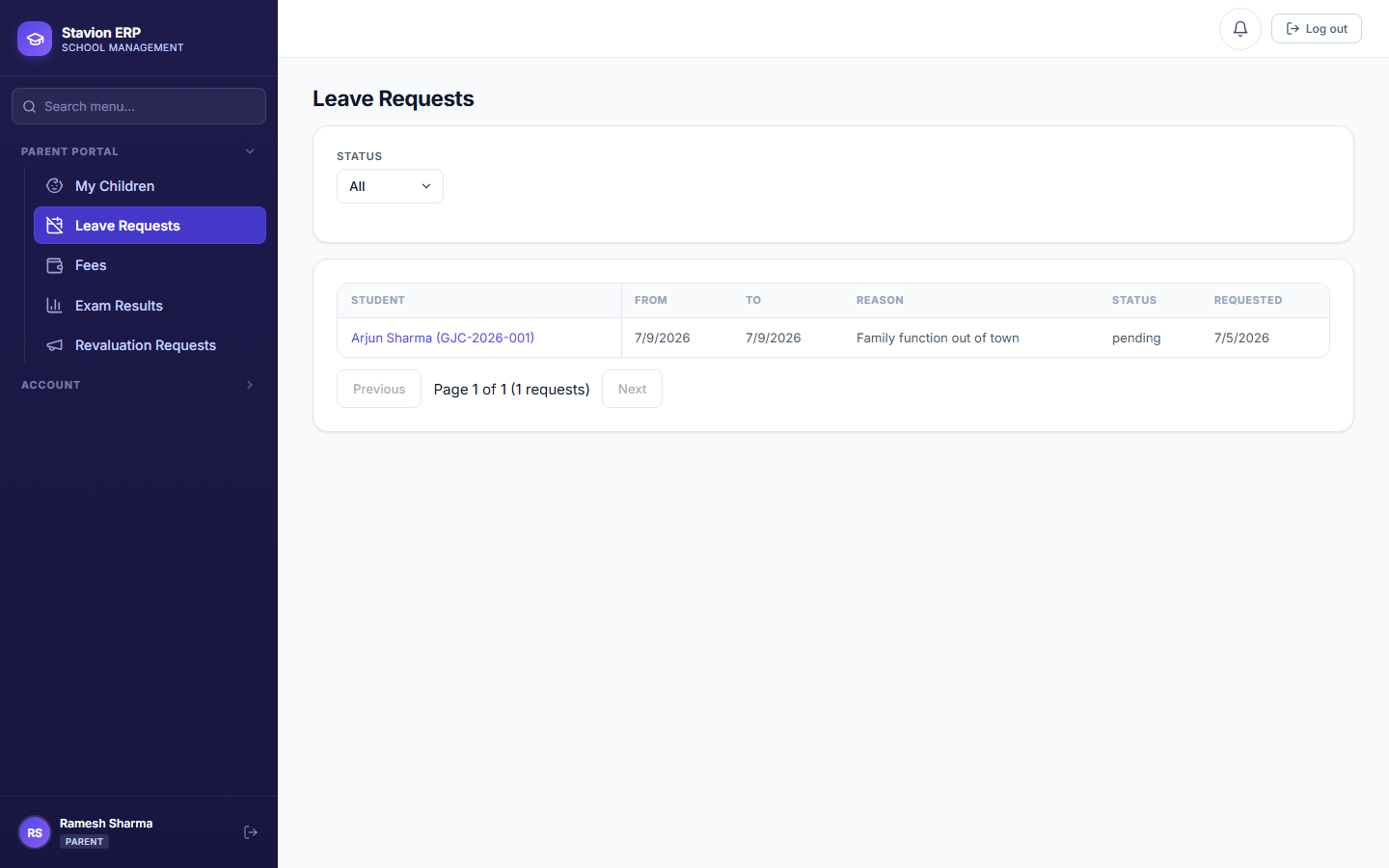
The parent’s Leave Requests list, now showing the request just submitted
Figure 9.124. The request now appears in the parent’s own Leave Requests list, pending a teacher’s review.
A second child on the same phone number

When a second sibling is admitted with the same parent phone number, the system detects the existing parent login and does not create a duplicate — but it also does not automatically link the new child to it. Linking a second child to an existing parent login is a separate, manual "Set up login" action performed by the Admin.