Attendance
Overview
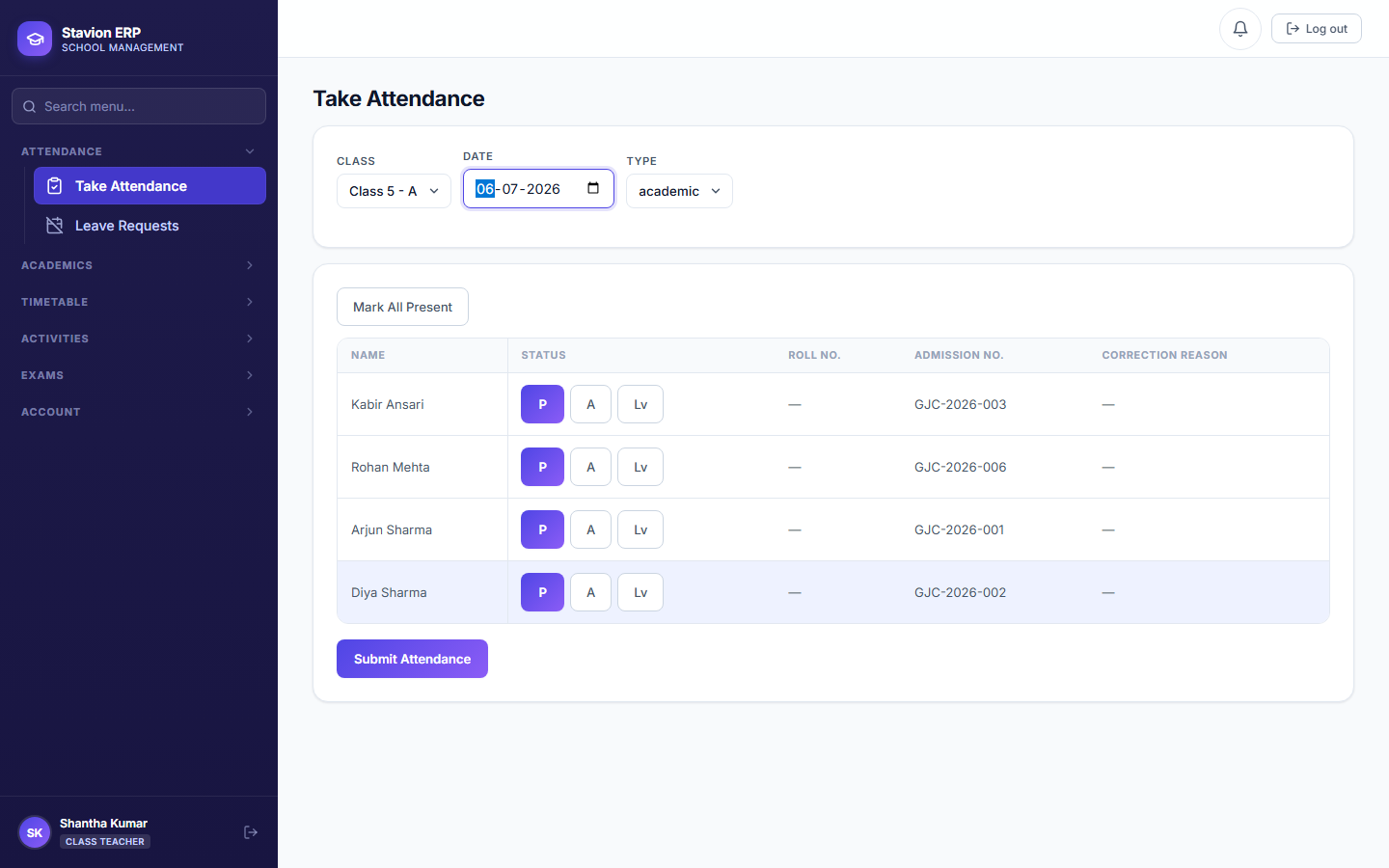
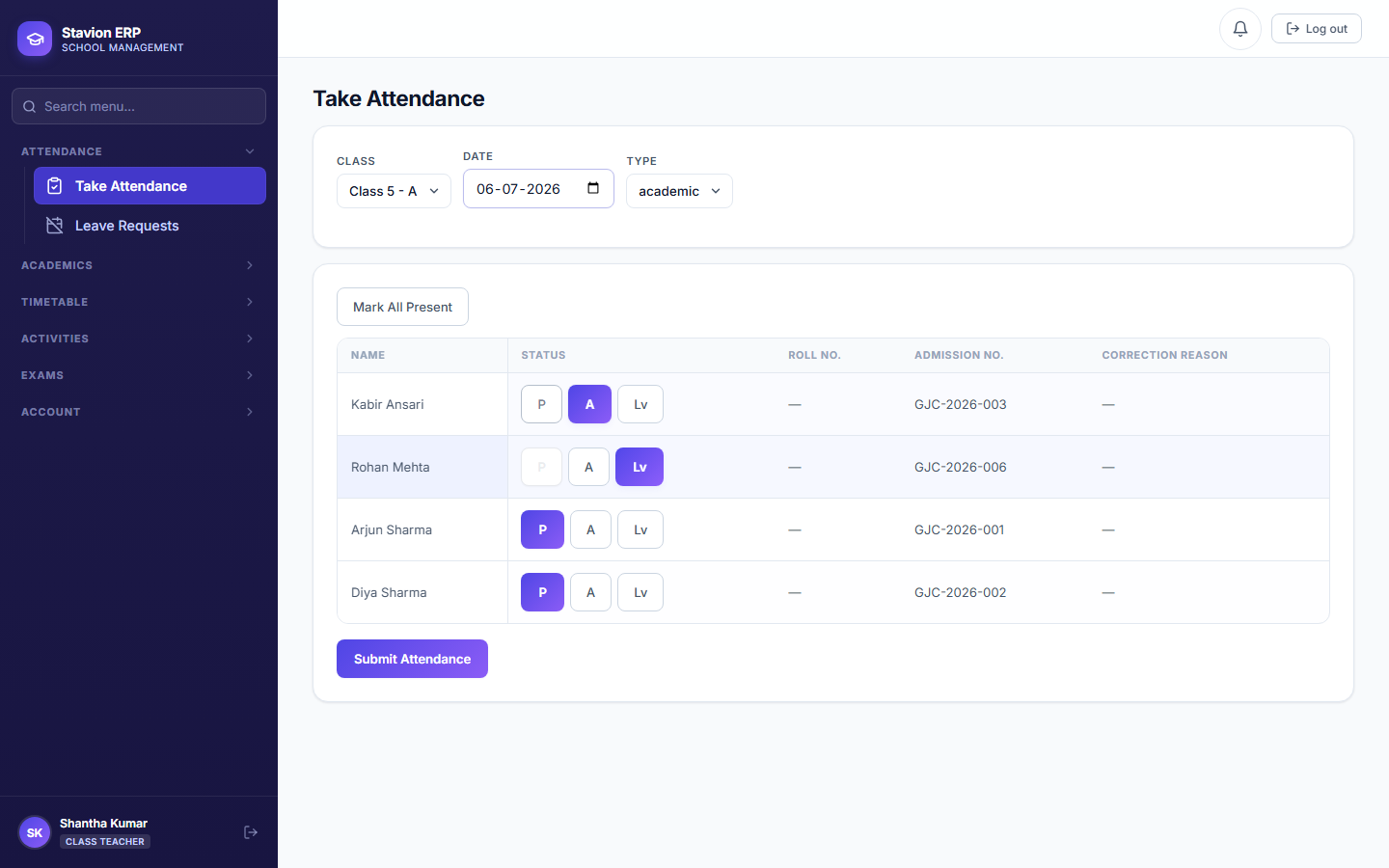
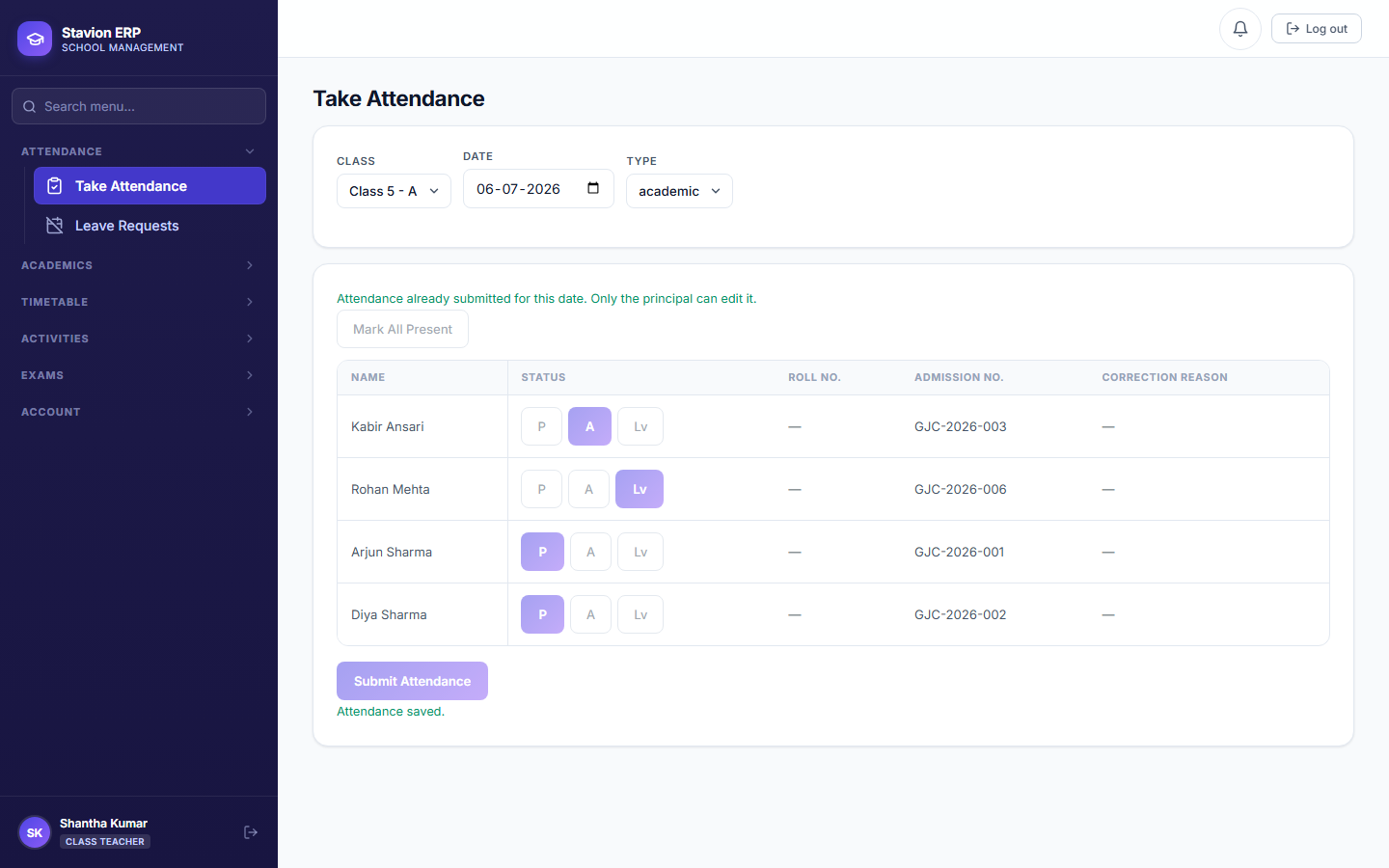
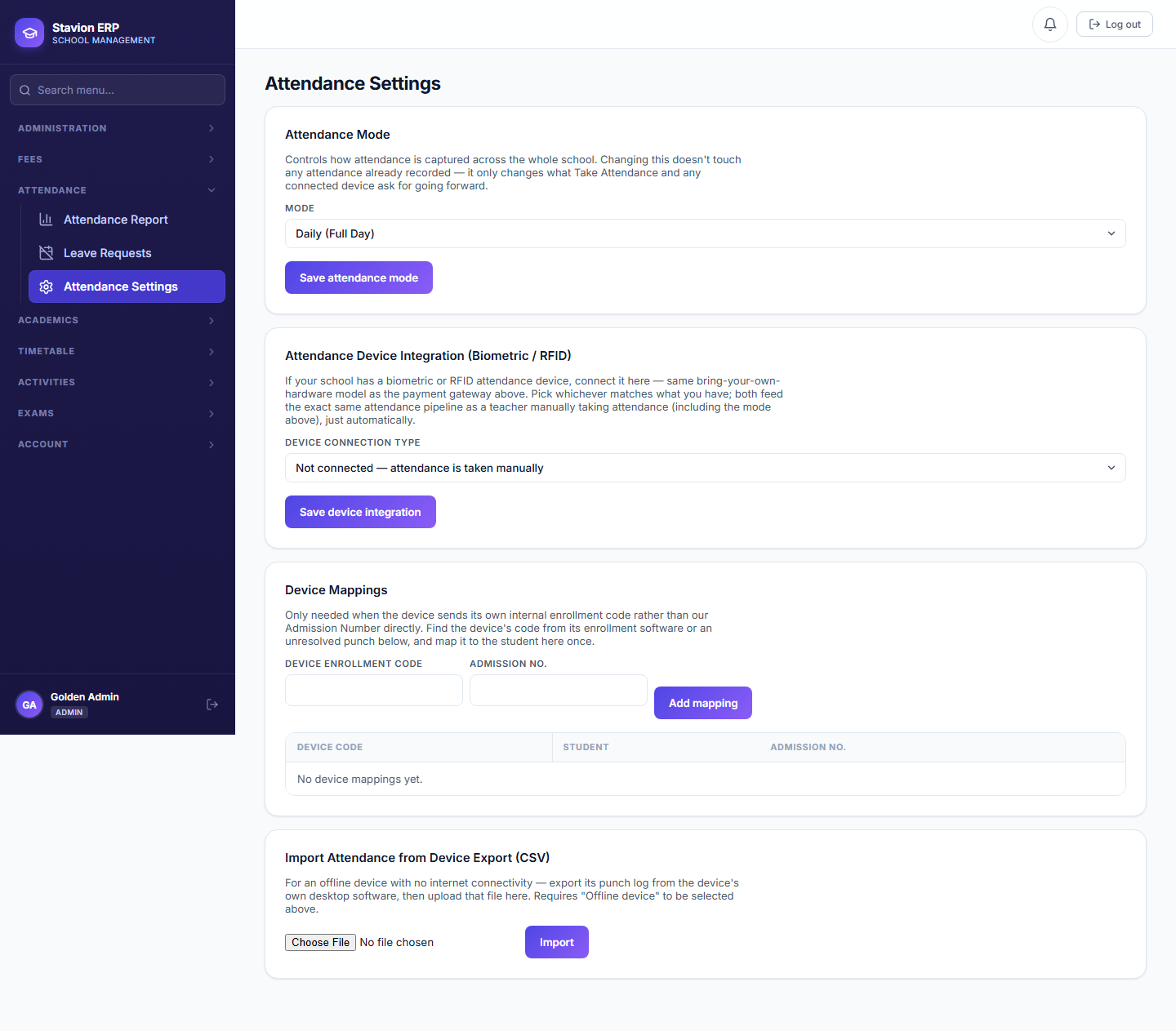
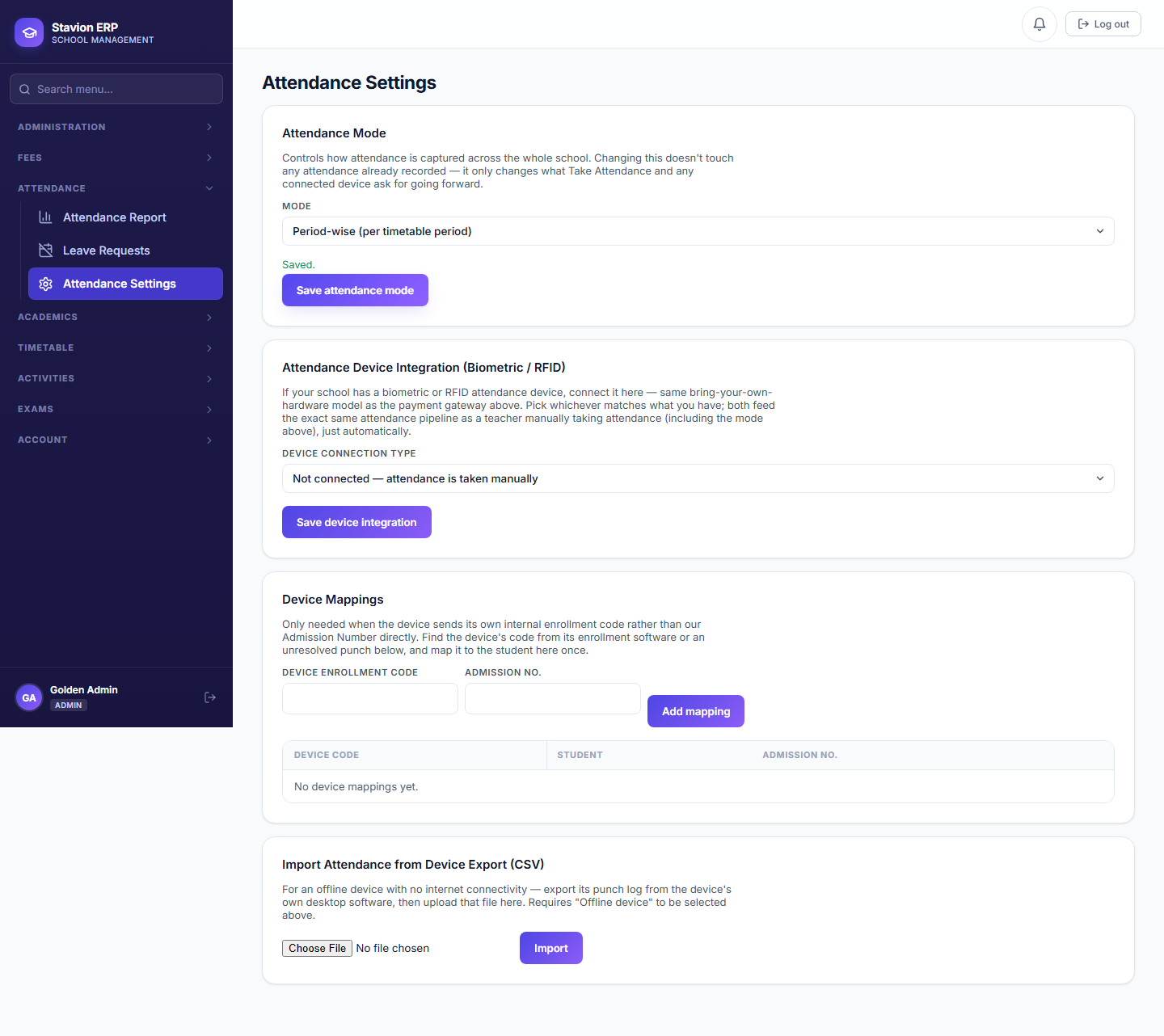
Attendance can be taken in two modes, configured per school: Daily (one mark per student per day) and Period-wise (one mark per student per period). This chapter walks through both, plus how a Principal corrects an already-submitted record, the Admin's report view, and — in detail — how CampusOS decides exactly who is allowed to take attendance for which class.
Attendance modes
- DailyOne Present/Absent/Leave mark per student, per day. The simplest mode — right for a school without a fixed period-by-period timetable.
- Half-DayTwo marks per student per day (morning/afternoon) — for schools that split the day into two attendance windows.
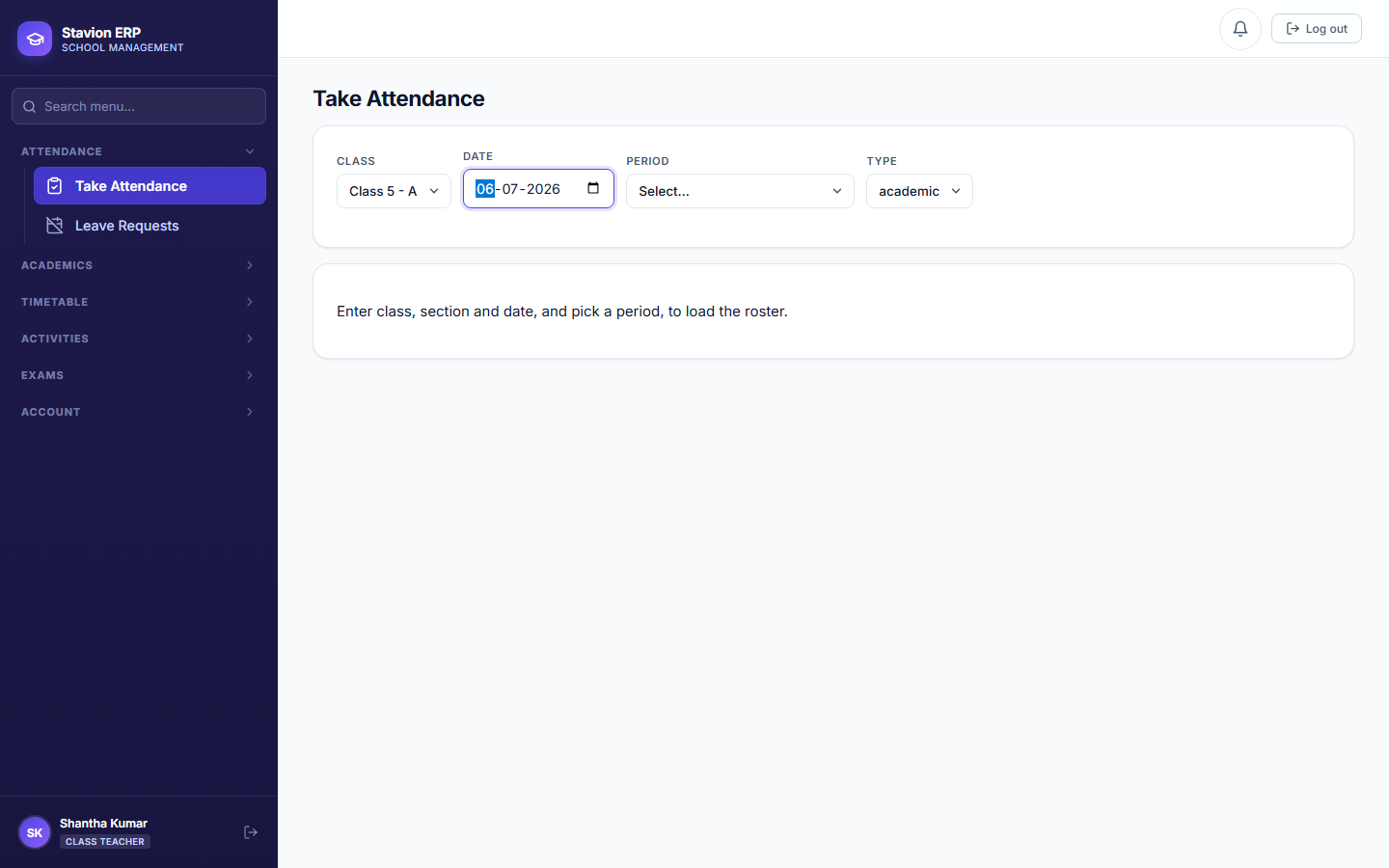
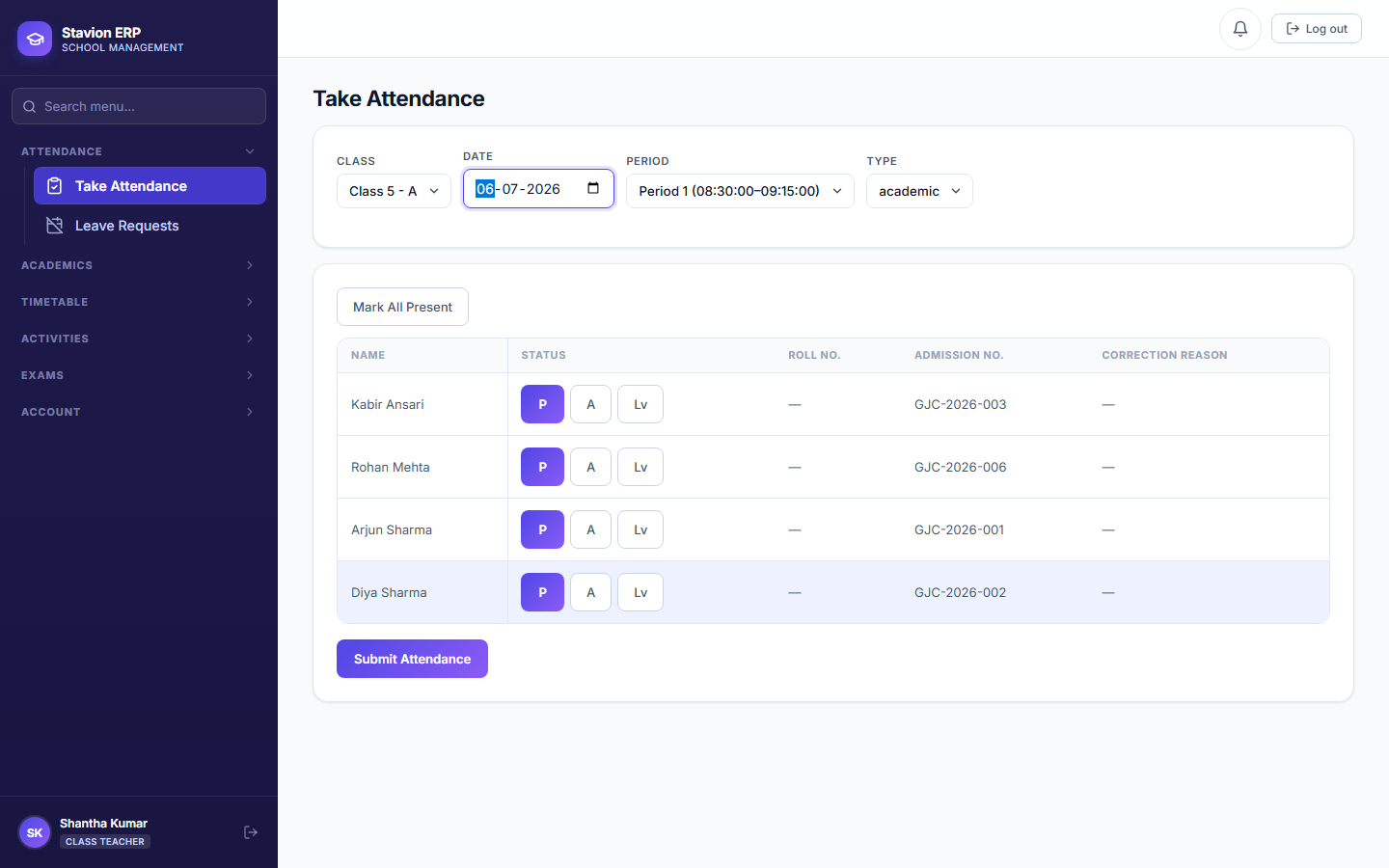
- Period-wiseOne mark per student, per period, cross-checked against the actual Timetable slot for that class/day/period — the most granular mode, and the only one where a Subject Teacher's exact scheduled period is enforced (see 7.6 below).
7.1 Assigning a Class Teacher
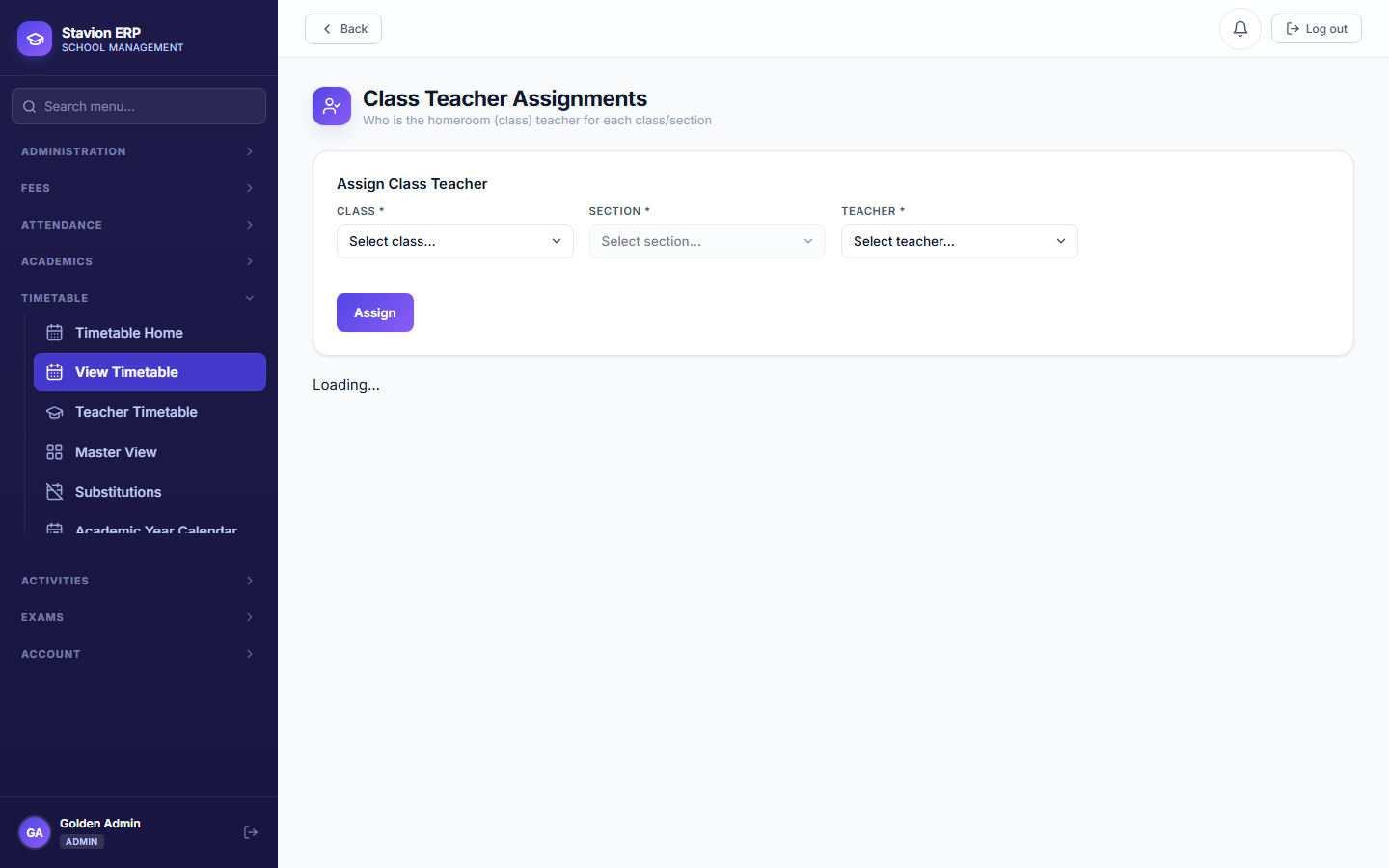
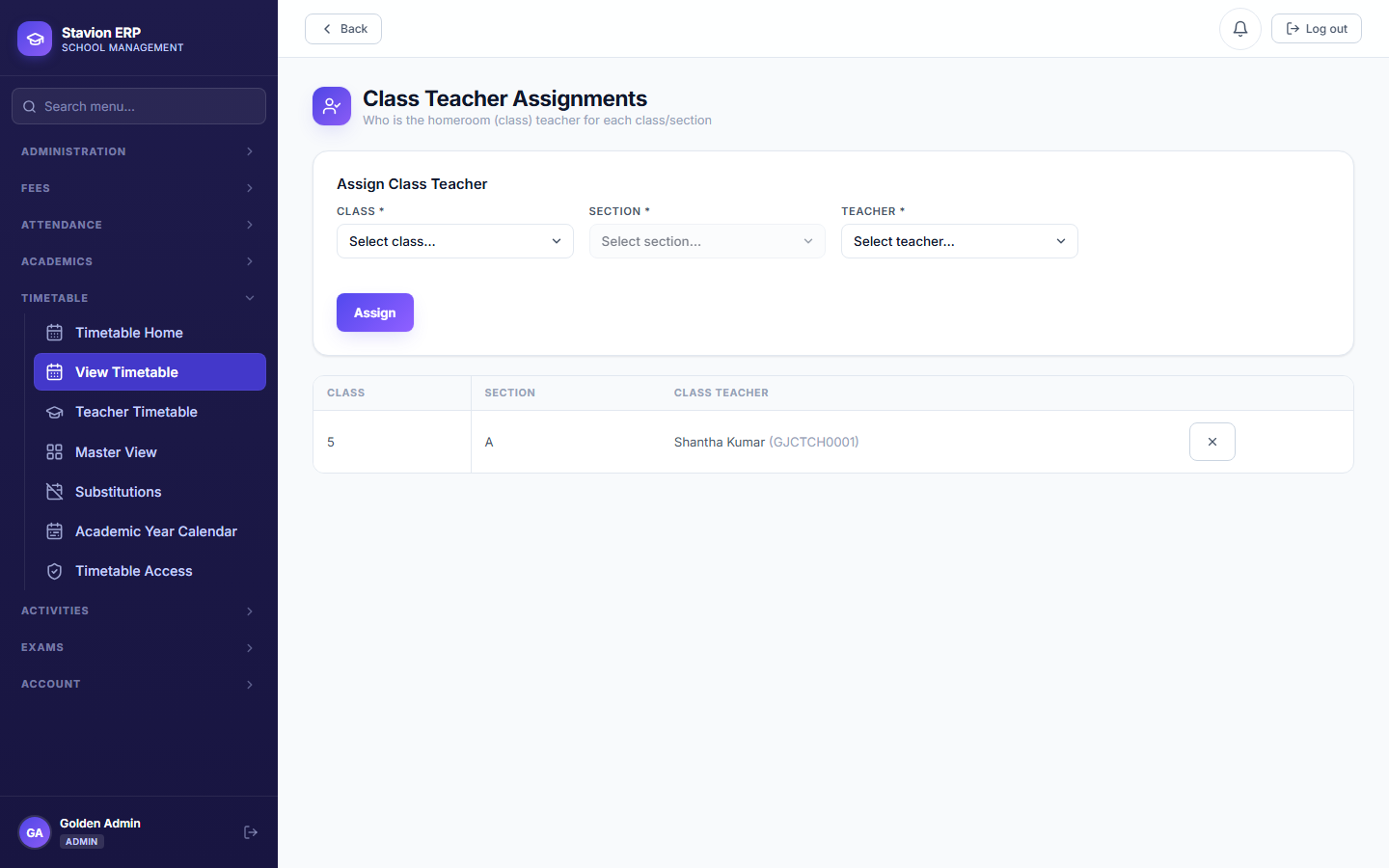
A Class Teacher with no assignment for a class cannot take attendance for it at all — see 7.6 below. Assigning the Class Teacher is a required setup step, not a cosmetic one, before Take Attendance will work for that class.
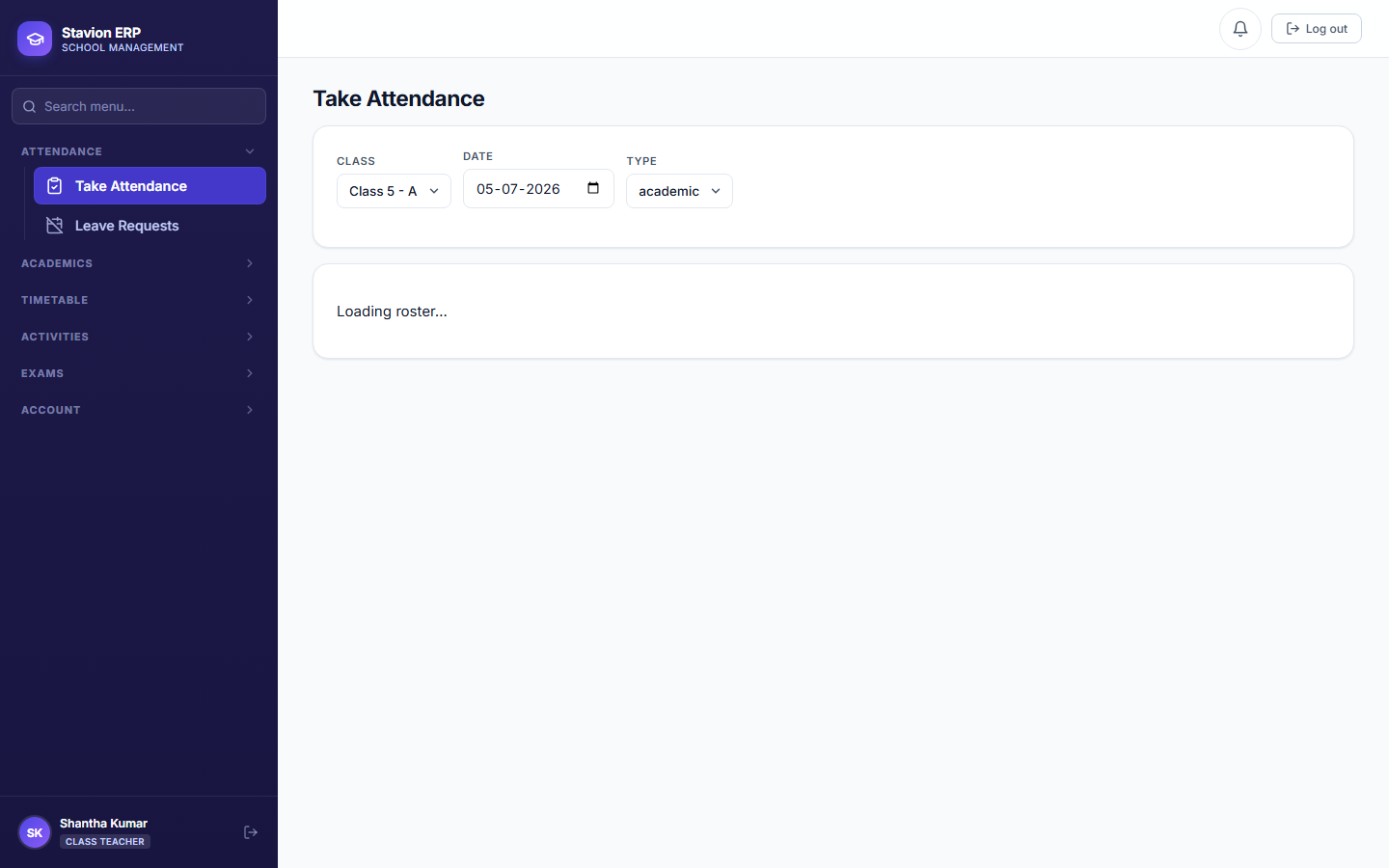
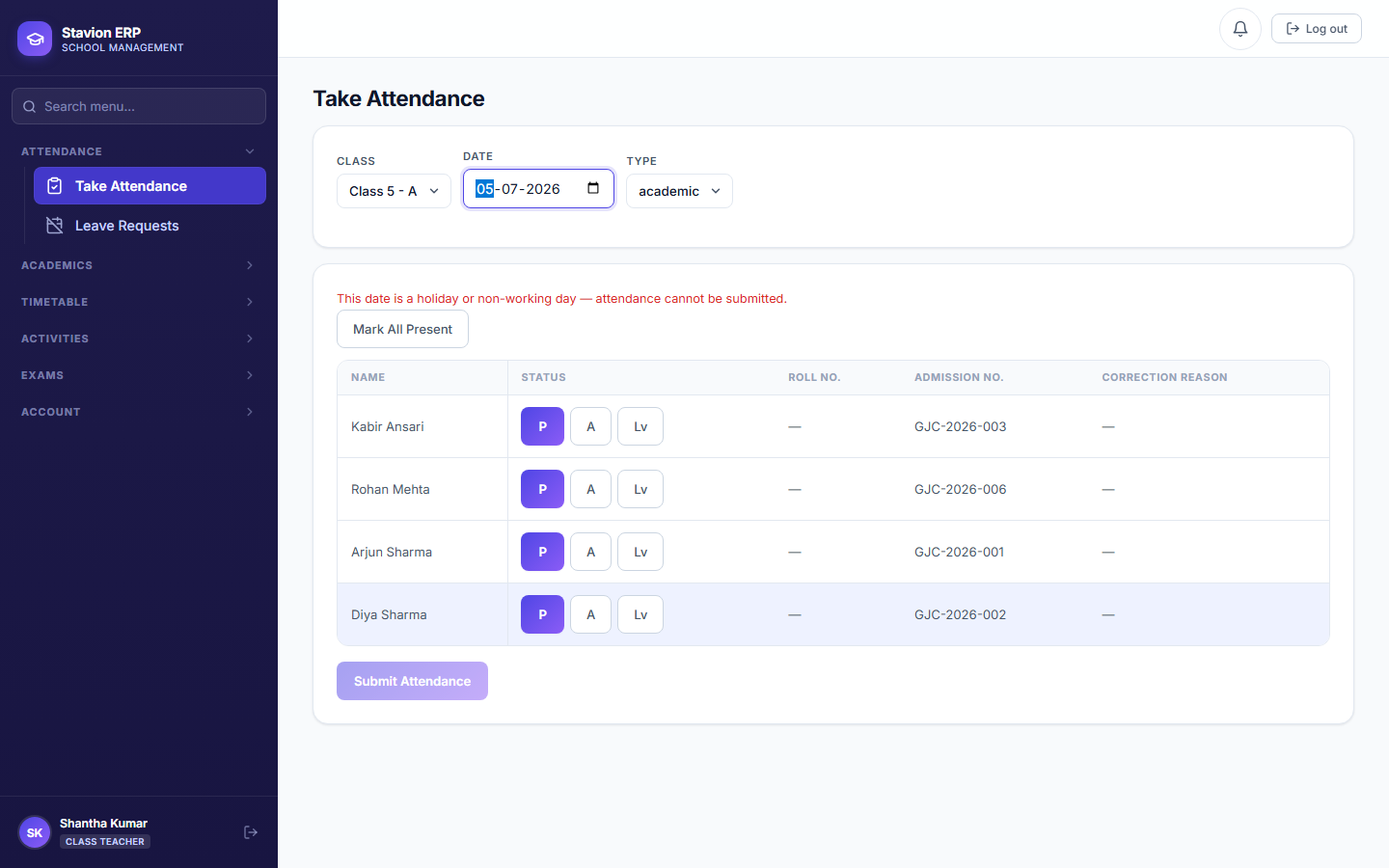
7.2 Daily mode
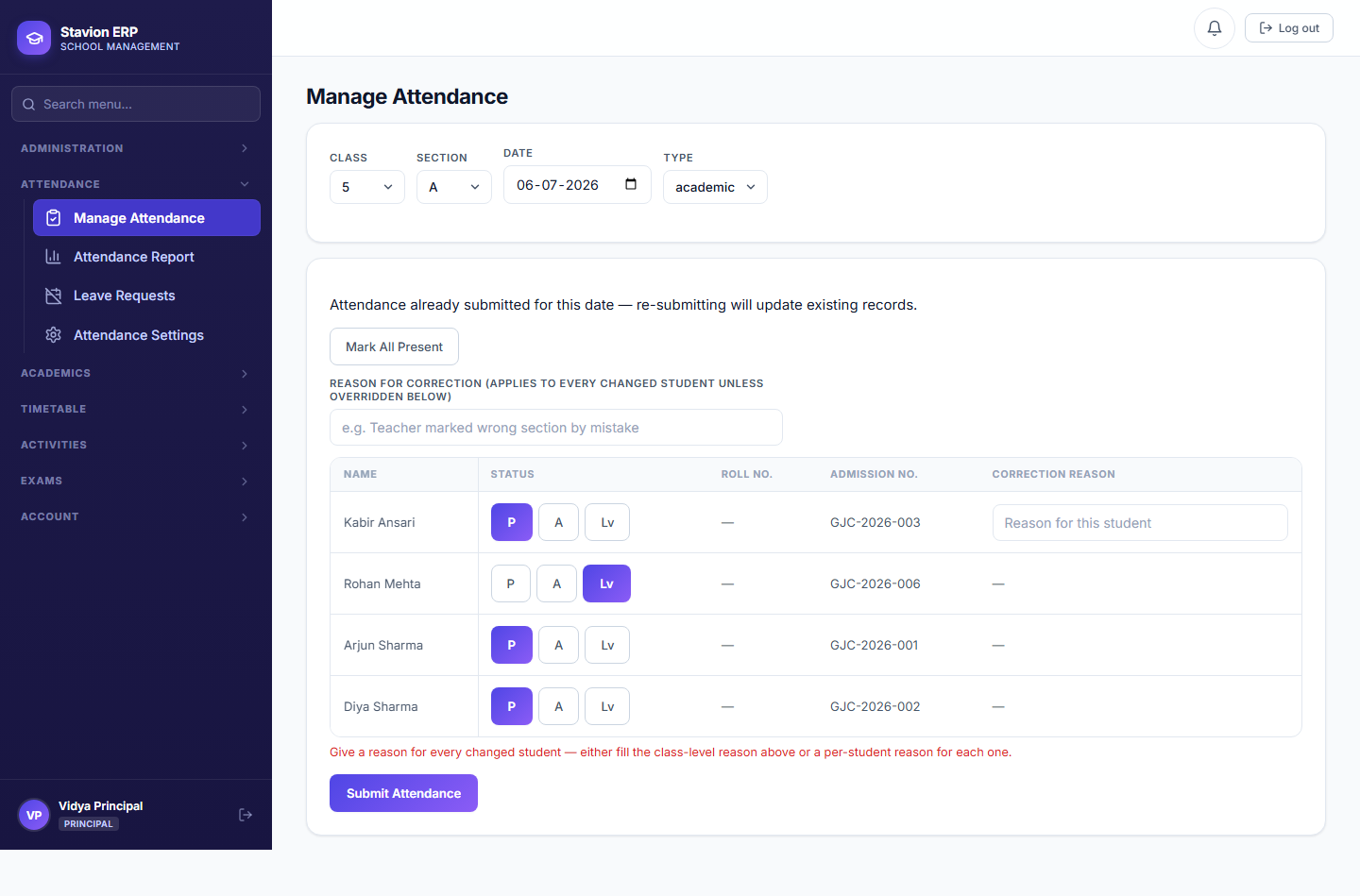
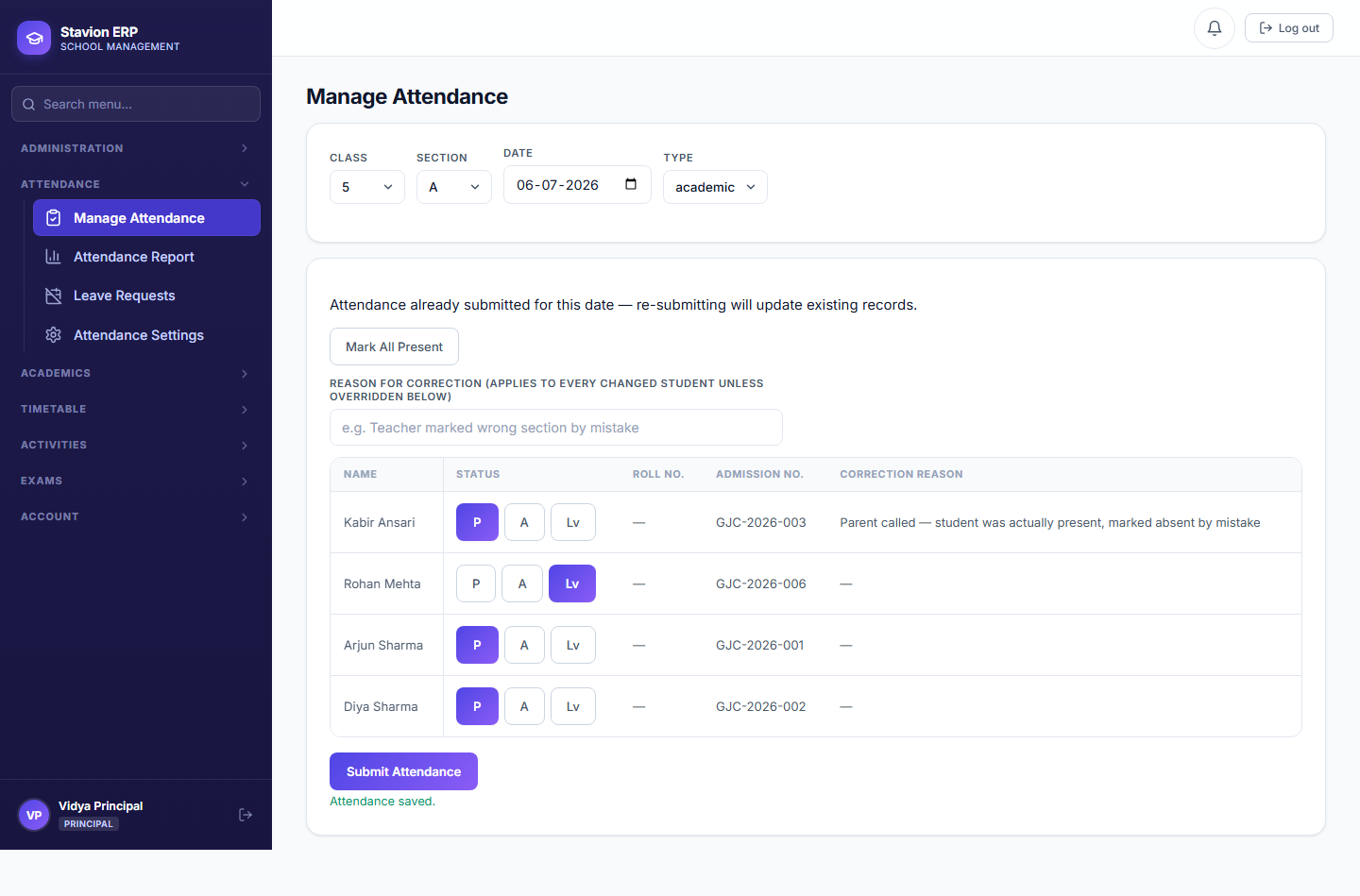
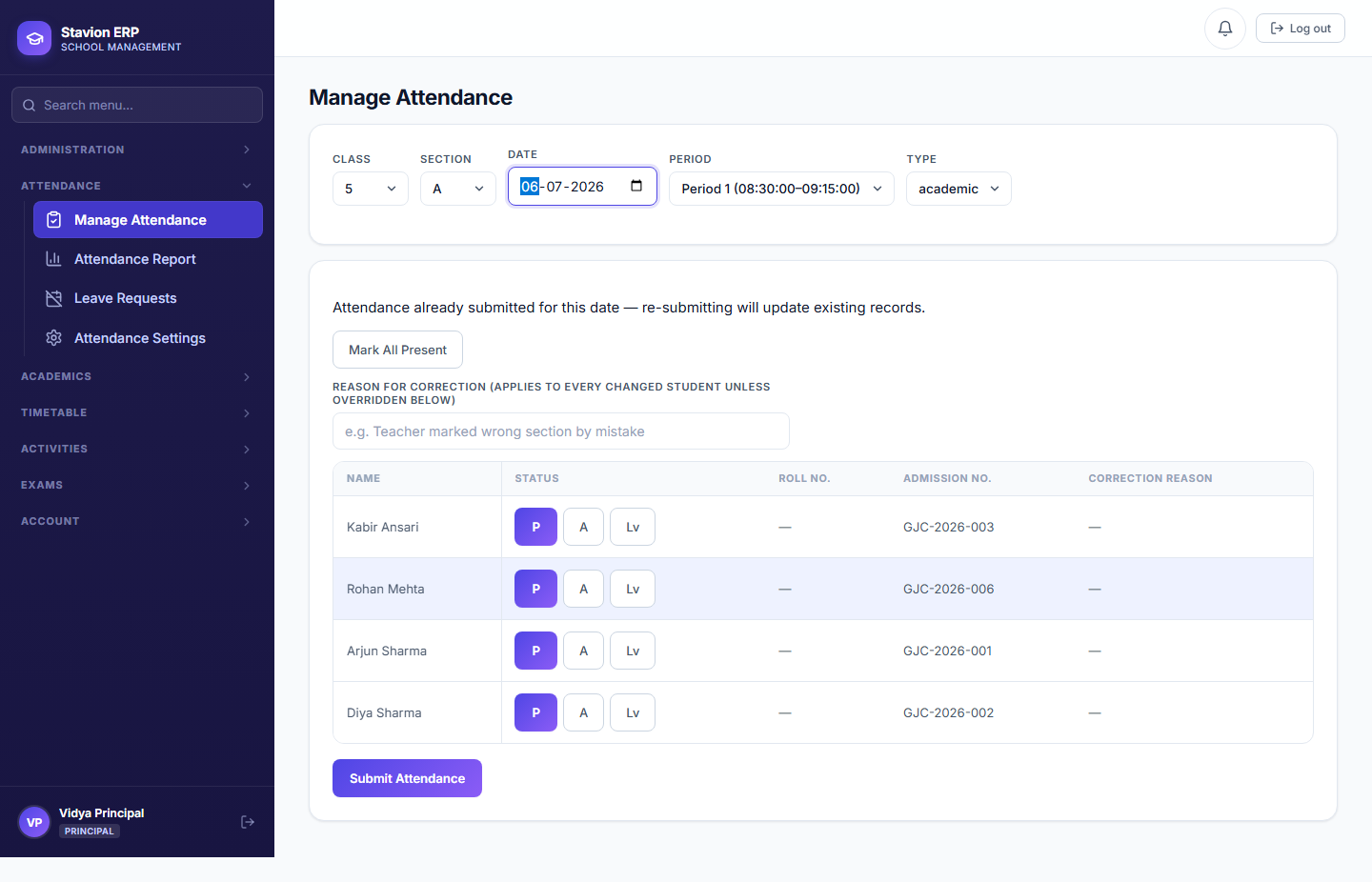
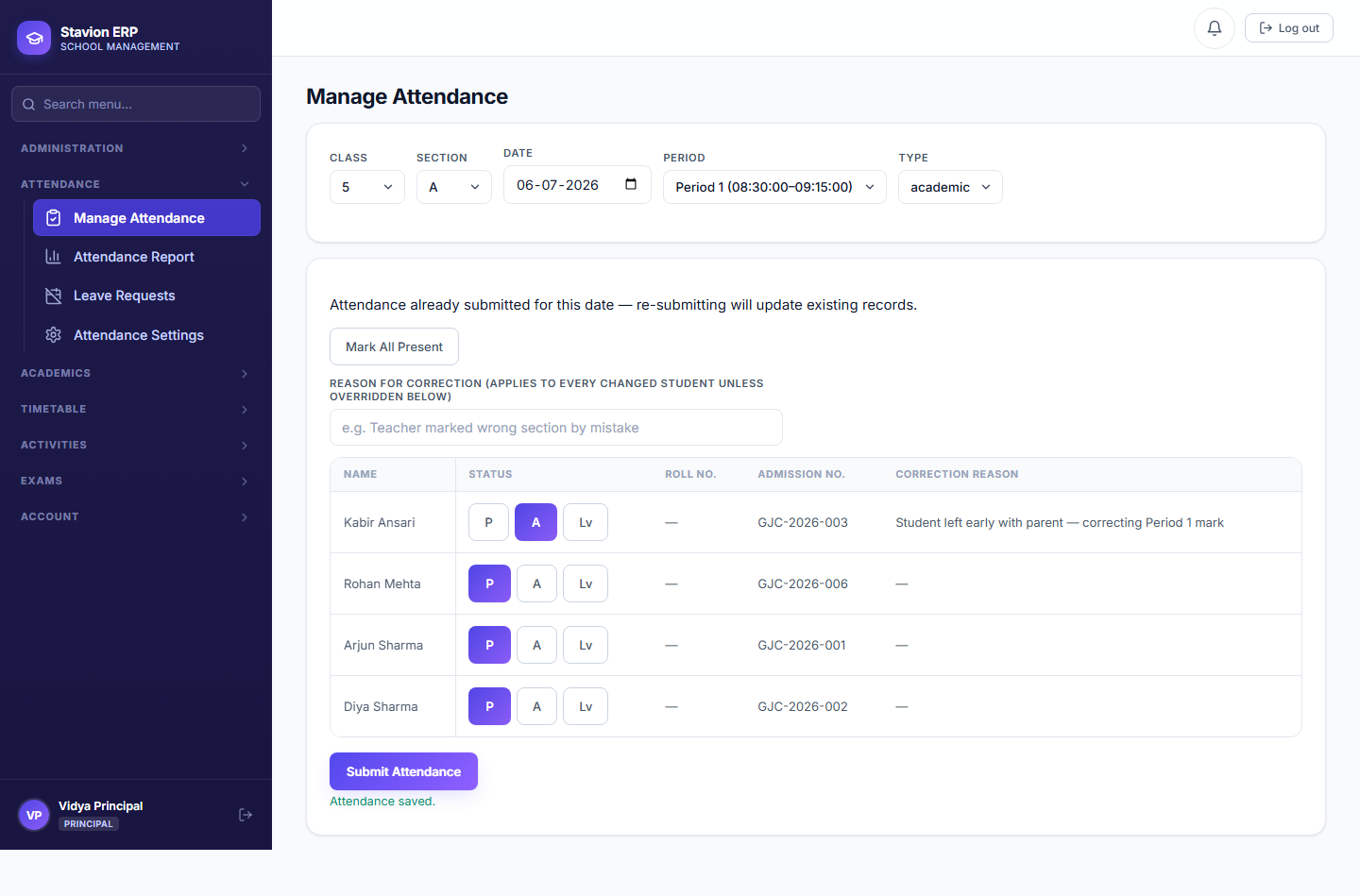
7.3 Principal correction
Teacher submits
The assigned teacher takes attendance for the day/period.
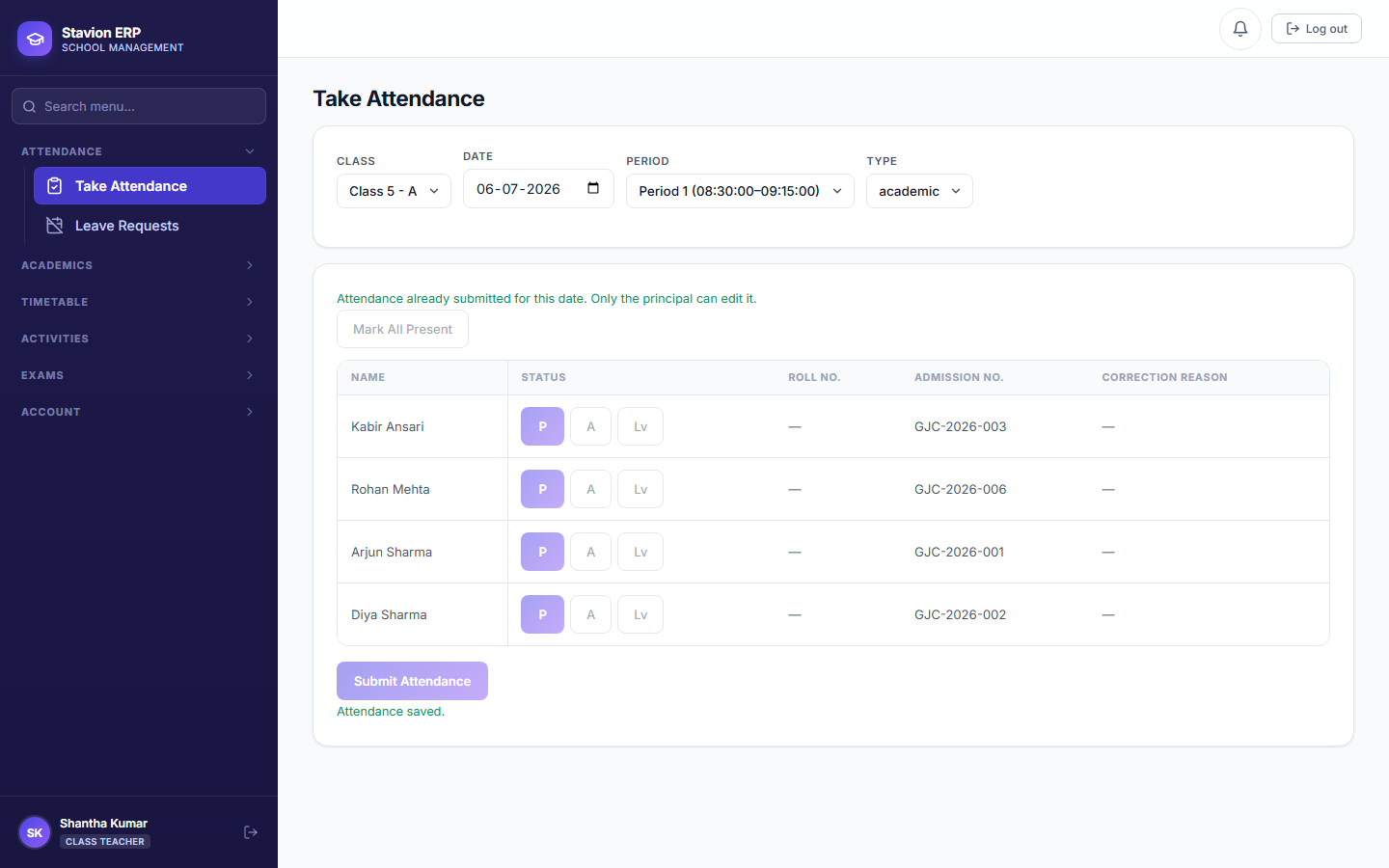
Record locked
Once submitted, that teacher (or any other teacher) can no longer edit it.
Principal opens it
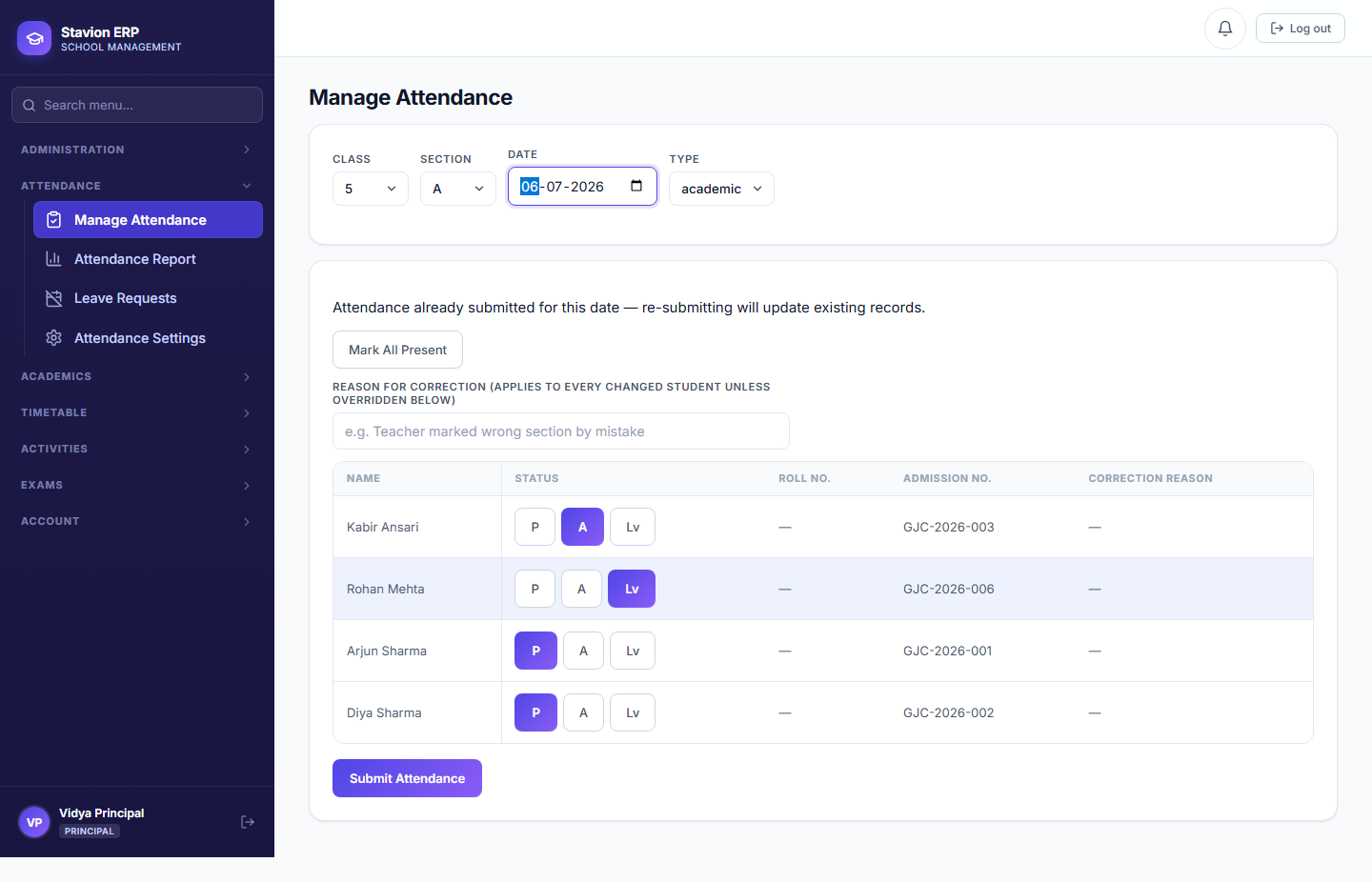
Only a Principal or Admin can reopen an already-submitted record.
Reason required
Any changed mark needs a reason before the correction can save.
Why a "correction" is a distinct action from the original submission, not just an edit.
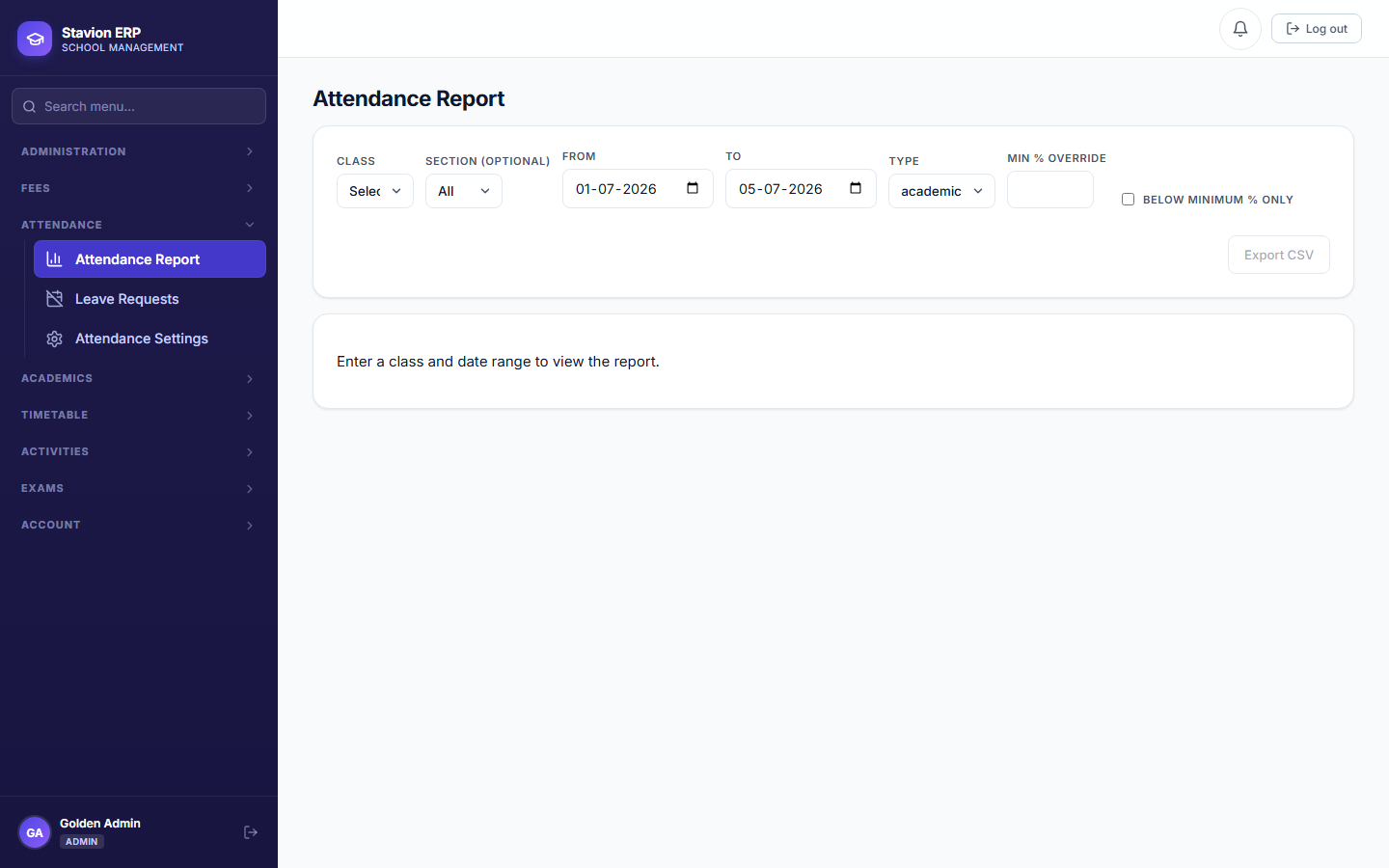
7.4 Admin report
7.5 Period-wise mode
7.6 How access is enforced (Role-Based Access Control)
Two roles can take attendance beyond School Admin/Principal — Class Teacher and Subject Teacher — and each is scoped differently, checked on every single request (not just hidden in the menu):
Checked against the Class Teacher Assignments table from 7.1, on every read and every submission. There is no fallback: an unassigned Class Teacher cannot reach any class, not just the "wrong" one.
Full access — view the roster, take attendance, see it reflected in reports.
Blocked outright with a "wrong class" error — assigning the teacher (7.1) is what unlocks this.
Checked against the Teacher-Subject Mapping table from Chapter 6.2, plus — only when the school is in Period-wise mode — the live Timetable slot for that exact day and period.
Access granted, scoped to that class/section (and that period, in Period-wise mode).
Blocked — a Subject Teacher can never take attendance for a period they are not verifiably scheduled to teach.
If a parent’s leave request (Chapter 9) has been approved for a student on a given date, that student’s attendance is locked to "Leave" for everyone — including a Principal’s correction. To change it, amend or reject the leave request itself, not the attendance record directly.
Validation rules & common errors
| Trigger | Error shown | Resolution |
|---|---|---|
| Attendance attempted on a holiday or non-working day | Attendance cannot be submitted for a holiday or non-working day | Pick a valid working day. |
| The same class/date/type submitted a second time by a teacher | Attendance already submitted | Only a Principal (or Admin) can correct already-submitted attendance. |
| A Principal changes a student’s mark without giving a reason | A reason is required for every student whose attendance you are correcting | Give a per-student or class-level reason for the correction. |
| Period-wise mode active but no period selected | "period_no" is required when the school’s attendance mode is Period-wise | Select a period before the roster will load. |
| A Class Teacher with no assignment opens any class | "Wrong class" / access denied | An Admin must create a Class Teacher Assignment for them first (7.1). |
| A Subject Teacher opens a class/section they have no mapping for | "Wrong class" / access denied | An Admin must create a Teacher-Subject Mapping for them first (6.2). |