Student Diary & ClassIQ
Overview
The Student Diary replaces the paper homework diary every parent remembers from their own school days — homework, classwork, reminders, a private note-for-one-child, a checklist, and file attachments, composed by the class teacher each day and published for students and parents to read. This chapter continues Golden Jubilee CBSE's own story: Kabir Nair, a new admission into Class 1 – Section A, whose parent login was created automatically the same way Chapter 3 first showed. Every screen in this chapter was driven exactly as a real user would: nothing here was pre-loaded by a seed script.
This chapter also covers ClassIQ — an AI study assistant a teacher turns on by uploading their own syllabus PDF once; from then on, students and parents can ask questions about that subject and get an answer generated only from the teacher's own uploaded material, never the AI's general knowledge, with a source citation on every answer.
Key Concepts
- Publish / UnpublishA diary page is a draft until the teacher publishes it — only then can students and parents see it. Editing a published page requires explicitly unpublishing it first, so a page is never silently changed after a family has already read it.
- ClassIQA retrieval-grounded AI assistant, not a general chatbot — it answers strictly from the specific syllabus PDF a teacher uploaded for that subject and class, and says so plainly when a question falls outside that material.
- Diary AnalyticsSchool Admin and Principal see publish rate, read-receipt rate, and acknowledgement rate per class teacher — and can delegate that same visibility to one specific teacher for one specific class/section.
School Admin — Turning It On
Student Diary and ClassIQ are both governed by Feature Toggles, the same screen Chapter 1 introduced. A School Admin should confirm these are configured correctly before the first day a class teacher composes a page.
-
Open School Settings → Feature Toggles and scroll to the Student Diary (M10) section.
Lesson Plan Enabled,Syllabus Pacing Enabled, andAI Features Enabled(which gates ClassIQ) are each independent switches — a school can run the Diary without ClassIQ, or turn ClassIQ on only once teachers are ready to upload material.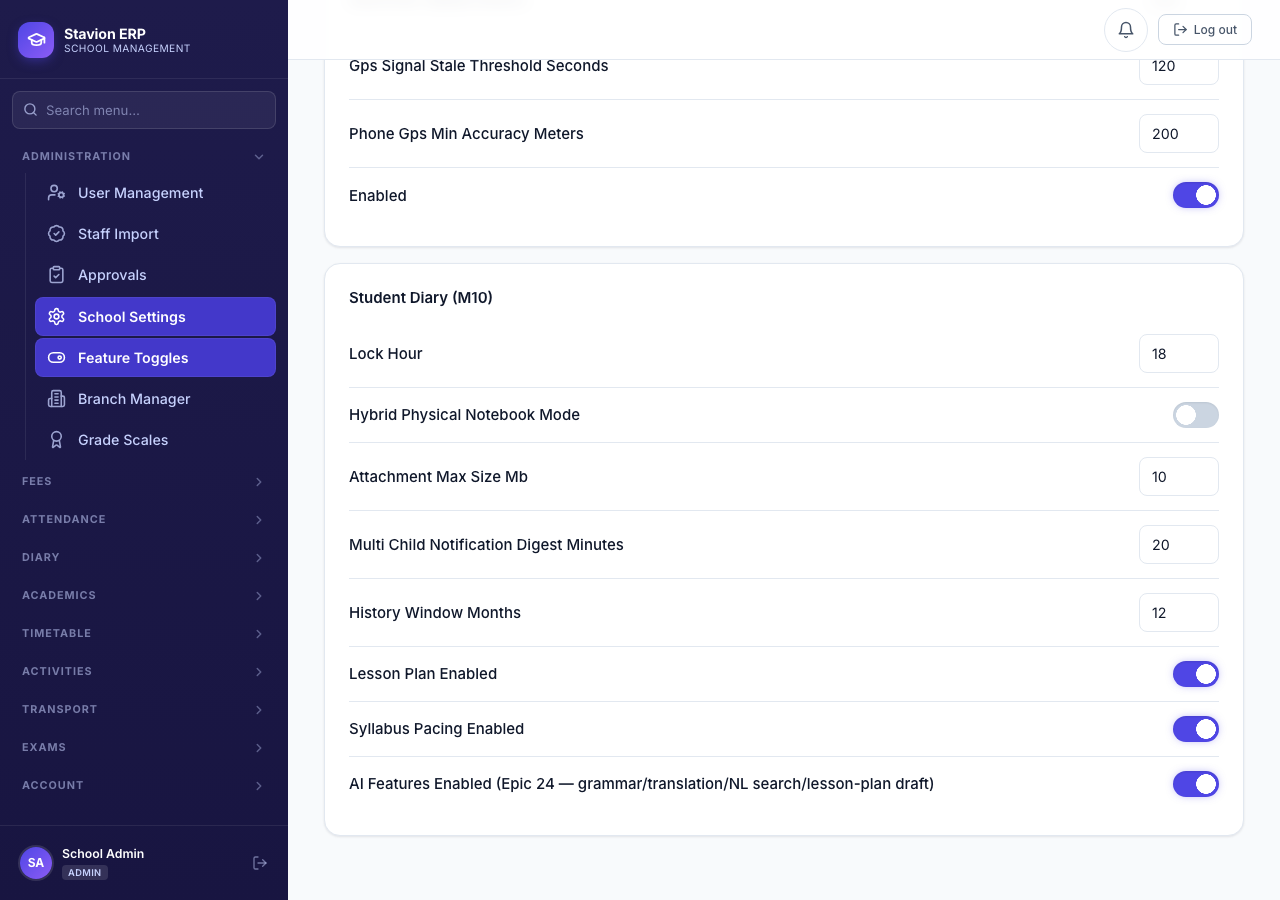
Figure 11.154. The Student Diary (M10) toggle group — AI Features Enabledis what turns on ClassIQ school-wide. -
New admissions pick up whatever the Student Portal settings say at the moment they're admitted. With
Student Portalon andMin Classset to 1, admitting a new Class 1 student — continuing the exact same Admission screen from Chapter 3 — automatically creates both a parent login and the child's own student login, with no separate step.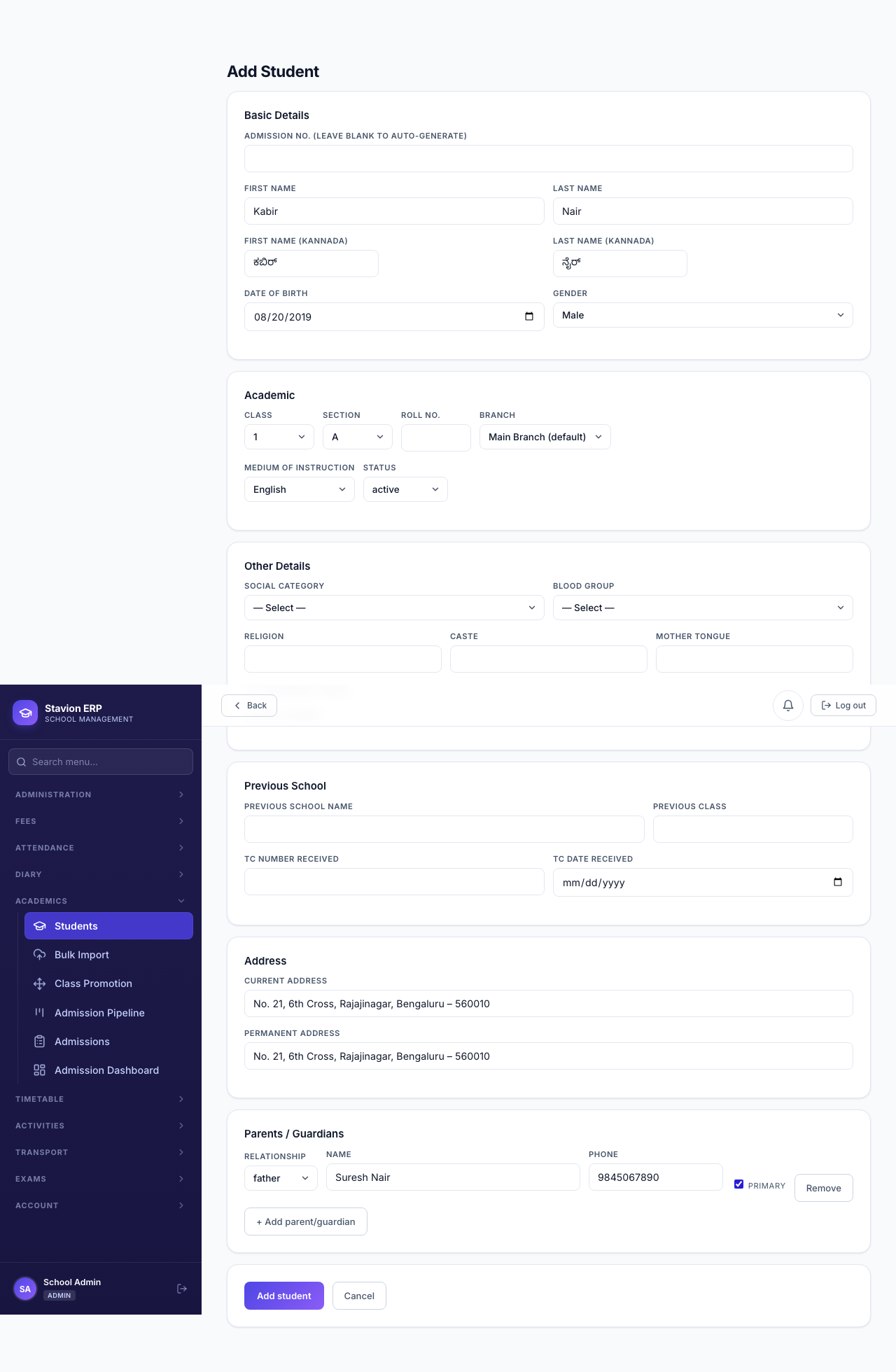
Figure 11.155. Admitting Kabir Nair into Class 1 – A, with his father Suresh Nair as the primary parent contact. 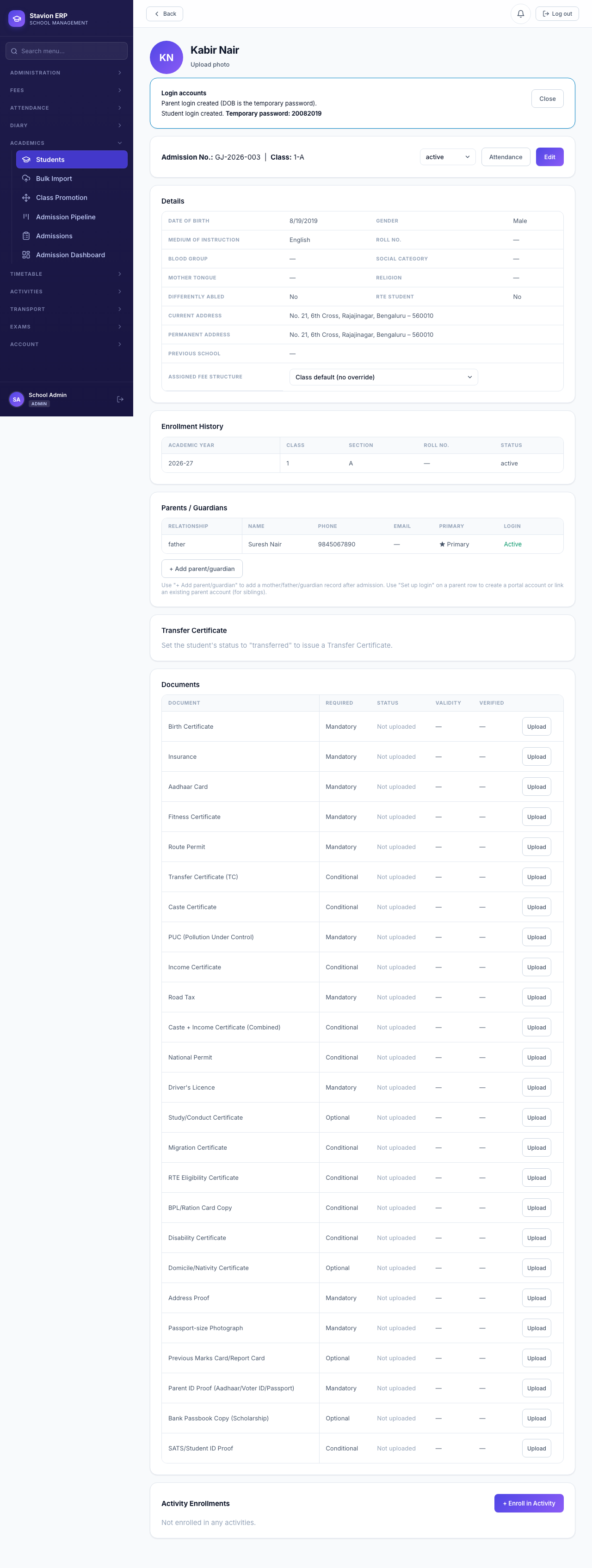
Figure 11.156. Both logins created in one step — the same DOB-based temporary password for each, shown once here. -
Under Diary → Diary Analytics, an Admin (or Principal) can delegate visibility into one class/section's analytics to the specific teacher responsible for it — useful the moment a subject teacher, not the class teacher, is the one actually accountable for a section's diary discipline.
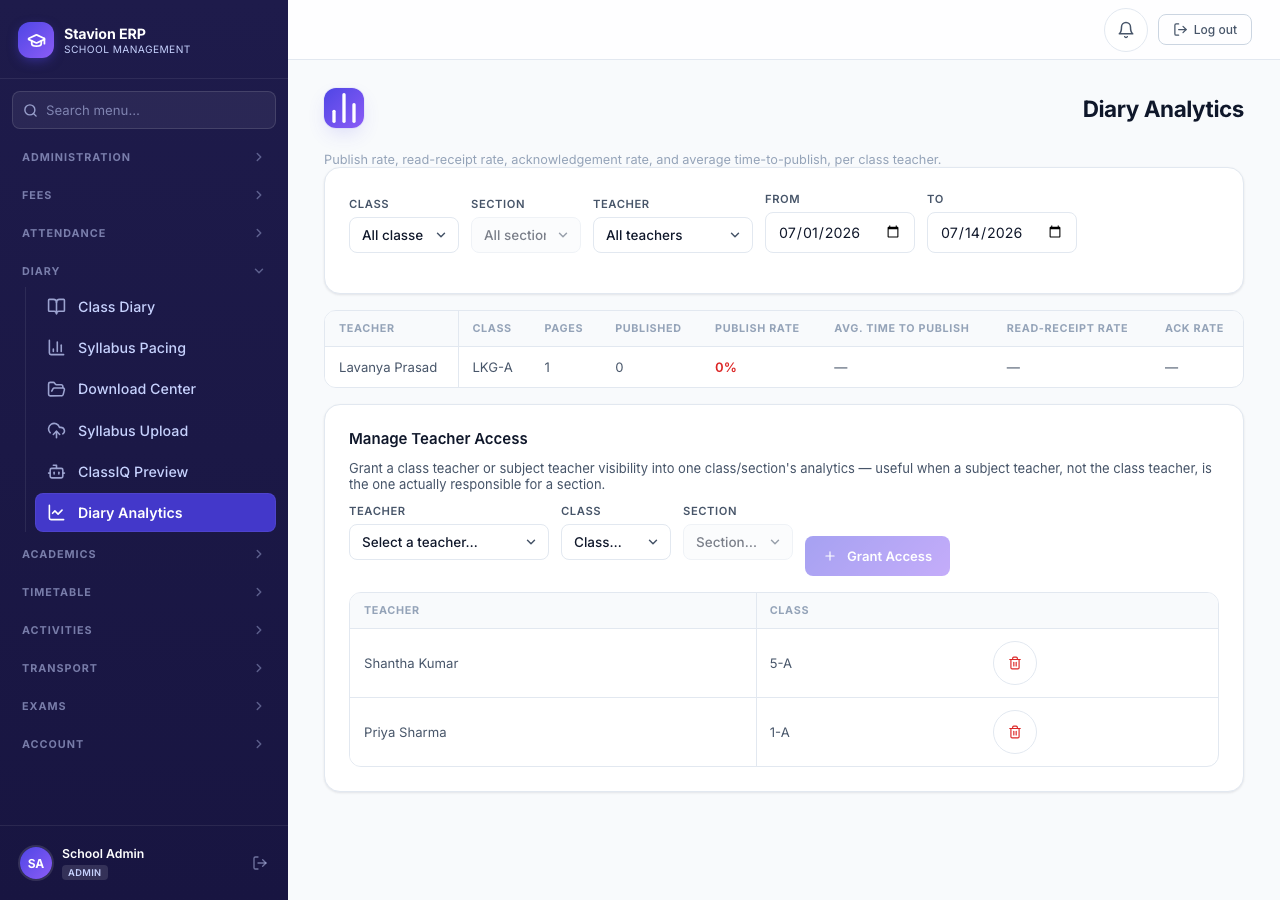
Figure 11.157. Two teachers granted their own class/section's Diary Analytics visibility.
Every question ClassIQ answers is logged — but the log and its cost-reference view are visible only to Stavion's own Super Admin console, deliberately not exposed to any role inside the school itself. This is a security decision: neither a Principal nor a School Admin can browse what students or parents have asked.
Class Teacher — Composing, Publishing, and ClassIQ
Mrs. Priya Sharma, Class 1 – A's class teacher, composes the day's diary page block by block, then publishes it for her class to read.
-
Opening Class Diary shows an empty draft for today, with the class auto-selected. Every block type below is added the same way — pick a tile, fill it in.
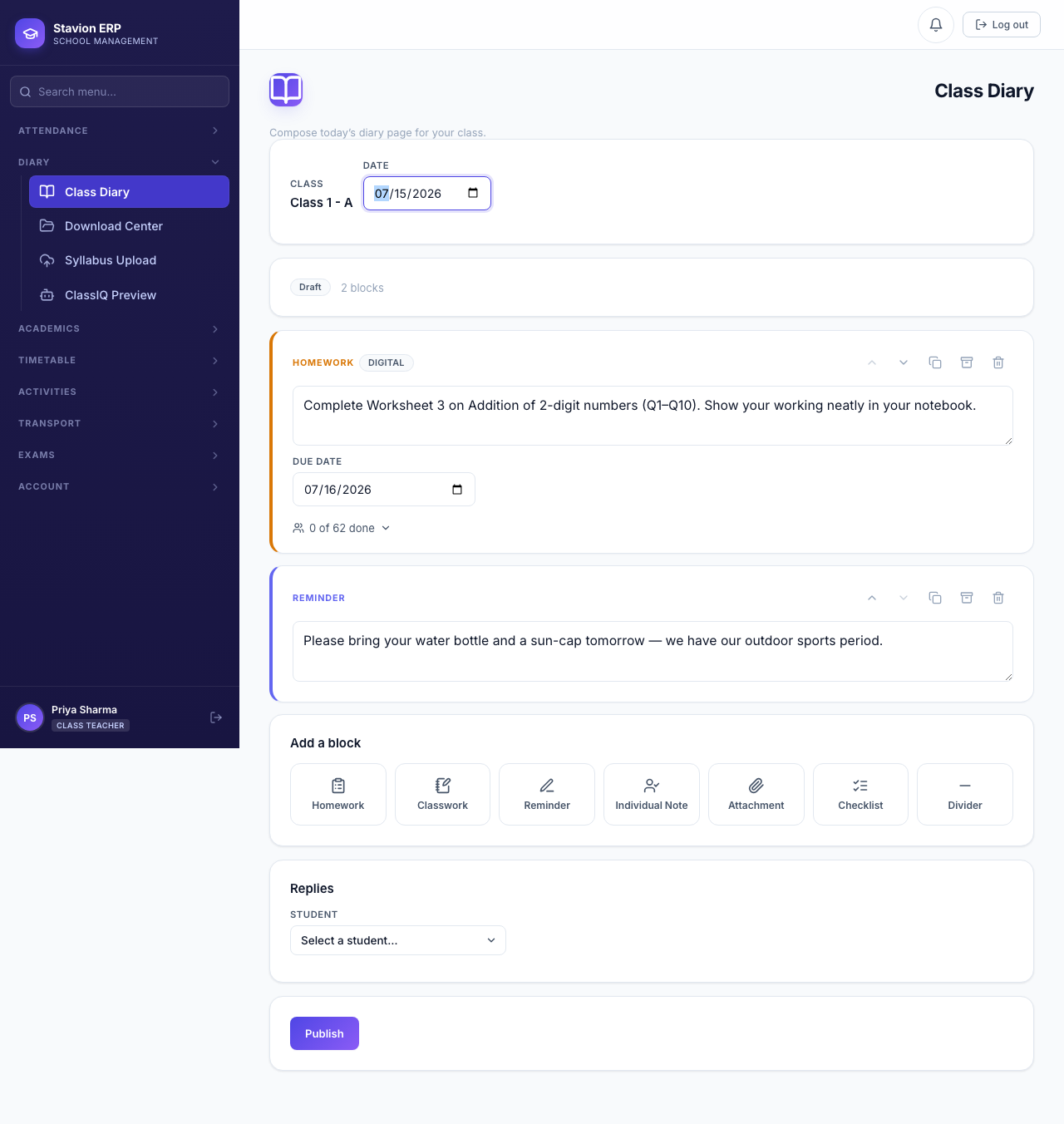
Figure 11.158. A fresh draft page for Class 1 – A, with the seven block types available. -
A Homework block is tagged to a subject and a due date, and shows a live completion count — updated the moment any student in the class marks it done.
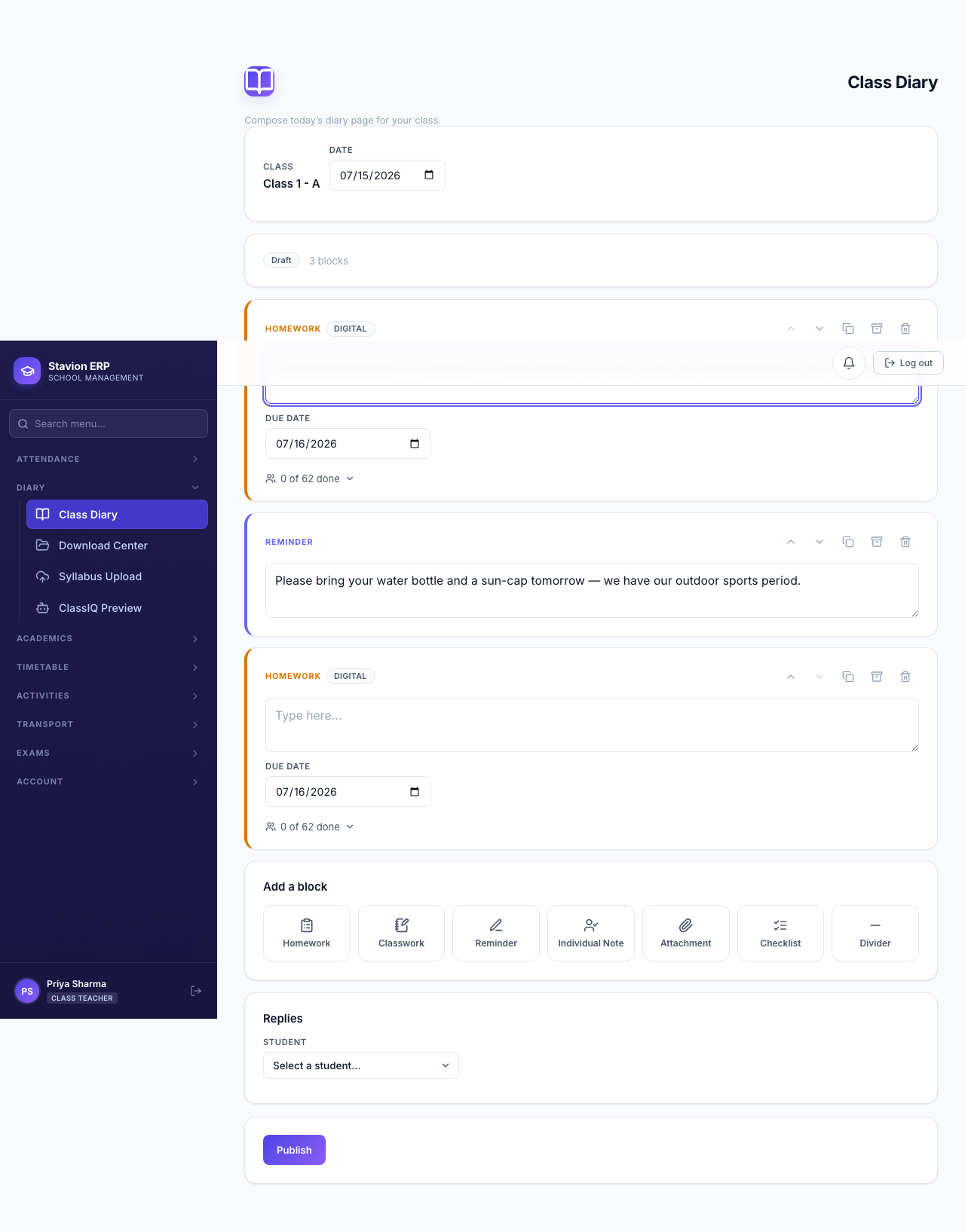
Figure 11.159. A Mathematics homework block — the "0 of 62 done" count updates live as the class completes it. -
An Individual Note is only ever visible to one child's own family — useful for a private word to a specific parent without the rest of the class seeing it.
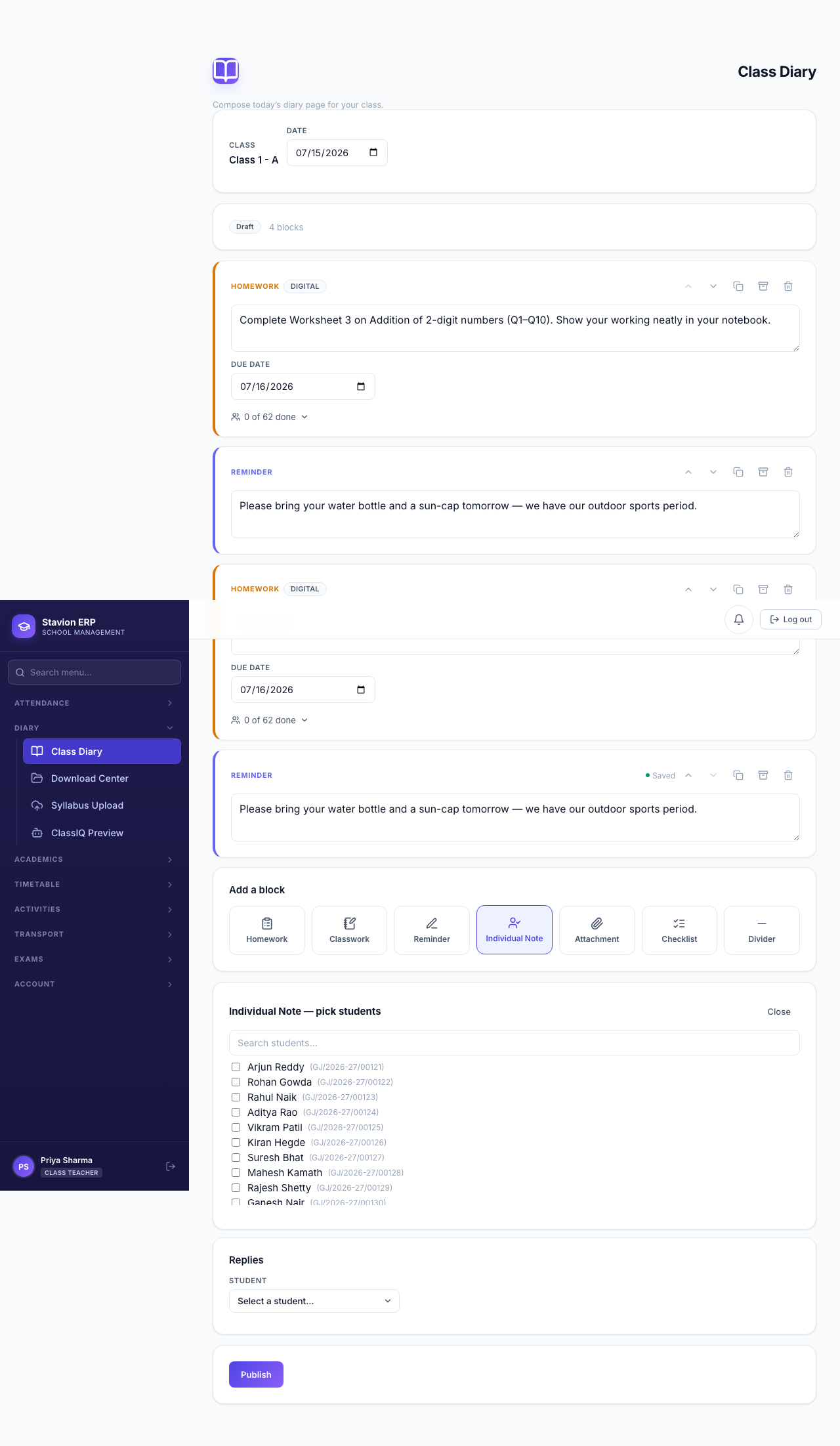
Figure 11.160. Picking Kabir Nair from the class roster to leave a note only his family will see. -
The finished page — Homework, Reminder, an Individual Note, a Checklist, and an Attachment — is ready to publish.
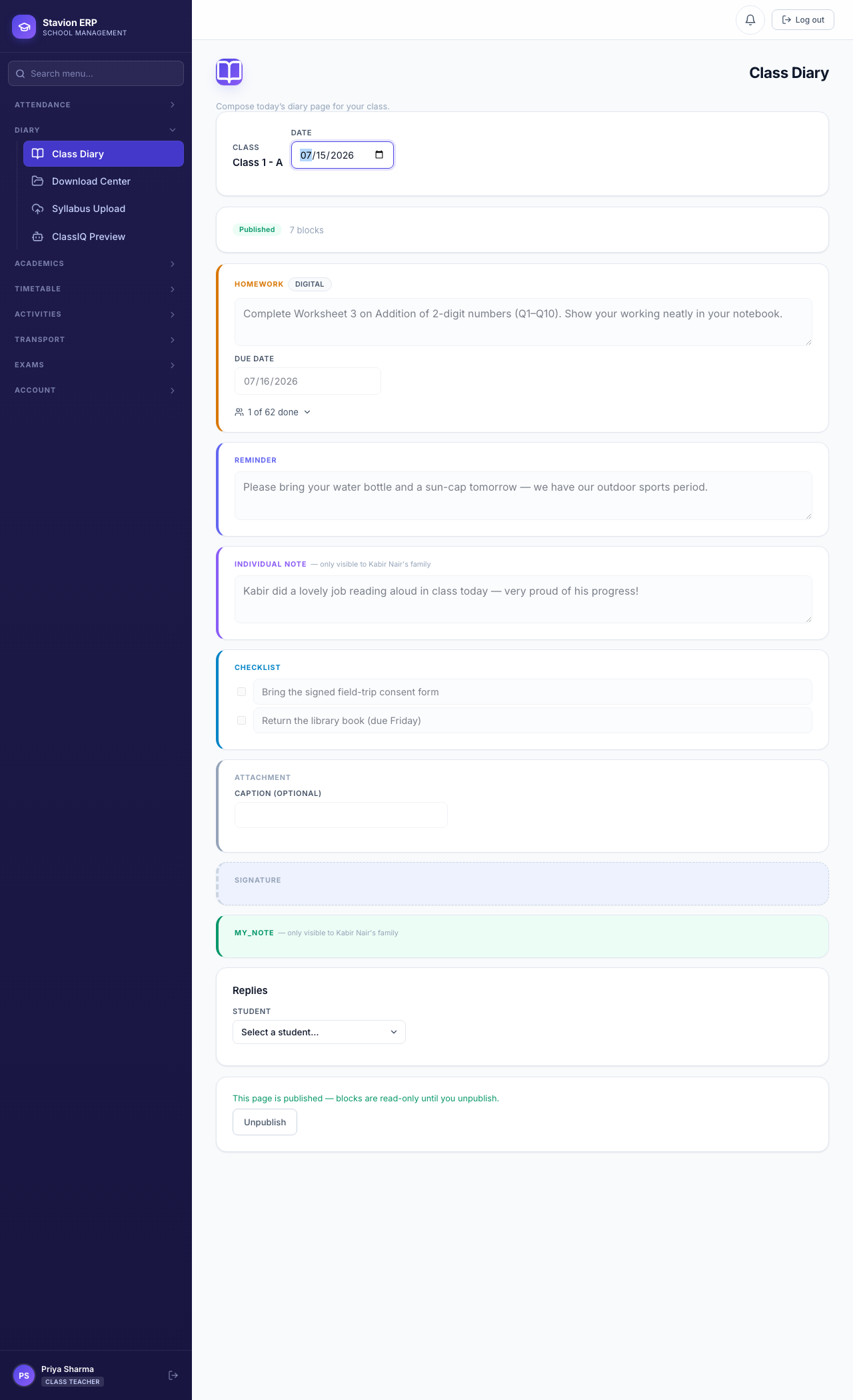
Figure 11.161. The finished draft — five blocks, ready to publish.
Uploading Syllabus Material for ClassIQ
Before ClassIQ can answer a student's question, a teacher uploads the actual textbook or syllabus PDF for one subject and class — the same PDF they'd otherwise photocopy. One upload covers every student in that class (or one specific section, if a teacher wants to scope it more narrowly).
-
From Syllabus Upload, pick the class, leave section on "Whole class" to cover every section, choose the subject, and attach the PDF.
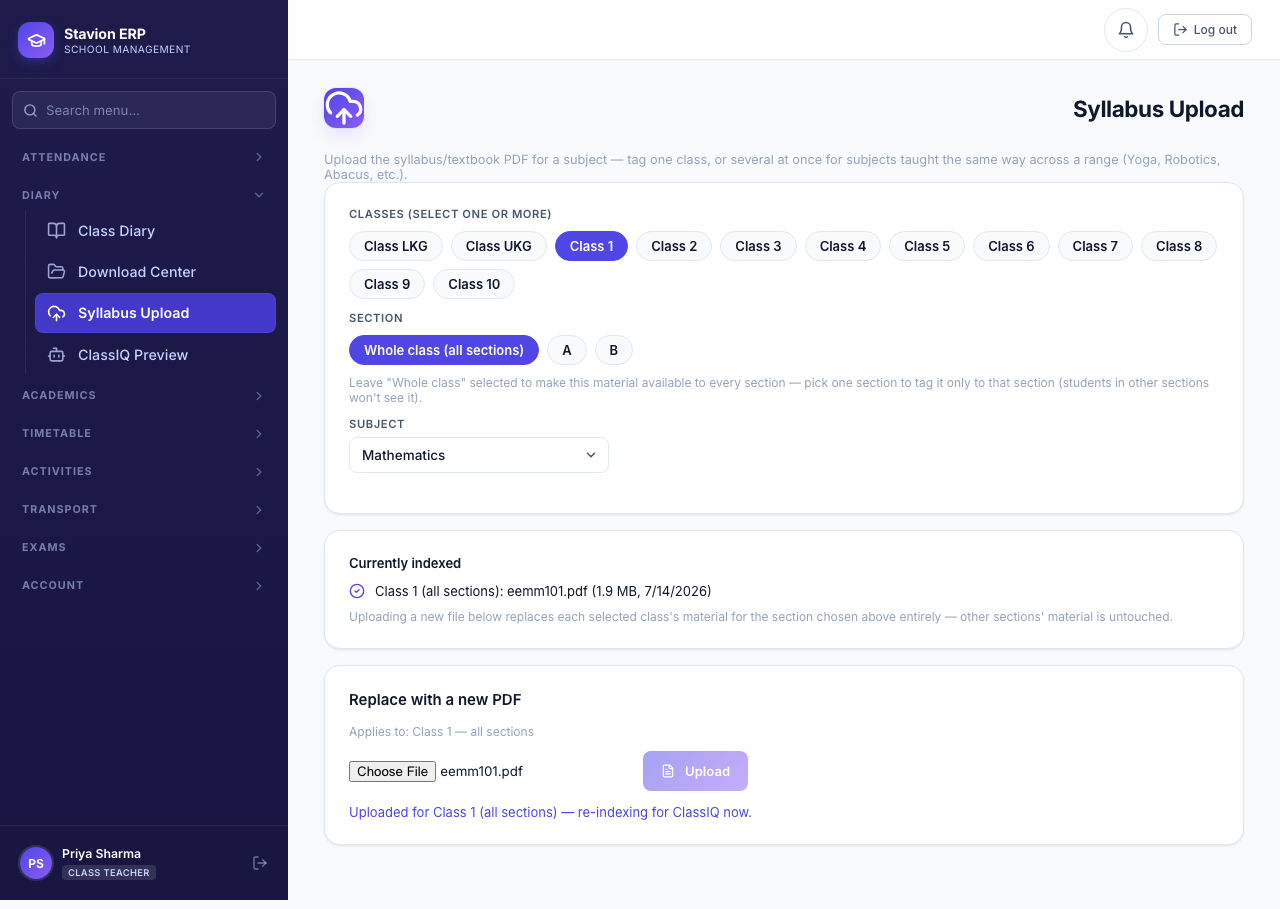
Figure 11.162. A real Class 1 Mathematics textbook PDF, uploaded and queued for indexing. -
ClassIQ Preview lets a teacher try the exact same question-and-answer experience their students will get, against their own freshly uploaded material — nothing asked here counts toward real usage. Every answer shows which excerpt of the PDF it actually came from.
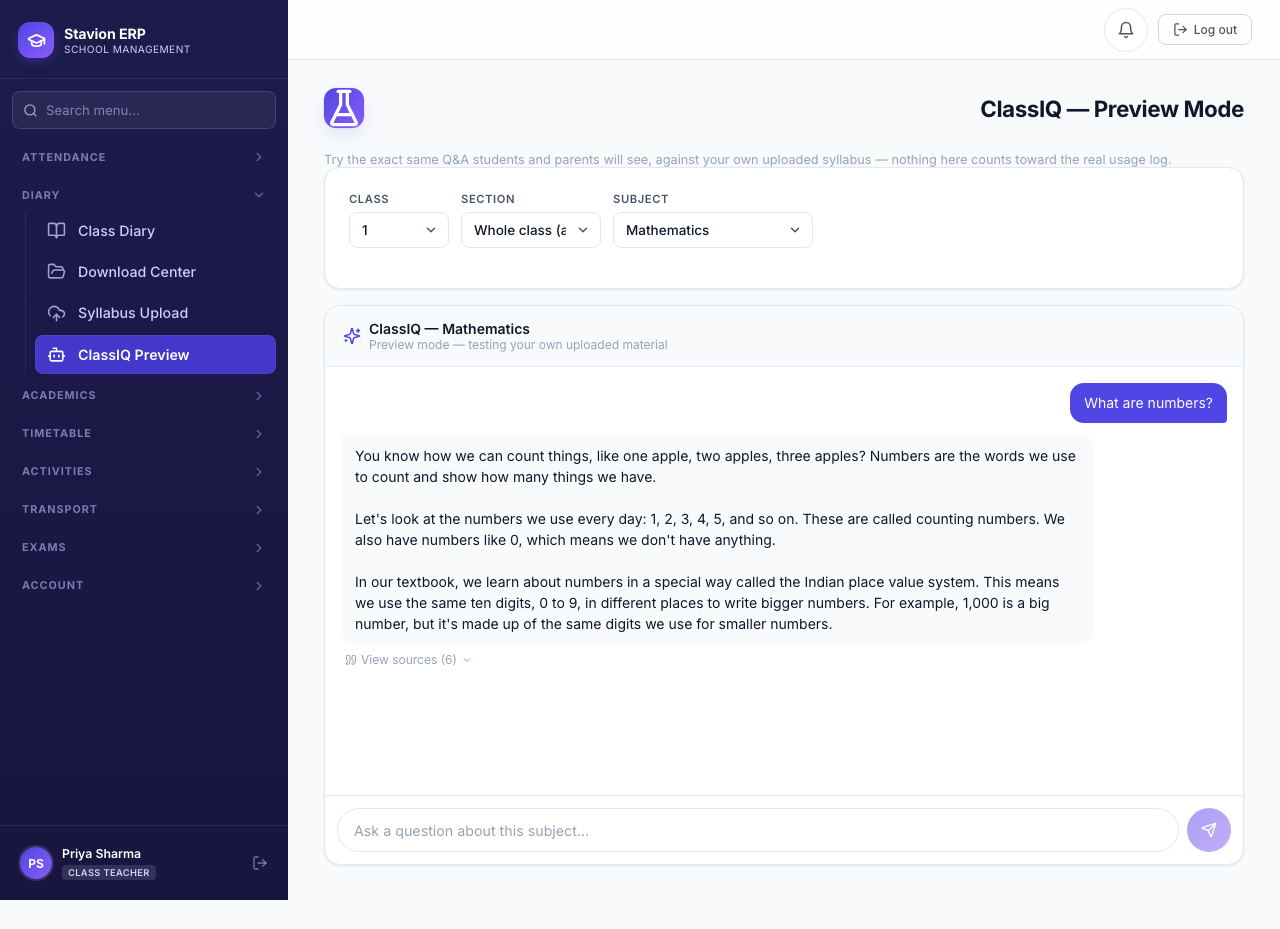
Figure 11.163. ClassIQ answering strictly from the uploaded PDF — explained the way a teacher would say it in class. 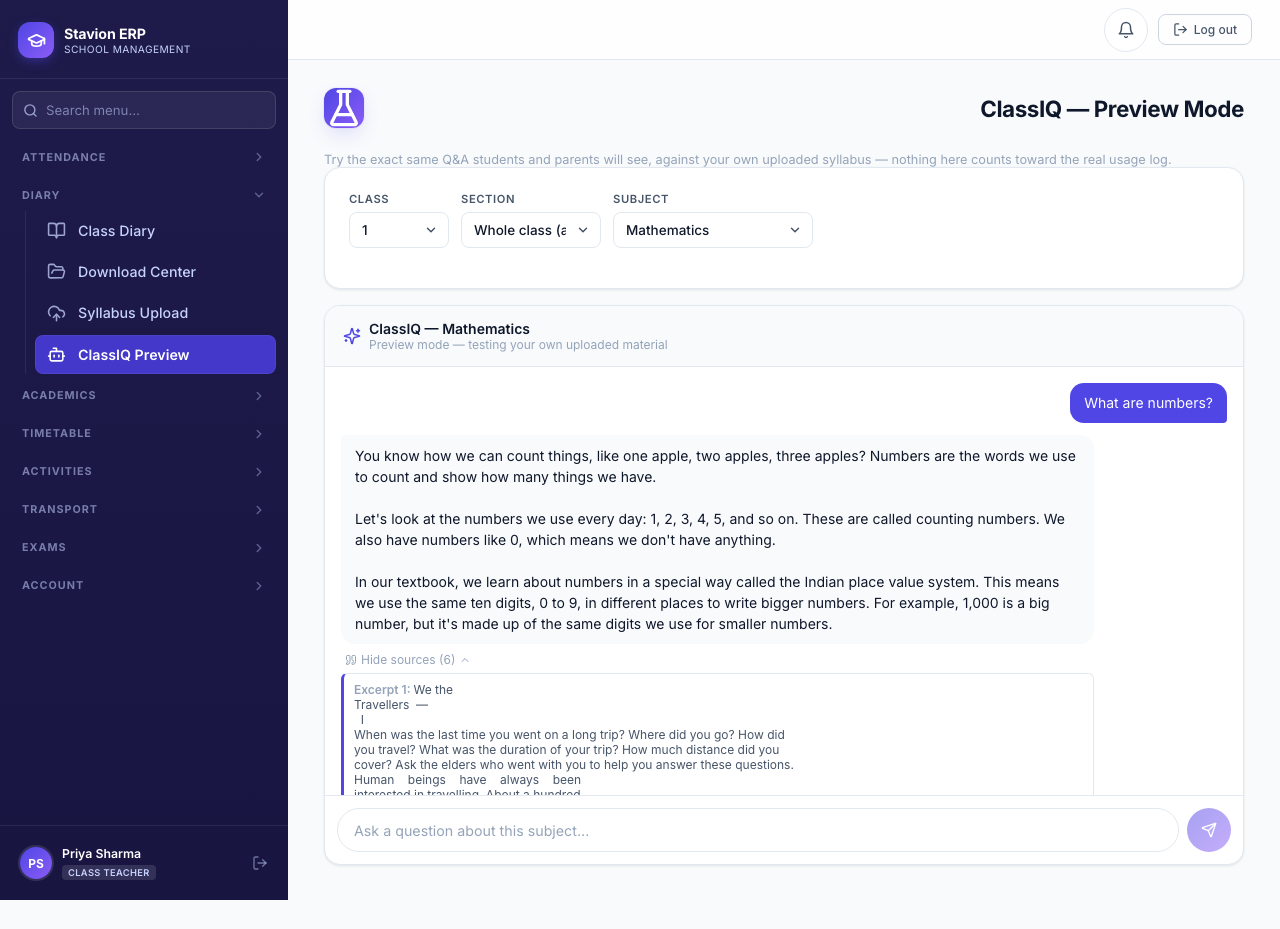
Figure 11.164. Expanding "View sources" shows the exact textbook excerpt behind the answer — every answer is traceable back to the real material.
If a question falls outside what's actually in the uploaded PDF, ClassIQ says plainly that it can't find the answer in the syllabus material and suggests asking the teacher — it never falls back on the underlying AI model's own general knowledge for a subject that has real uploaded material to check against.
Publish, Unpublish, and Homework Completion
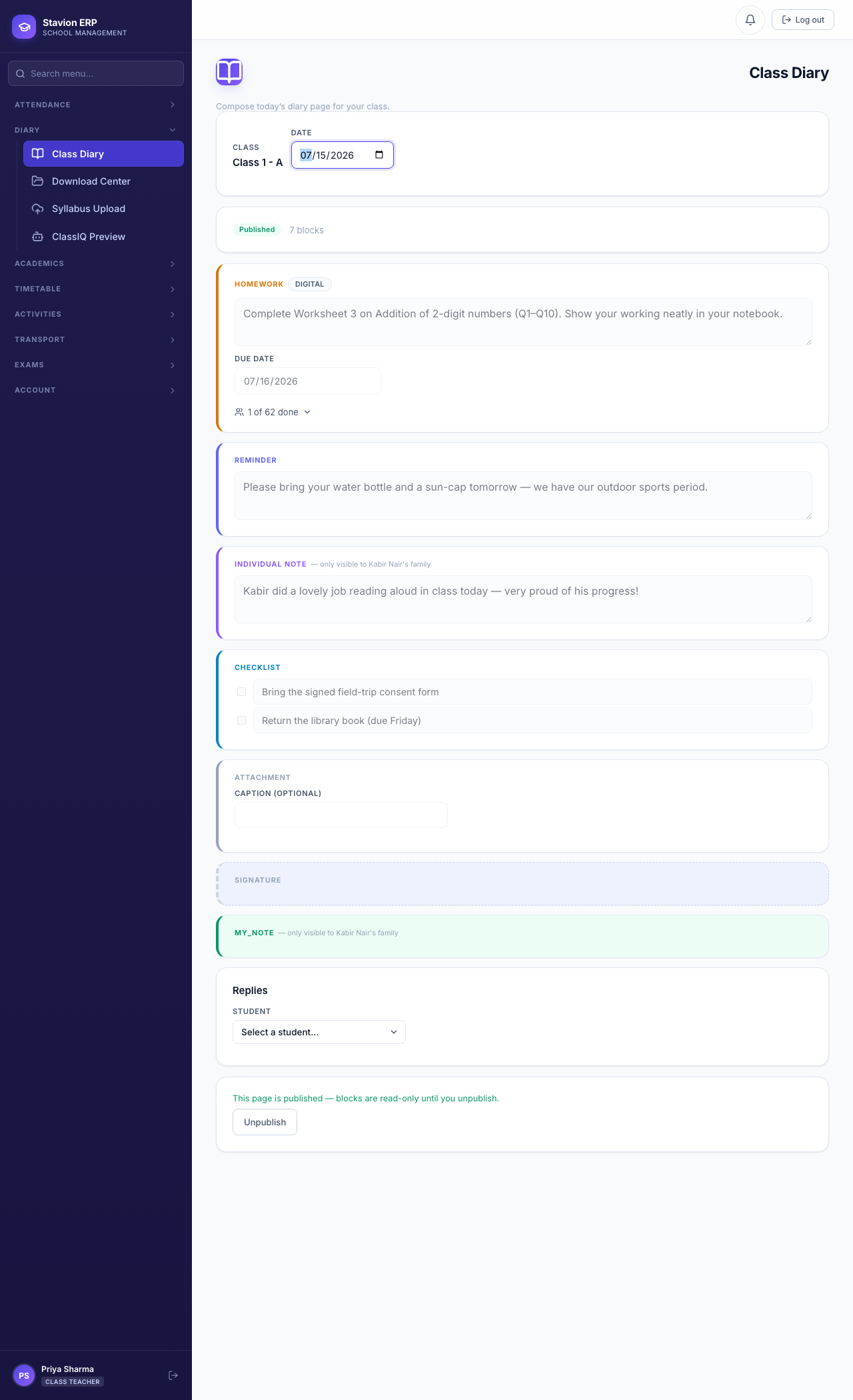
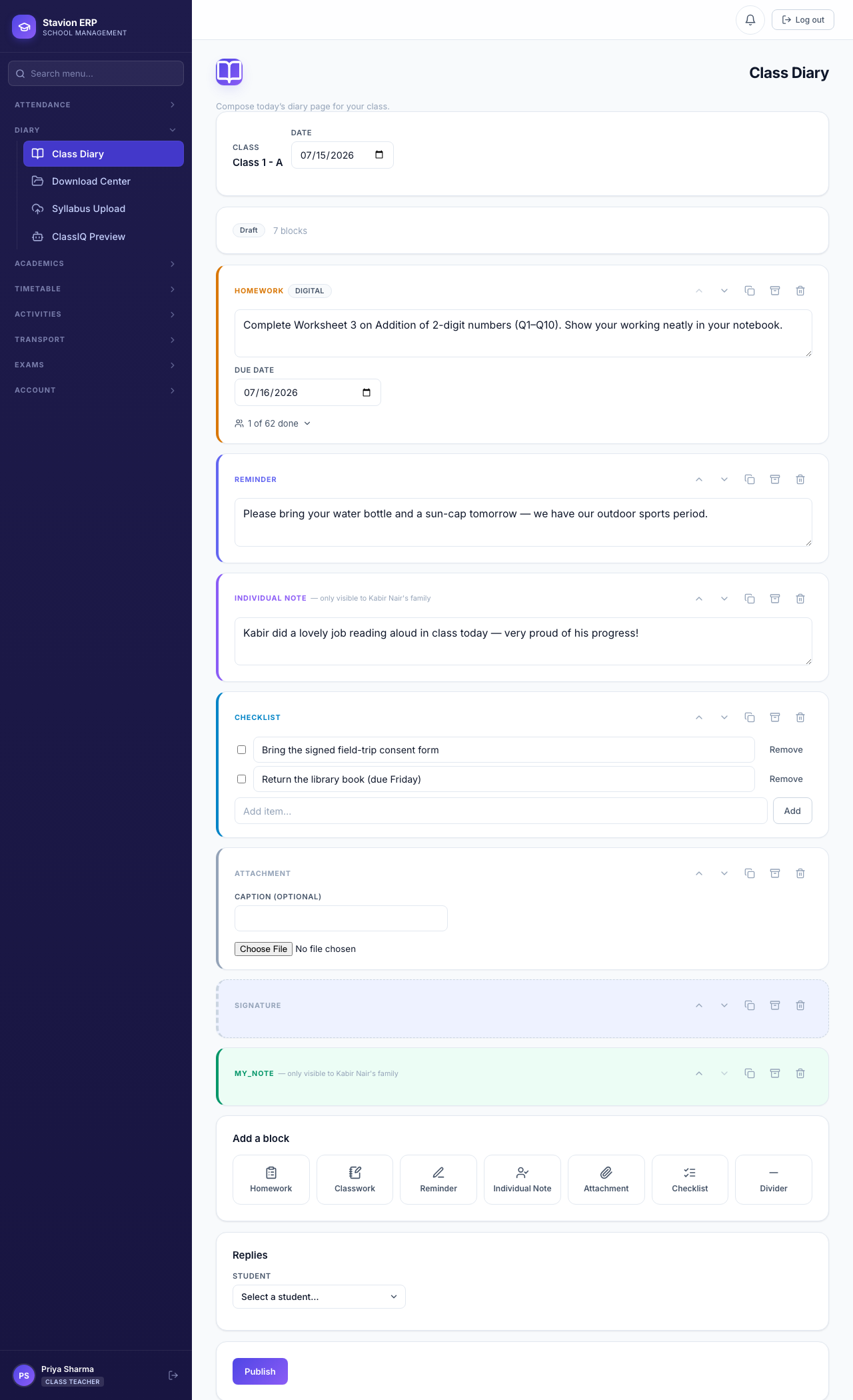
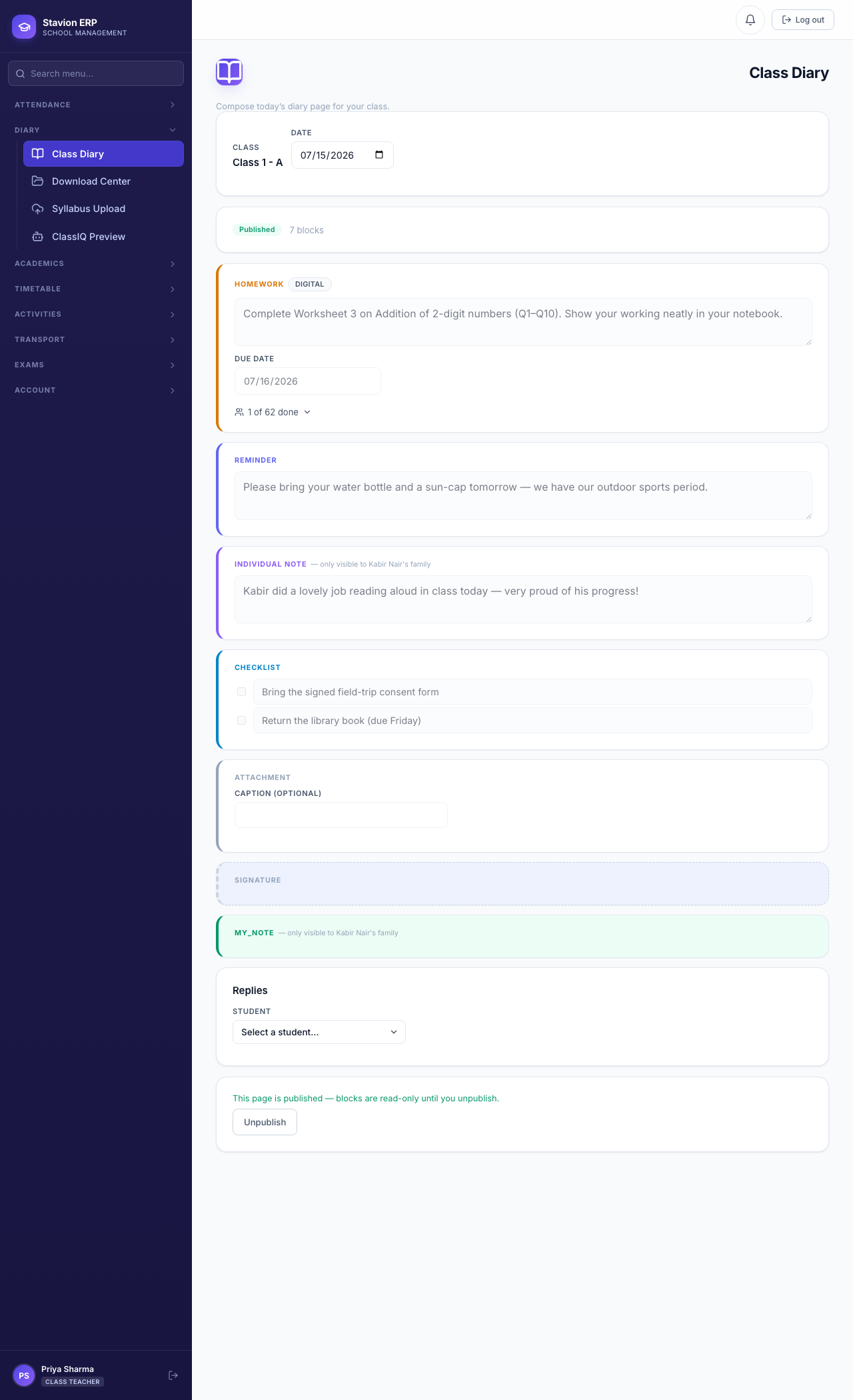
Publishing makes a page visible to the whole class. If a teacher needs to fix something afterward, the page must be explicitly unpublished first — there is no way to silently edit already-published content.
Student — Reading the Diary and Asking ClassIQ
Kabir logs in with his own student account — separate from his father's parent login — and lands on his own Diary.
-
The Diary Reader renders like a real paper diary page: homework, reminder, his own individual note, a checklist, and the attachment his teacher shared.
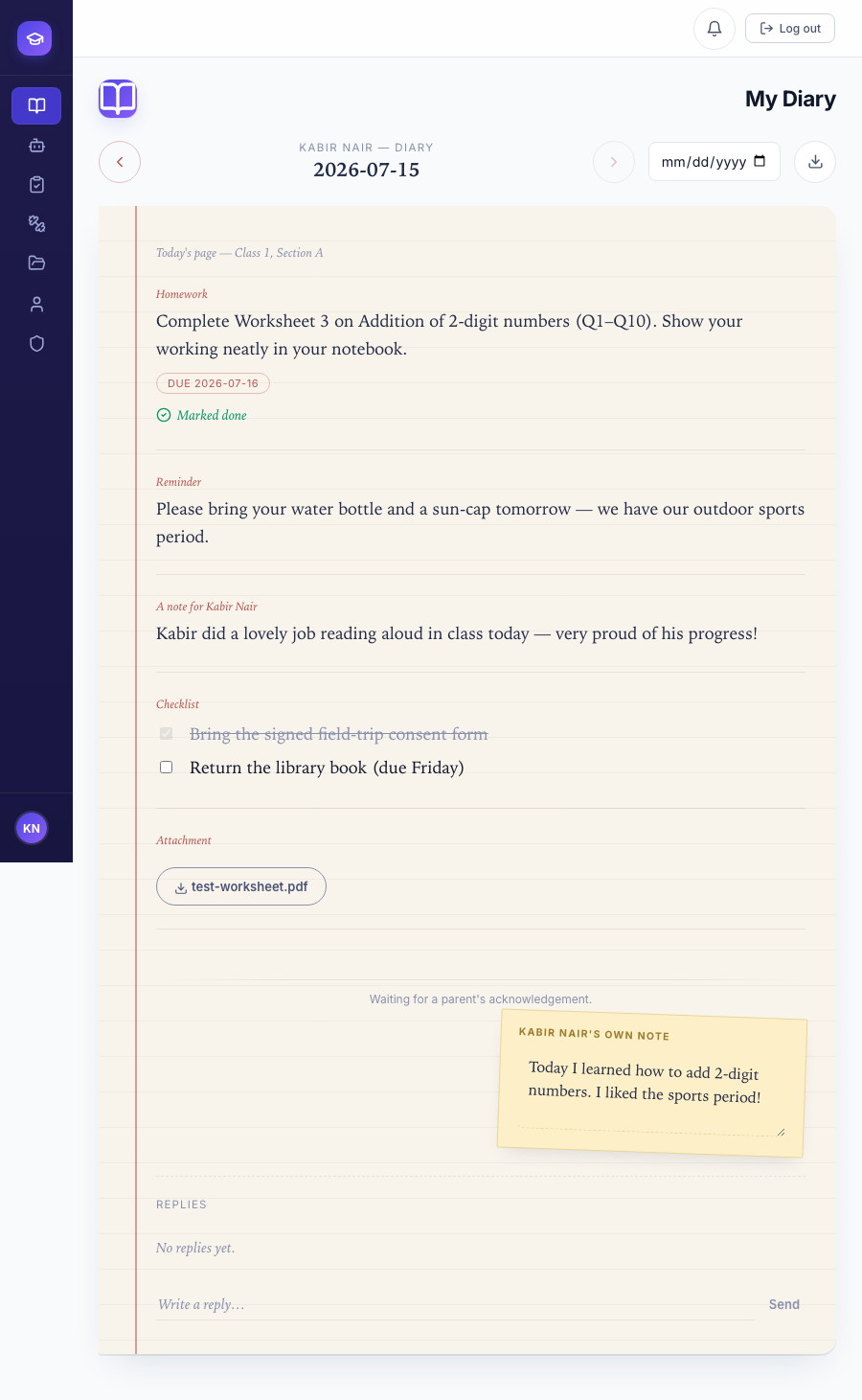
Figure 11.168. Kabir's own view of today's page, with a "Mark as done" button on the homework block. -
Marking homework done, writing his own private note, and ticking off a checklist item all persist immediately — reloading the page never resets any of them.
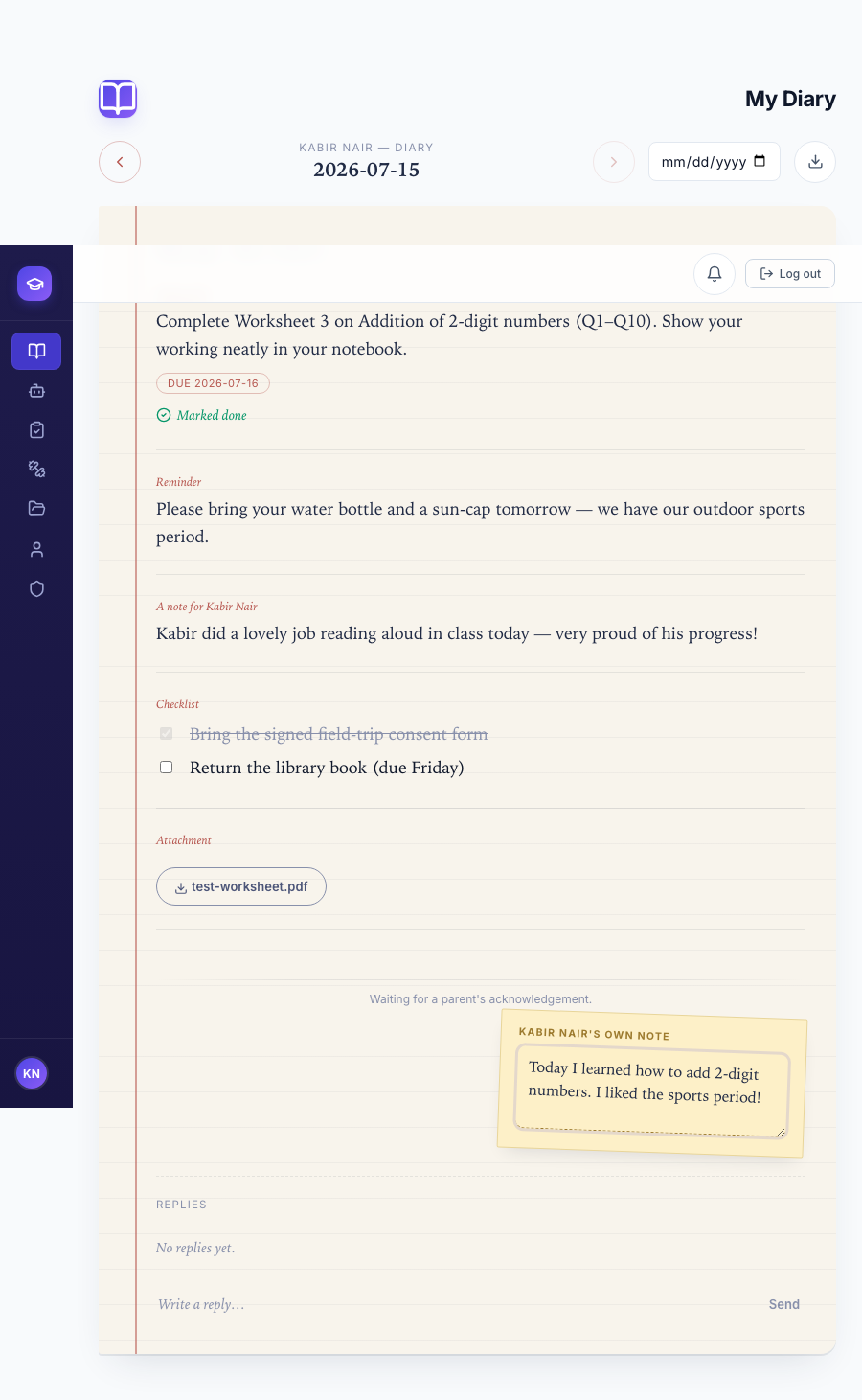
Figure 11.169. Homework marked done, one checklist item ticked, and his own note saved — all in one visit. -
From ClassIQ, Kabir picks Mathematics and asks a real question about what his teacher uploaded.
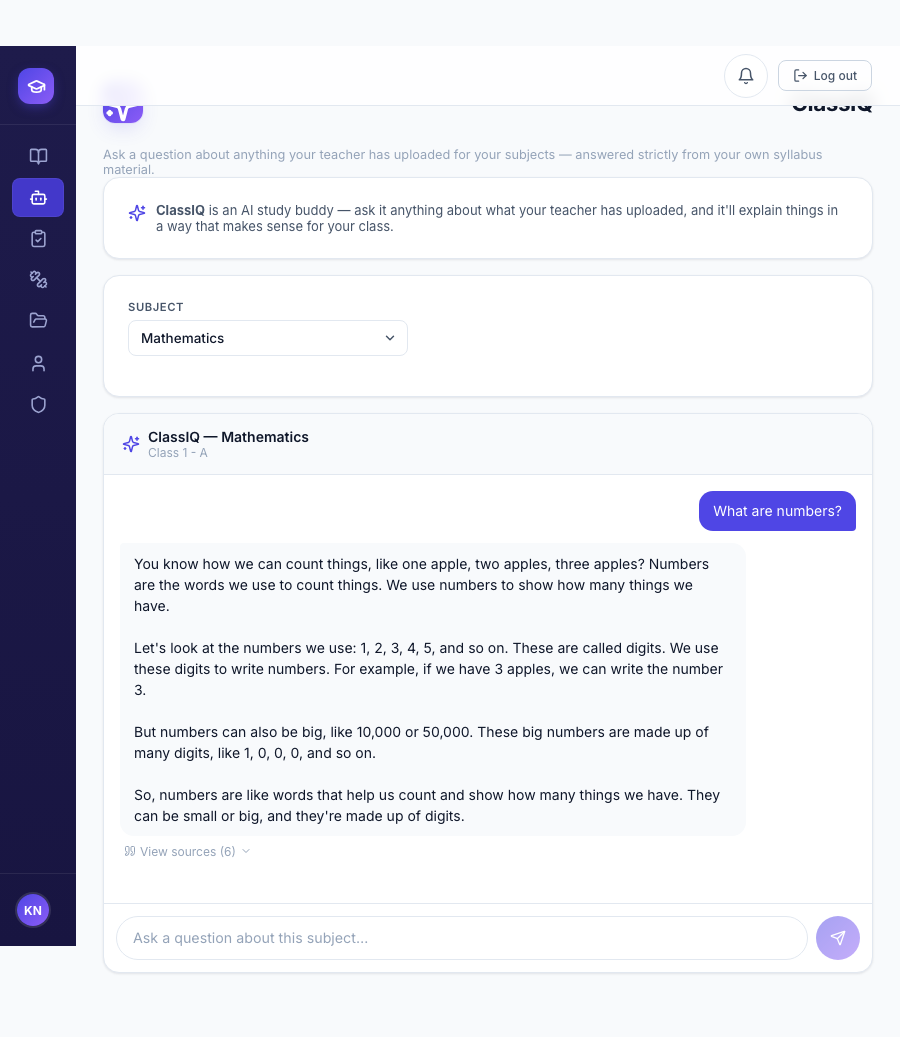
Figure 11.170. The same grounded answer his teacher previewed, now reached by the student himself.
Parent — Reading, Acknowledging, and Asking on Kabir's Behalf
Kabir's father, Suresh Nair, sees his child's card on the Parent Dashboard — the same "My Children" pattern Chapter 9 already introduced for fees, timetable, and attendance.
-
The Diary action on Kabir's card opens the same Reader a student sees, from the parent's own side.
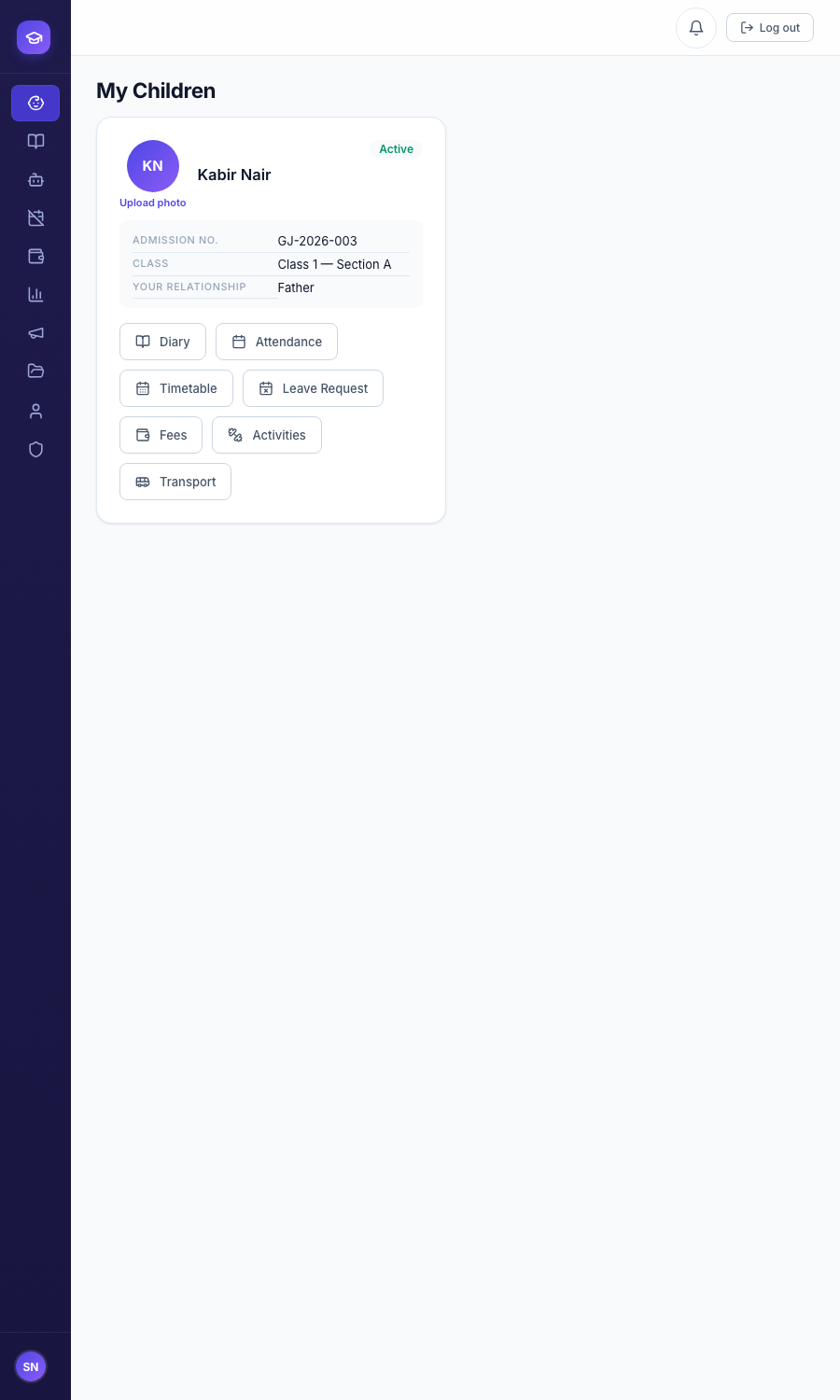
Figure 11.171. Kabir's card on his father's Parent Dashboard. -
A parent's own reading of the page is what unlocks Acknowledge — the seal at the bottom of every published page confirming a parent has actually seen it — and replies are a private thread with the teacher, scoped to that one family.
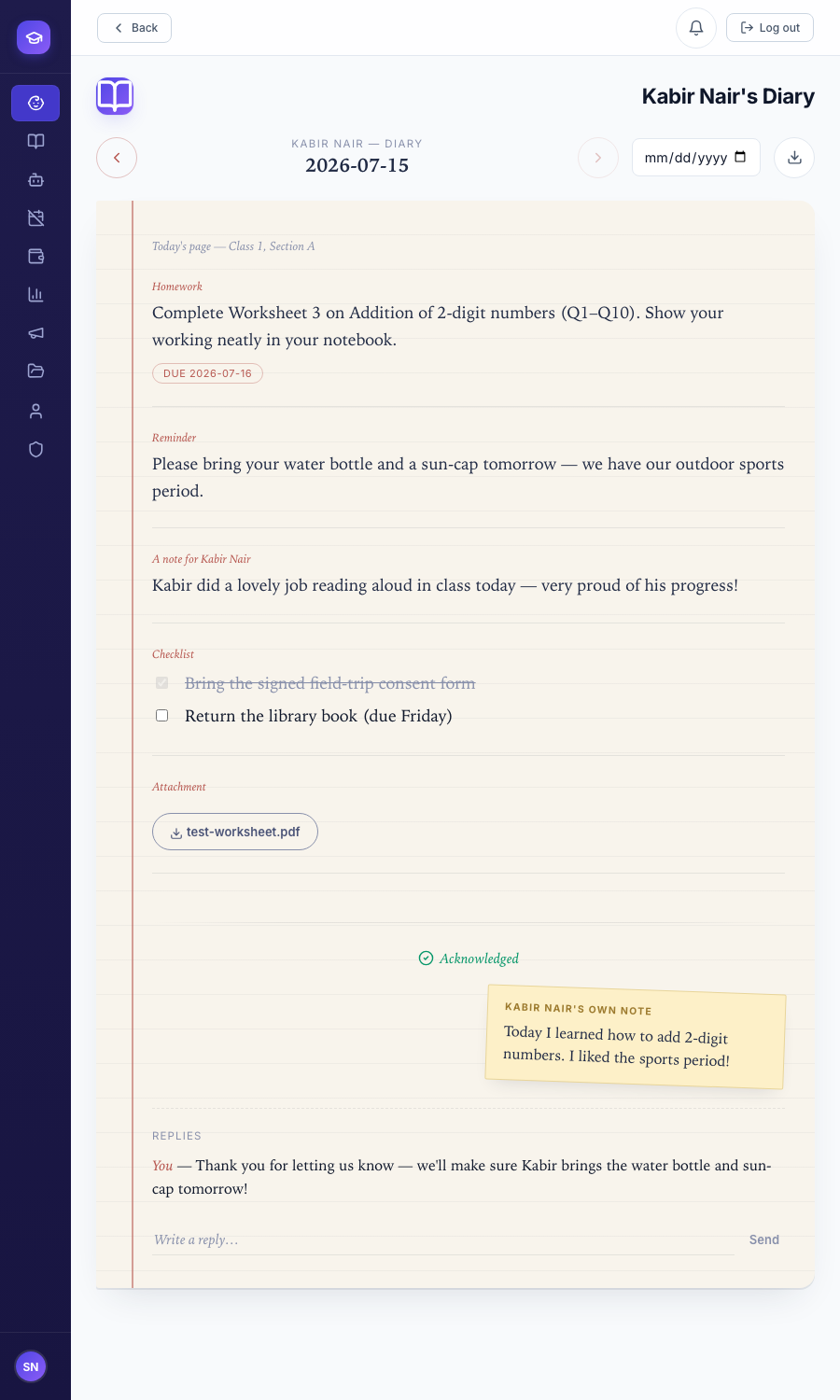
Figure 11.172. Acknowledged, with a reply already sent back to Mrs. Sharma. -
A parent can also ask ClassIQ on their child's behalf — scoped automatically to that child's own class and subjects, with no separate picker needed for a single-child family.
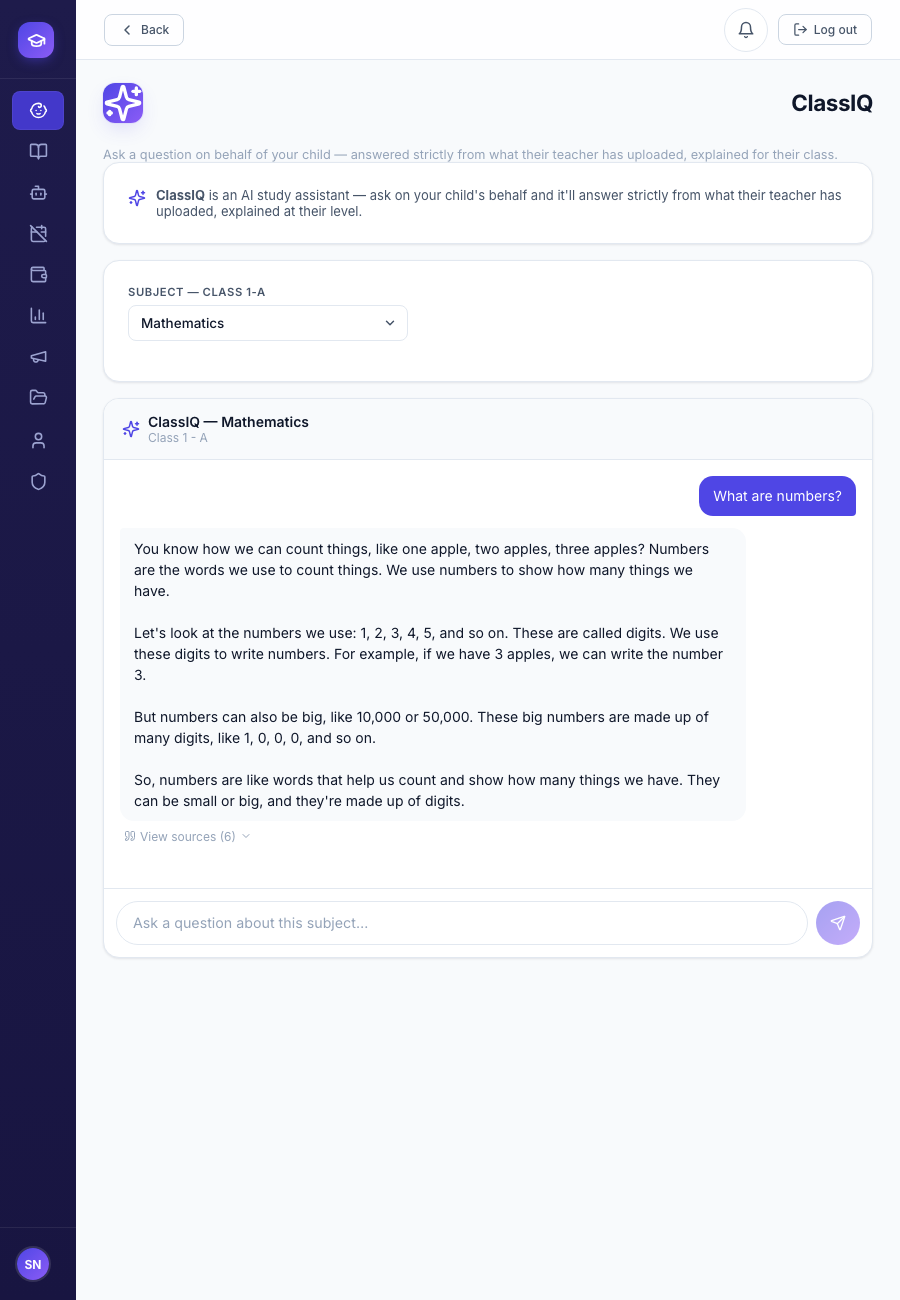
Figure 11.173. The same grounded, cited answer — now reached by a parent helping their child at home.
Principal — Diary Analytics
A Principal's own visibility into the Diary is read-only and school-wide: publish rate, read-receipt rate, and acknowledgement rate per class teacher, plus the same "Manage Teacher Access" delegation an Admin can also use.
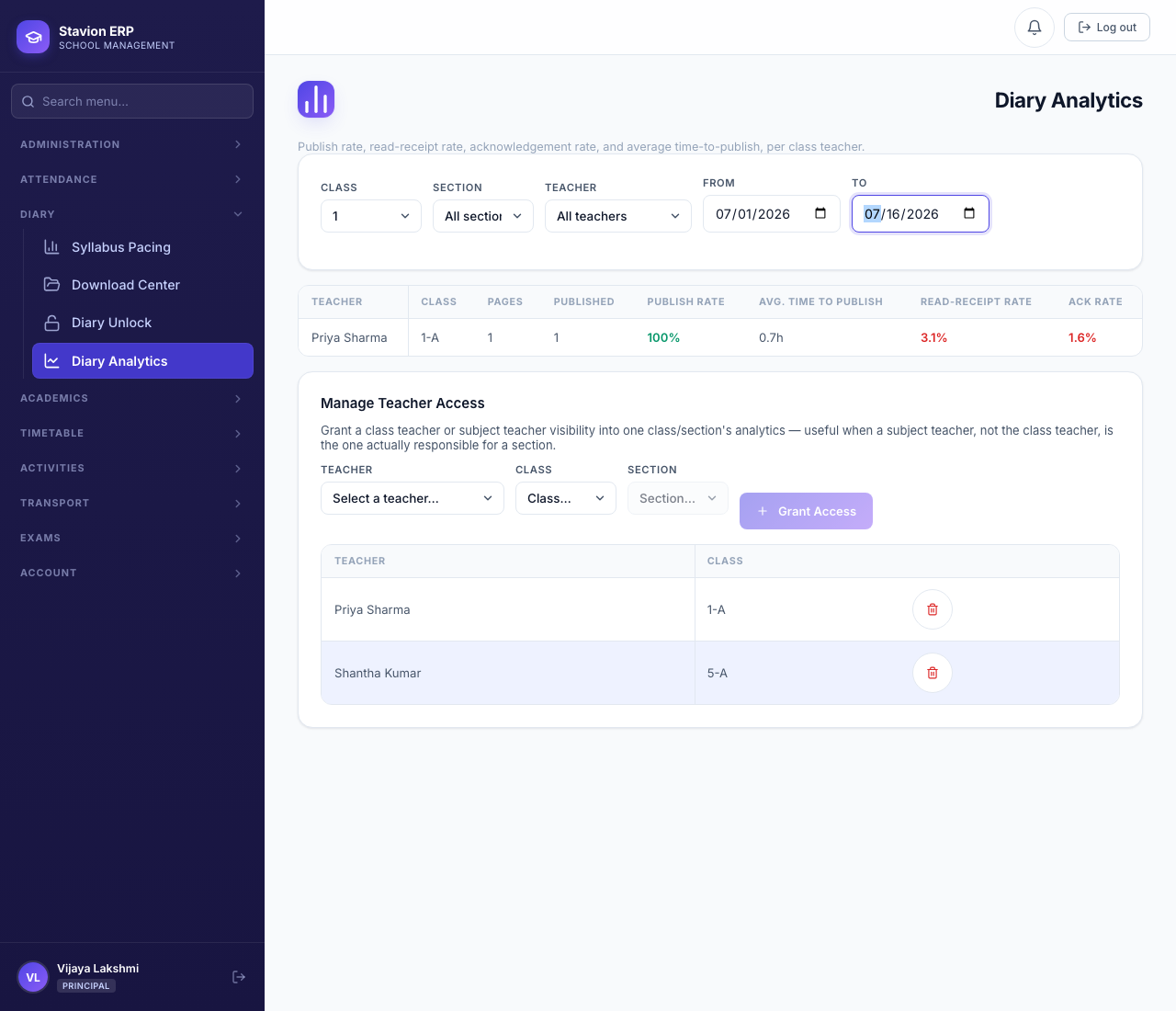
Read-receipt and acknowledgement rates are computed against every student actually on the class roster, not just the ones who have engaged — a low percentage here is a real, actionable signal for the Principal, not a display quirk.