School Configuration
Overview
Before anything else can be configured, the school's identity and academic structure need to be set up: its name and contact details, the board it follows, the academic year, and which classes and sections it runs. These settings drive dropdowns and defaults throughout the rest of CampusOS, and Feature Toggles decide which of CampusOS's modules this particular school actually sees and uses.
Prerequisites
The school tenant and a first School Admin login must already exist (created by the Stavion Technologies platform team — see the separate Super Admin Console Guide). Nothing else.
1.1 Basic Info
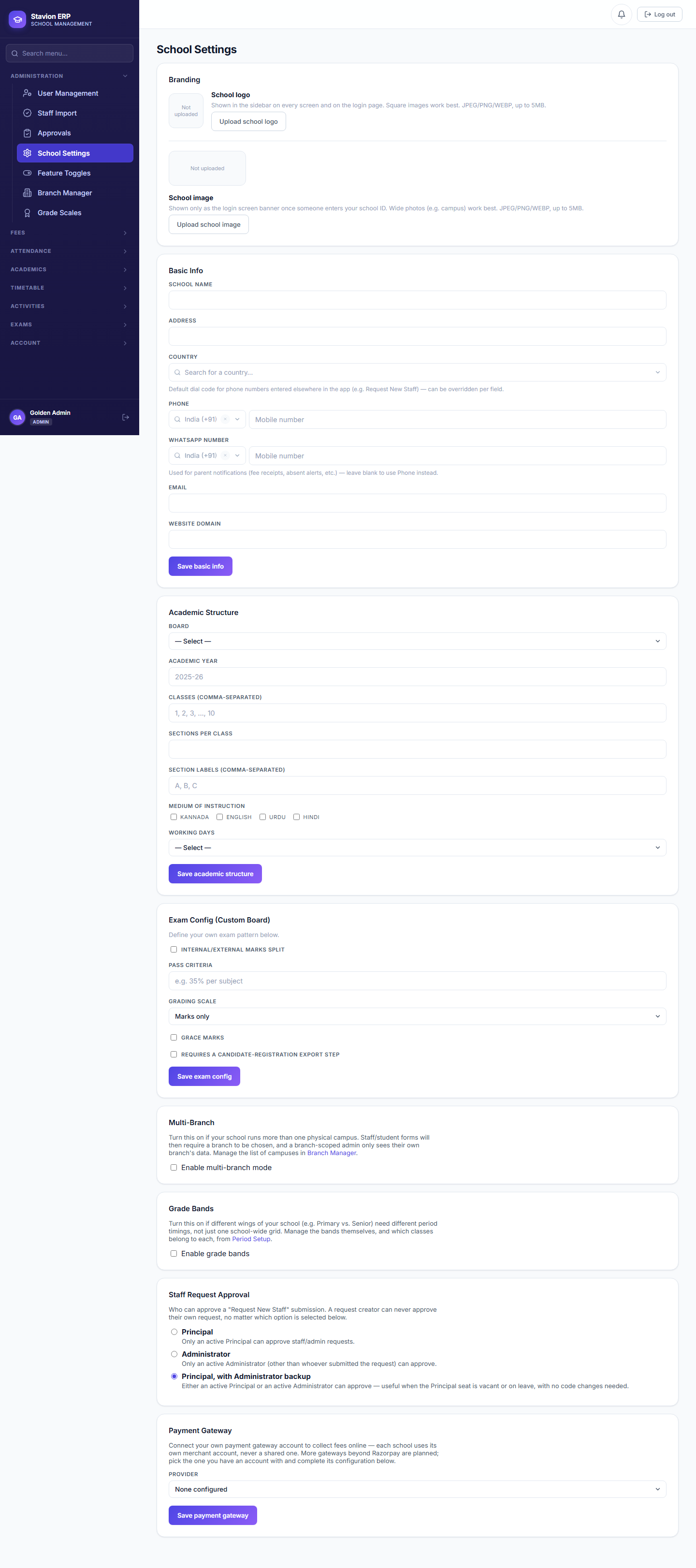
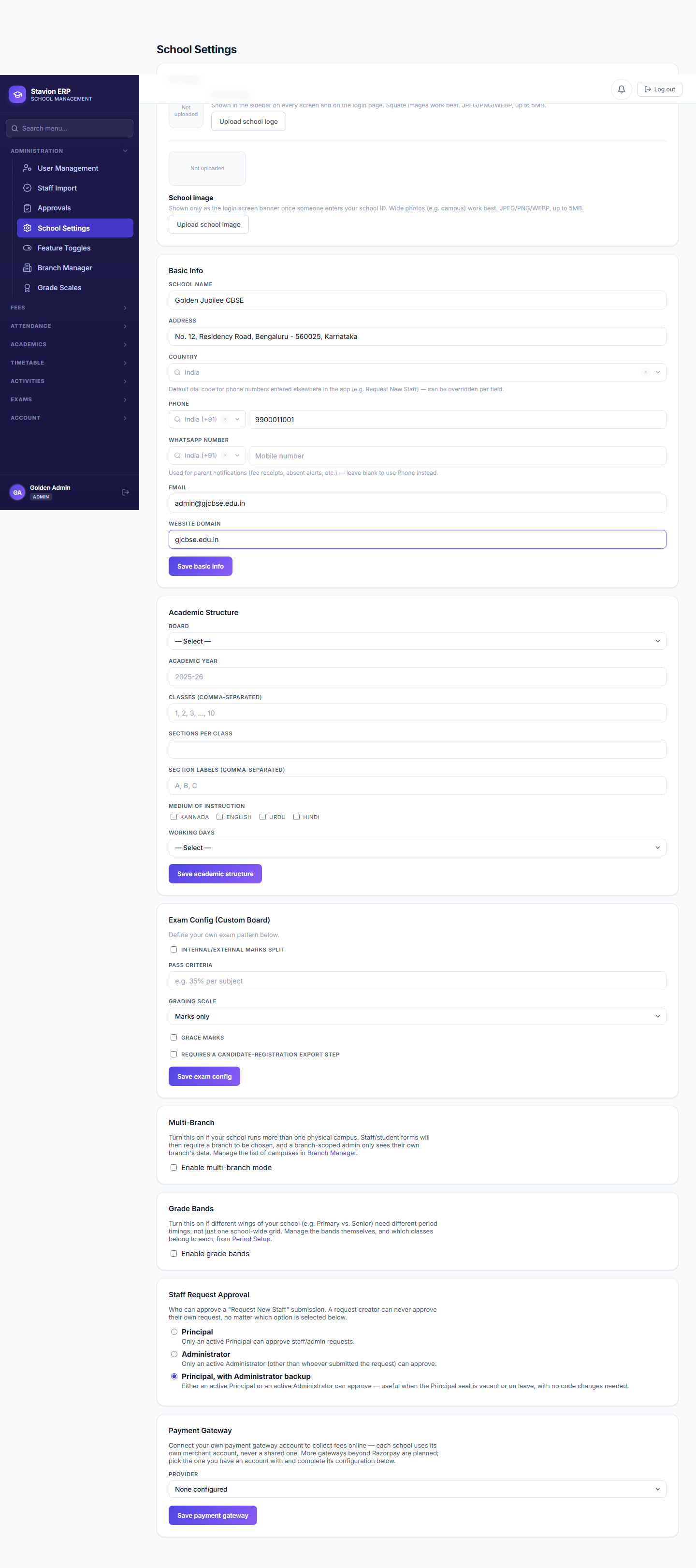
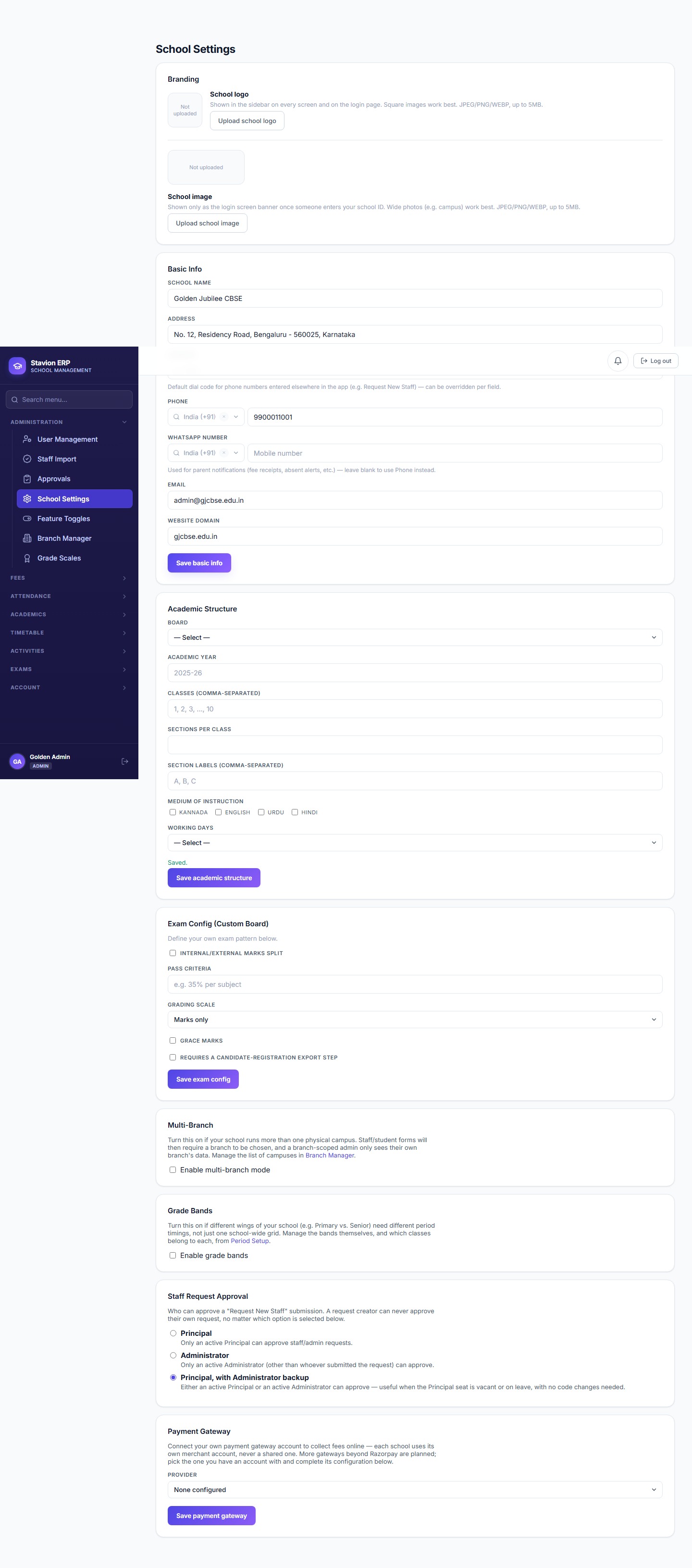
| Field | Required | Description | Example |
|---|---|---|---|
School Name |
Required | Display name shown across CampusOS and on printed documents (challans, TCs, reports). | Golden Jubilee CBSE |
Address |
Required | Physical address, printed on fee challans and certificates. | — |
Phone |
Required | Primary contact number. | — |
Email |
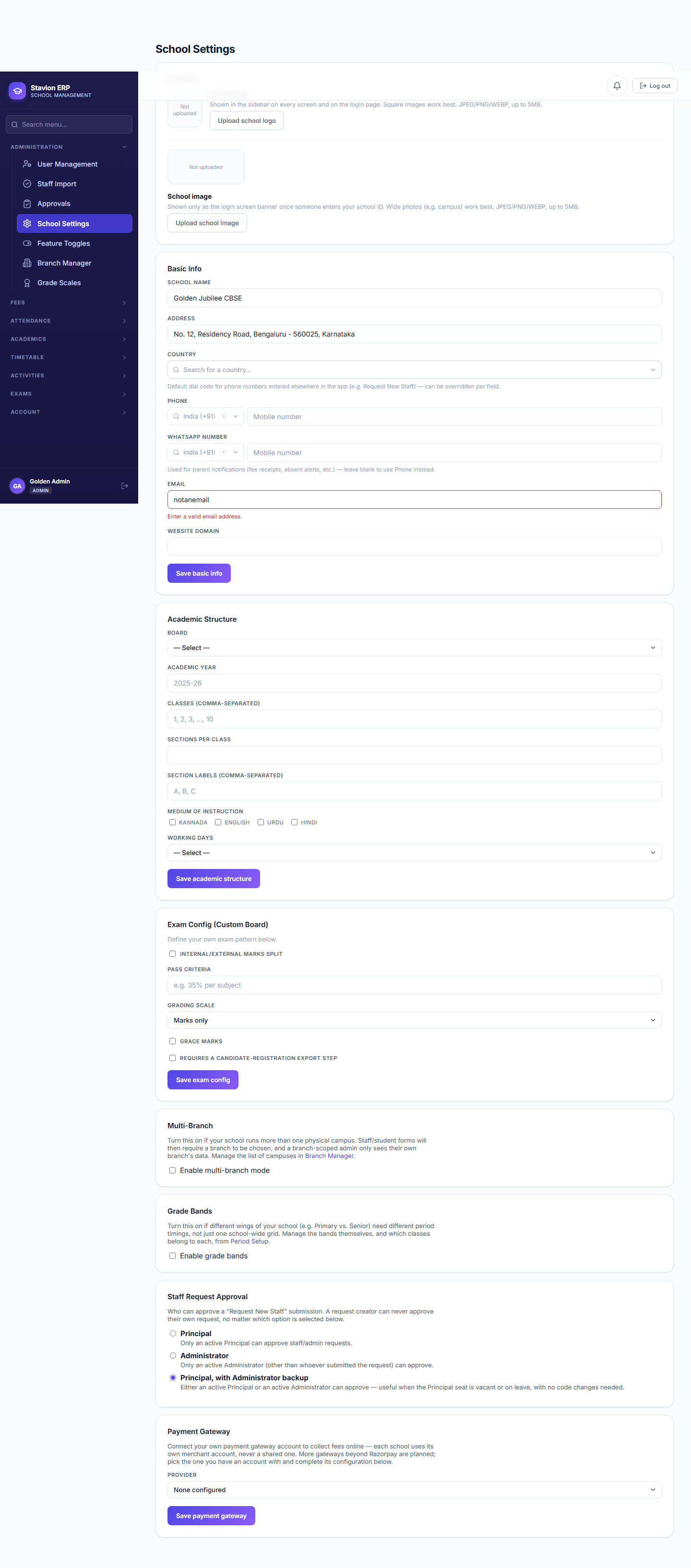
Required | Primary contact email — validated as a well-formed address. | — |
1.2 Academic Structure
Academic Structure is the single source of truth that every other module reads from. The board you pick here determines which exam-pattern options are offered later; the classes/sections list becomes every class/section dropdown in the product (Students, Fees, Timetable, Attendance); and Working Days determines which calendar dates even count as school days for Attendance (Chapter 7) and Timetable generation.
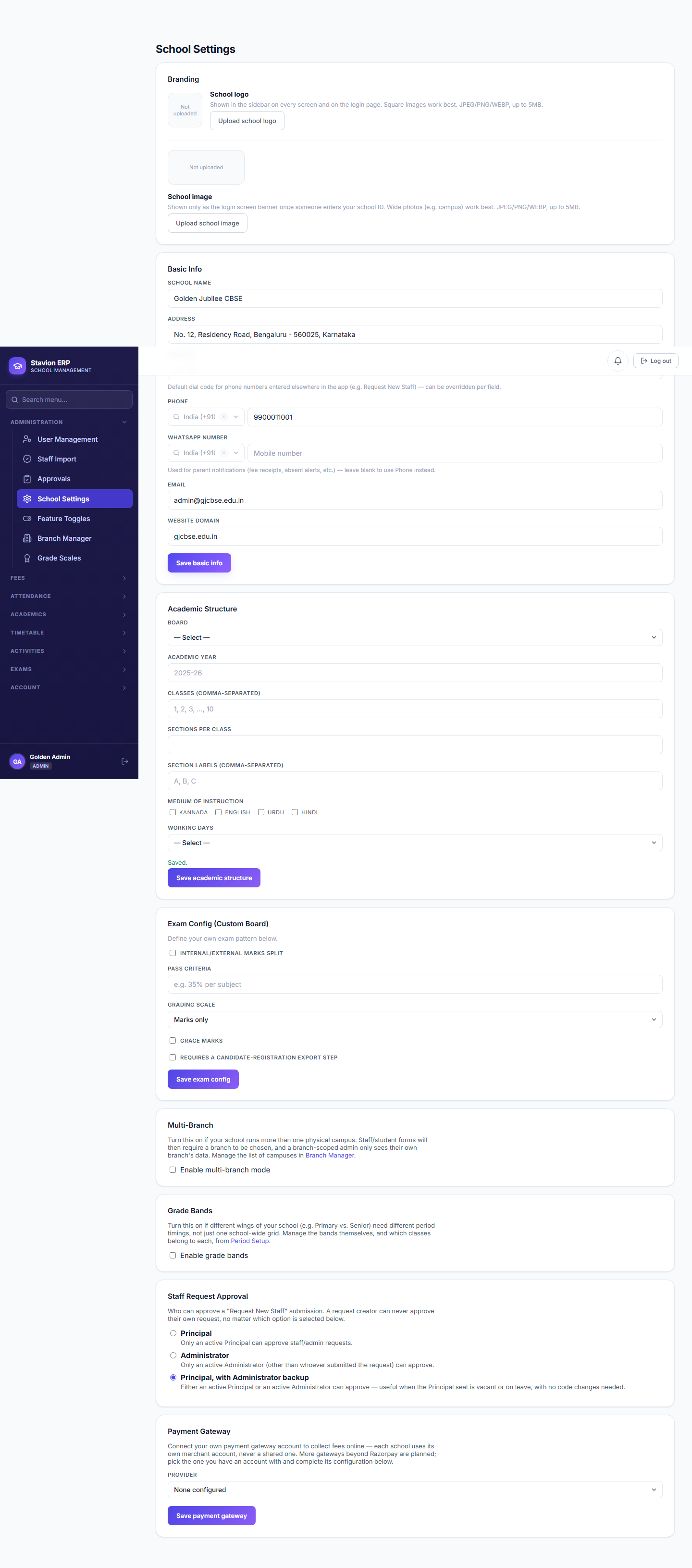
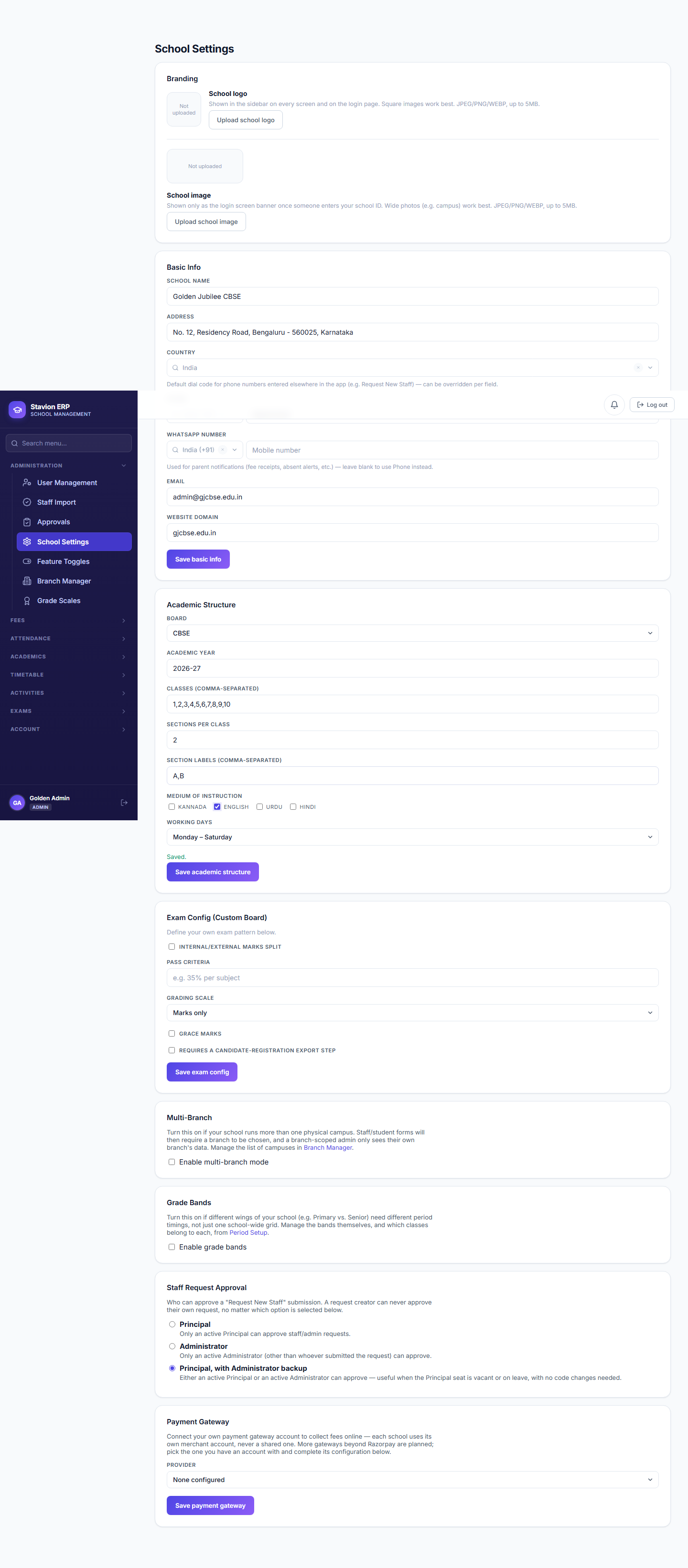
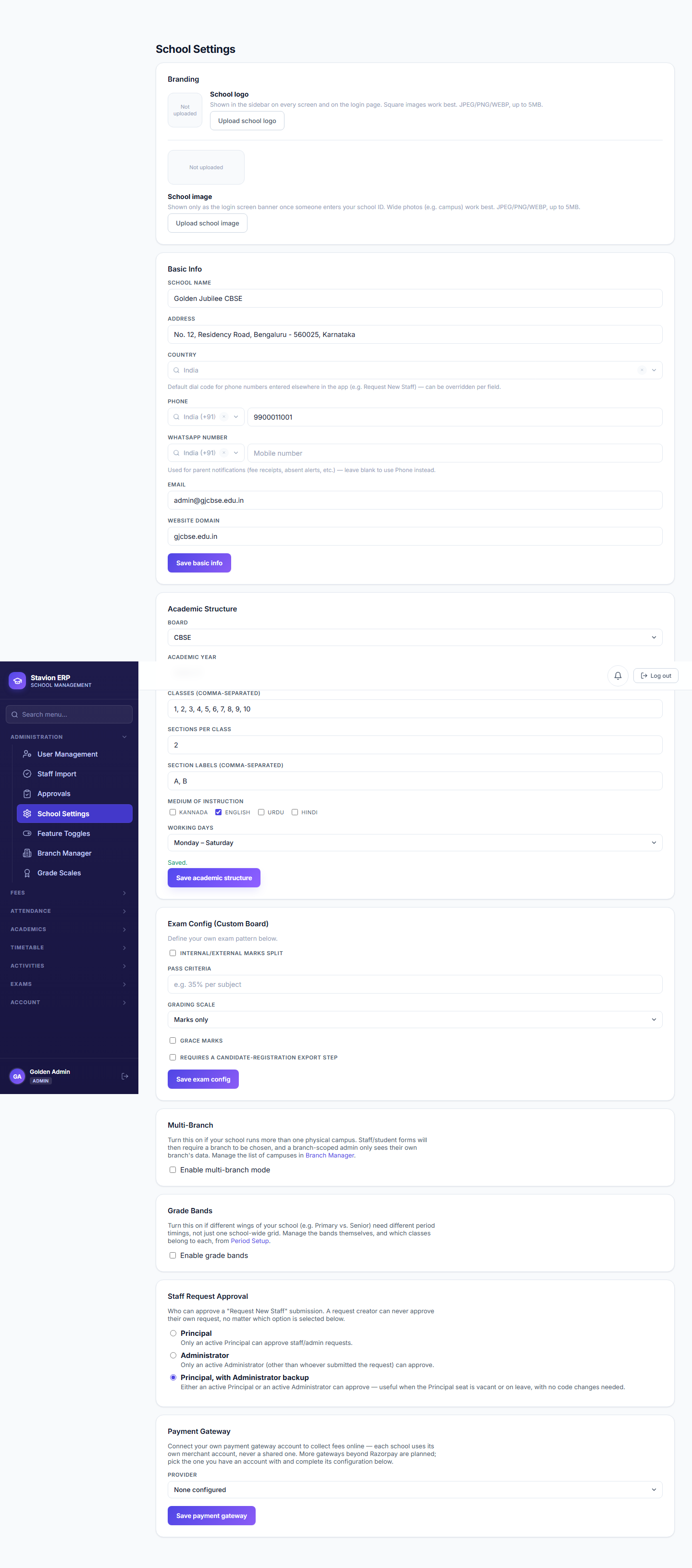
| Field | Required | Description | Example |
|---|---|---|---|
Board |
Required | The academic board followed. Drives which Exam Pattern options are offered. | CBSE |
Academic Year |
Required | Start and end dates for the current academic year. | 2026-27 |
Classes |
Required | A comma-separated list of every class the school runs. | 1,2,3,4,5,6,7,8,9,10 |
Sections |
Required | A comma-separated list of section letters used across classes. | A,B |
Working Days |
Required | Mon–Fri or Mon–Sat — determines which calendar days count as school days for attendance. | Mon–Sat |
1.3 Feature Toggles
CampusOS is built as one product with dozens of modules — Fees, Timetable, Attendance, Exams, Transport, Library, Analytics, and many more — but no two schools run the same way. A small primary school may only ever need Student Management, Attendance, and Fees; a large CBSE school with a fleet of buses will also want Transport and Analytics switched on. A feature toggle is a per-school on/off switch, stored in that school's own configuration, that controls whether a given module or capability is visible in the navigation and reachable through the API for that specific tenant — every other school's toggles are completely independent. This is what lets Stavion Technologies ship the full CampusOS feature set to every customer at once, while each school only ever sees the parts that are actually switched on for them, and lets a school turn on a new capability the moment they're ready for it, with no code change or migration required.
Key concepts
- Module toggleA top-level switch for an entire feature area (e.g. Timetable, Transport). Turning a module off hides its entire section of the navigation for every user at that school.
- Core moduleA module so fundamental that CampusOS cannot function without it. Its toggle is shown but permanently disabled ("Core module — always on") — Student Management, Attendance, Fee Management, and Exam Results are the four core modules.
- Locked toggleA specific setting (not a whole module) that is forced on for regulatory reasons and cannot be switched off by any school, however it configures everything else. Shown disabled with "Locked on by policy."
- Dependency ruleA rule that says "toggle B can only be turned on while toggle A is already on" — e.g. Timetable depends on Student Management. CampusOS enforces these rules itself; the toggle screen won't let you save a combination that violates one.
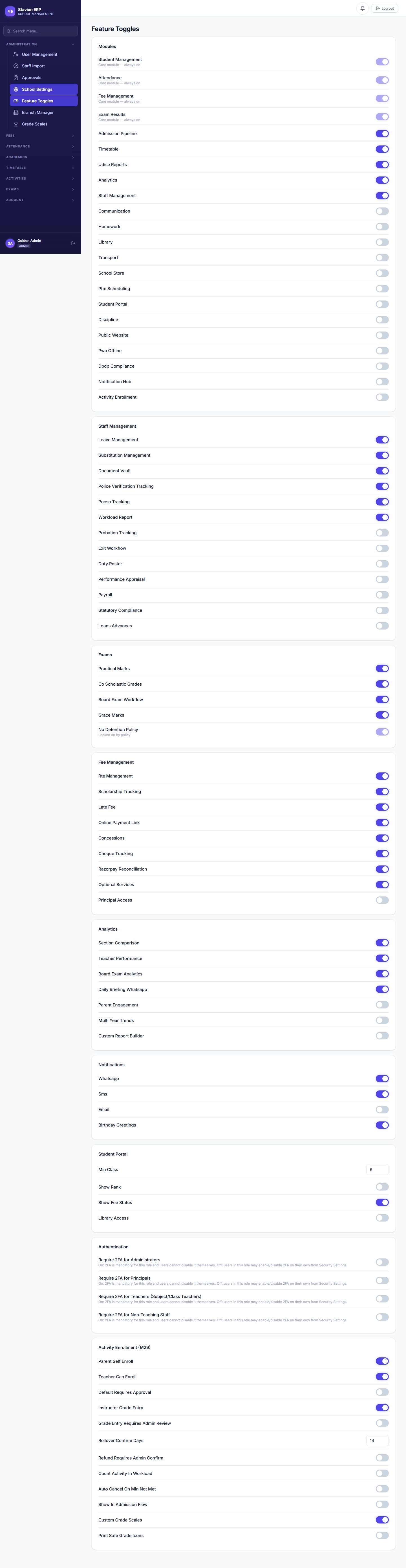
What all the Module toggles are, and why each one exists
The Modules group is the master list — every other group of toggles refines the behavior of one of these once it's switched on.
| Option | What it does | When to use it |
|---|---|---|
Student Management |
Core. Student records, admissions, class/section rosters — the foundation every other module reads from. | Always on. |
Attendance |
Core. Daily/period-wise attendance taking, correction, reporting, and parent visibility. | Always on. |
Fee Management |
Core. Fee components, structures, concessions, and challans (Chapter 4). | Always on. |
Exam Results |
Core. Exam definitions, marks entry, and report cards. | Always on. |
Admission Pipeline |
A structured inquiry-to-admission workflow (leads, follow-ups, conversion) ahead of creating a direct student record. | Schools that want to track prospective admissions before enrollment, not just walk-in admission. |
Timetable |
Period setup, subject requirements, teacher-subject mapping, and the weekly schedule (Chapter 6). | Any school running a fixed daily period structure. |
UDISE+ Reports |
Government UDISE+ statutory reporting exports. | Schools required to file UDISE+ returns (most recognized schools in India). |
Analytics |
Cross-module dashboards and trend reporting, drawing on Attendance, Exam Results, and Fee data together. | Once the school has a full term or more of real data to analyze. |
Staff Management |
Staff records plus the maker-checker request/approval workflow (Chapter 2), and the whole Staff Management sub-flag group. | Always on for any school with more than a handful of staff. |
Communication |
Announcements/circulars to parents and staff. | Schools that want in-app/notification broadcast instead of relying on external channels. |
Homework |
Homework assignment and submission tracking. | Requires Communication — homework is delivered as a kind of announcement. |
Library |
Book catalogue and issue/return tracking. | Schools with a managed library collection. |
Transport |
Bus routes and stop assignments, billed through Fees. | Requires Fee Management — transport charges ride on the same challan engine. |
School Store |
Uniform/book sales billed through Fees. | Requires Fee Management, same reason as Transport. |
PTM Scheduling |
Parent-teacher meeting slot booking. | Requires Staff Management, since slots are booked against teachers. |
Student Portal |
A student's own login and view (as opposed to only their parent's). | Requires Exam Results and Attendance — there's nothing for a student to see without them. |
Discipline |
Behaviour incident tracking. | Schools that want a formal record separate from academic notes. |
Public Website |
The school's public-facing marketing site and inquiry form. | Schools without their own separate website. |
PWA / Offline |
Offline-capable mobile experience, e.g. taking attendance without connectivity. | Requires Attendance; useful for campuses with unreliable network coverage. |
DPDP Compliance |
India's Digital Personal Data Protection Act tooling — consent records and data-subject requests. | Recommended for every school; mandatory for larger institutions. |
Notification Hub |
Centralized delivery tracking across WhatsApp/SMS/email. | Requires WhatsApp notifications to already be enabled. |
Activity Enrollment |
Co-curricular/activity enrollment and grading (clubs, sports, etc.). | Requires Student Management; has its own large sub-flag group once turned on. |
Once a module is on, its own sub-group of finer-grained toggles usually appears (all still on this same screen): Staff Management unlocks leave management, substitution management, document vault, police/POCSO verification tracking, payroll, and more; Exams unlocks practical marks, co-scholastic grades, board-exam workflow, and grace marks; Fee Management unlocks RTE management, scholarship tracking, late fees, online payment links, and the Concessions engine used in Chapter 4; Analytics unlocks section comparison, teacher performance, and multi-year trend reports; Notifications chooses which channels (WhatsApp/SMS/email) are active and who receives them; Student Portal fine-tunes what a student can see (rank, fee status, library access); Authentication makes two-factor authentication mandatory per role; and Activity Enrollment configures the entire M29 co-curricular workflow (enrollment mode, refund policy, year-rollover behavior, and more) once its module toggle is on.
How dependency rules are enforced
Many of the toggles above only make sense once another one is already active — Transport bills through Fees, so it requires Fee Management; Timetable organizes classes, so it requires Student Management. CampusOS checks these rules on every save, in both directions: you cannot turn a dependent feature on while its requirement is off, and you cannot turn the requirement off while something depending on it is still on.
The same on-save check runs for every dependency rule in the system (e.g. Timetable → Student Management, UDISE+ Reports → Student Management + Attendance, Analytics → Attendance + Exam Results + Fee Management).
The save is rejected with a dependency error naming exactly which prerequisite module is missing.
Transport switches on immediately — its bus-route billing now has something to attach to.
If you plan to enable several optional modules for a new school, enable the ones with no dependencies first (Communication, Staff Management), then the ones that build on them (Homework, PTM Scheduling), rather than working top-to-bottom through the list and hitting dependency errors partway through.
Validation rules & common errors
| Trigger | Error shown | Resolution |
|---|---|---|
| Contact email is not a valid email address | Please enter a valid email address | Correct the email format before saving. |
| A required Basic Info field is left blank | Field-level "required" message | Fill in every required field. |
| Classes list contains a duplicate value | Duplicate class rejected | Remove the duplicate entry from the comma-separated list. |
| A module is switched on while a module it depends on is off | Dependency error naming the missing prerequisite module | Switch on the required module first, then retry. |
| A Core module or Locked setting is switched off | Core module — always on / Locked on by policy (checkbox disabled, cannot be unchecked) | Not applicable — these can never be disabled for any school. |
Every later module (Fees, Timetable, Attendance) reads its class/section dropdowns from Academic Structure — configure it before touching anything else, including Feature Toggles.