Store & Inventory
Overview
School Store & Inventory runs everything the school sells or lends to students and staff — uniforms, textbooks, lab equipment, sports gear — from one catalog through to the fee challans billable items generate. It's organised into six areas, matching the tab strip at the top of every Store screen: Catalog (what you stock), Purchasing & Transfers (how stock enters the school and moves between branches), Issue & Return (who has what), Billing (charging a parent for a billable item), Reports (everything above, summarised), and Access (delegating day-to-day store operations to specific staff). Every screenshot in this chapter is a real screen from a real walkthrough — a Sports Equipment category, a serialized Basketball Hoop Set, and a billable House T-Shirt were created live for this chapter, not staged.
Key concepts
- Category (Group)A named bucket items belong to — Uniform, Books, Stationery, Sports Equipment. It is also the unit Store Access (13.6) scopes a delegated staff member to, so how you split items into Categories decides how finely you can later delegate.
- ReturnableWhether an issued unit is expected back — a textbook or lab microscope is returnable; a notebook or exercise book is consumed and never returned. Only returnable items appear on Pending Returns.
- SerializedOnly meaningful on a returnable item — whether each physical unit is individually tagged and tracked (a specific projector, a specific microscope) rather than just a bare quantity count. A serialized item's stock is COUNT of untagged/in-stock units, not a running total.
- BillableWhether issuing this item to a student charges a fee. A billable item needs a price (13.4 Class-wise Price List) before it can actually be sold — issuing one with no configured price is refused, not silently free.
- Selection vs. IssuanceA Selection (13.4) is the billing event — a parent is opted in and a fee challan is generated immediately. An Issuance (13.3) is the physical handover. For a billable item these are normally two separate moments: select now, hand the item over later once it's in stock or the fee is paid — the Fulfillment Queue (13.4) is where that handover happens.
- Branch vs. Category scopingStock, purchases, and issuances are branch-scoped (Main Branch and North Campus keep separate stock counts). The catalog itself — Categories, Items, pricing — is shared school-wide. A delegated Store Manager (13.6) can be scoped by branch, by Category, or both at once.
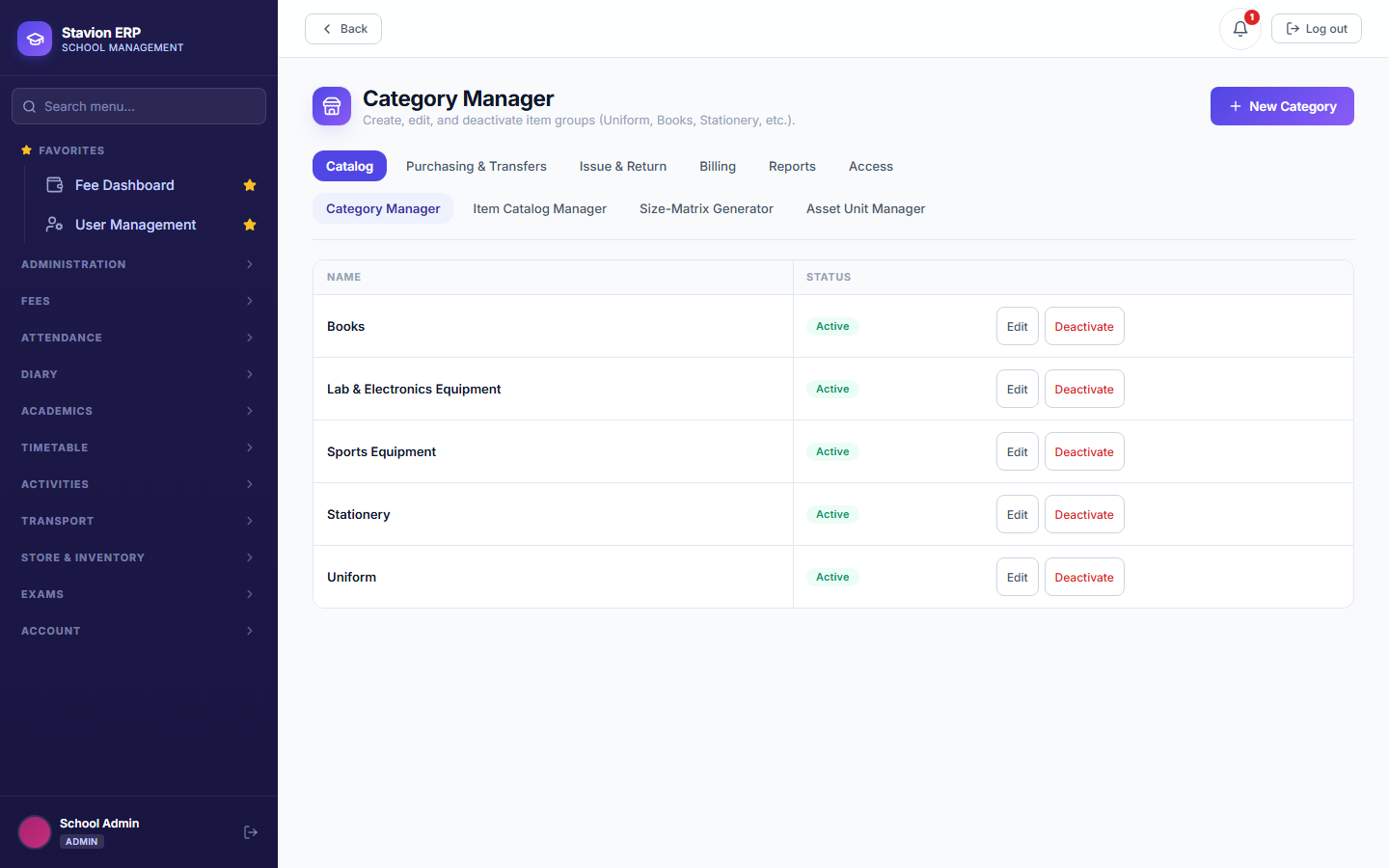
13.1.1 Category Manager
Every item belongs to exactly one Category. Categories are admin/principal-only to create or edit — they're the boundary Store Access (13.6) scopes against, so letting a delegated Store Manager create their own Categories would let them grant themselves broader access than intended.
13.1.2 Item Catalog Manager
Each item's Returnable, Serialized, and Billable checkboxes (13's Key Concepts above) decide which later screens even apply to it — a non-returnable item never appears on Pending Returns, a non-billable item never appears on Class-wise Pricing. Serialized can only be turned on once Returnable already is.

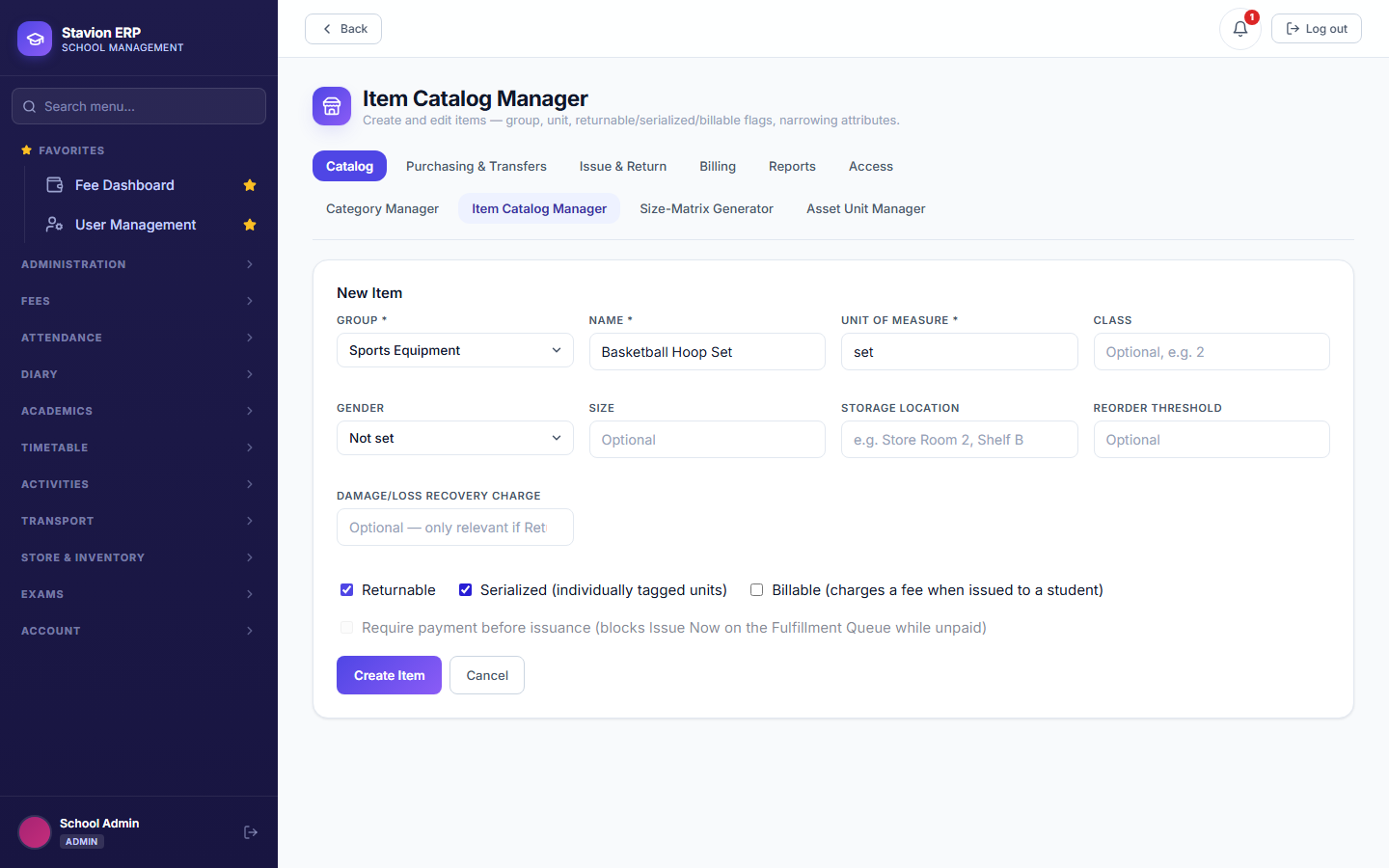

Categories and Items are shared school-wide — Main Branch and North Campus see the exact same catalog. What differs by branch is stock: how many units of an item are actually sitting at each branch, which is what 13.2 (Purchasing & Transfers) and 13.5 (Stock Report) track.
13.1.3 Size-Matrix Generator
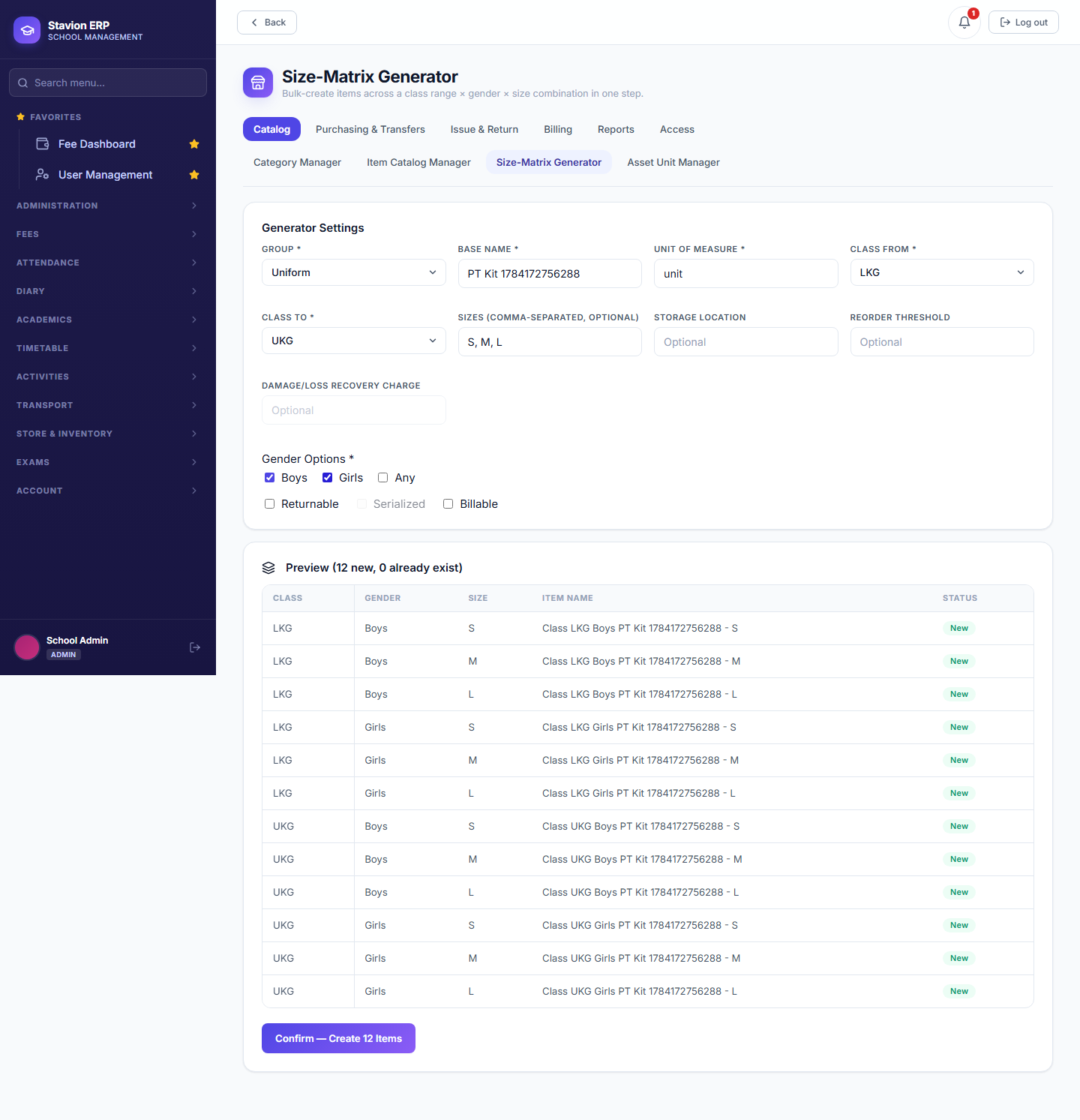
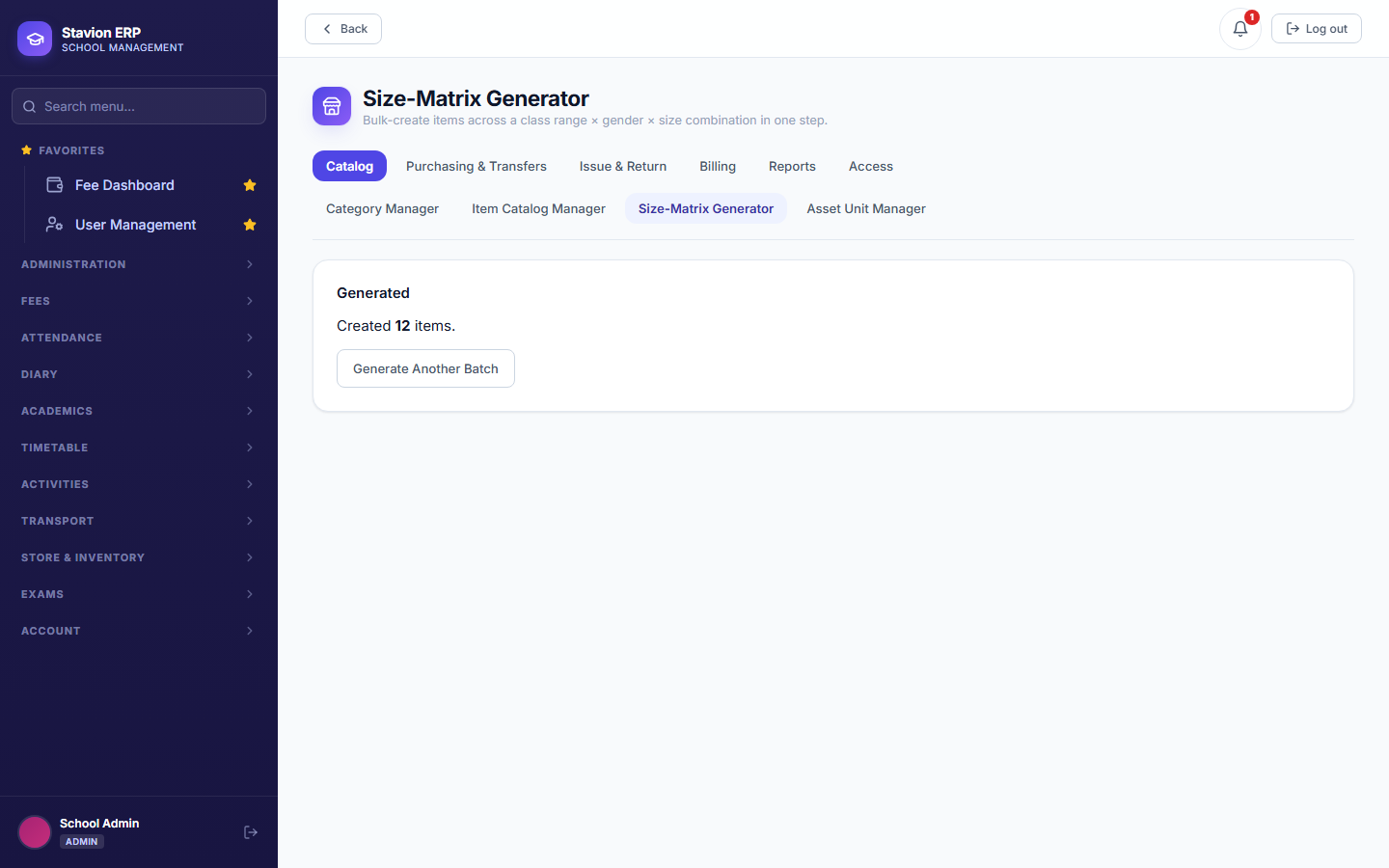
Uniform items in particular repeat across a whole class range × gender × size grid — rather than creating "Class 1 Boys Shirt S", "Class 1 Boys Shirt M" … one at a time, the Size-Matrix Generator creates the whole grid in one action. Re-running it over a range that already has some sizes created is safe — it previews New vs. Already Exists and only creates the New ones.
13.1.4 Asset Unit Manager
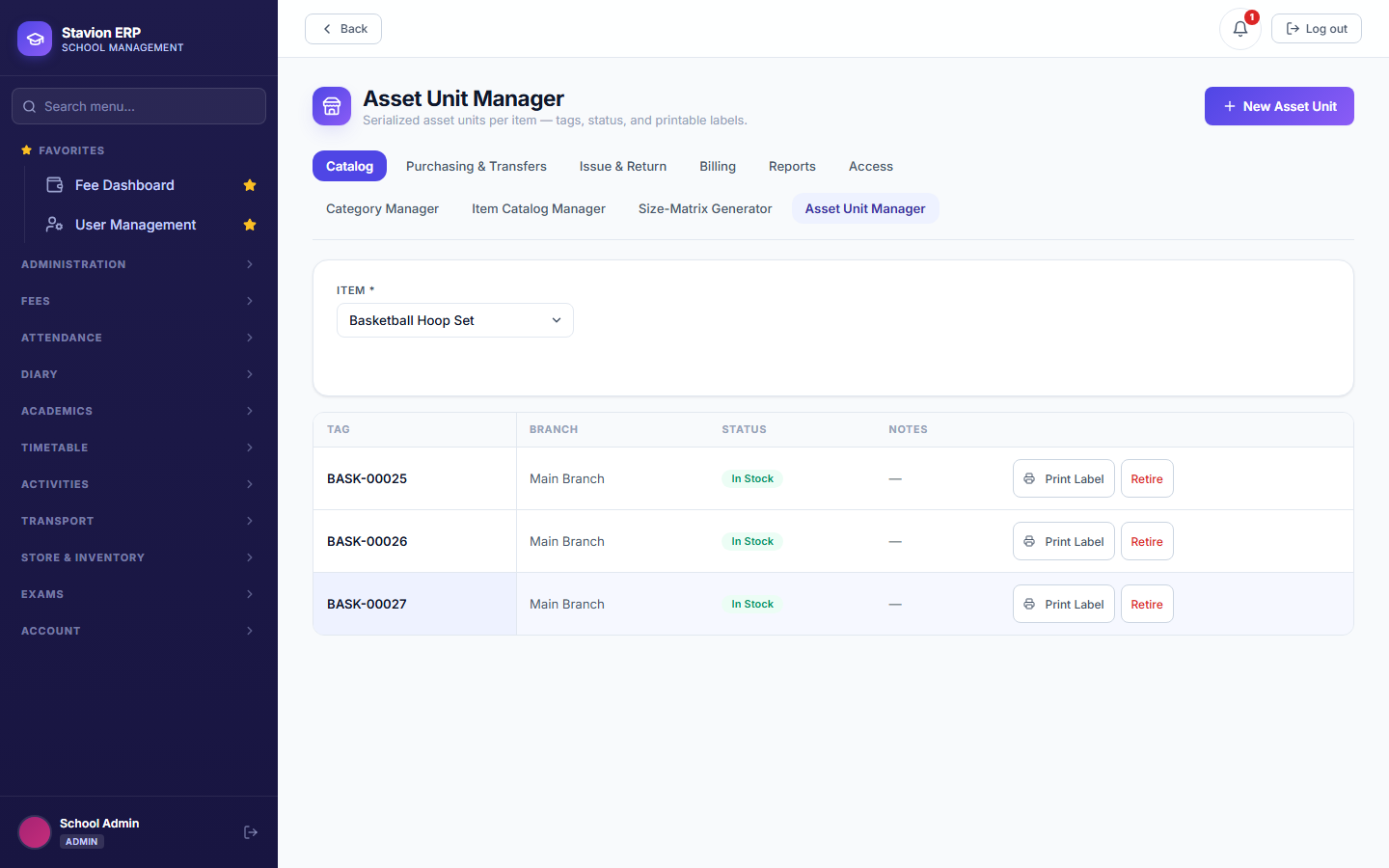
For a serialized item, this is where the individual tagged units live — each one's status (In Stock, Issued, Retired) and its own auto-generated or manually-entered tag. Tags are what a printable label sticks to a physical projector, microscope, or (here) a basketball hoop set.
13.2.1 Record Purchase
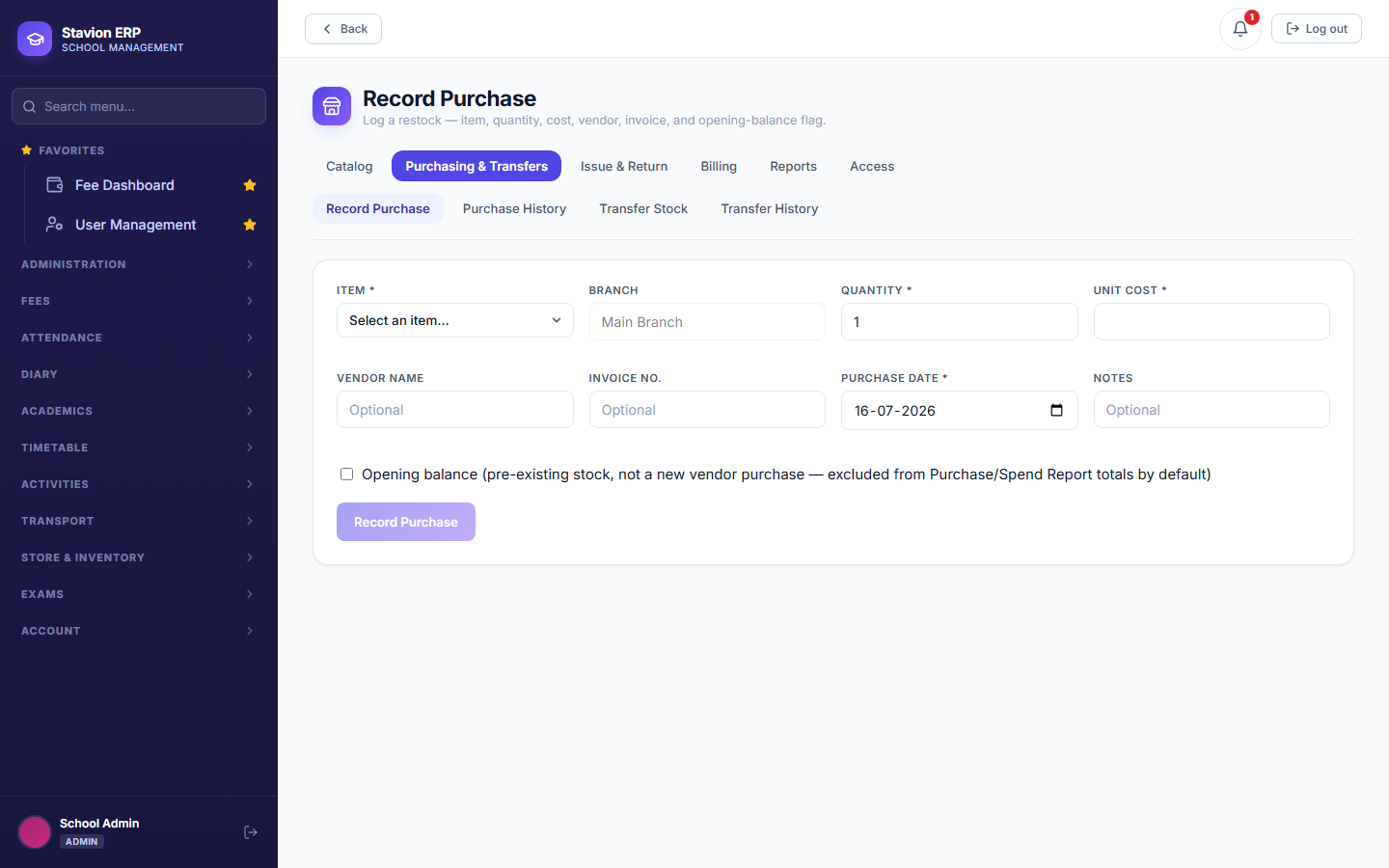
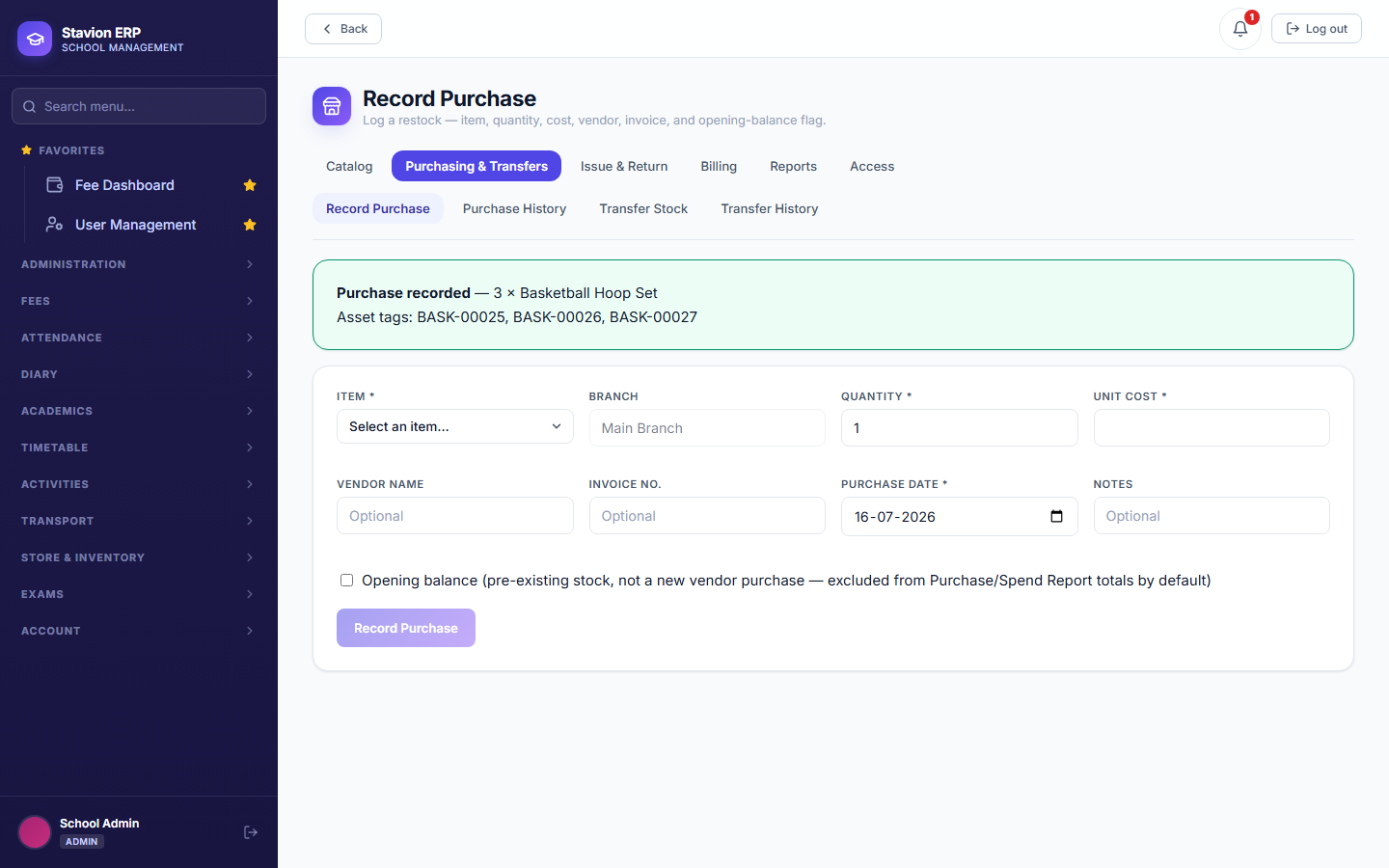
Recording a purchase is how stock enters the school — quantity, unit cost, vendor, and
invoice number for the audit trail. A serialized item's purchase also creates that many tagged
Asset Units in the same action, either auto-generated (ITEM-00001 style) or with
tags entered manually if the vendor's own labels are being reused.
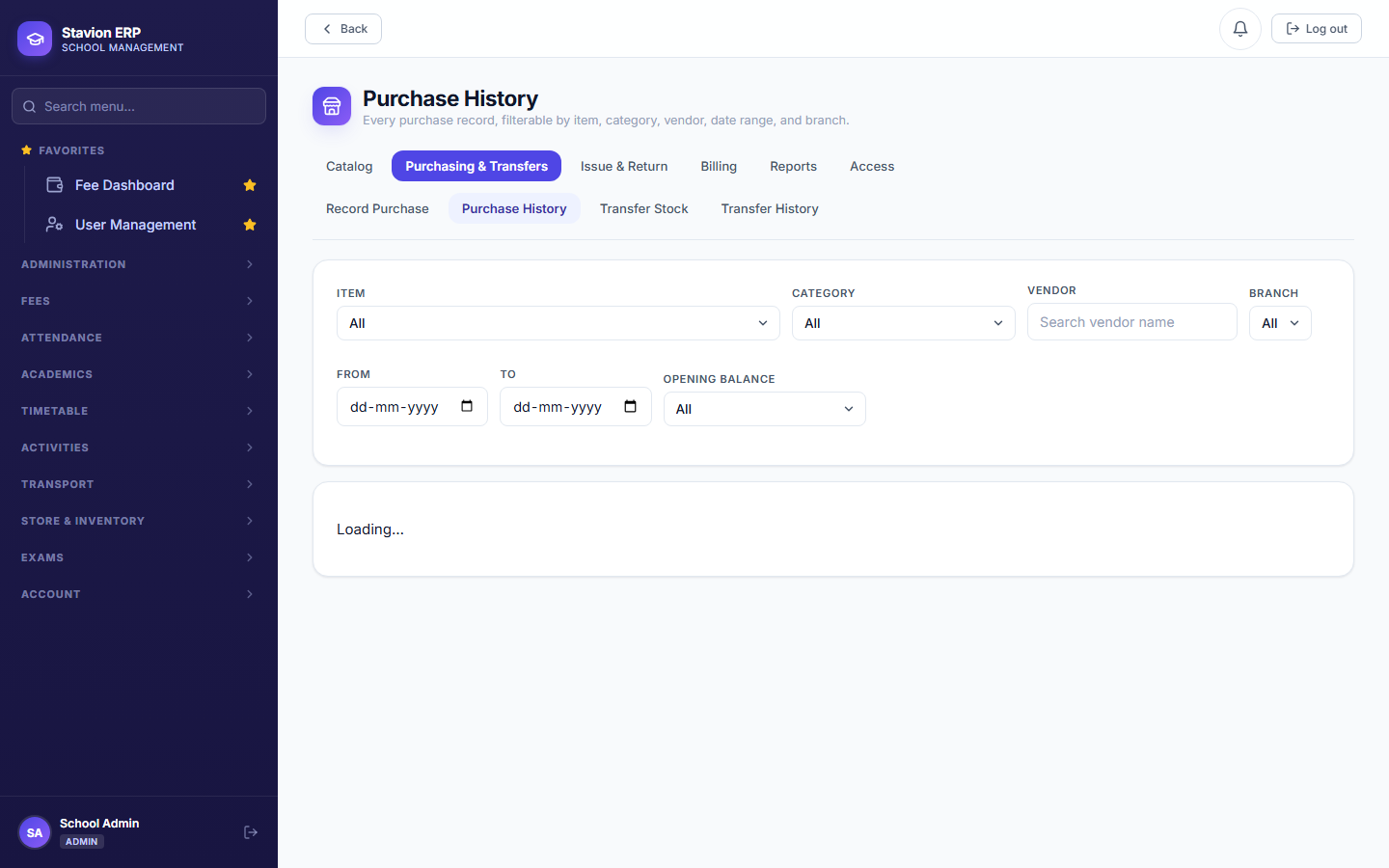
13.2.2 Purchase History
Every purchase ever recorded, filterable by item, Category, vendor, branch, and date range — the Opening Balance flag (not exercised in this walkthrough) distinguishes a genuine new purchase from a one-time starting-stock entry made when the module was first set up.
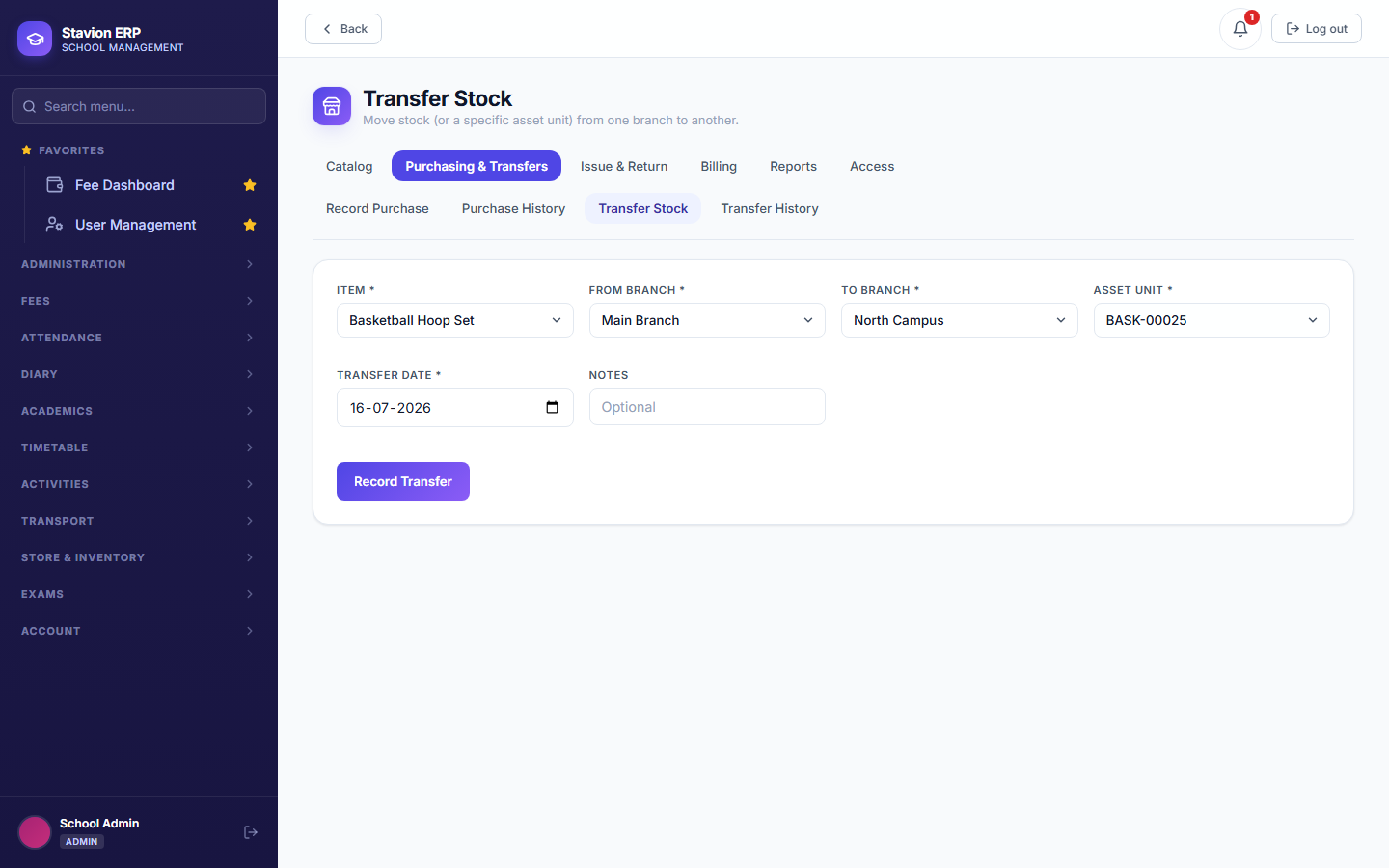
13.2.3 Transfer Stock
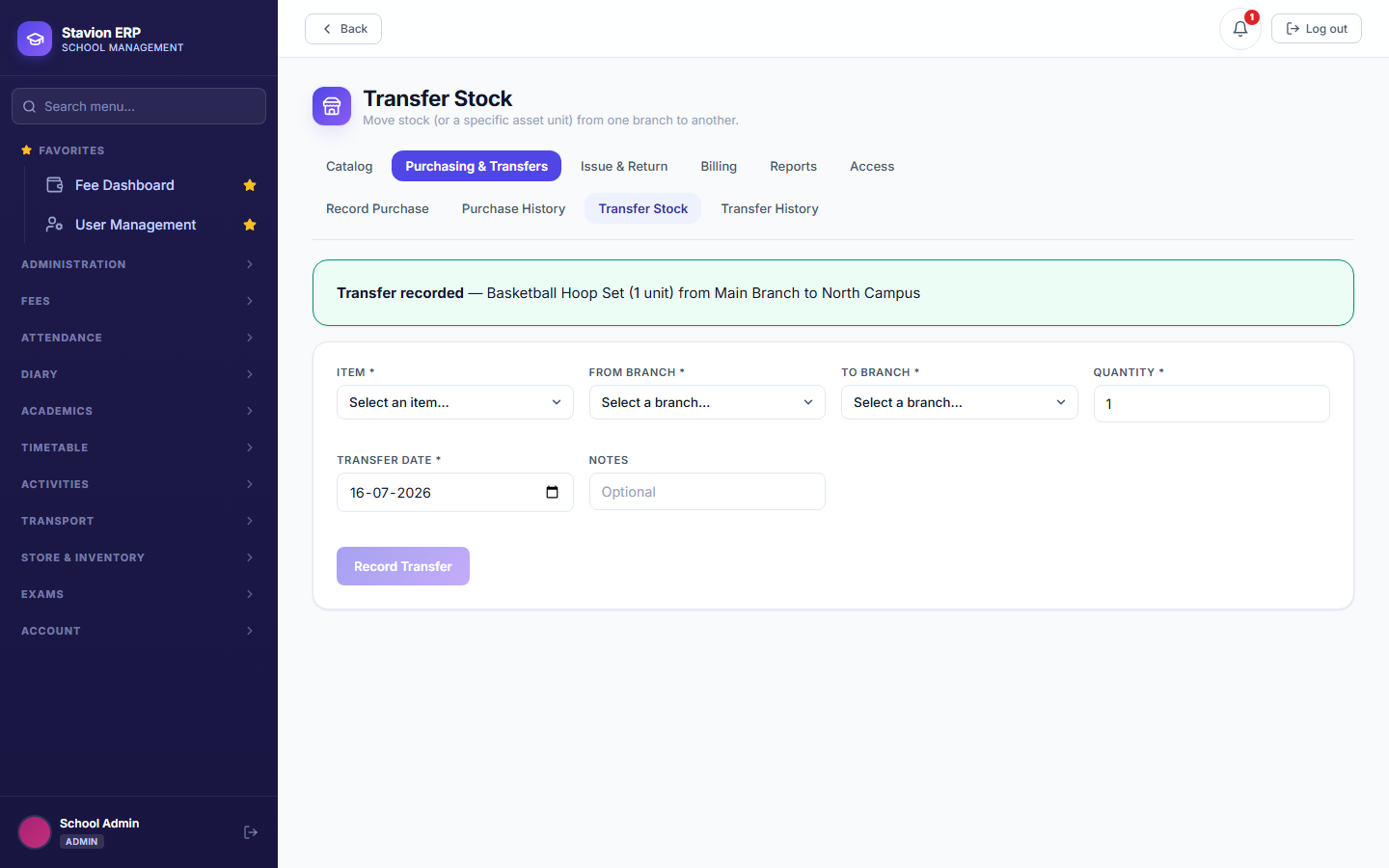
Moves stock — or, for a serialized item, one specific tagged unit — from one branch to another. This is the one Store screen where branch-scoping deliberately works differently: a branch-scoped Store Manager (13.6) is still allowed to move stock out of their own branch even though the destination is a different branch, since a transfer is fundamentally something their own branch's stock is party to.
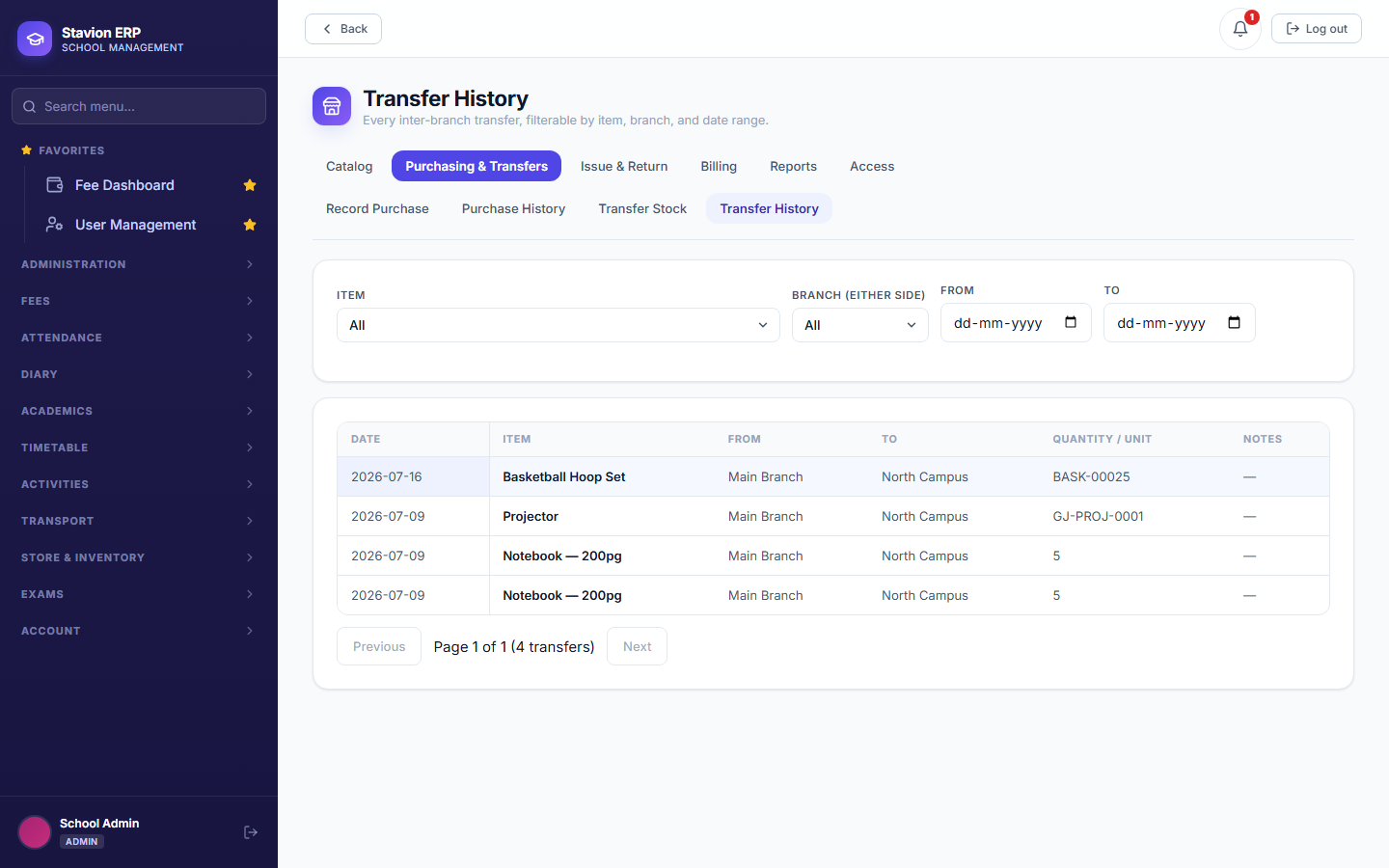
13.2.4 Transfer History
Every inter-branch transfer, filterable the same way Purchase History is — useful for reconciling why a branch's stock count moved without a new purchase behind it.
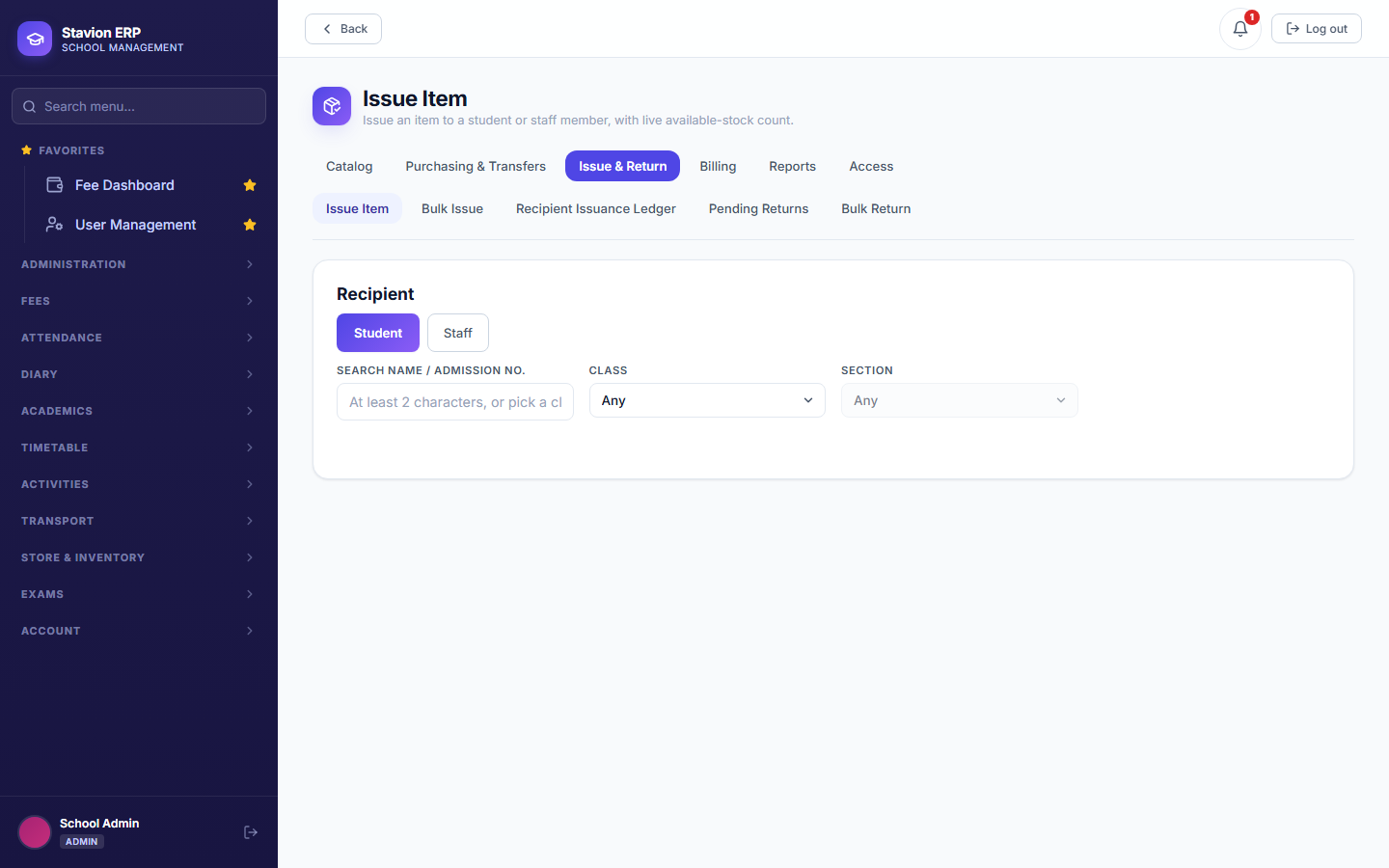
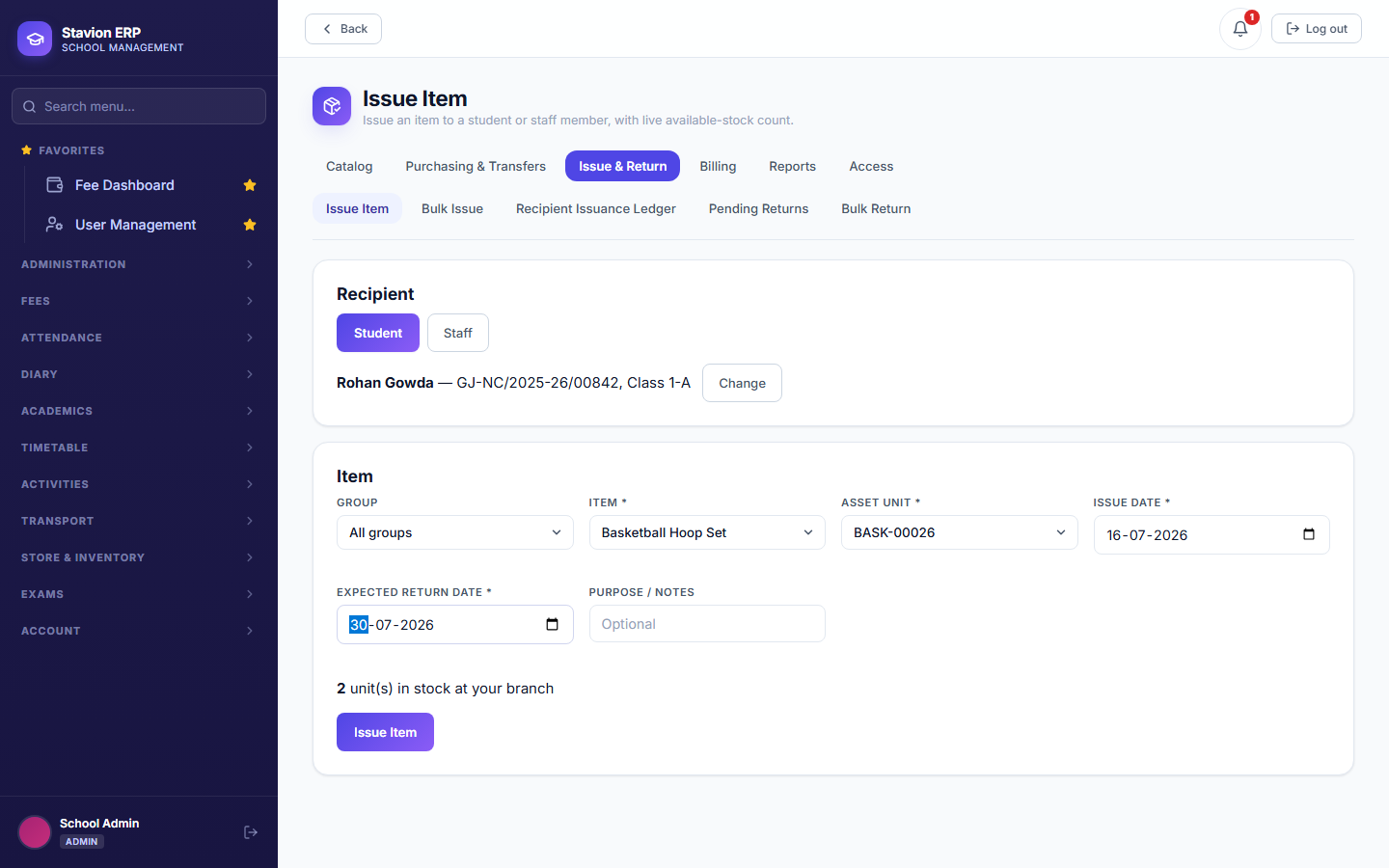
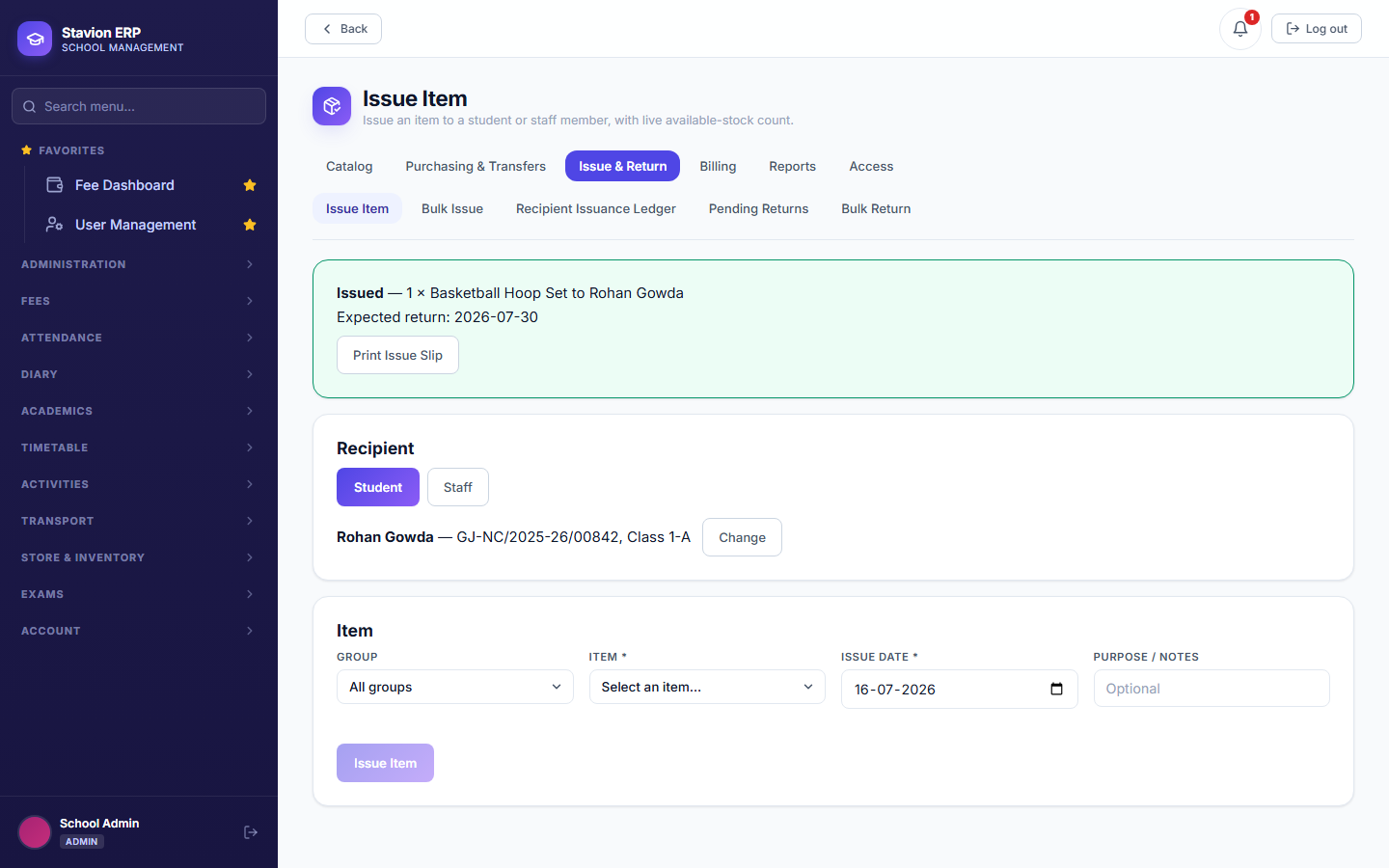
13.3.1 Issue Item
Hands one item to one student or staff member, with the live available-stock count shown before you commit. A returnable item requires an Expected Return Date; a serialized item requires picking the specific unit being handed over.
13.3.2 Bulk Issue
Issues the same item to an entire class/section roster in one action — for a serialized item, the next in-stock unit is auto-assigned to each eligible student in turn. A student who's already been issued the item, or one the school has run out of stock for, is skipped and reported by name rather than silently failing the whole batch.


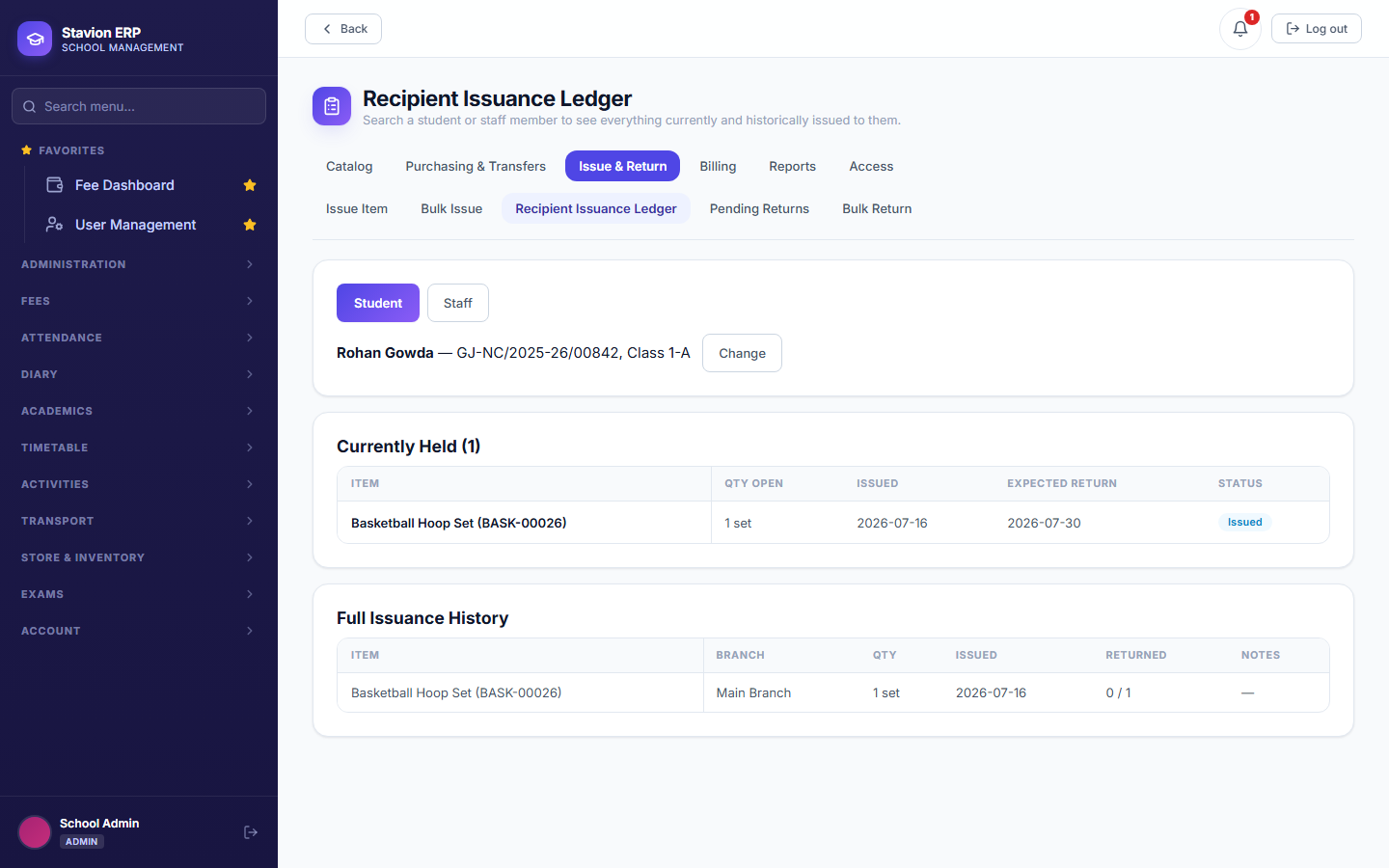
13.3.3 Recipient Issuance Ledger
Everything one specific student or staff member currently holds, plus their full issuance history — the screen to check before assuming someone has (or doesn't have) an item outstanding.
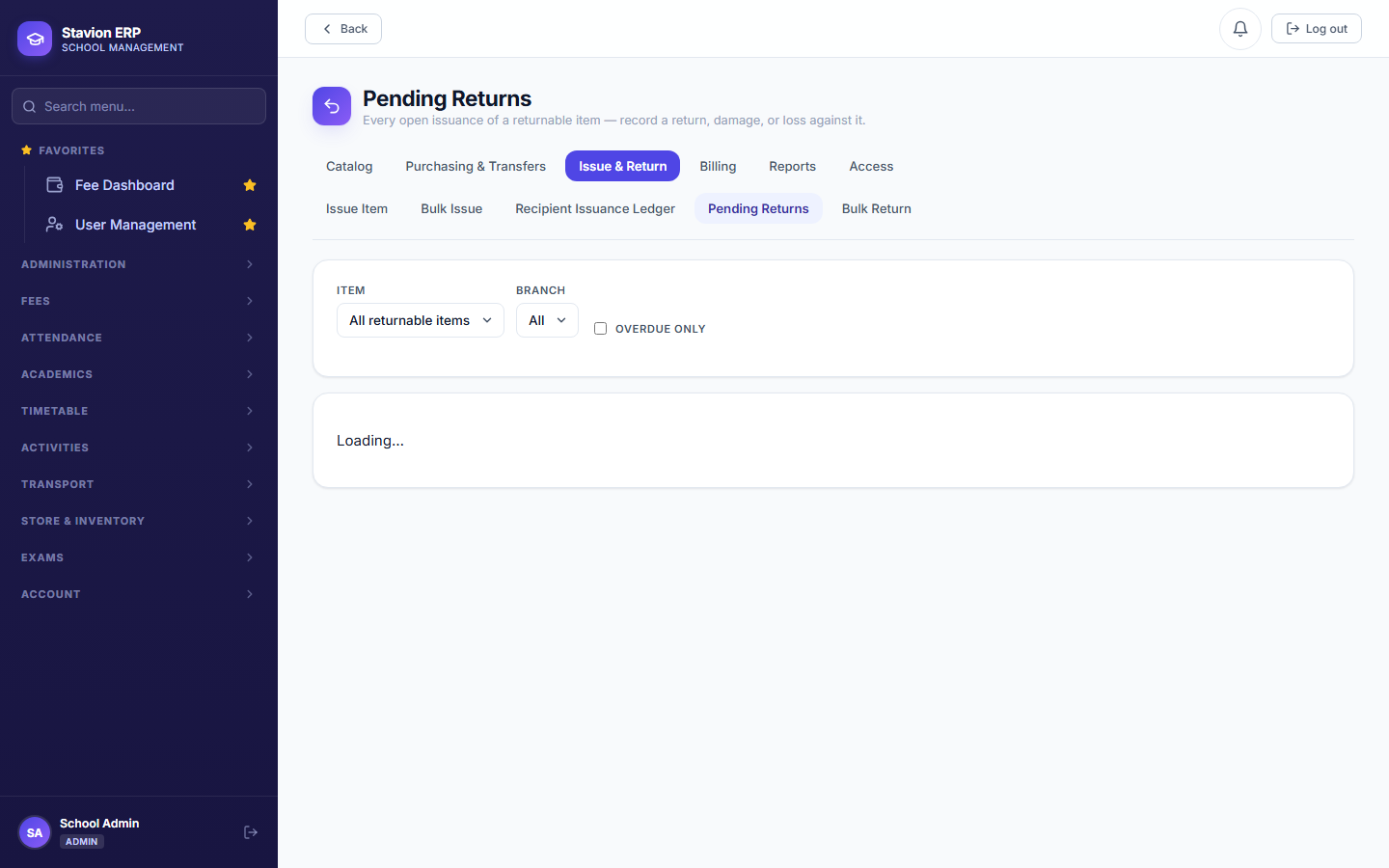
13.3.4 Pending Returns
Every open issuance of a returnable item, across every recipient, with a Record Return Event action right on the row — Returned, Damaged, or Lost, with an optional recovery charge for the latter two. For a student recipient, a recovery charge becomes a real fee challan immediately, the same billing mechanism 13.4's Student Item Selection uses.
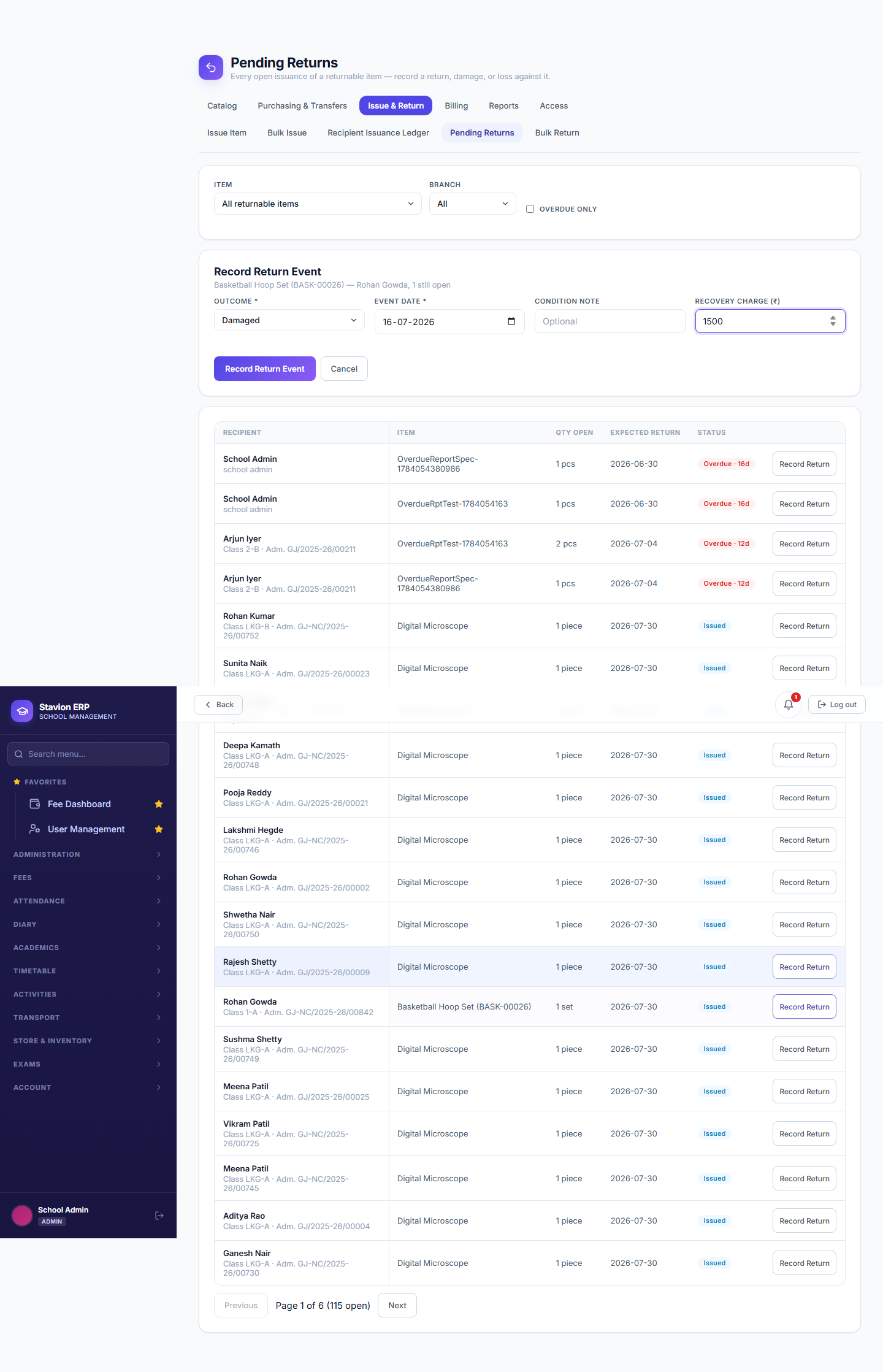
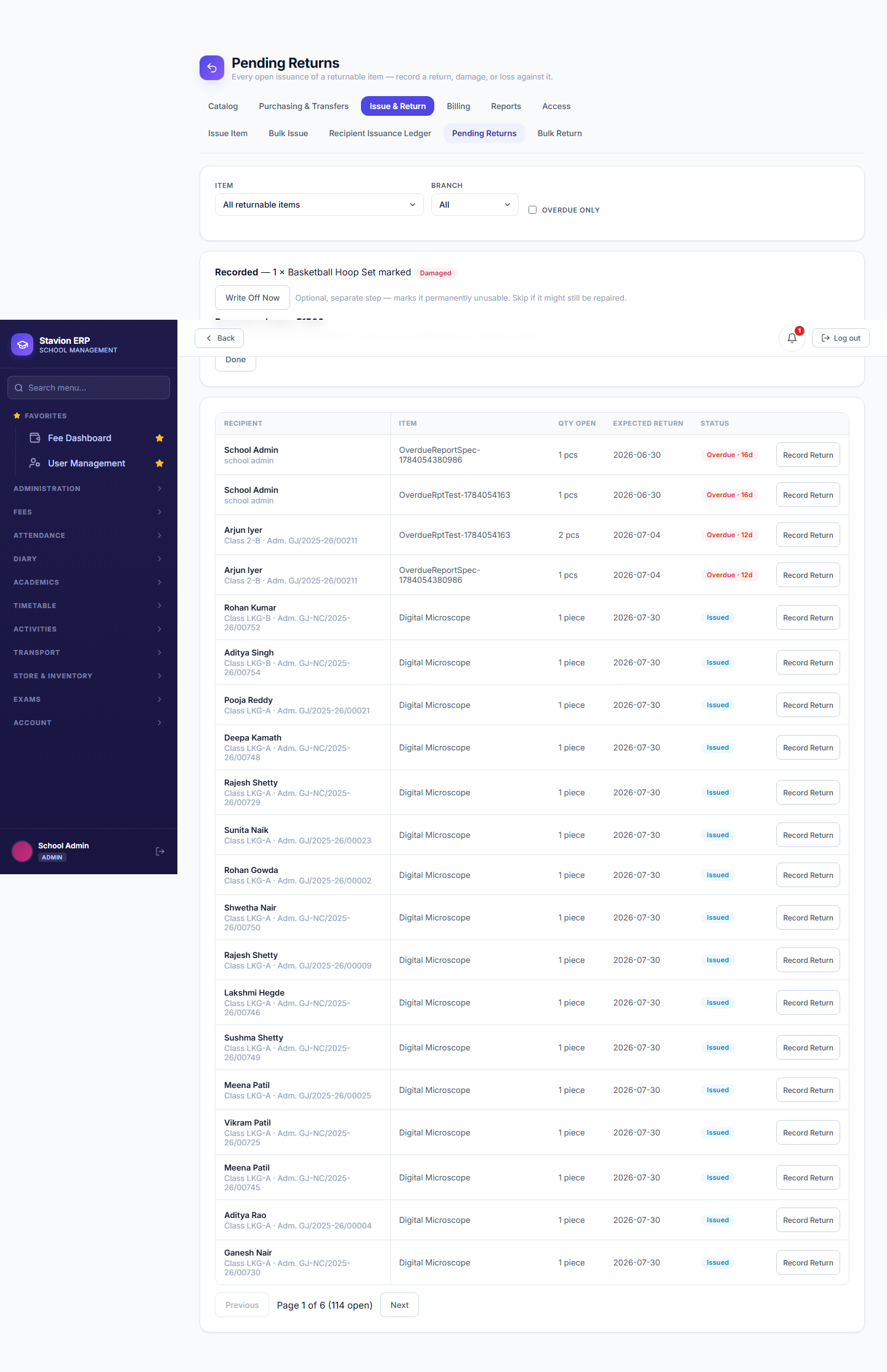
Staff have no fee-challan account to bill — a recovery charge against a staff recipient is just tracked as Paid/Unpaid on the issuance itself, toggled manually once they've settled it, rather than generating a challan.
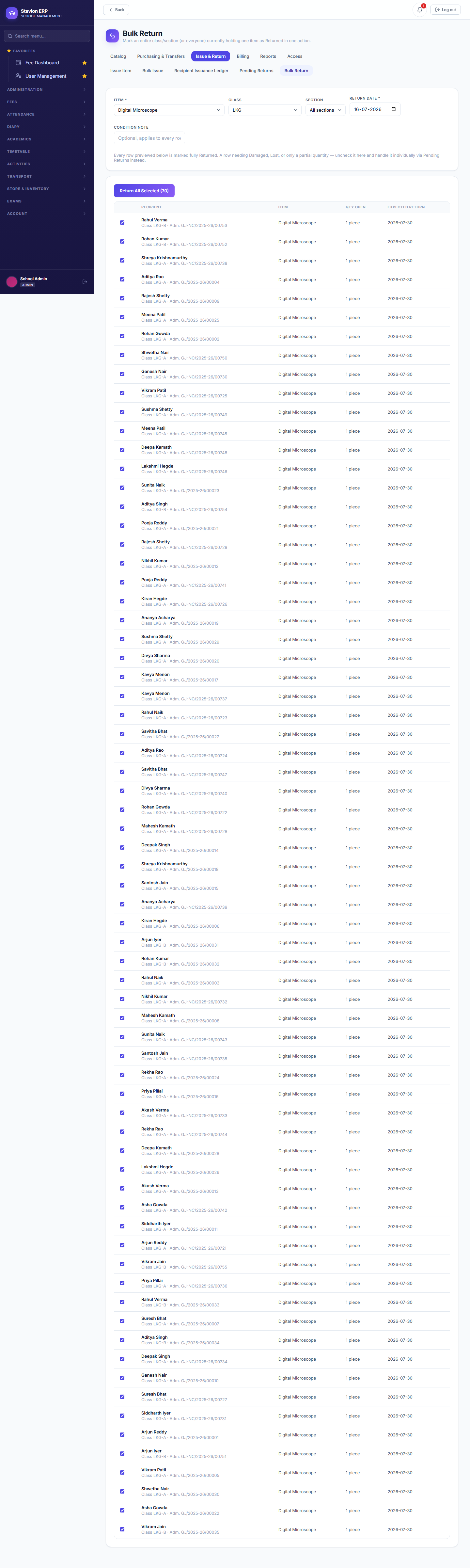
13.3.5 Bulk Return
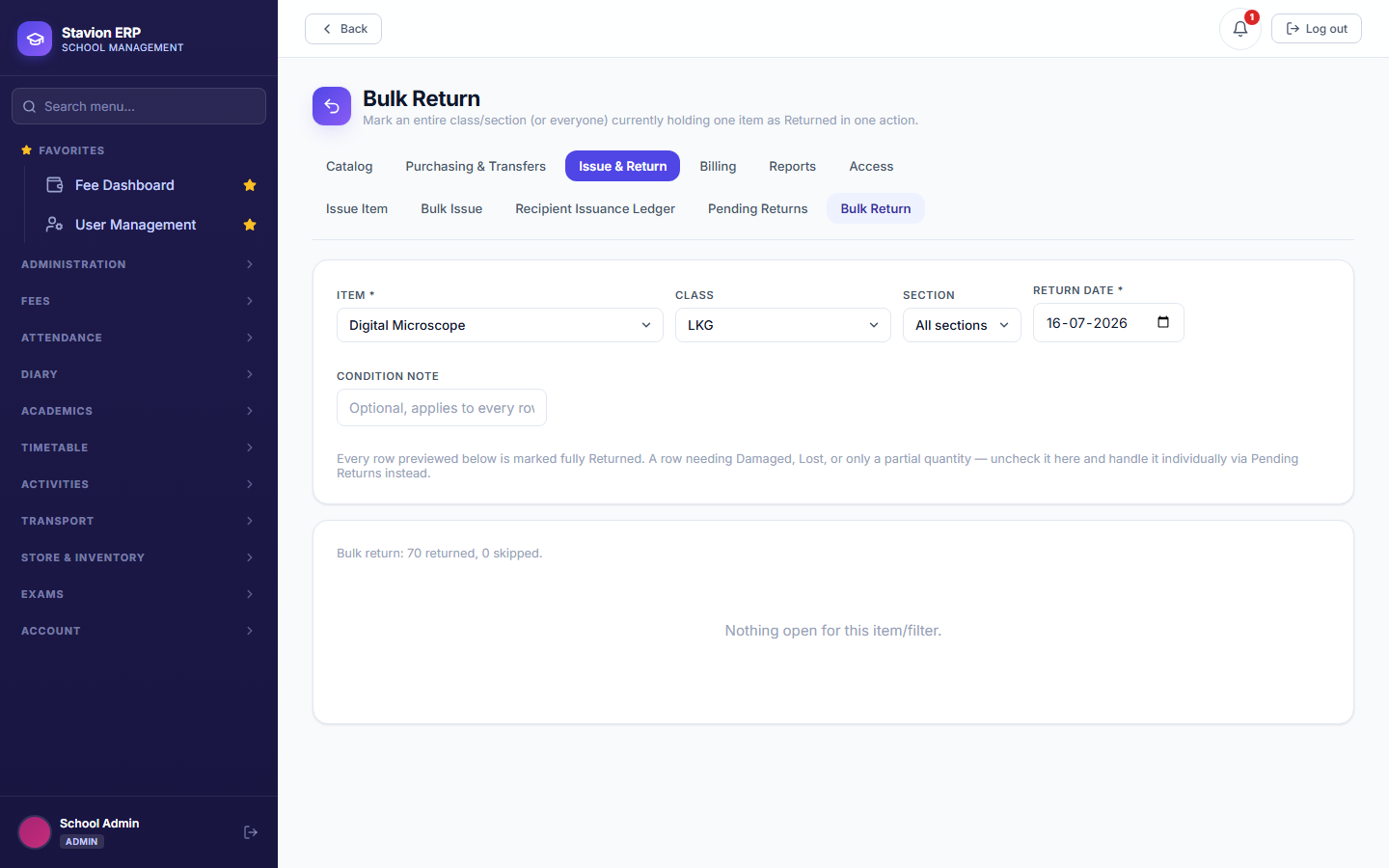
The Bulk Issue counterpart — marks an entire roster's open issuances of one item Returned in a single action. Unlike Bulk Issue, which decides eligibility have algorithm, which rows to include here is a deliberate human choice (uncheck anyone whose item needs a Damaged/Lost outcome instead, and record that one separately via Pending Returns).
13.4.1 Class-wise Price List
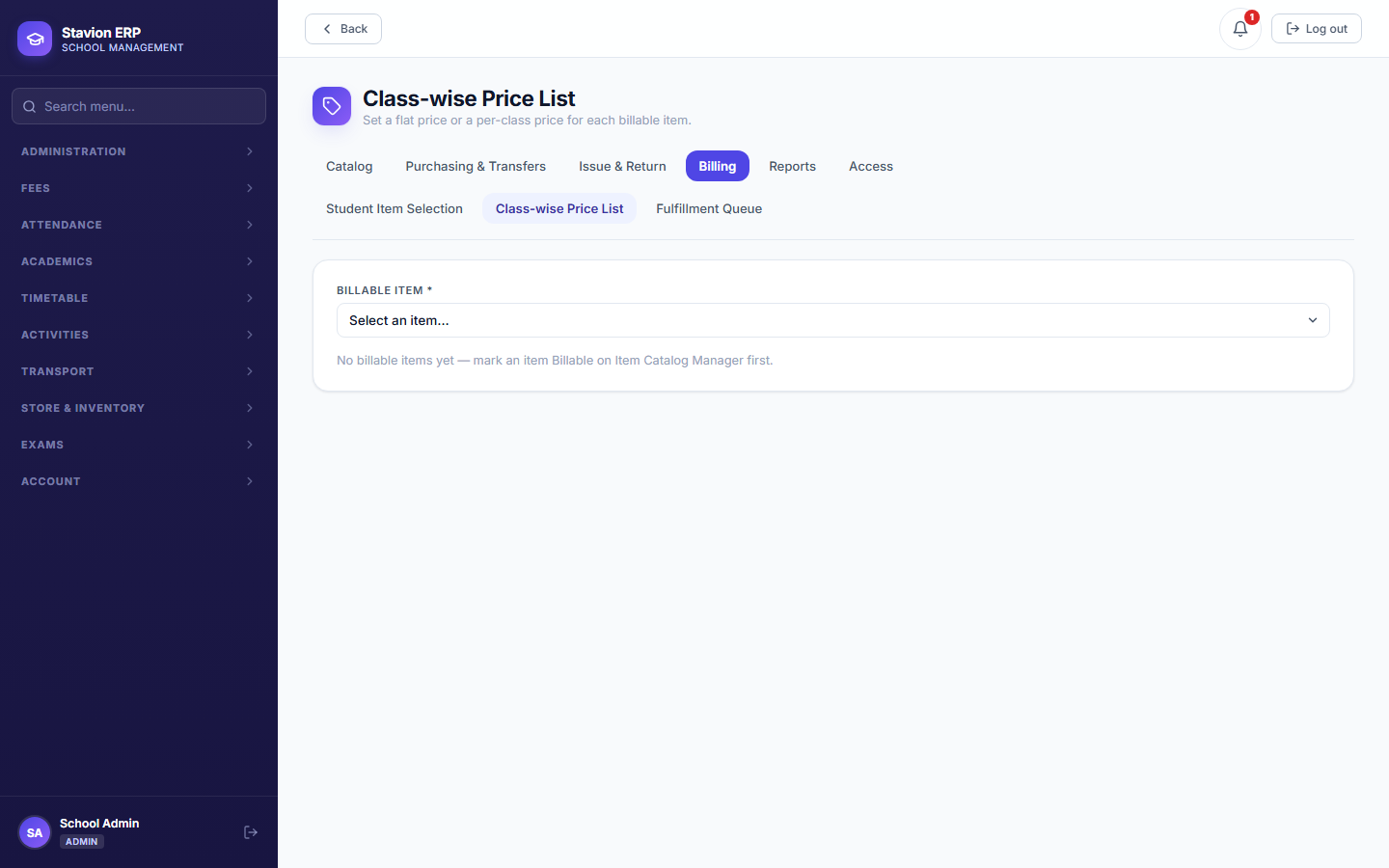
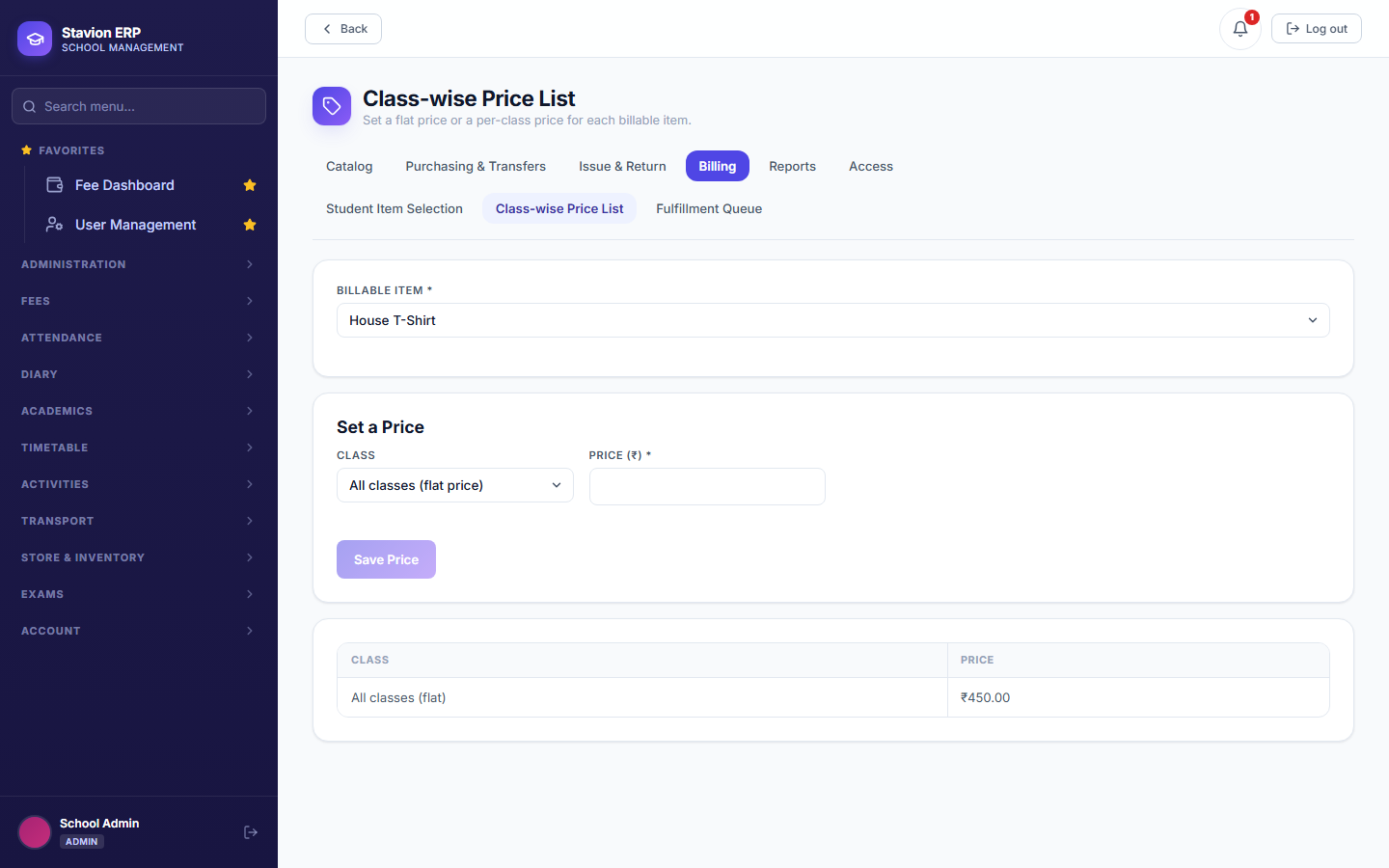
A billable item needs a price before it can be sold — either one flat price for every class, or a different price per class (a Class 10 lab coat costing more than a Class 1 one, say). No price configured for a student's class means Student Item Selection refuses the sale outright rather than charging ₹0.
13.4.2 Student Item Selection
Opts a student — or, via the roster's own bulk action, a whole class — into a billable item. This is the actual billing moment: selecting immediately generates a real, standalone fee challan, independent of the school's regular termly fee cycle.


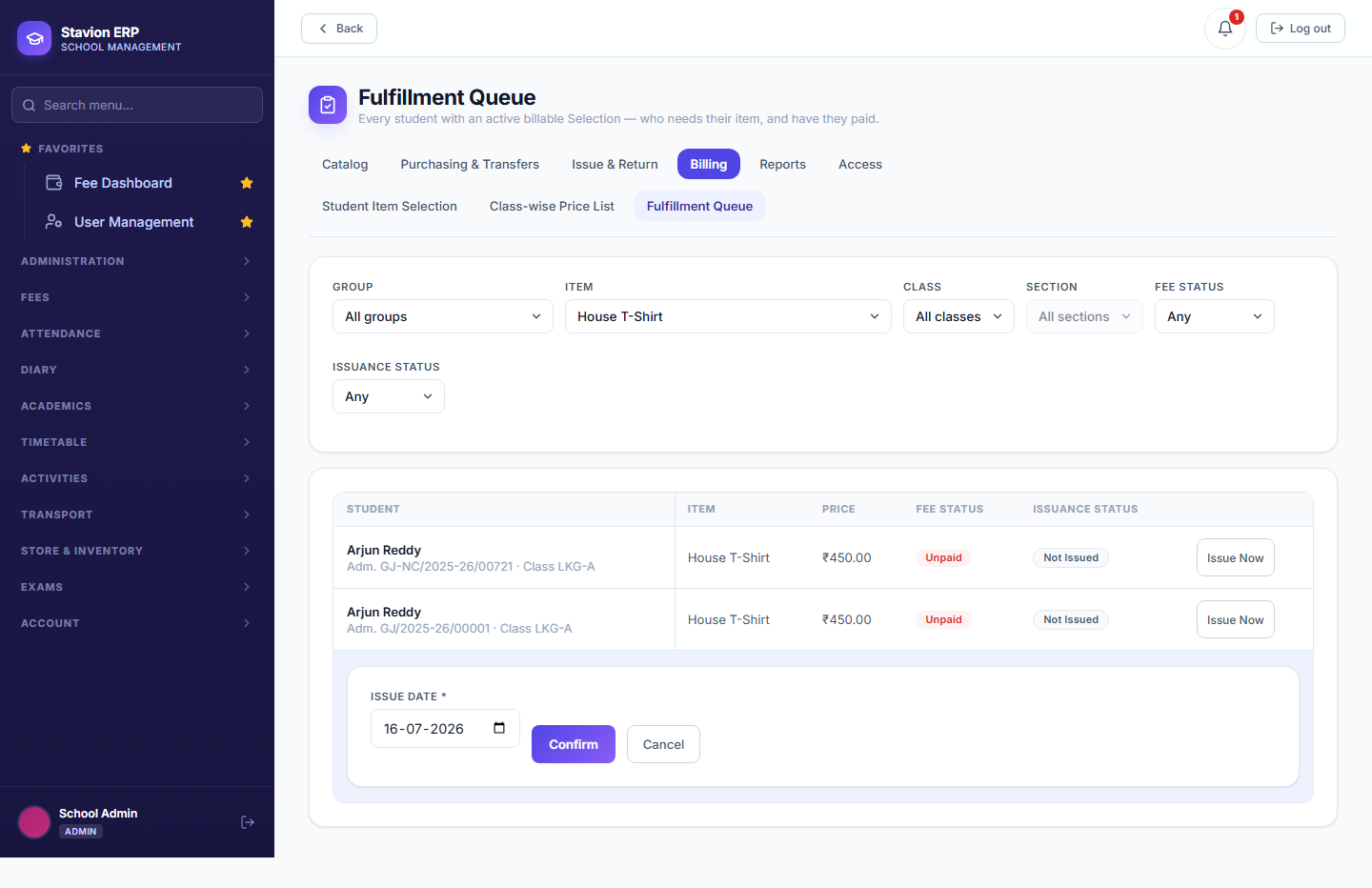
13.4.3 Fulfillment Queue
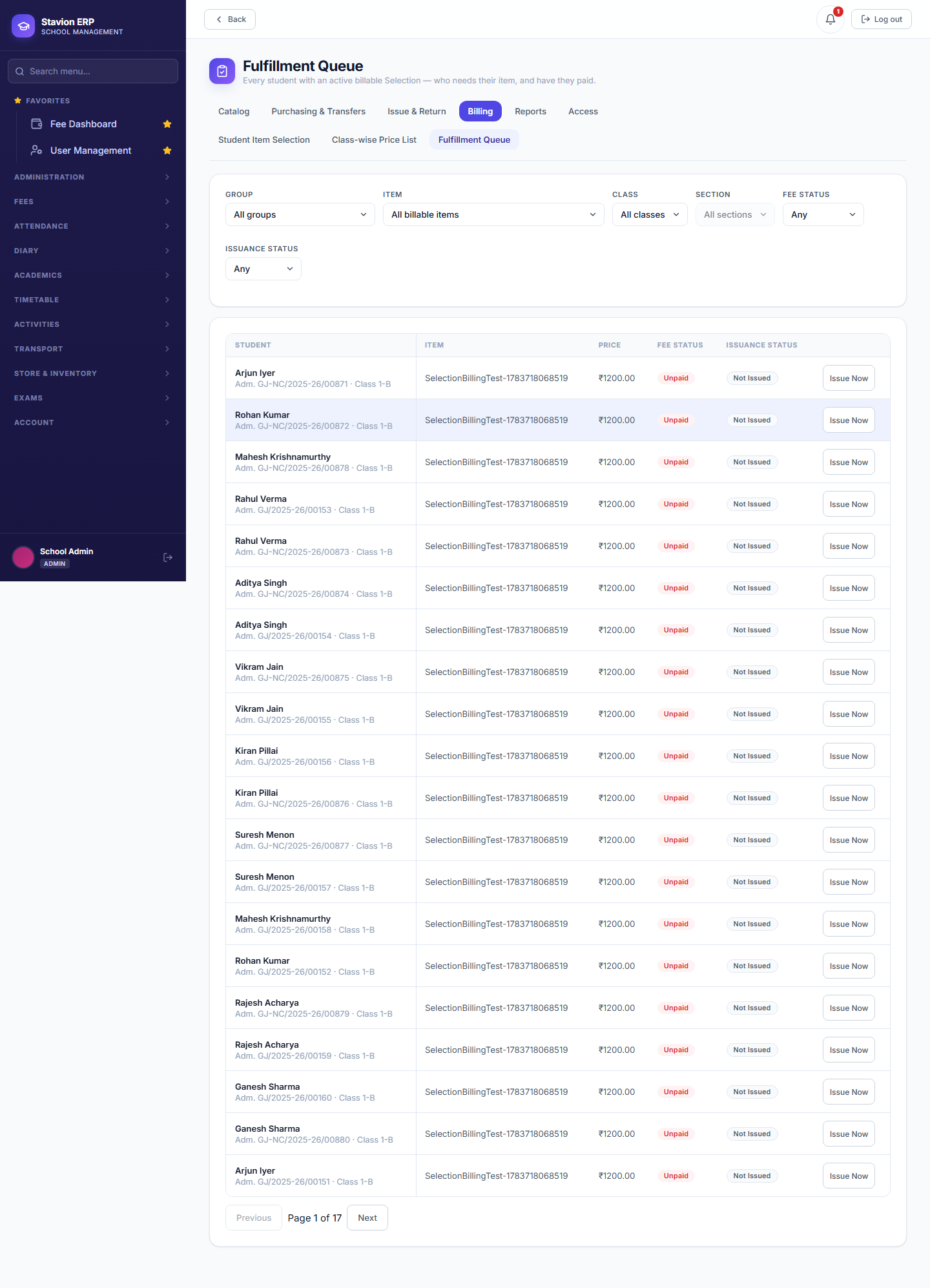
Every student with an active, not-yet-handed-over Selection, across every billable item — fee status and issuance status side by side, with an Issue Now action that hands the item over and closes the loop. If the item is set to require payment first, Issue Now stays blocked until the challan is actually paid.
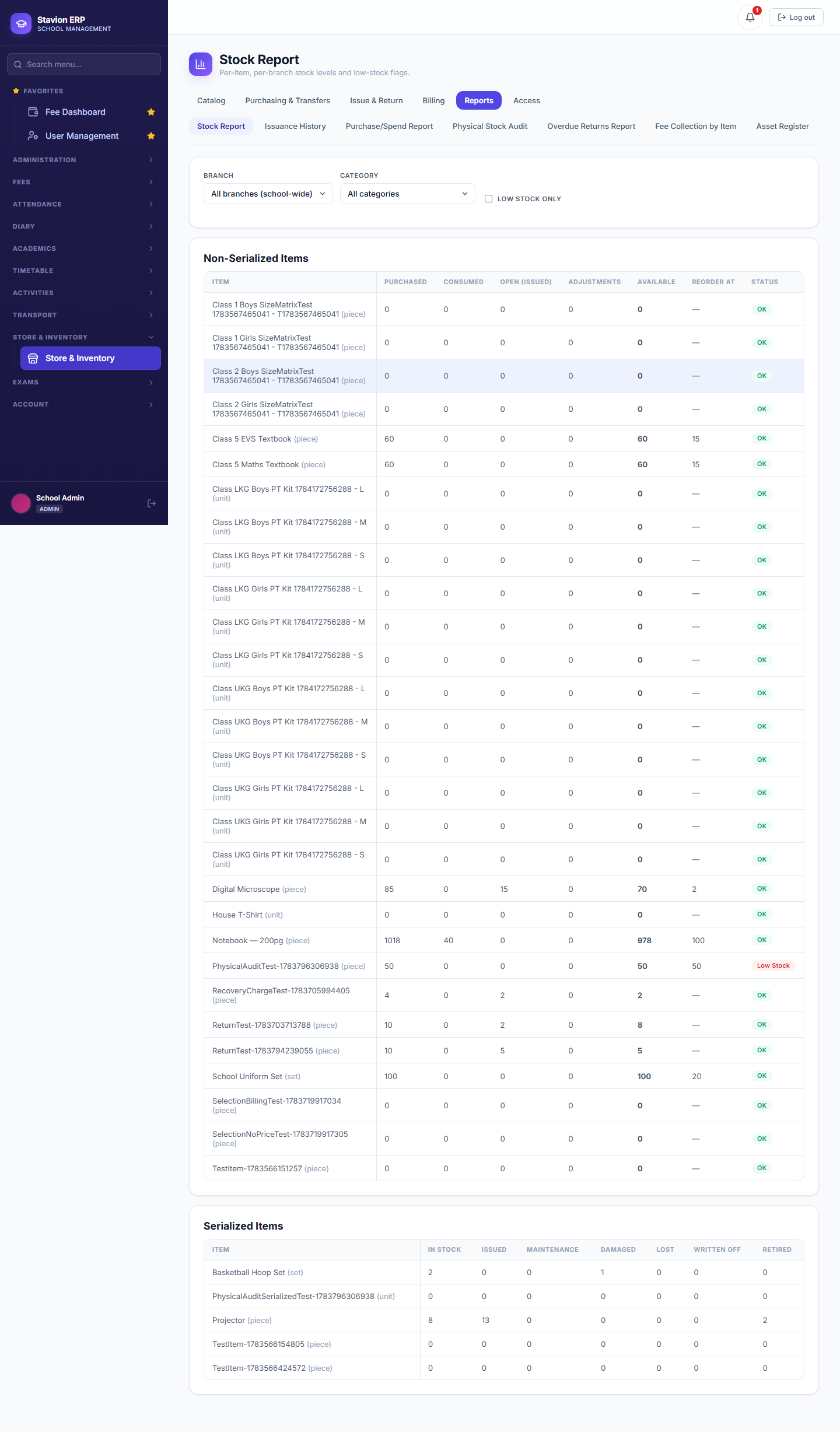
13.5.1 Stock Report
The module's own dashboard landing page — every item's available stock per branch, with a Low Stock flag once it drops to or below the item's own reorder threshold.
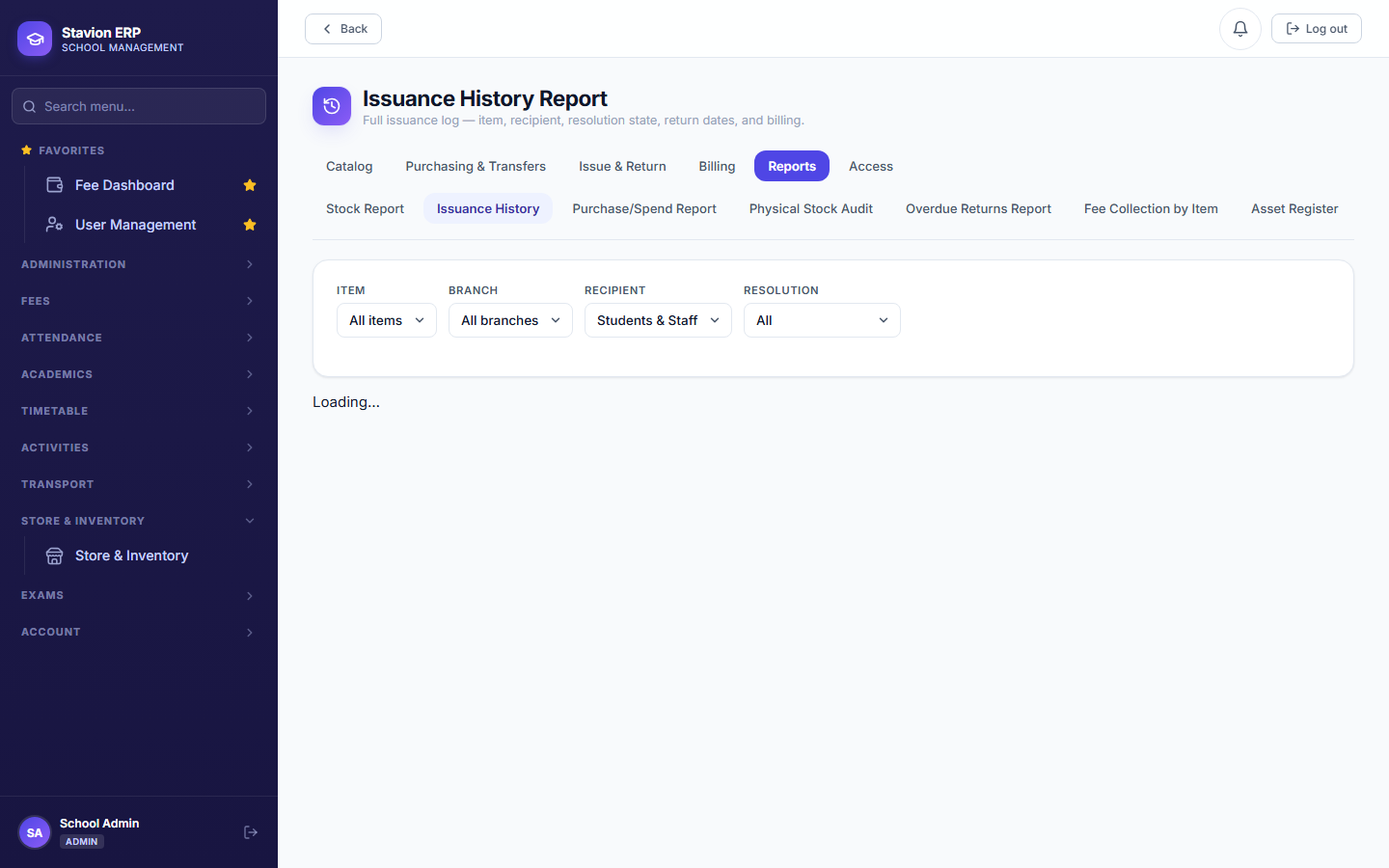
13.5.2 Issuance History Report
Every issuance ever made, across every item and recipient, with its resolution state — Open, Returned, Partially Resolved, Damaged, or Lost — so a full history is one screen, not scattered across each item's own detail view.
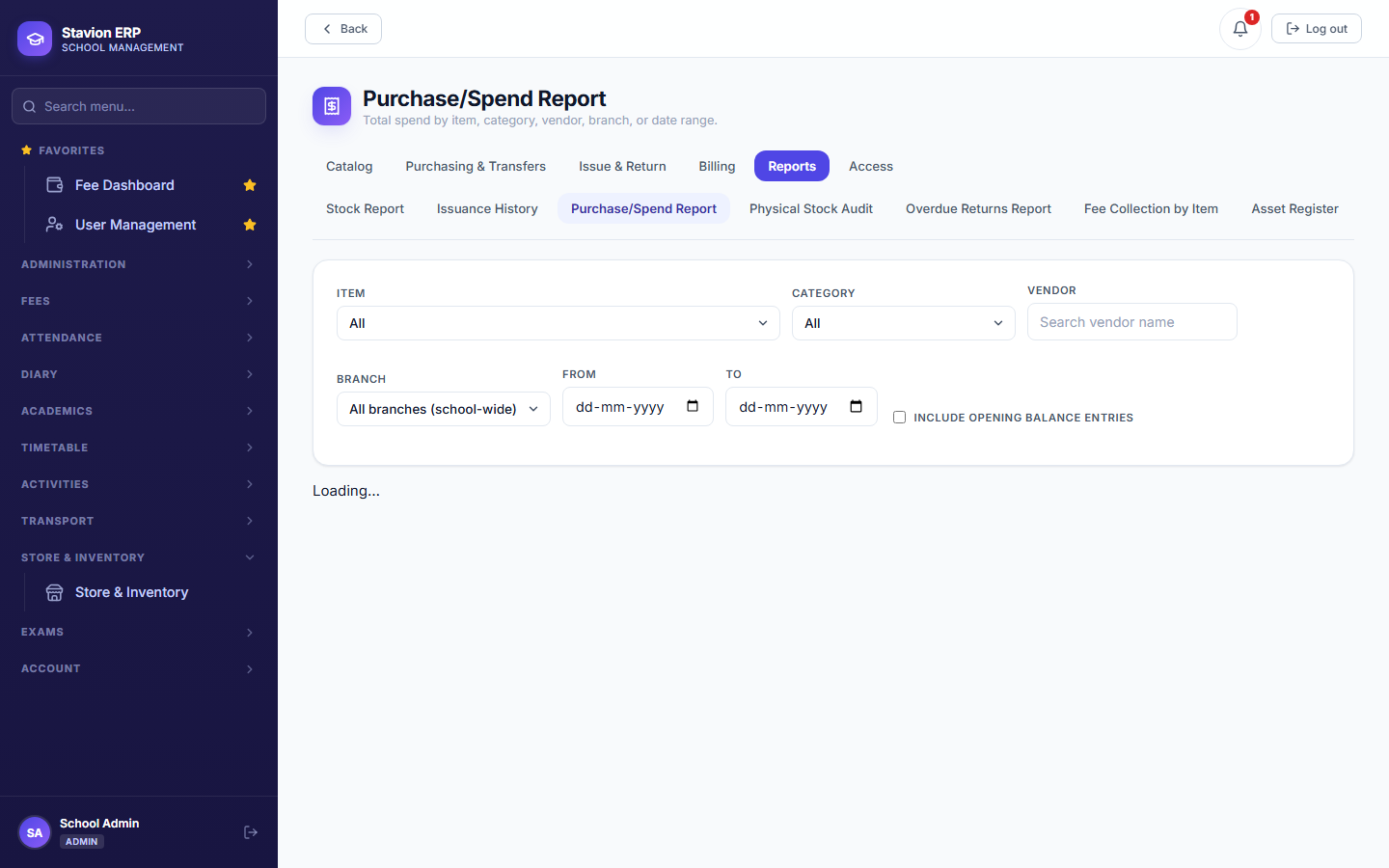
13.5.3 Purchase/Spend Report
Total spend broken down by item, Category, vendor, branch, or date range — the budgeting-side counterpart to Purchase History's plain audit-trail listing.
13.5.4 Physical Stock Audit
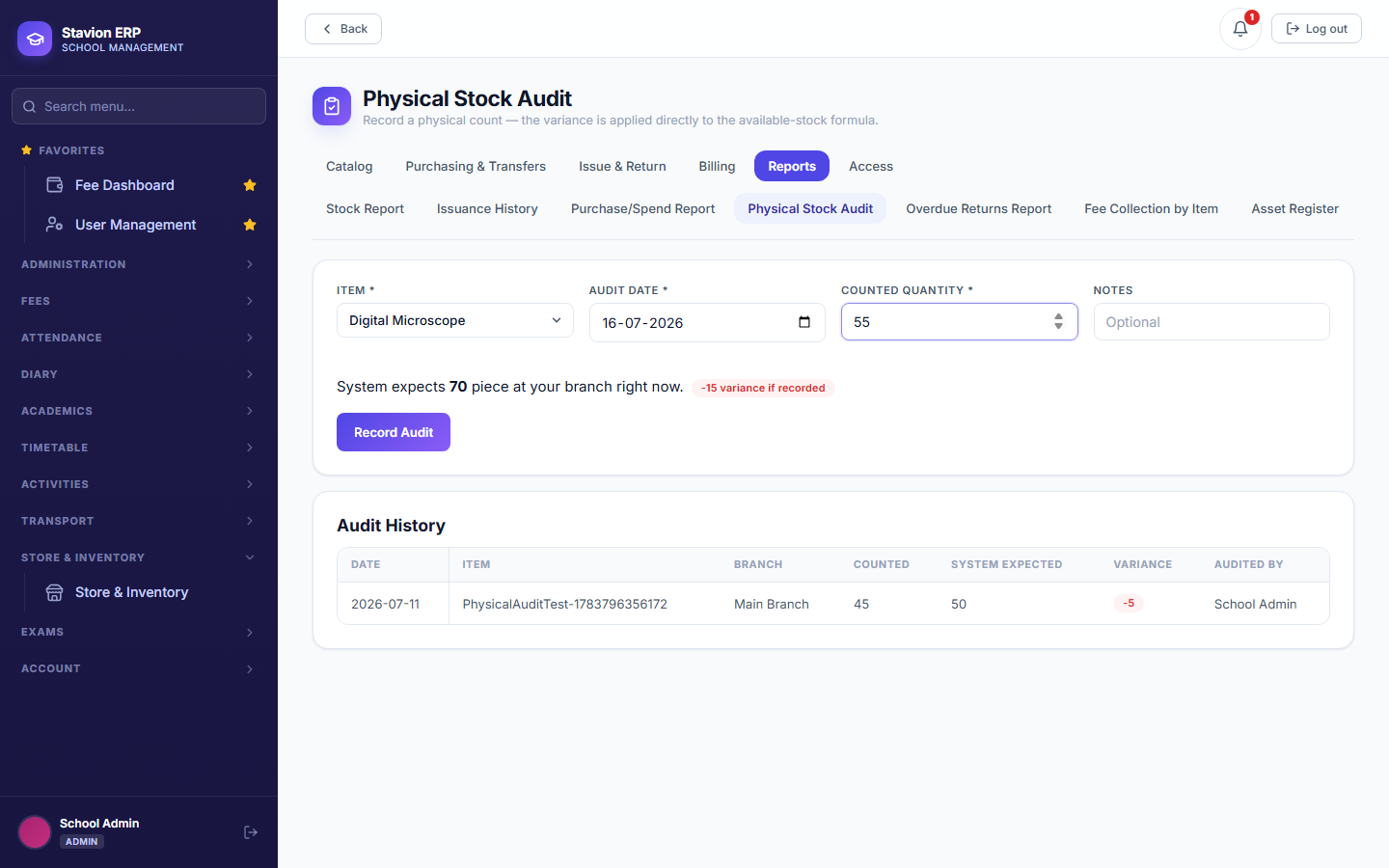
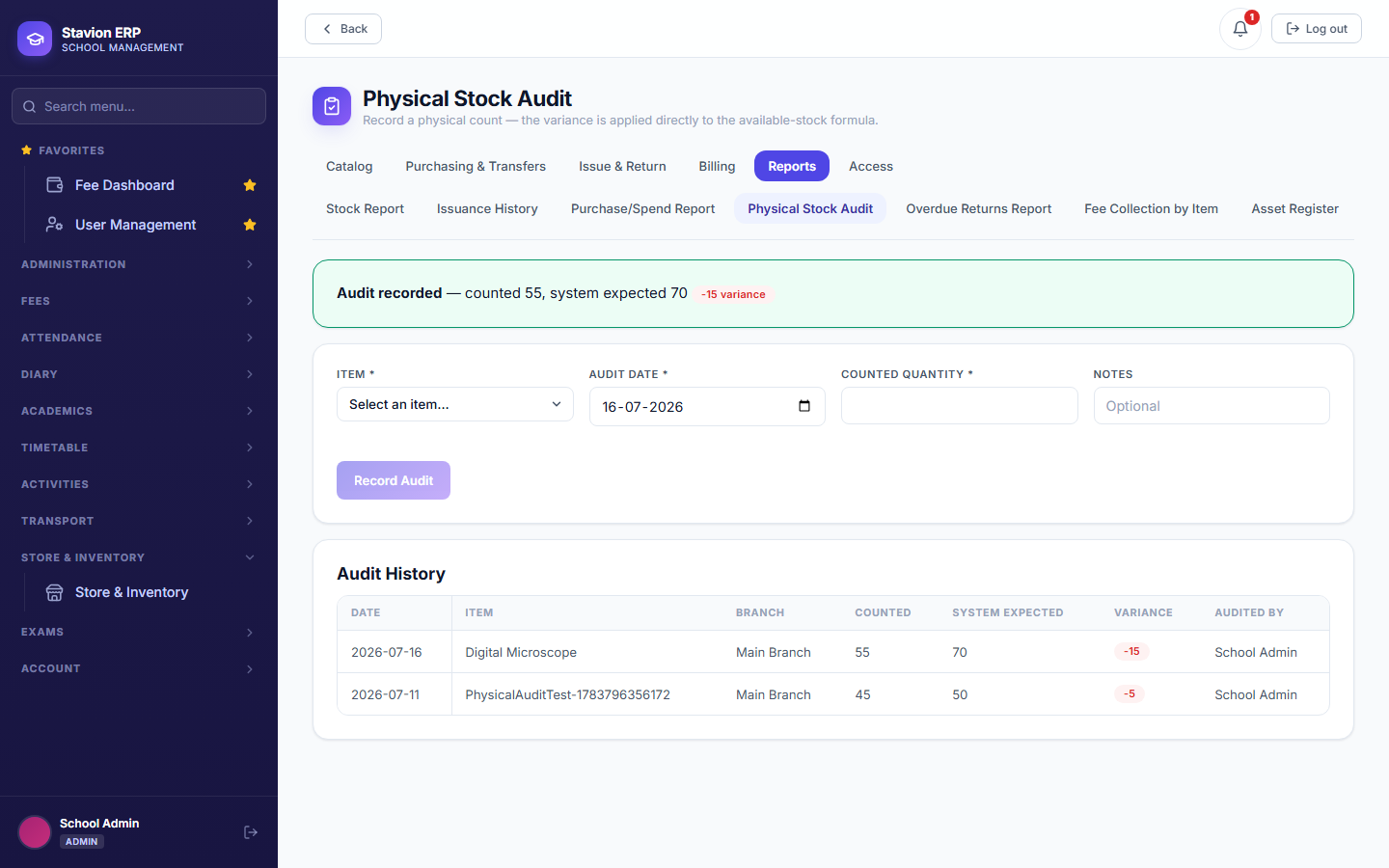
Records a real physical headcount against what the system expects — the variance is applied directly to that item's available-stock formula, correcting for shrinkage, breakage, or a miscount without needing a manual stock adjustment entry. Serialized items are excluded — there's no single number to reconcile a headcount against when every unit is individually tracked.
13.5.5 Overdue Returns Report
Every currently-overdue open issuance — the same Overdue badge Pending Returns (13.3.4) shows inline, gathered into one dedicated list with a Days Overdue column. This is also what feeds the automatic overdue-return reminder notifications covered in Chapter 12.
13.5.6 Fee Collection by Item
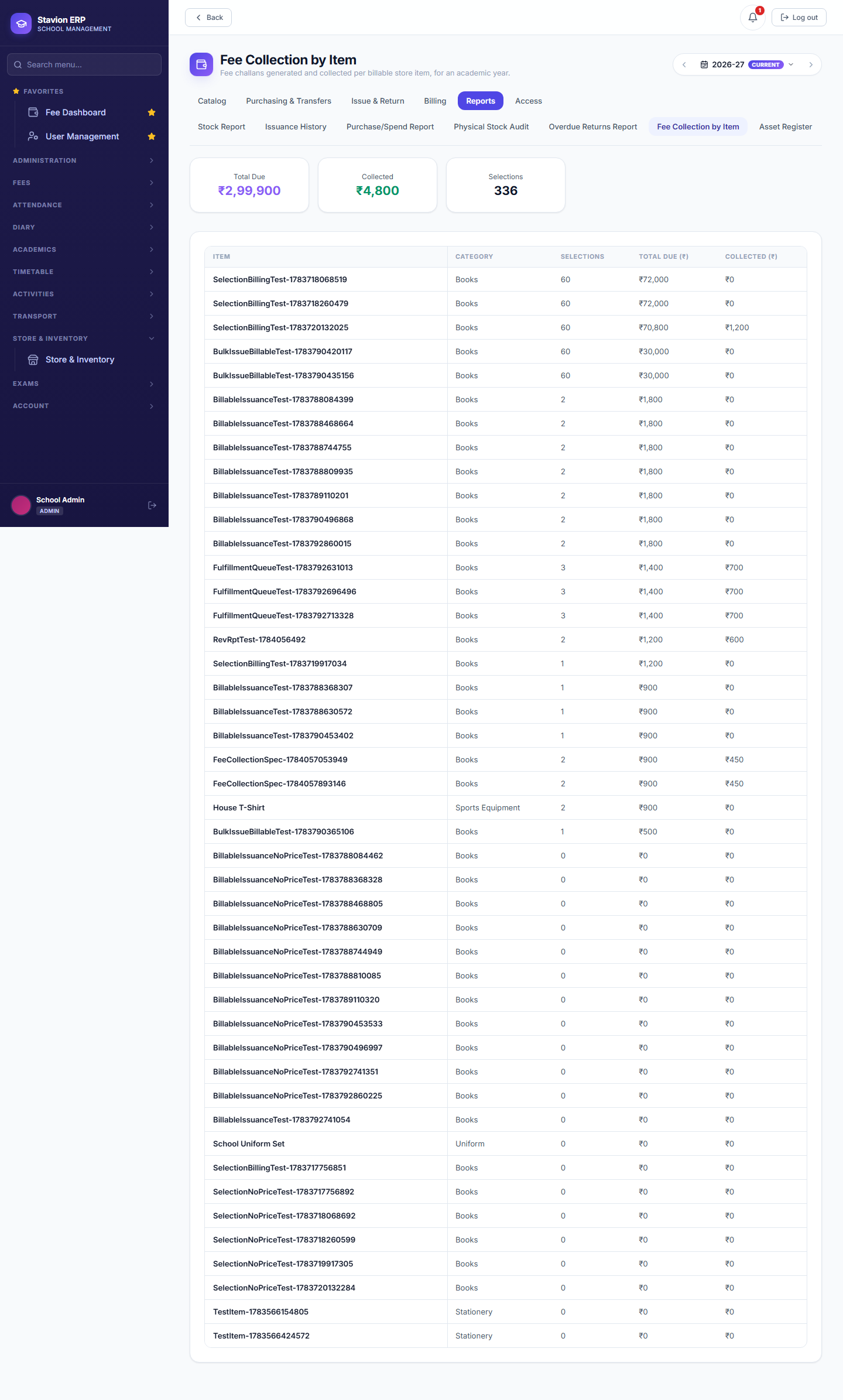
How much has been billed and actually collected, per billable store item, for an academic year — the Store module's own view onto the same Total Due / Total Collected split the Fee module's own dashboards use.
13.5.7 Asset Register
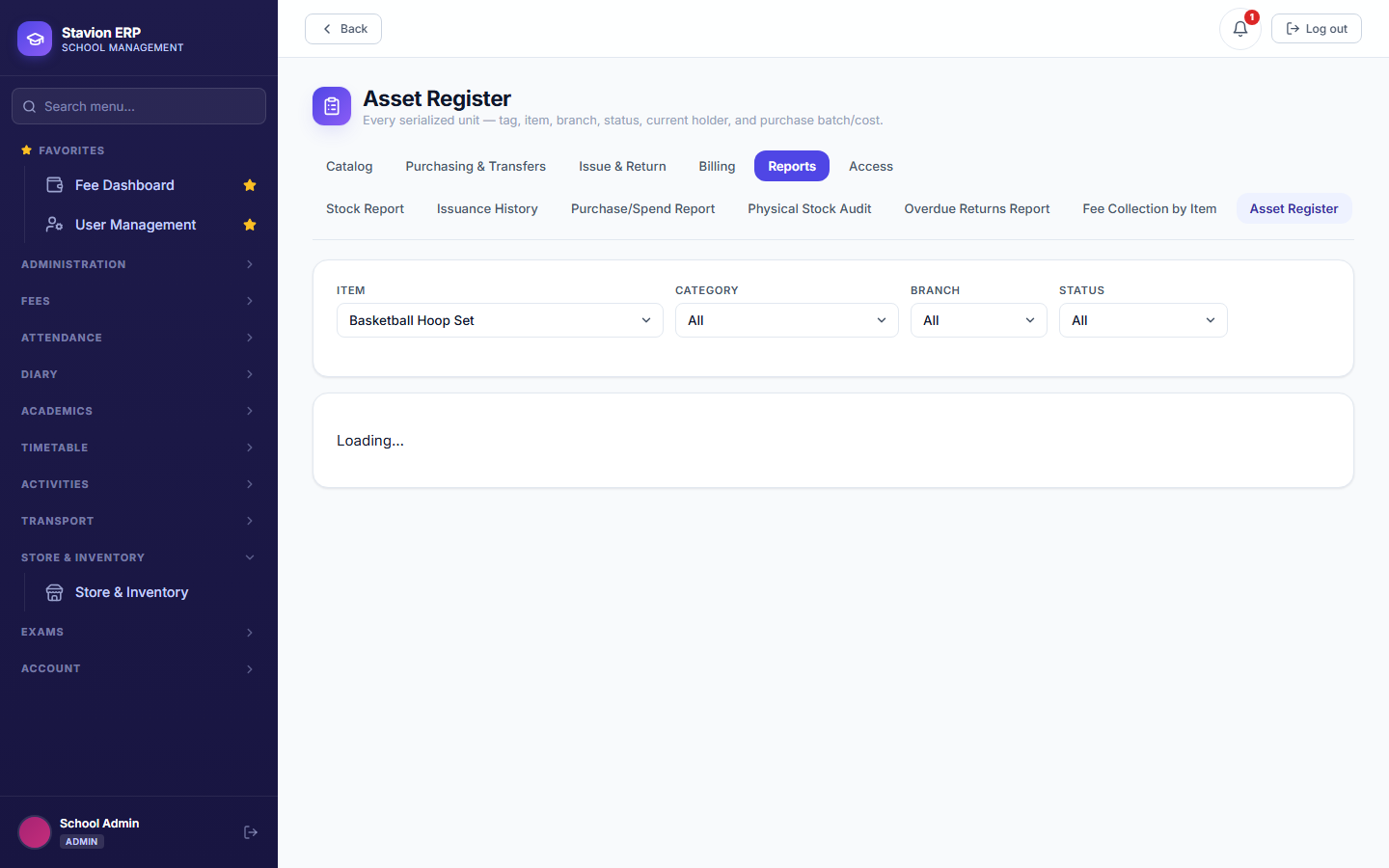
Every serialized unit school-wide, in one list — tag, item, branch, status, and current holder if it's issued. The audit-facing counterpart to Asset Unit Manager's own per-item view.
13.6.1 Store Access
Day-to-day Store & Inventory operations can be delegated to specific staff without making them a school admin or principal — scoped by branch (their own JWT branch claim), by Category, or both together, composed as an AND, not a replacement of one dimension by the other. Category CRUD itself and the financial reports (Purchase/Spend, Fee Collection by Item) stay admin/ principal-only regardless of any grant — Categories are the scoping boundary a grant is measured against, and money-touching reports are deliberately excluded from delegation.
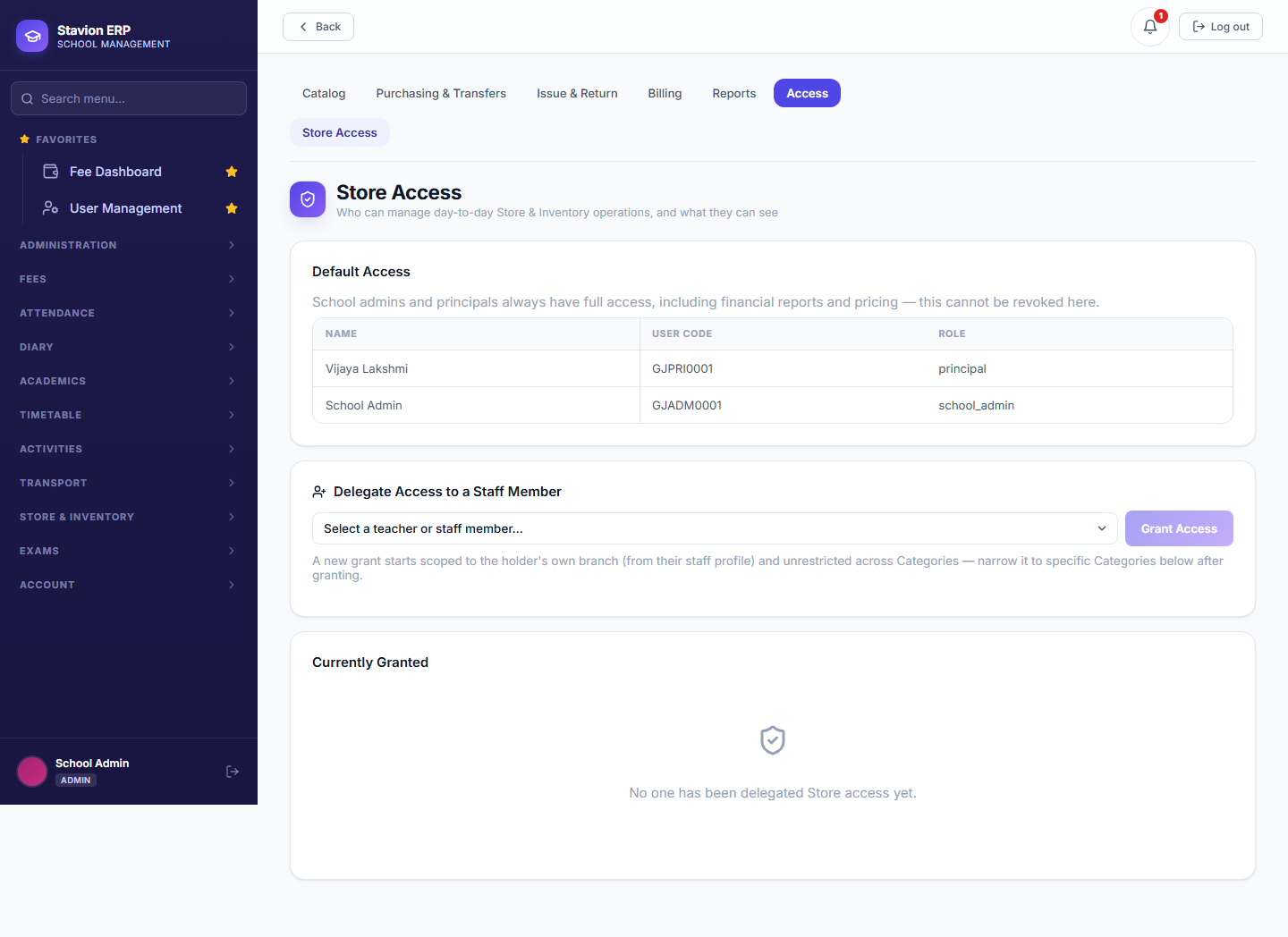
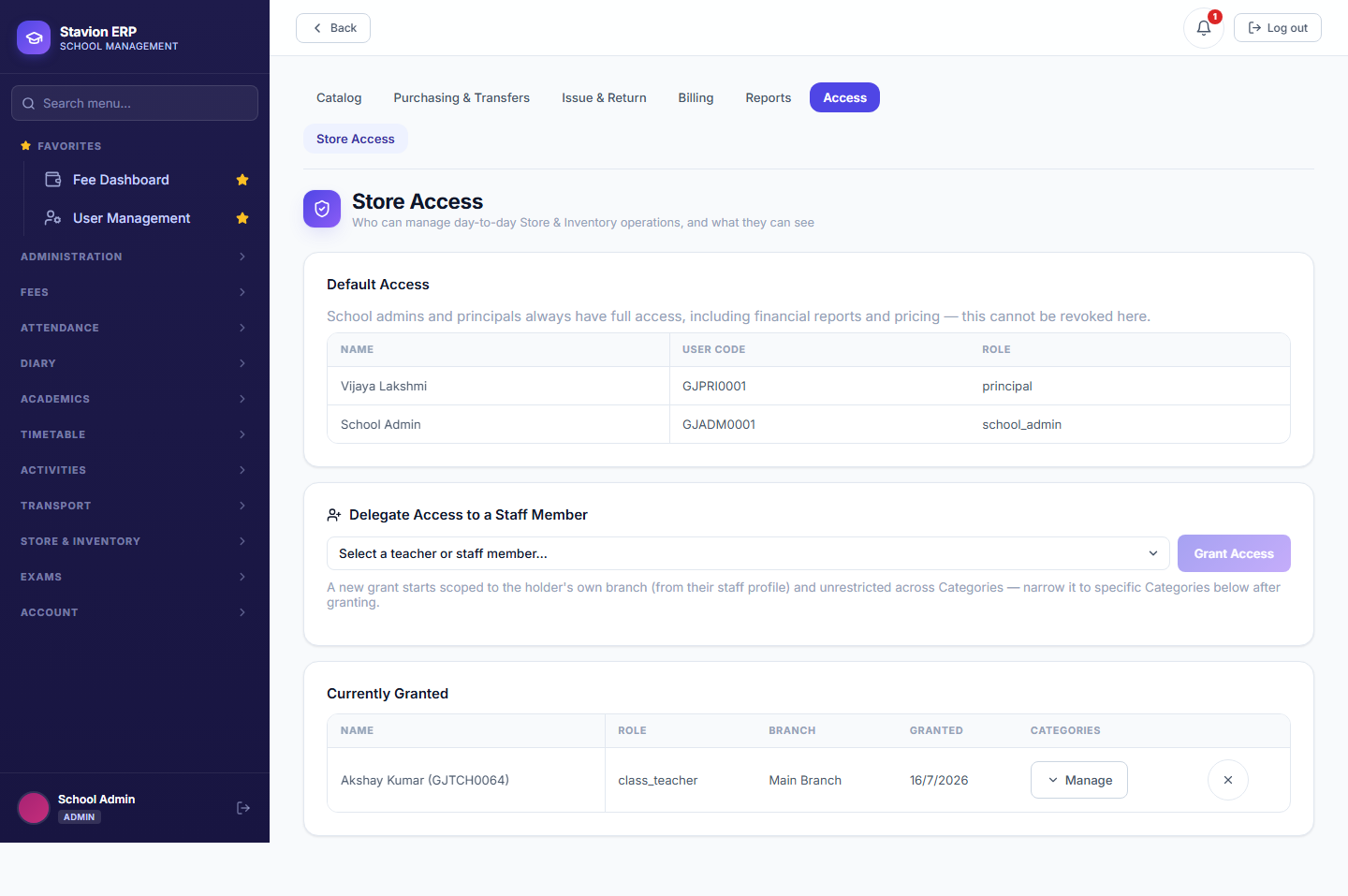
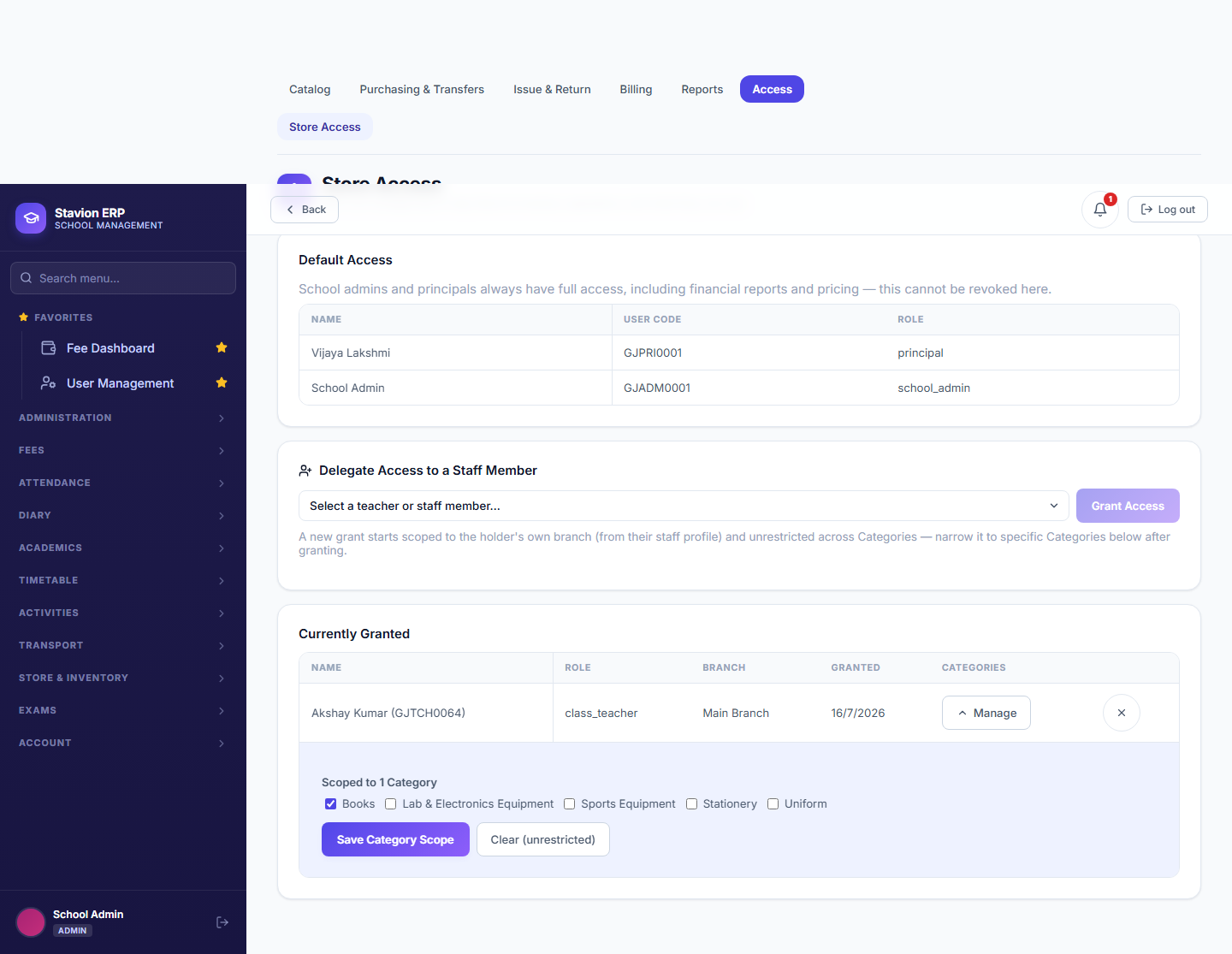
Composed as an AND across whichever dimensions are configured — not an OR, and not a replacement of one for the other.
Unrestricted on the Category dimension — every Category is visible (still subject to their branch scope, if one applies).
Visible — the item/purchase/issuance is within their delegated Category.
Not visible, even if their branch scope would otherwise allow it — Category scoping is a real restriction once configured, not just a filter.
Revoking a Store Access grant and later re-granting the same person starts them fresh at Unrestricted — an old Category scope from a previous grant is never silently inherited.
Reorder thresholds and overdue flags are static, admin-configured rules — School Store & Inventory deliberately has no predictive/ML feature anywhere in it, a direct product decision documented in the module's own spec.
Categories, Items, and Prices are cached for up to a day in the installed app for faster loading — a change you just made can take a few seconds to appear on a screen you had already open before the refresh; reloading the page always shows the current data immediately.