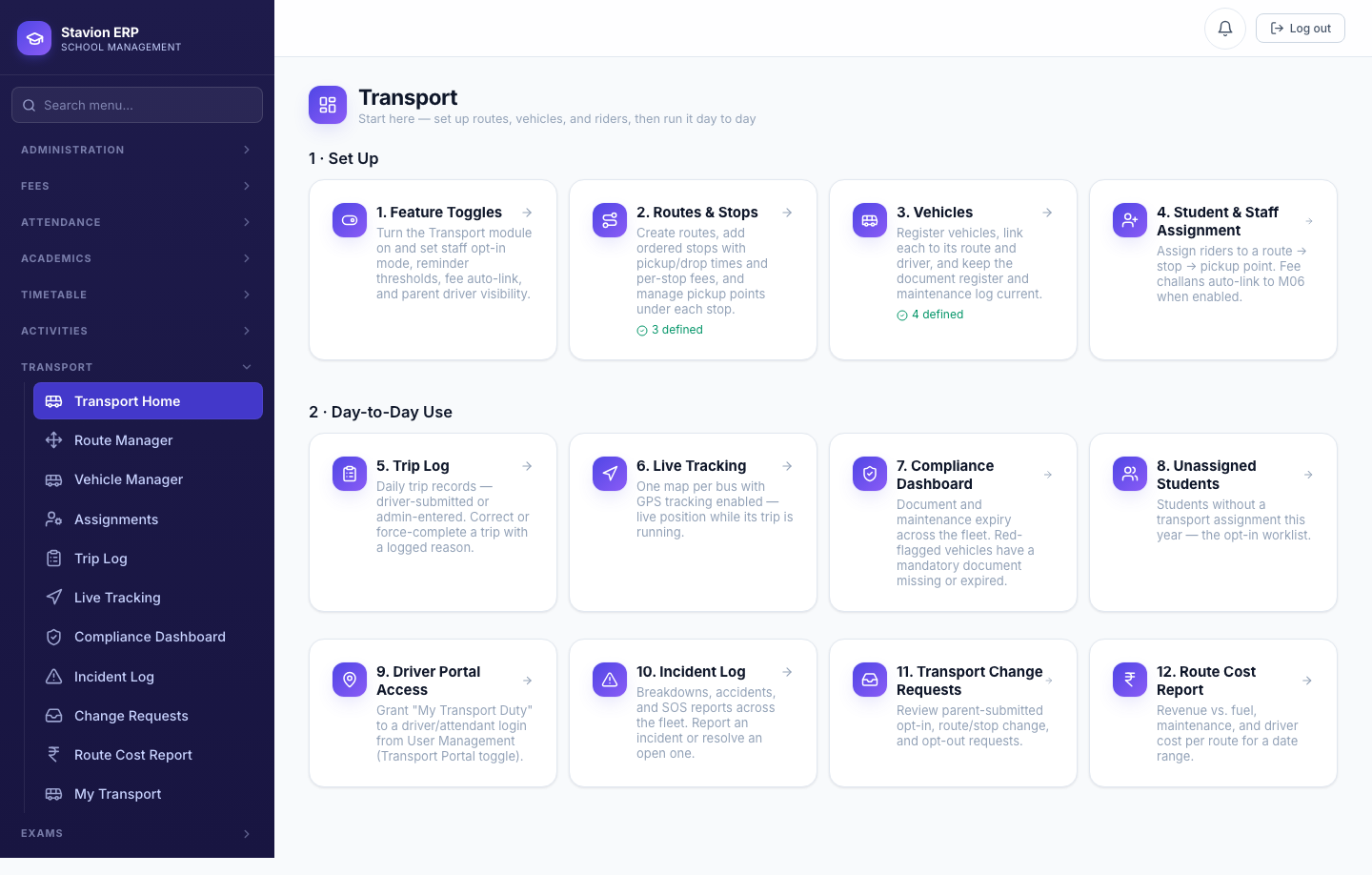
Transport
Overview
Transport is an optional module (switched on per school via Feature Toggles, Ch. 1.3) covering the full lifecycle of school bus operations: routes and stops, a fleet of vehicles with three different ways to track their live position, student/staff assignments with automatic capacity waitlisting, daily driver trip logs, breakdown/SOS incidents with substitute-vehicle coverage, parent-submitted change requests and "not travelling today" notices, and a compliance dashboard that red-flags vehicles missing a mandatory document. This chapter follows Golden Jubilee's own small fleet: Bus 1 (driver-phone GPS, fully compliant), Bus 2 (a dedicated GPS device, deliberately under-capacity so its route waitlists two students), Bus 3 (no GPS, an outsourced vendor vehicle, running with an expired fitness certificate), and Bus 4 (a spare, substituting for Bus 3 after a breakdown).
Prerequisites
The Transport module must be switched on in Feature Toggles (Ch. 1.3). Branches (Ch. 1.2), classes/sections, and at least one admitted student (Ch. 3) must already exist before students can be assigned to a route.
10.1 Routes & Stops
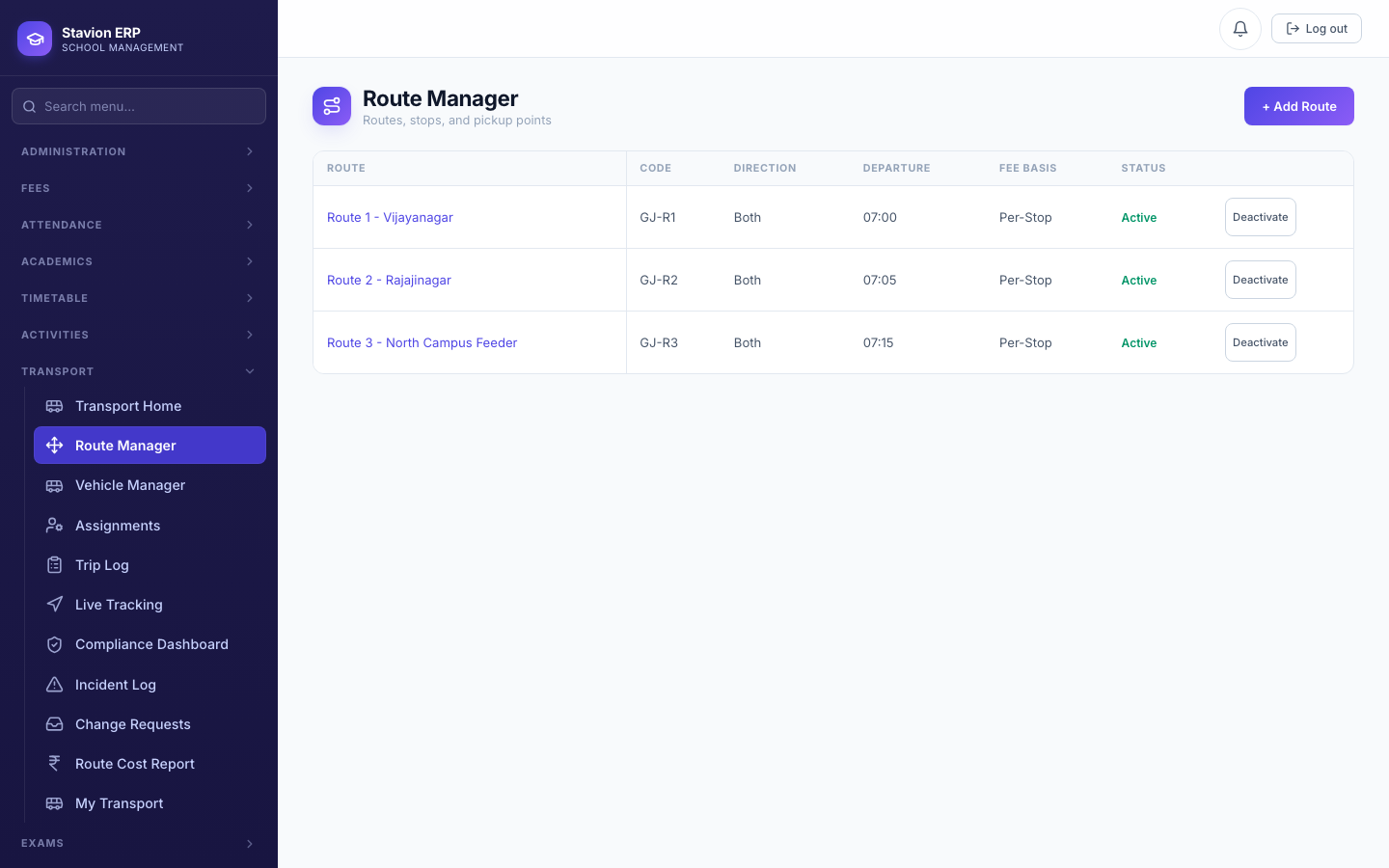
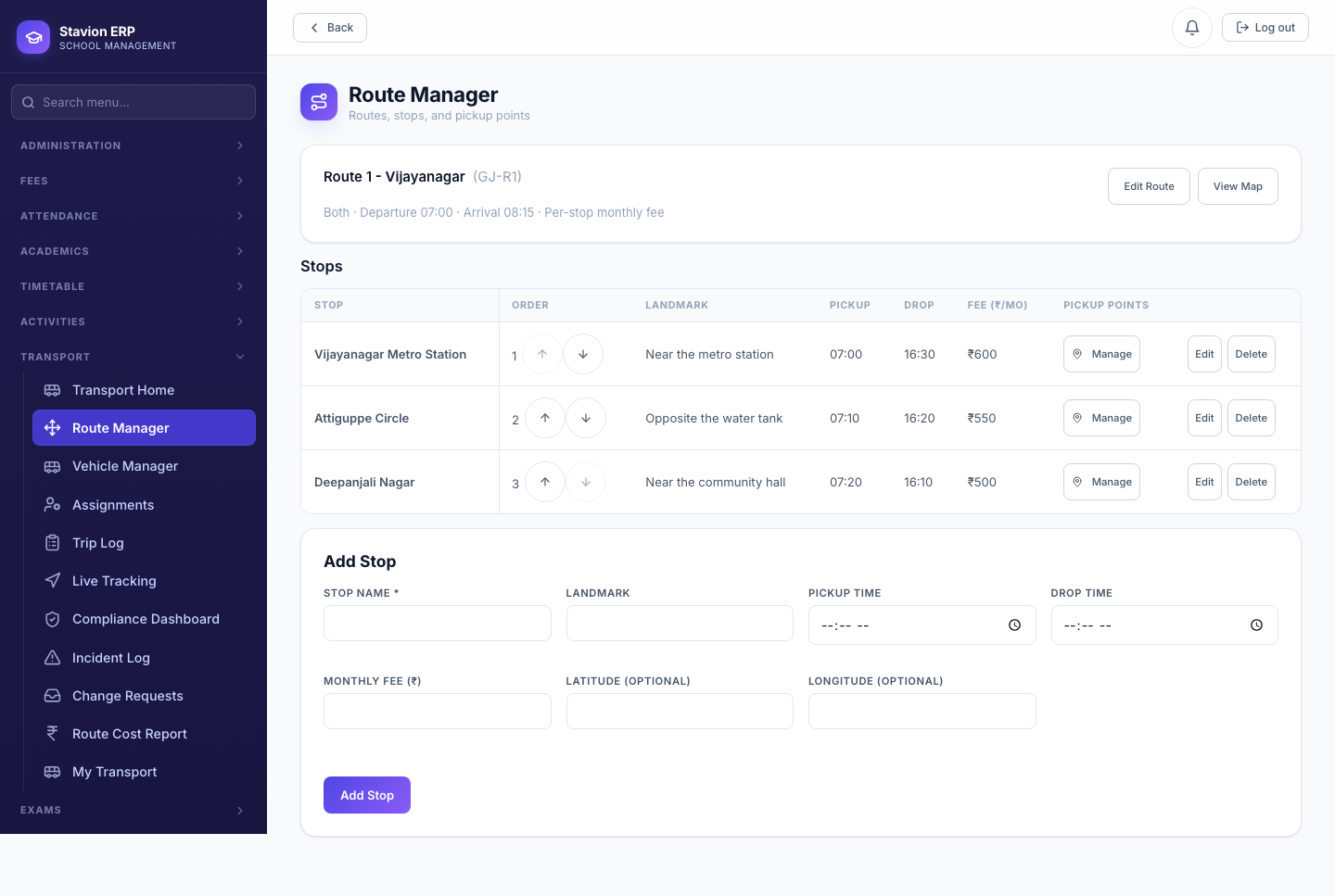
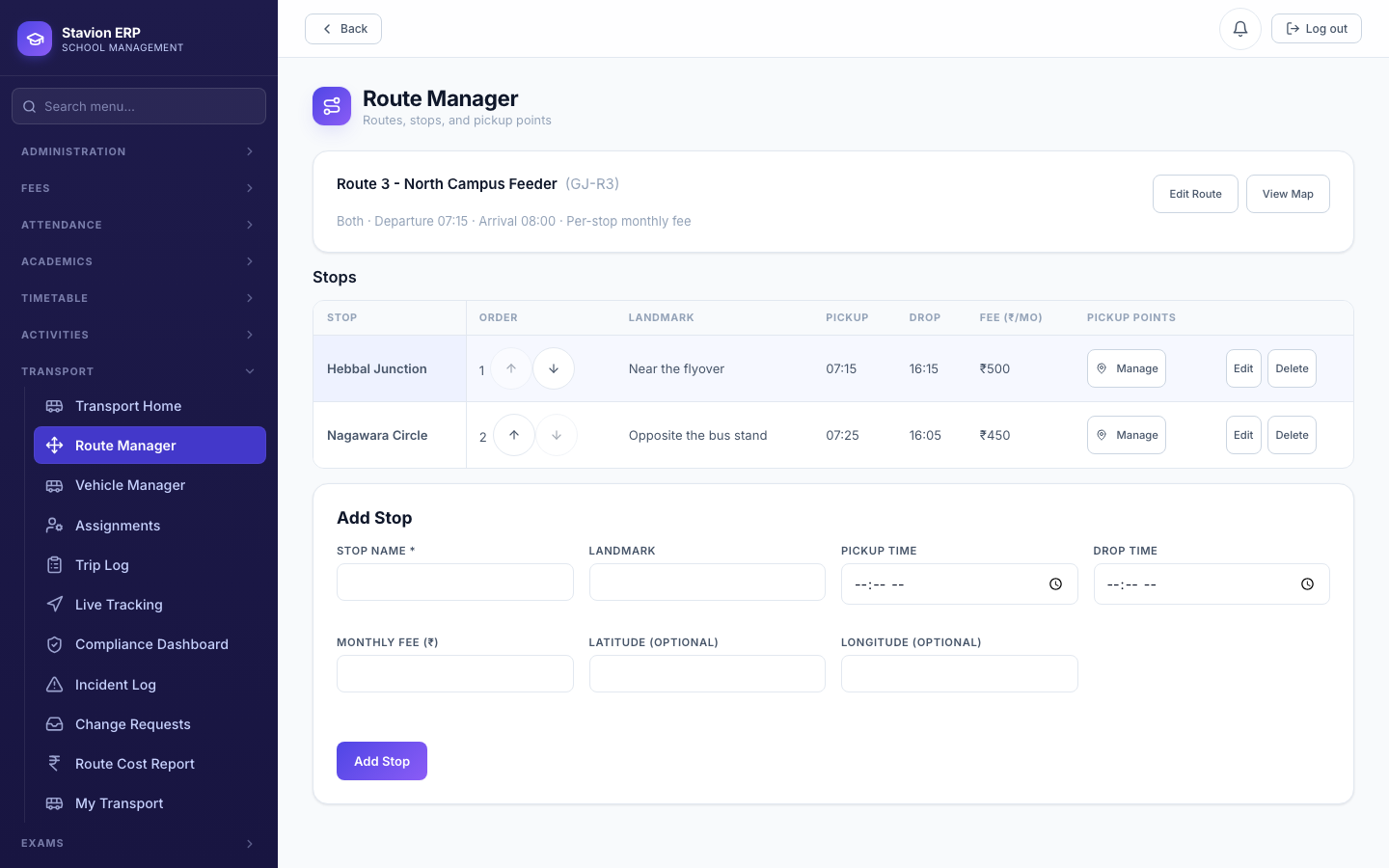
A Route is a named path (e.g. "Route 1 - Vijayanagar") with a direction (morning, evening, or both) and a fee basis — per-stop (each stop has its own monthly fee) or per-route (one flat fee for the whole route). Each route has an ordered list of Stops, each with its own pickup/drop time, landmark, monthly fee, and optional GPS coordinates (used to render the route on a map and to trigger "bus near your stop" alerts once GPS tracking is live). A branch-scoped admin only ever sees routes for their own branch; an unrestricted admin sees every branch's routes and picks one explicitly when creating a new route.
| Field | Required | Description | Example |
|---|---|---|---|
Route Name / Code |
Required | Display name and a short unique code (e.g. GJ-R1) used throughout Trip Log, Incidents, and the Cost Report. | Route 1 - Vijayanagar / GJ-R1 |
Direction |
Required | Morning, evening, or both. | Both |
Fee Basis |
Required | Per-stop (each stop sets its own fee) or per-route (one flat fee for the whole route). | Per-stop |
Branch |
Optional | Which branch this route serves. Defaults to the actor’s own branch, or Main Branch for an unrestricted admin. | — |
Stop Name / Order / Pickup & Drop Time / Fee / Lat-Lng |
Required | Each stop is added individually, in the order the bus visits it. Latitude/longitude are optional but required for the stop to appear on any of the Transport maps. | — |
10.2 Vehicles & the Three GPS Tracking Sources
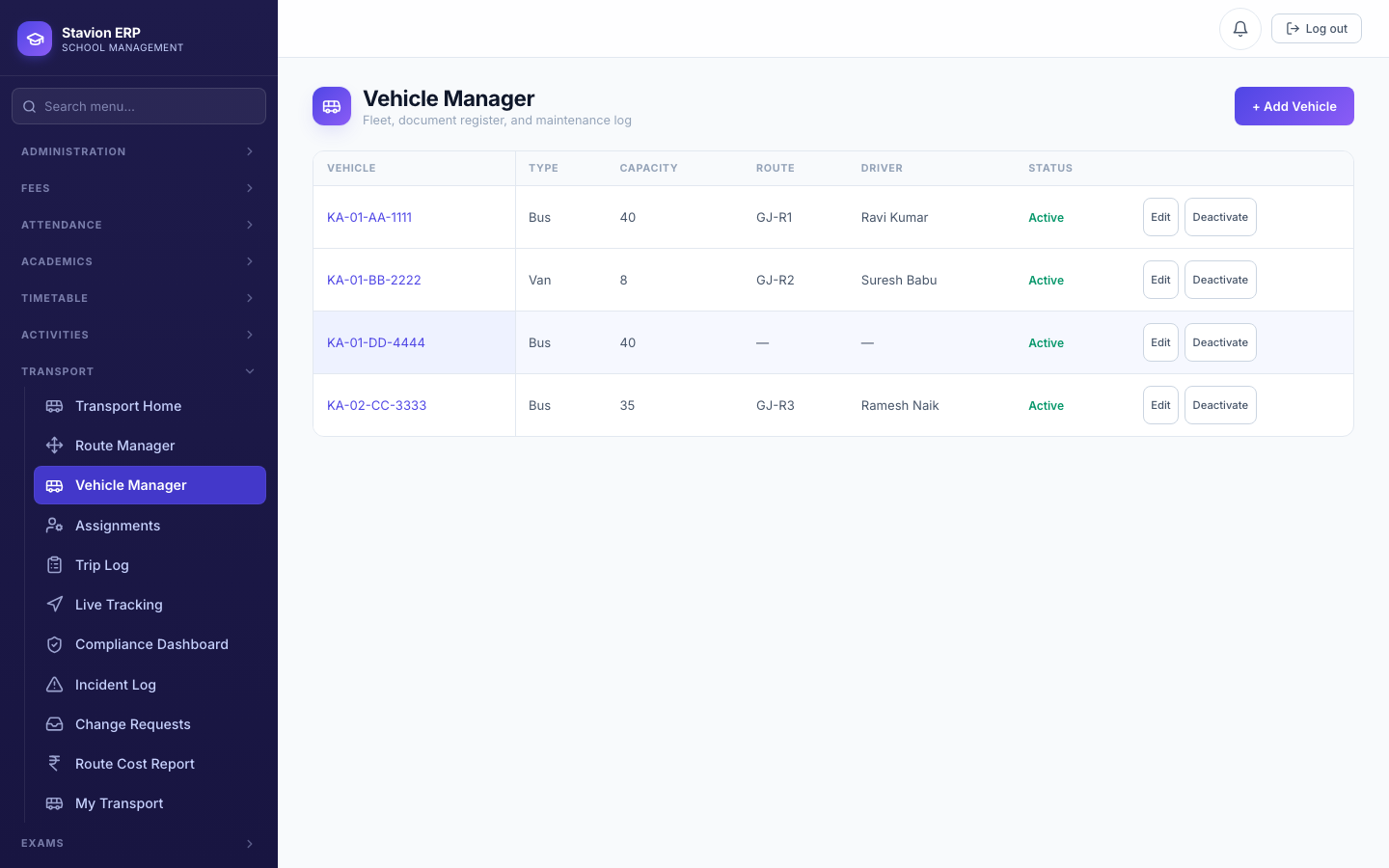
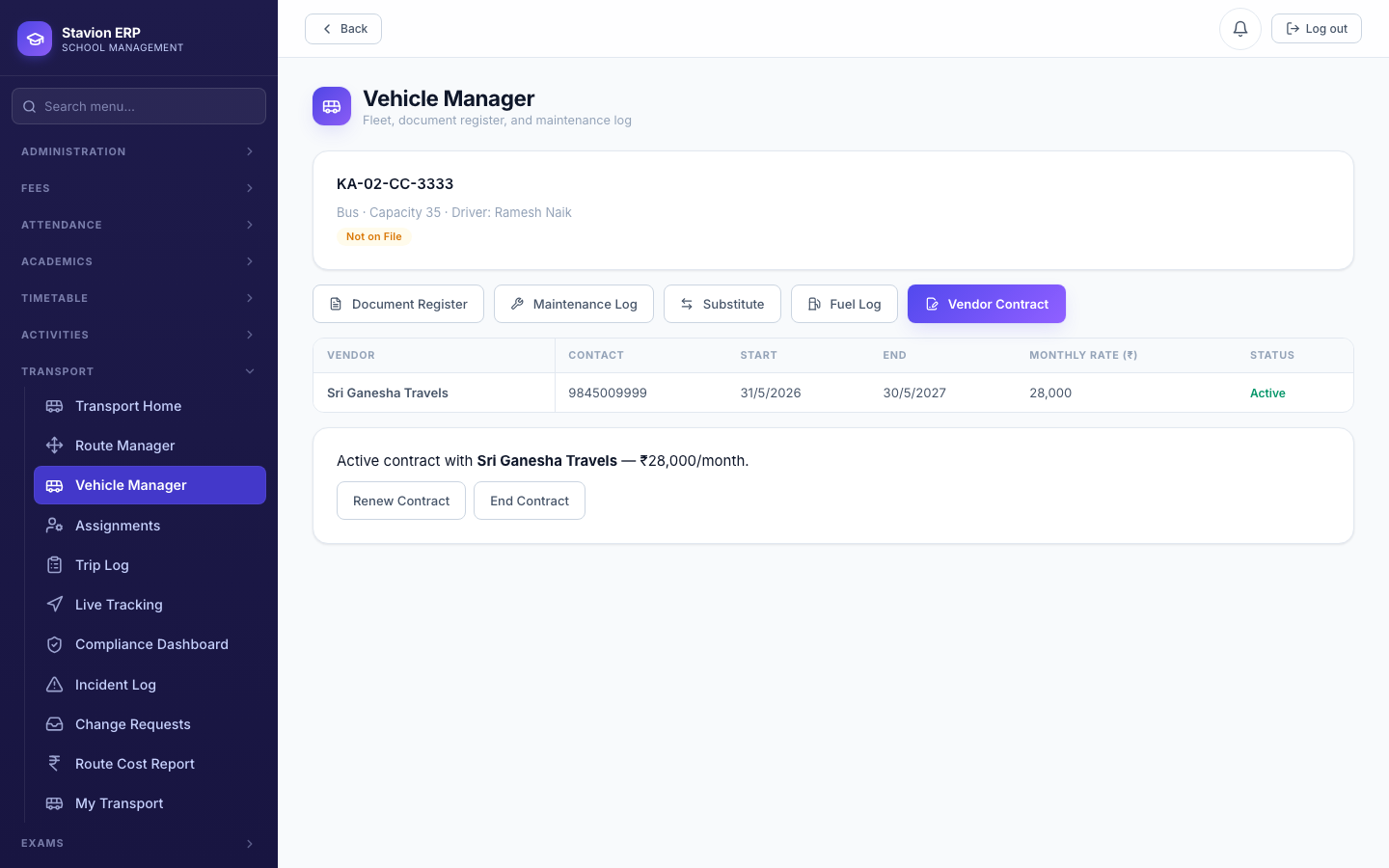
A Vehicle record holds its registration number, type, capacity, driver/attendant (either free-text names or, if they have a portal login, linked accounts), an optional assigned route, and whether it is owned or outsourced (outsourced vehicles get a Vendor Contract tab instead of a Fuel Log, since the school doesn't pay for their fuel directly). Independently of ownership, each vehicle picks one of three GPS Tracking Sources:
Set per-vehicle on the Vehicle Manager edit form — independent of owned/outsourced.
The driver's own phone reports location via the browser — see 10.3 for the consent flow this requires.
A physical GPS unit pushes its position directly via an API key — no driver phone or app involved. See 10.3 for pairing.
No live position at all — Live Tracking and the parent’s map simply show no pin for this vehicle.
| Field | Required | Description | Example |
|---|---|---|---|
Vehicle No. / Type / Capacity |
Required | Registration number, bus/van/auto, and total seats — capacity is enforced by the Waitlist (10.4). | KA-01-AA-1111 / Bus / 40 |
Driver / Attendant |
Optional | Free-text name, or a linked portal login (grants the transport self-service portal — 10.3, 10.5). | — |
Assigned Route |
Optional | Which route this vehicle normally runs — drives the default trip type and the Compliance Dashboard's per-route view. | — |
Operator Type |
Required | Owned (Fuel Log tab) or Outsourced (Vendor Contract tab instead). | Owned |
GPS Tracking Source |
Required | none / driver_phone / dedicated_device — see the decision above. | driver_phone |
GPS Ping Interval (seconds) |
Optional | How often a position update is expected — used to compute the "Not Connected" staleness status. | 45 |
10.3 GPS Consent & Device Pairing
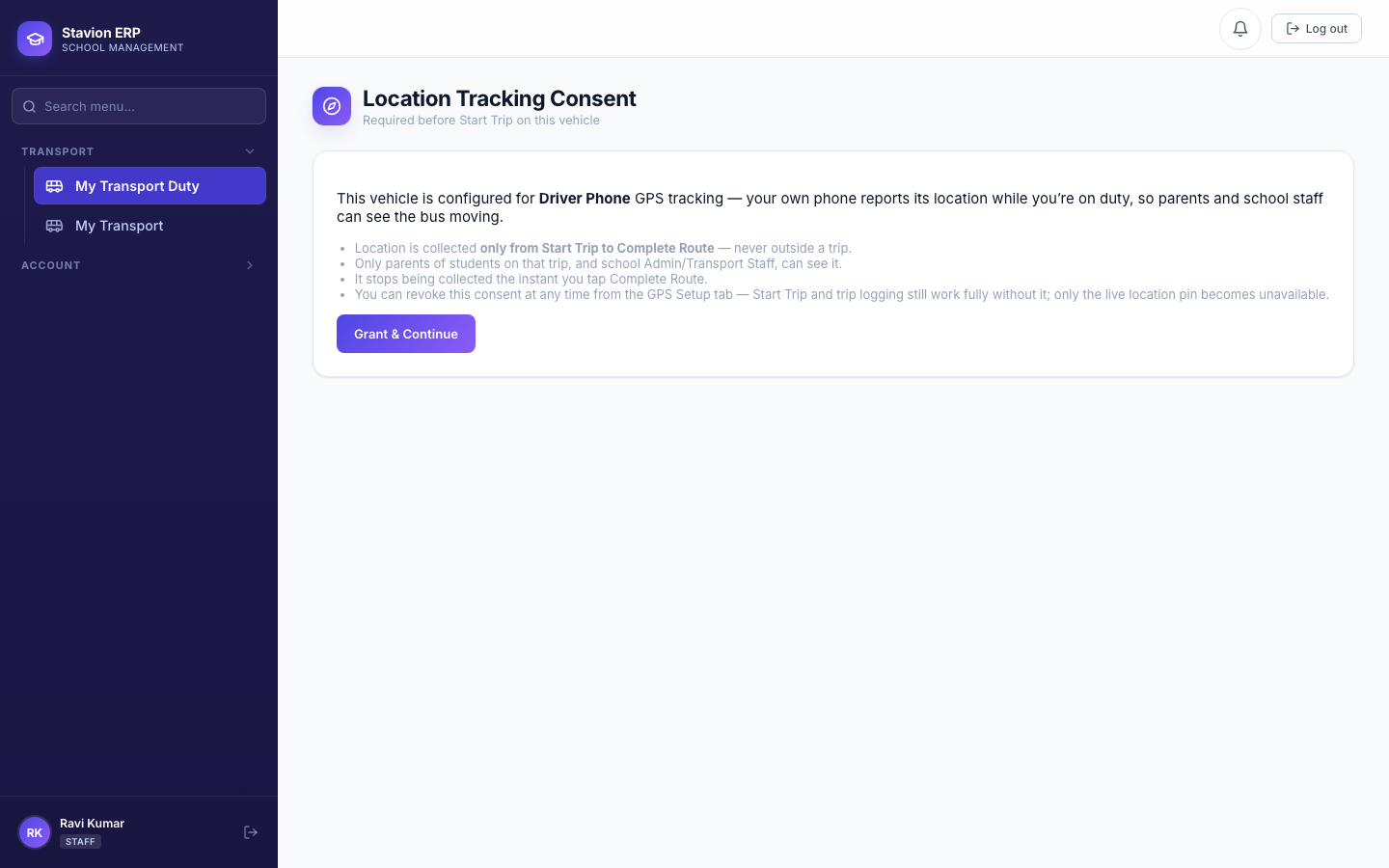
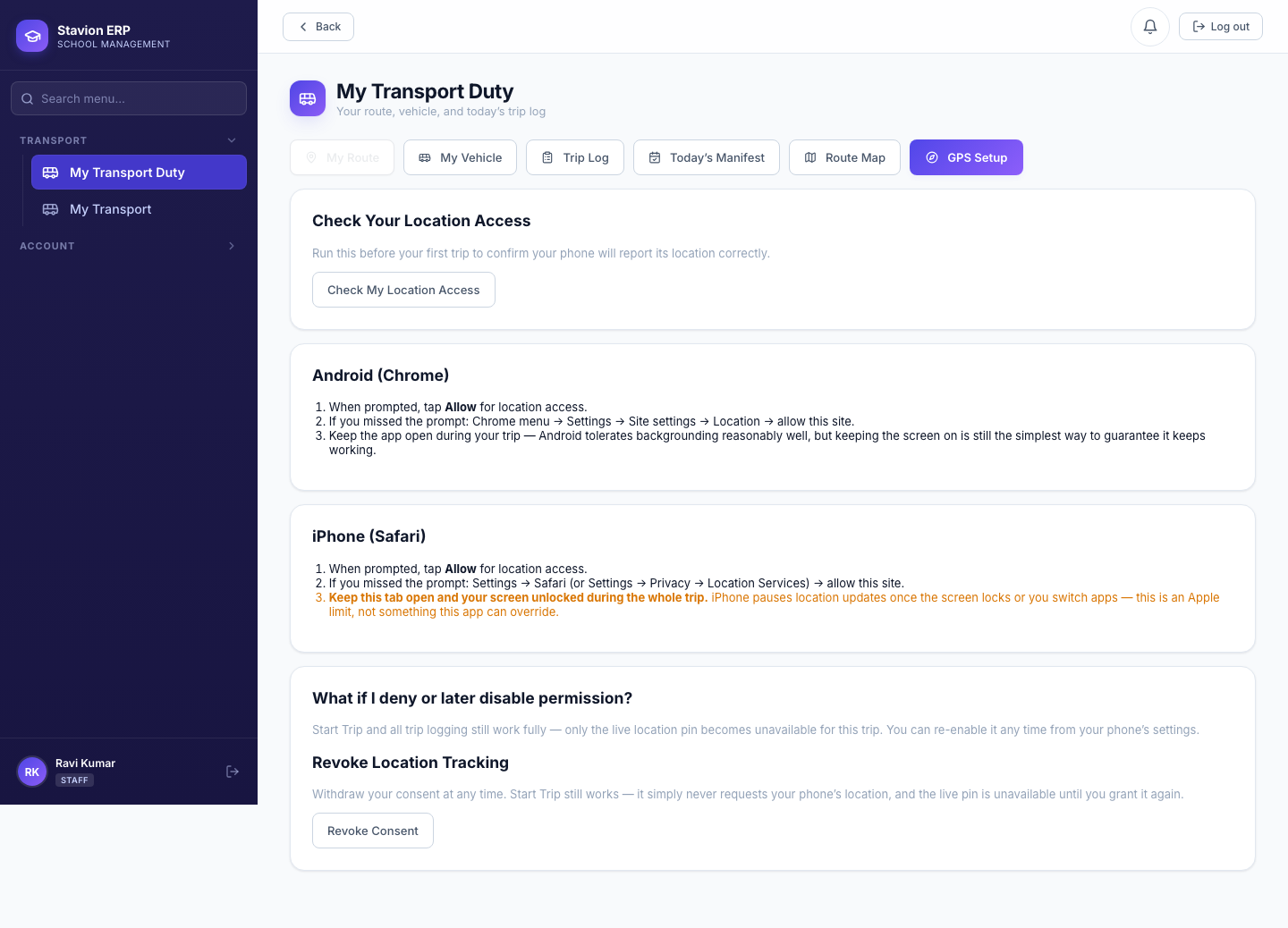
Location tracking is opt-in and scoped tightly on both GPS paths. For a Driver Phone vehicle, the driver must explicitly grant consent before their very first Start Trip — this is a full-page, unskippable gate, not a dismissible banner. Location is only ever collected between Start Trip and Complete Route, never outside a trip, and only parents of students on that specific trip (plus Admin/Transport Staff) can see it. Consent can be revoked at any time from the driver's own GPS Setup guide; Start Trip and all trip logging keep working either way — revoking only makes the live position pin unavailable.
For a Dedicated Device vehicle, there is no personal consent to collect (it's the vehicle's own hardware, not the driver's phone) — instead, an admin pairs the device from the Vehicle Manager's GPS Tracking tab, generating a device API key that is shown exactly once, for configuring onto the physical unit. Regenerating the key (e.g. after replacing the hardware) immediately invalidates the old one.
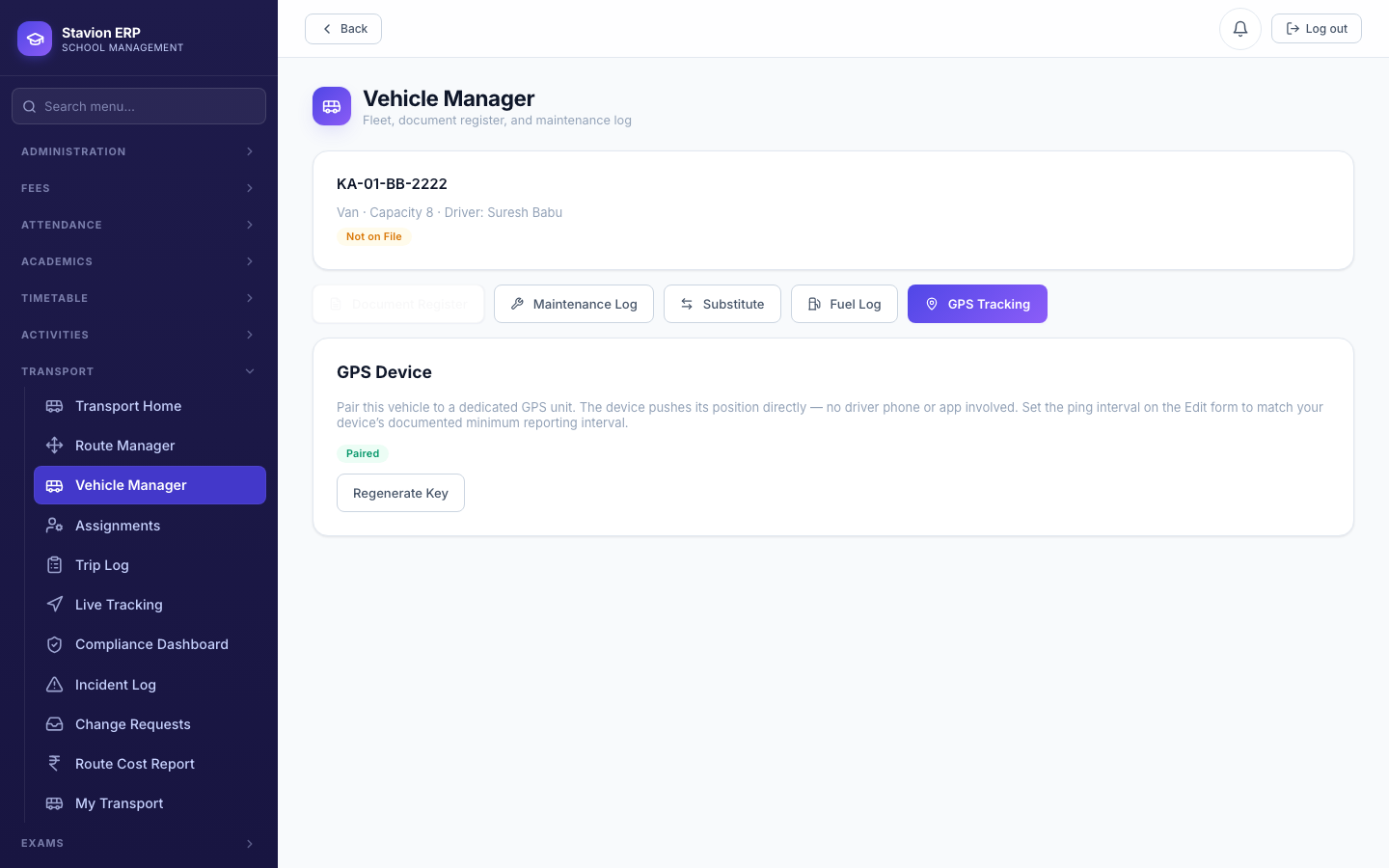
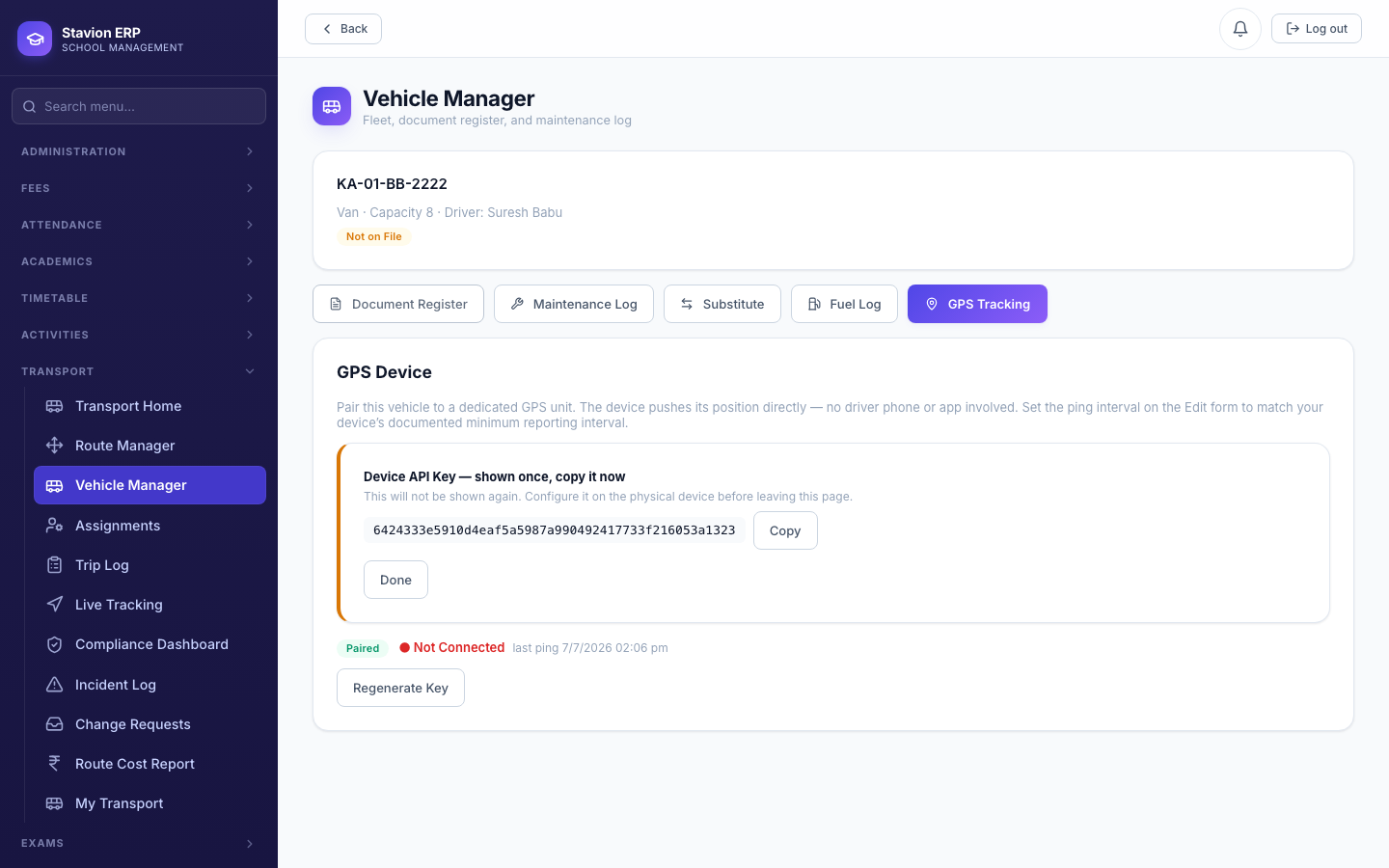
Neither the pairing key nor a regenerated key can ever be retrieved again after leaving this screen — if it's lost before being configured onto the physical device, the only recovery path is to regenerate a new one.
10.4 Assignments & the Capacity Waitlist
Students and staff are assigned to a route → stop (→ optional pickup point) from the Assignments page.
When a route's assigned vehicle is at capacity, the next student assigned automatically becomes
Waitlisted rather than rejected outright — Golden Jubilee's Bus 2 seats only 8, so its
Route 2 has 8 active riders and 2 waitlisted. Staff assignment is a separate, independently-gated feature
(transport.staff_opt_in_mode: off / lightweight / full) — Golden Jubilee runs it in "full" mode,
giving staff riders the same assignment history as students.
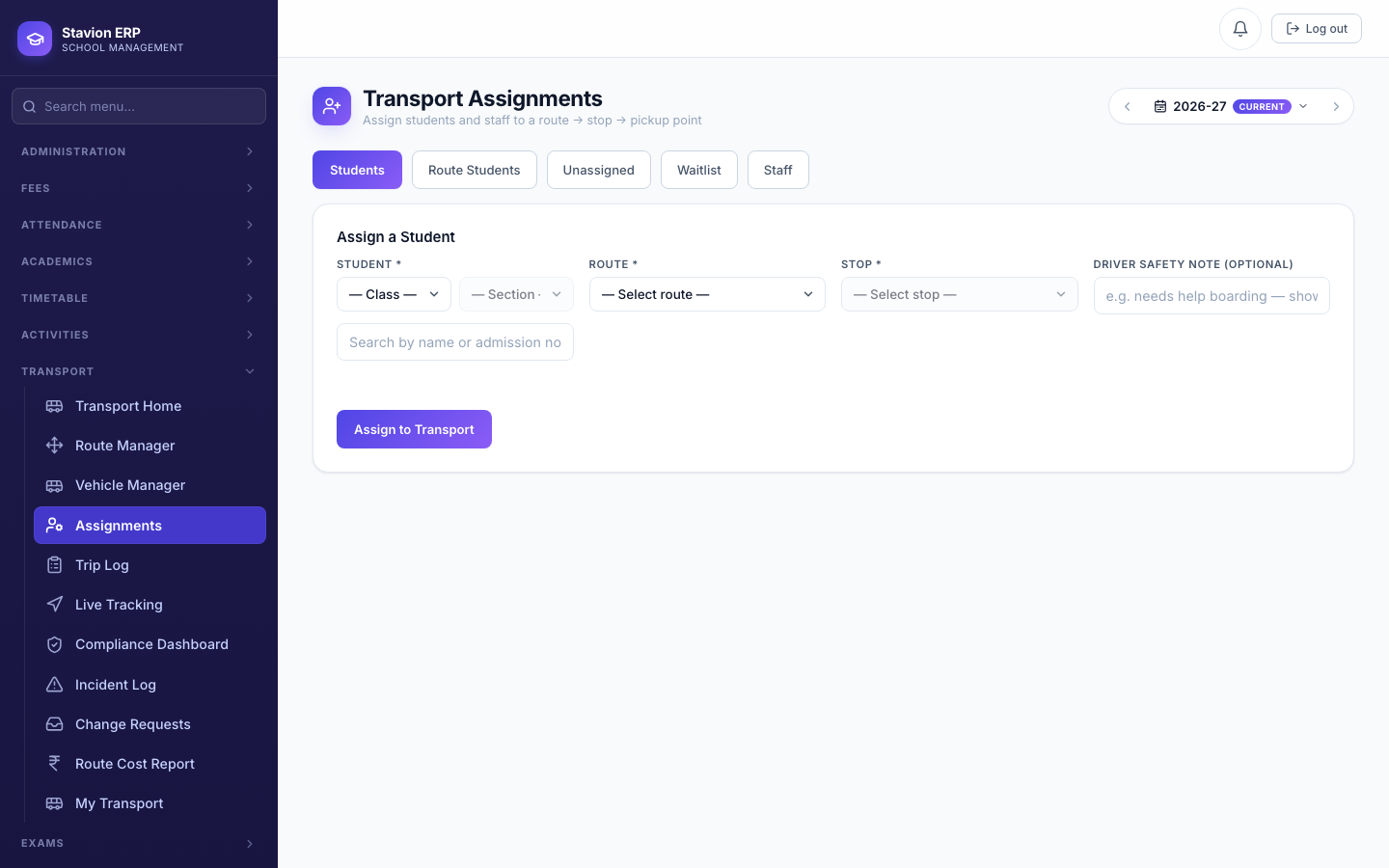
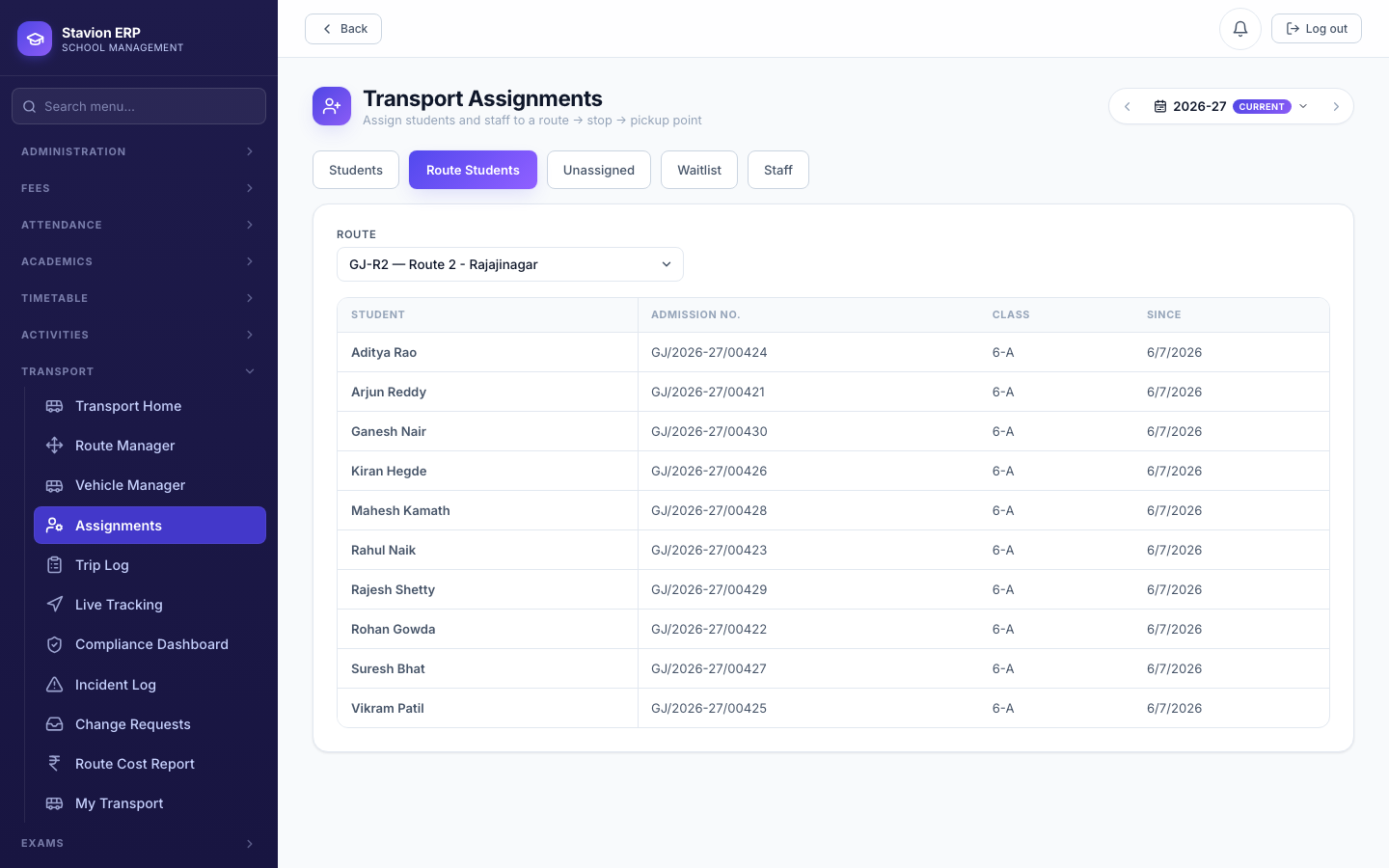
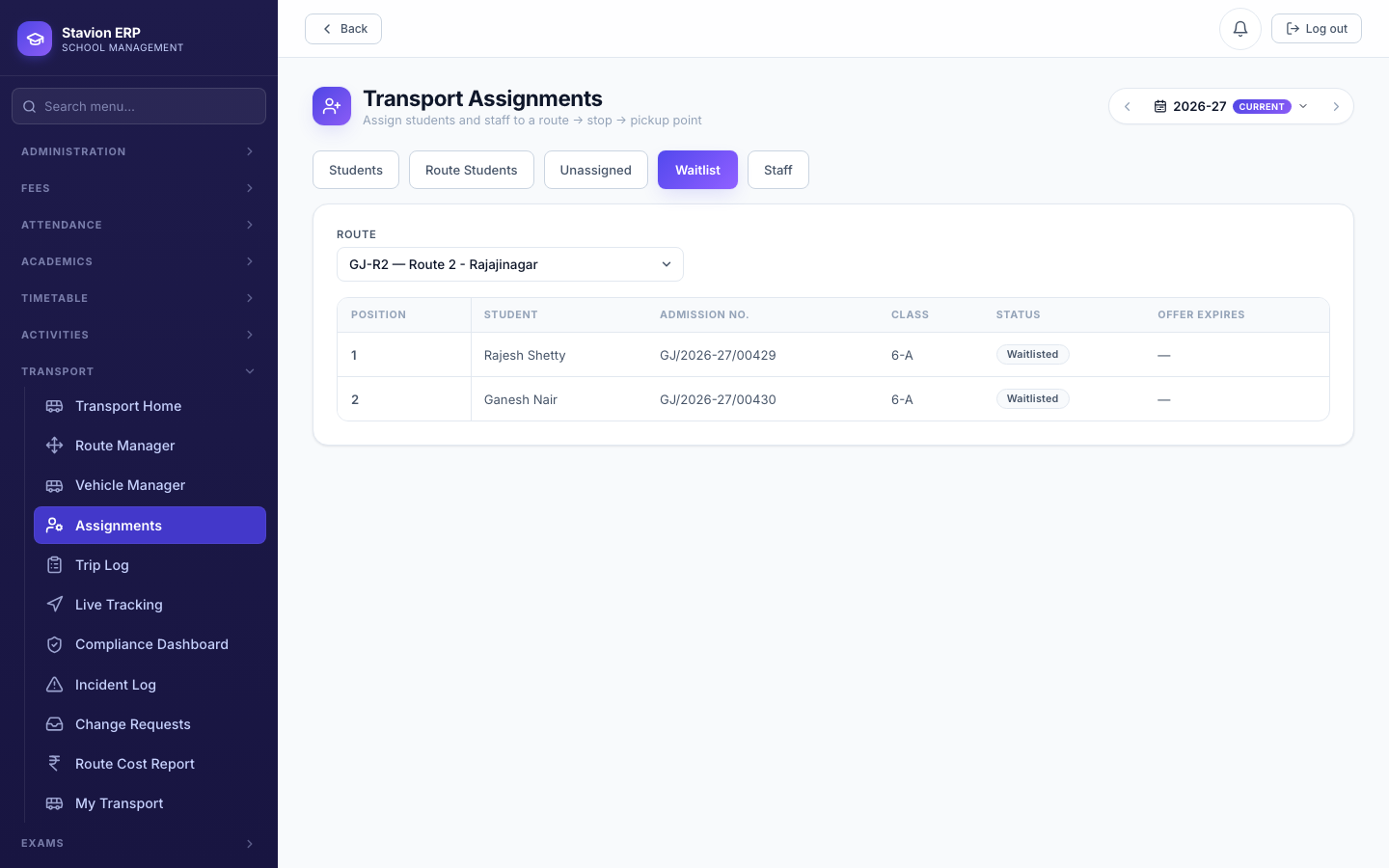
When a seat frees up (a rider is unassigned), the next waitlisted student is automatically offered the spot; if the offer isn't accepted in time, it expires and rolls to the next student in the queue — this runs as a background job, not a manual admin step.
10.5 Daily Trip Log & Live Tracking
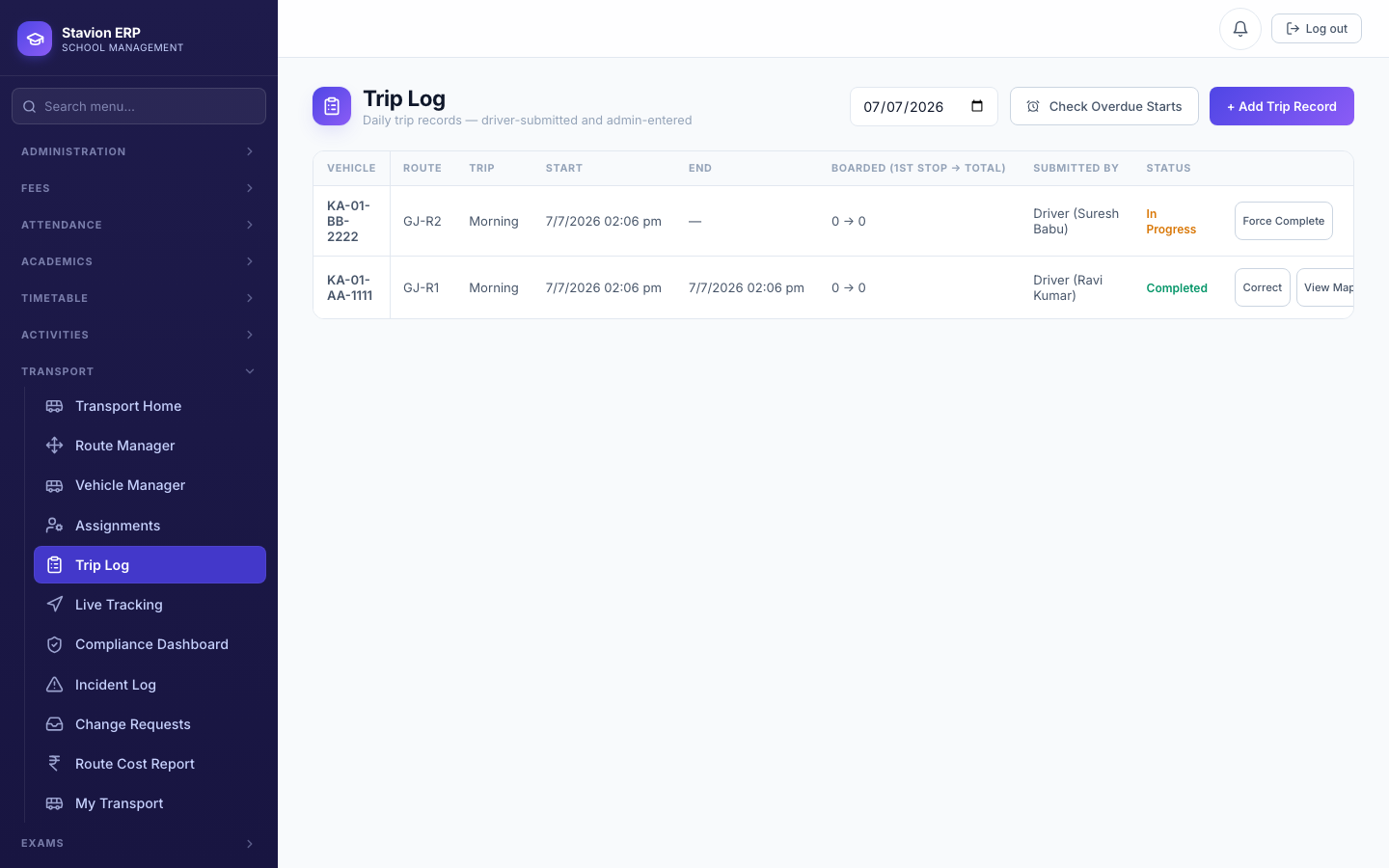
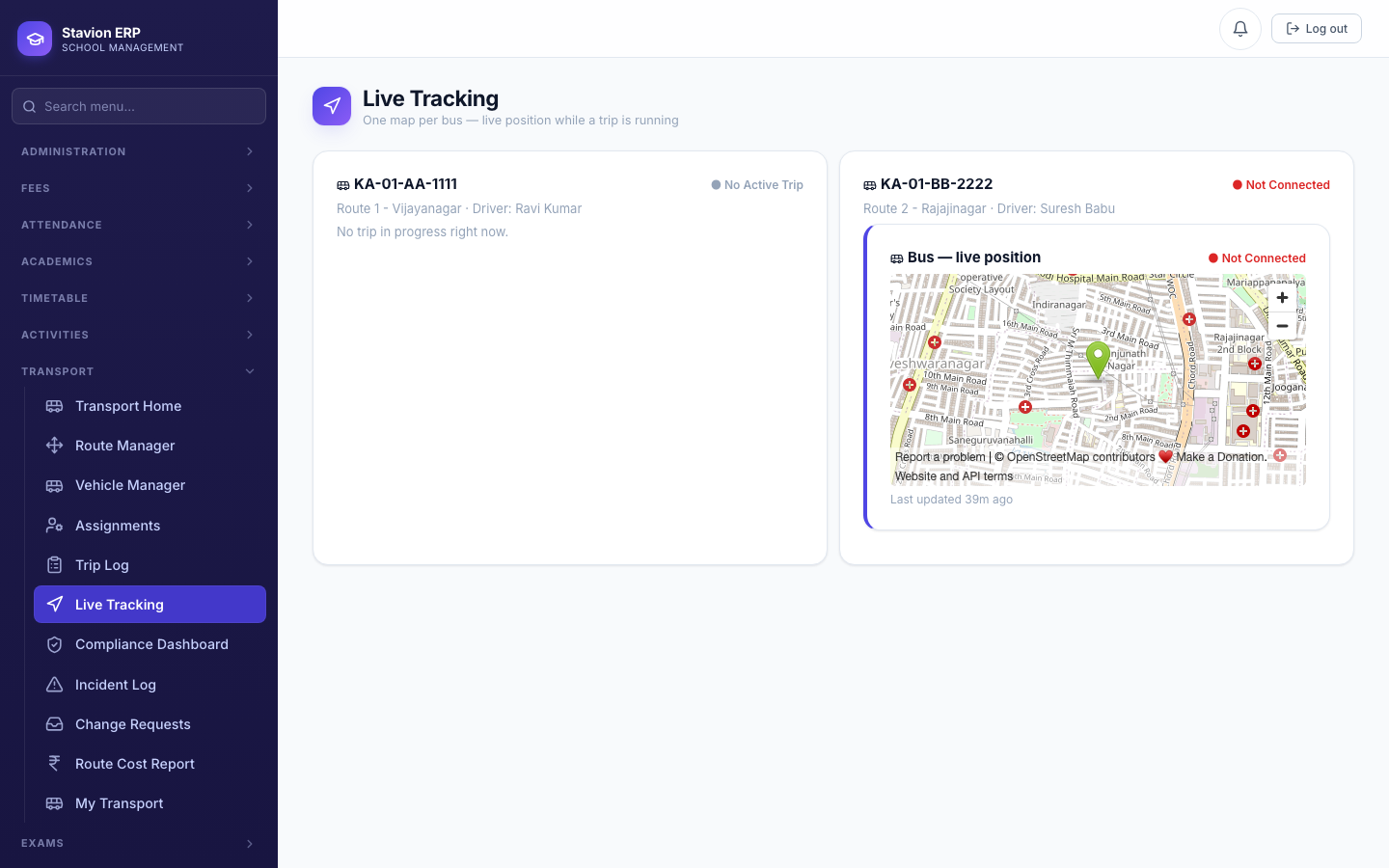
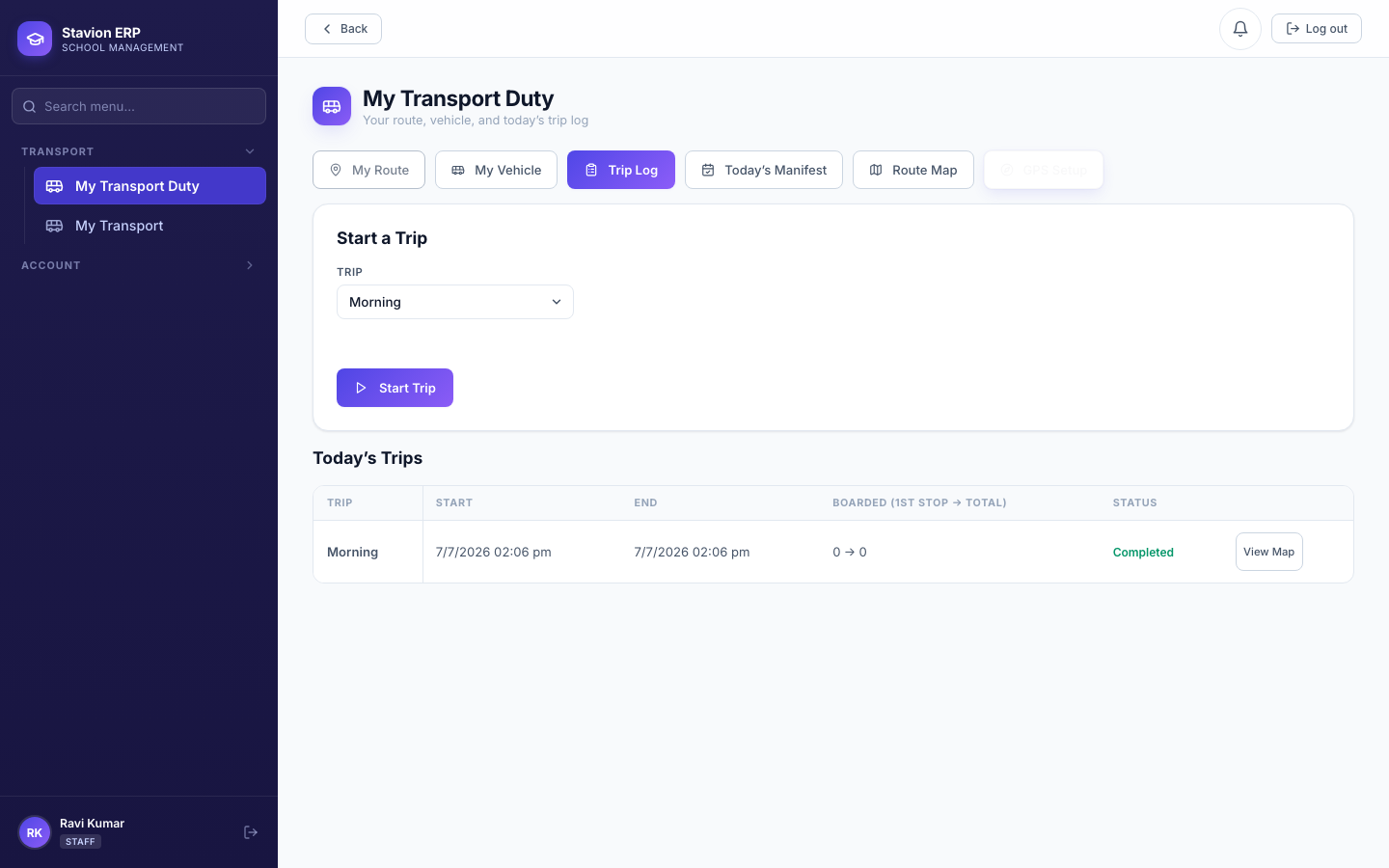
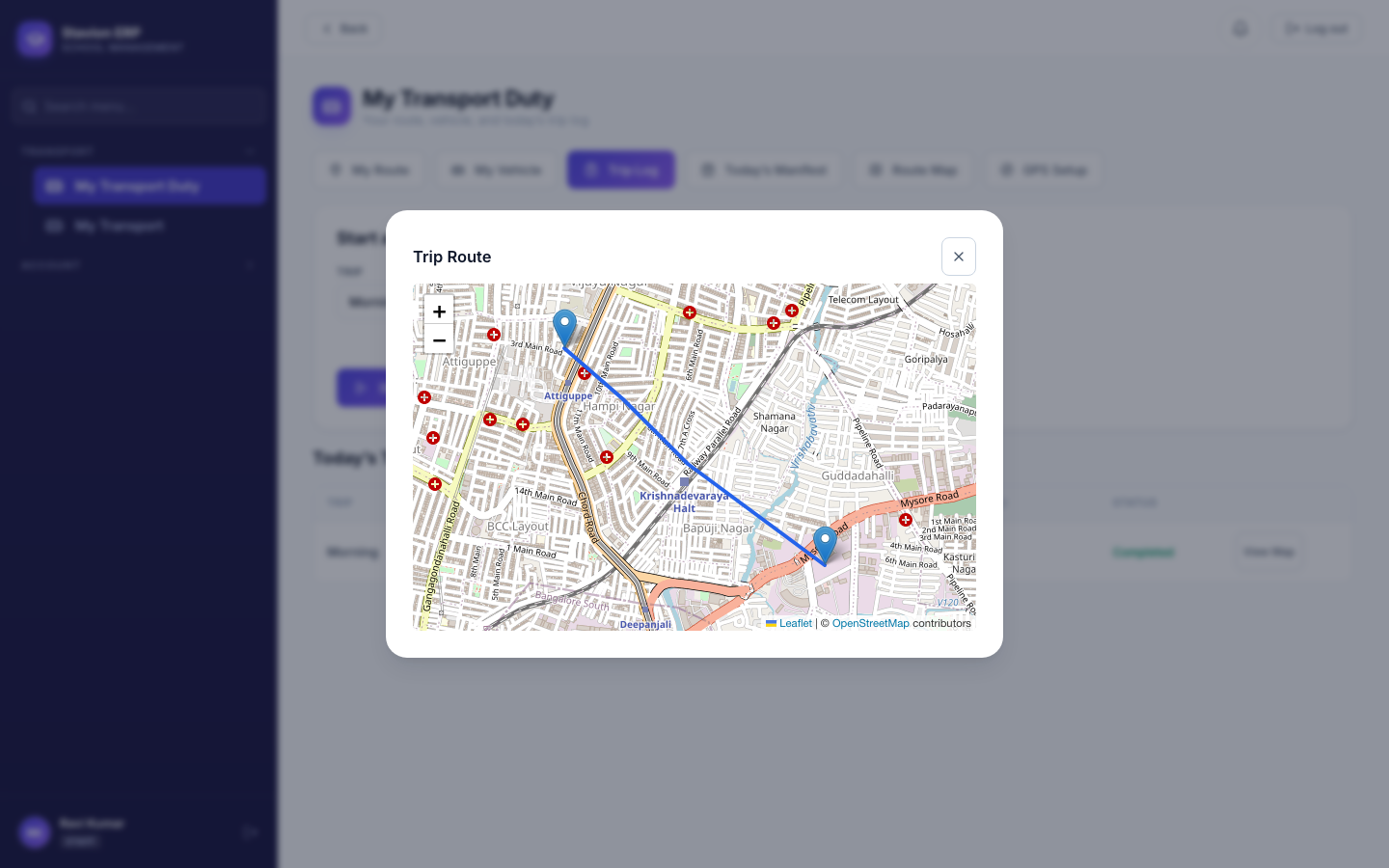
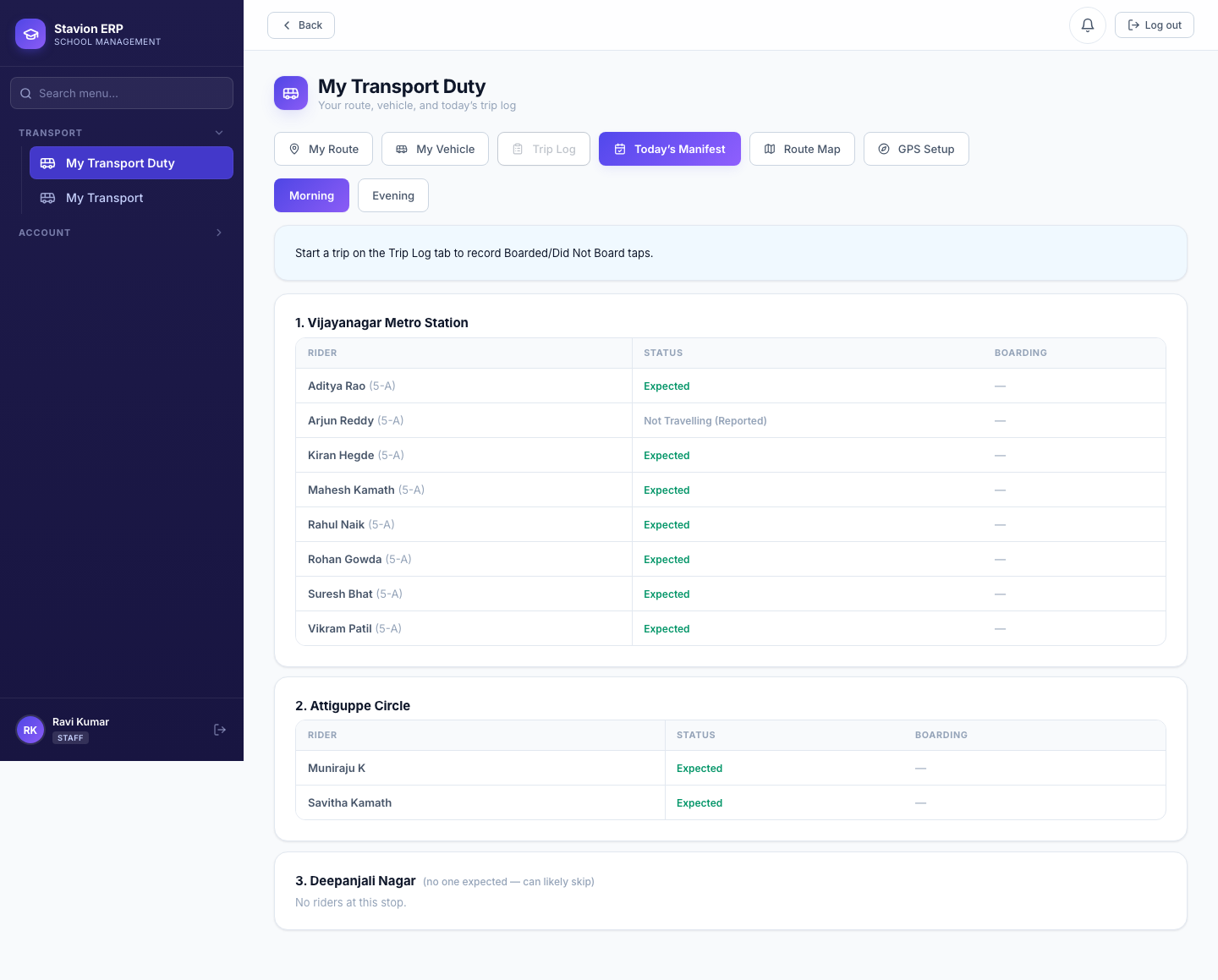
Each day, a driver taps Start Trip and Complete Route from their own "My Transport Duty" portal (or an admin enters/corrects a trip record directly). While a trip is in progress, every GPS ping (from either tracking source) is stored as a breadcrumb — after the trip completes, the full path can be replayed as a line on a map from the trip's own View Map link, and while it's still running, Admin/Parent/Driver all see the same live pin update on their own map view.
Start Trip
Driver taps Start Trip on their own vehicle; GPS capture begins (if a tracking source is configured).
En route
Each ping is stored; Admin/Parent see a live pin; near-stop alerts fire as the bus approaches a stop with GPS coordinates.
Roll call
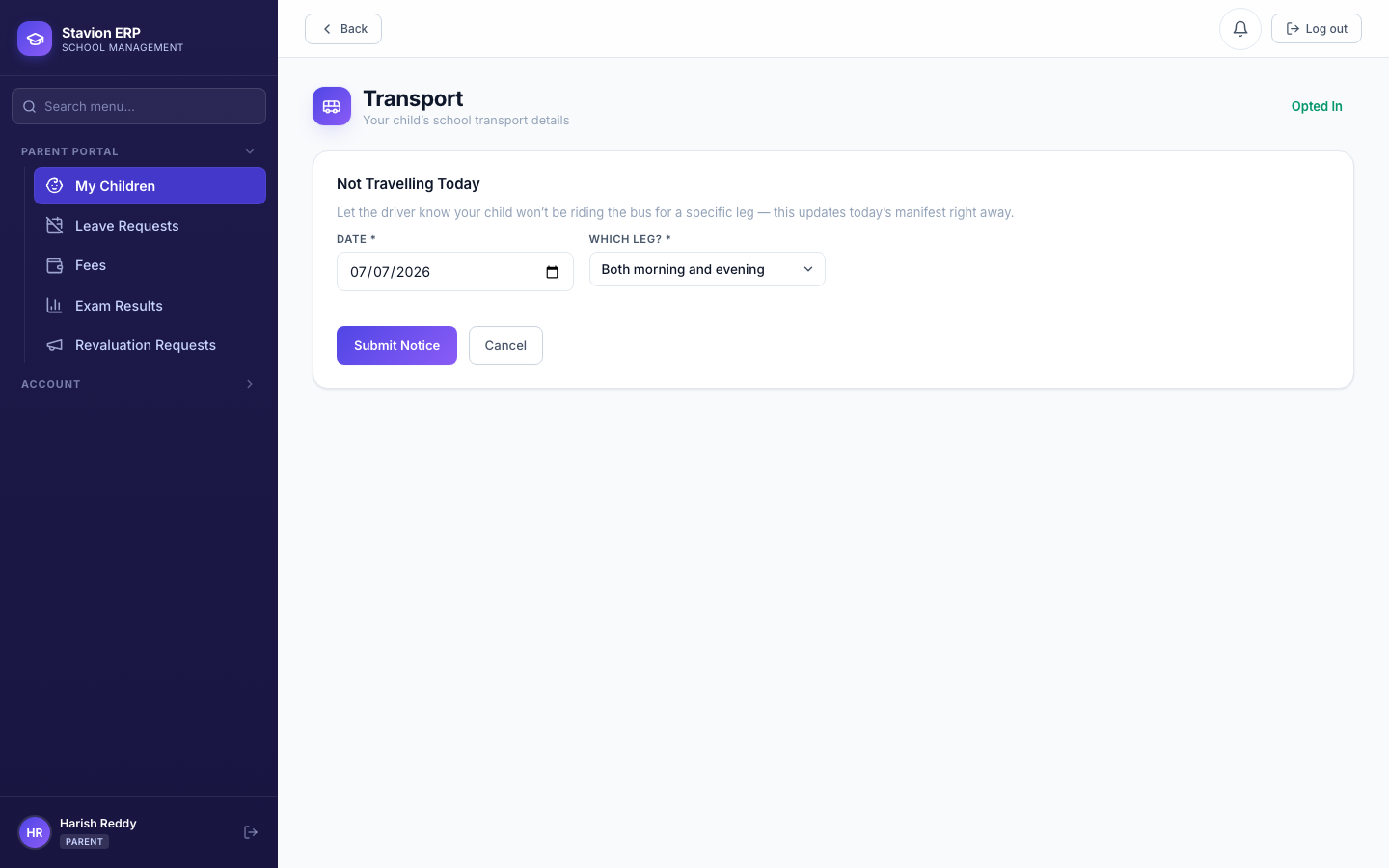
Driver marks each rider Boarded / Did Not Board from Today's Manifest (10.7 covers the notice that pre-fills this).
Complete Route
GPS capture stops instantly; the full breadcrumb trail becomes replayable as the trip's own "blue line" map.
One trip, four visible stages — Start Trip and Complete Route are the only two taps a driver ever makes.
10.6 Incidents, Breakdowns & Substitute Vehicles
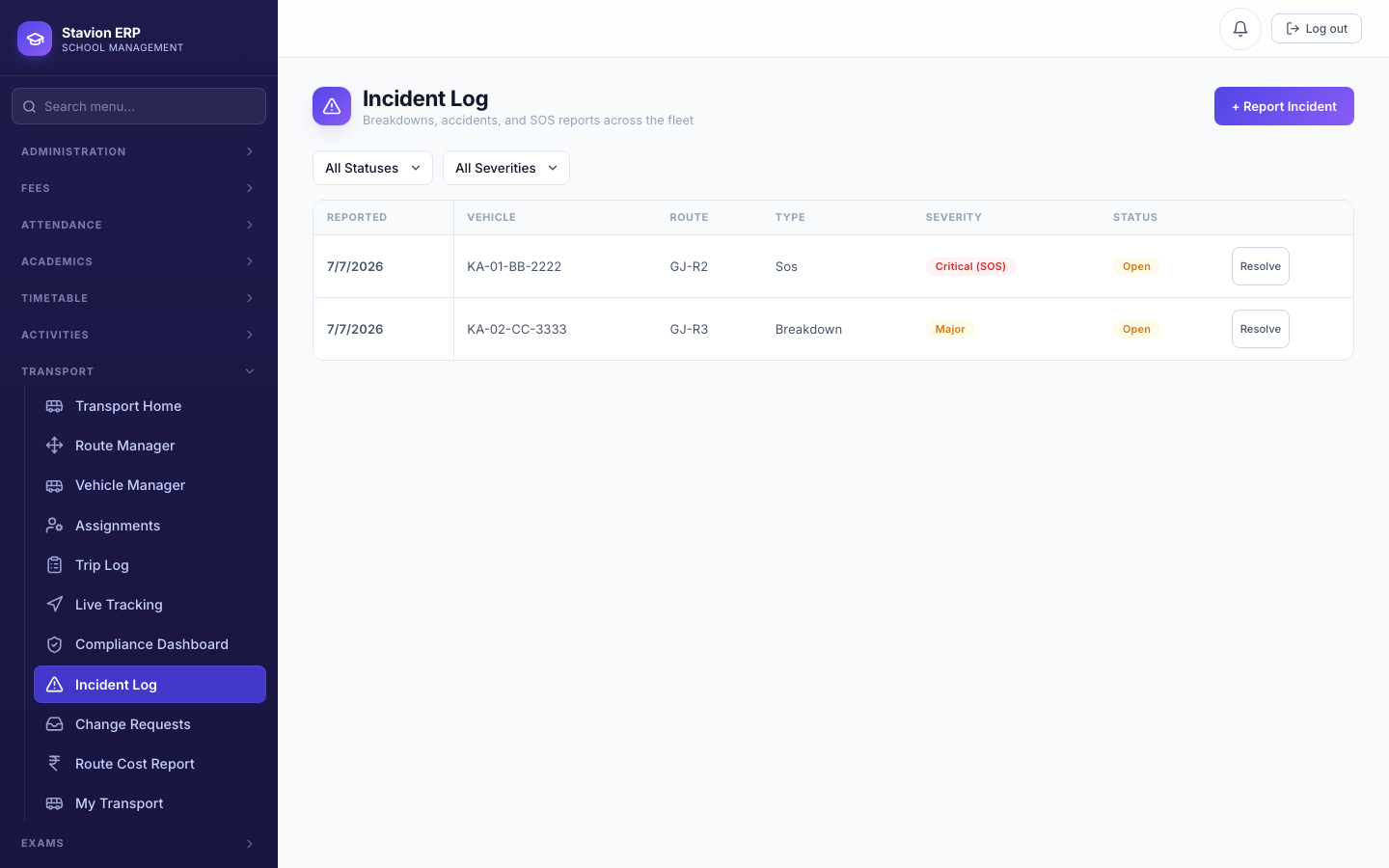
A driver reports a Breakdown (minor/major severity, admin can also log one manually) or raises an unconditional, single-tap SOS (always critical severity — the one severity level no admin-entered incident can ever choose). When a vehicle breaks down mid-route, an admin assigns a Substitute Vehicle to cover that route until the original is repaired — Golden Jubilee's spare Bus 4 is currently covering Route 3 after Bus 3's breakdown.
10.7 Change Requests & Not-Travelling Notices
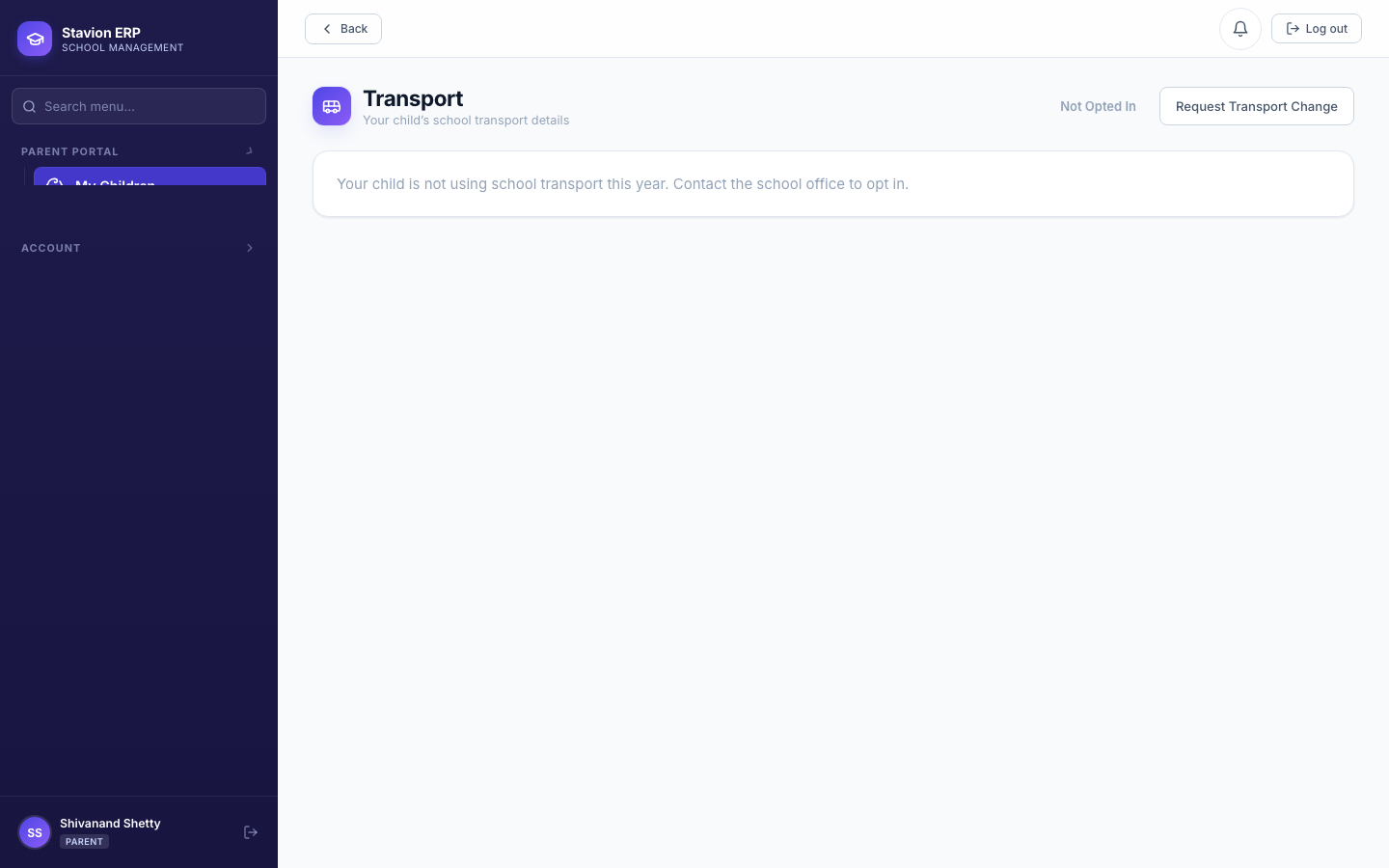
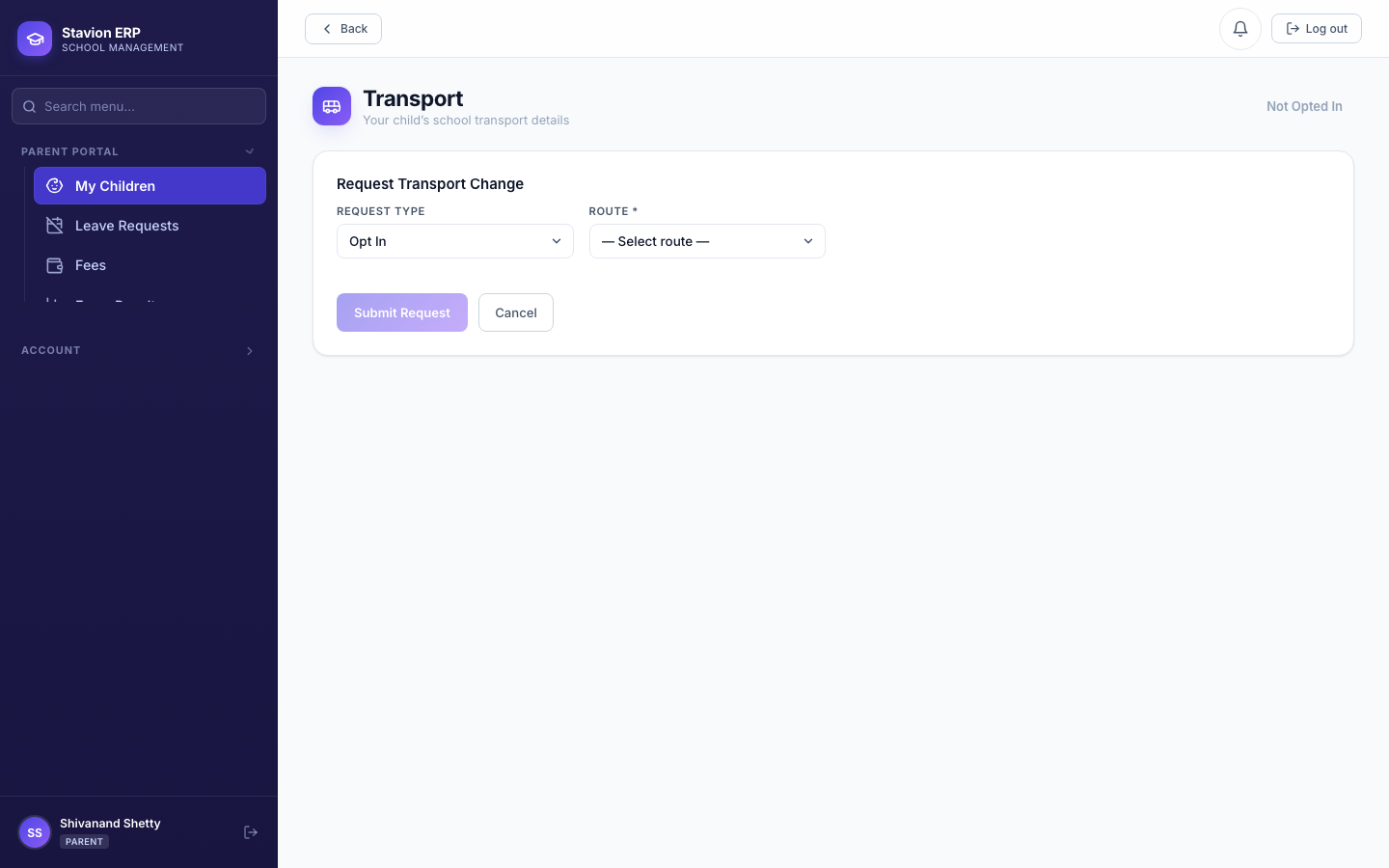
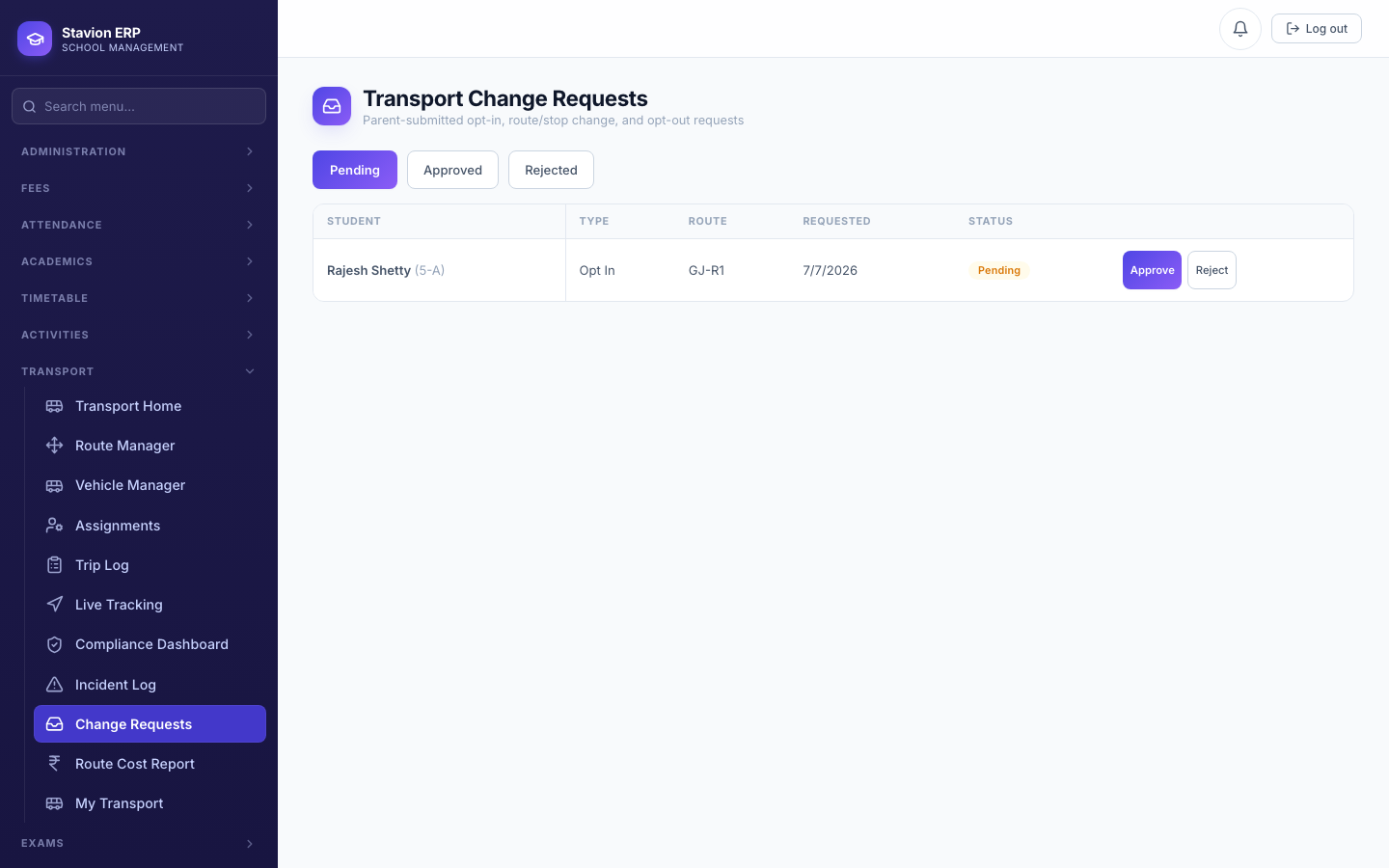
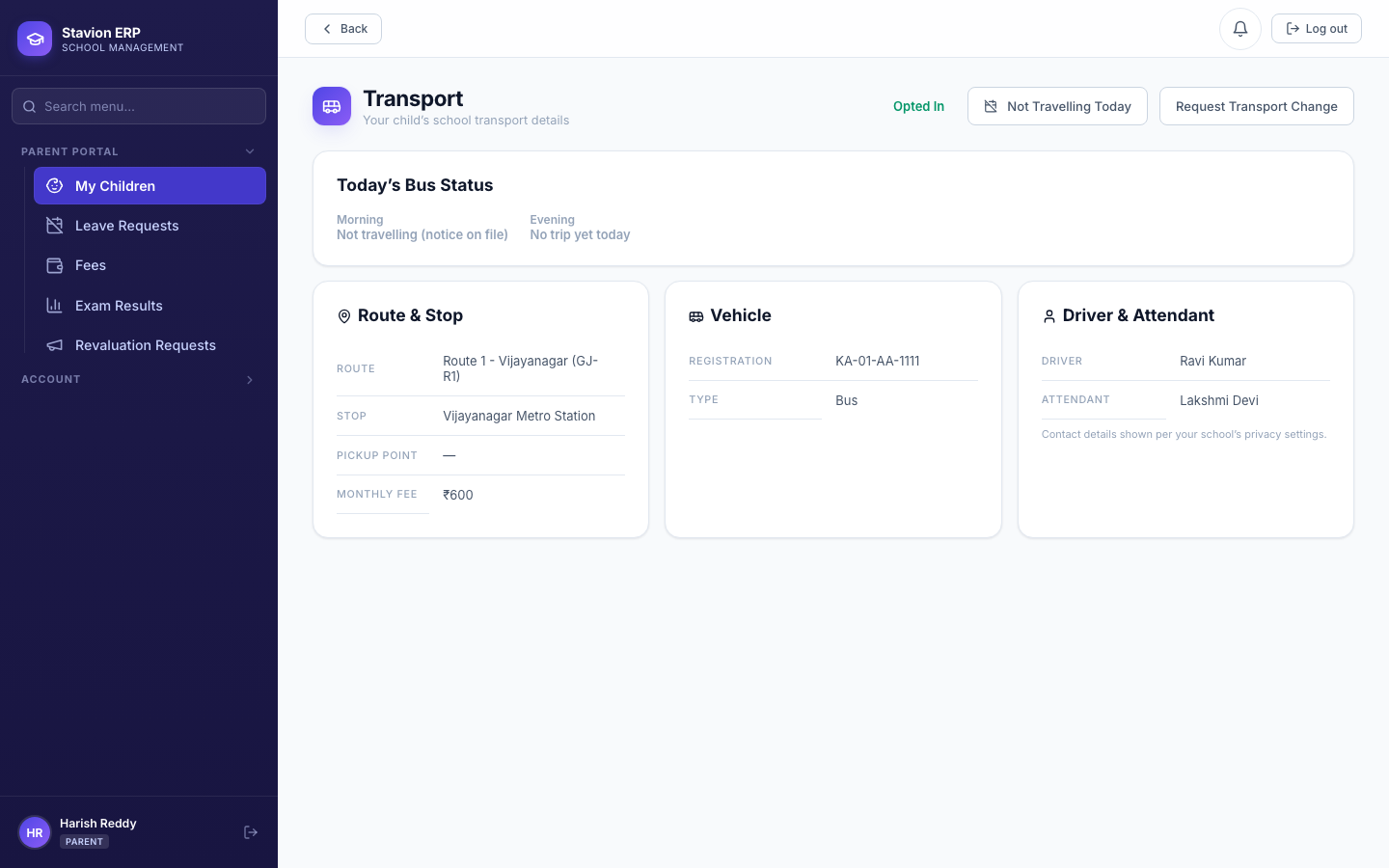
Parents self-serve two things directly from their own Transport view: a Change Request (opt in, change route/stop, or opt out — routed to the admin for approval) and a same-day Not Travelling notice (updates the driver's roll call immediately, no approval needed). Both share the same underlying feature flag and the same admin review surface.
10.8 Compliance Dashboard, Vehicle Documents & Route Cost Report
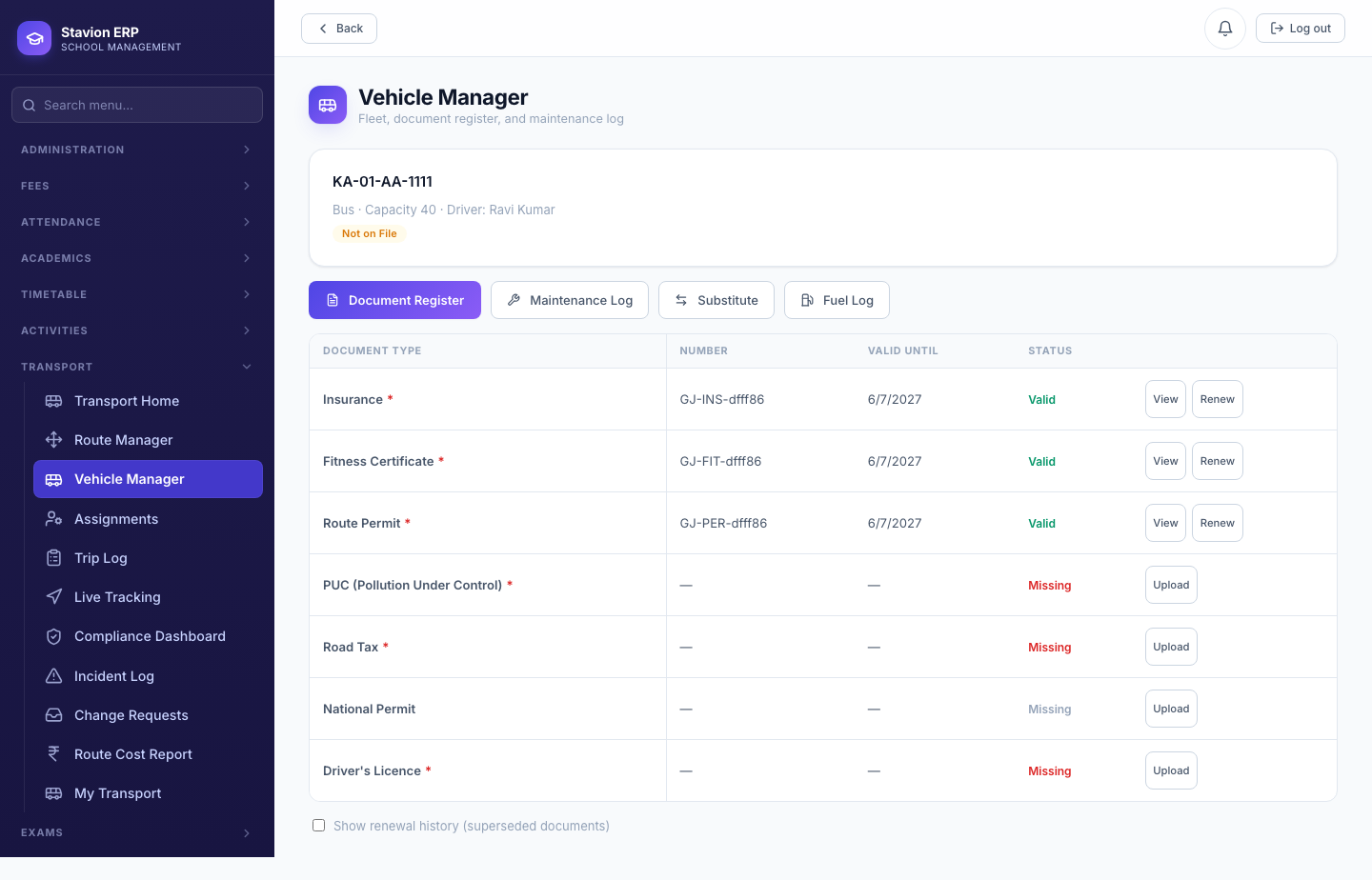
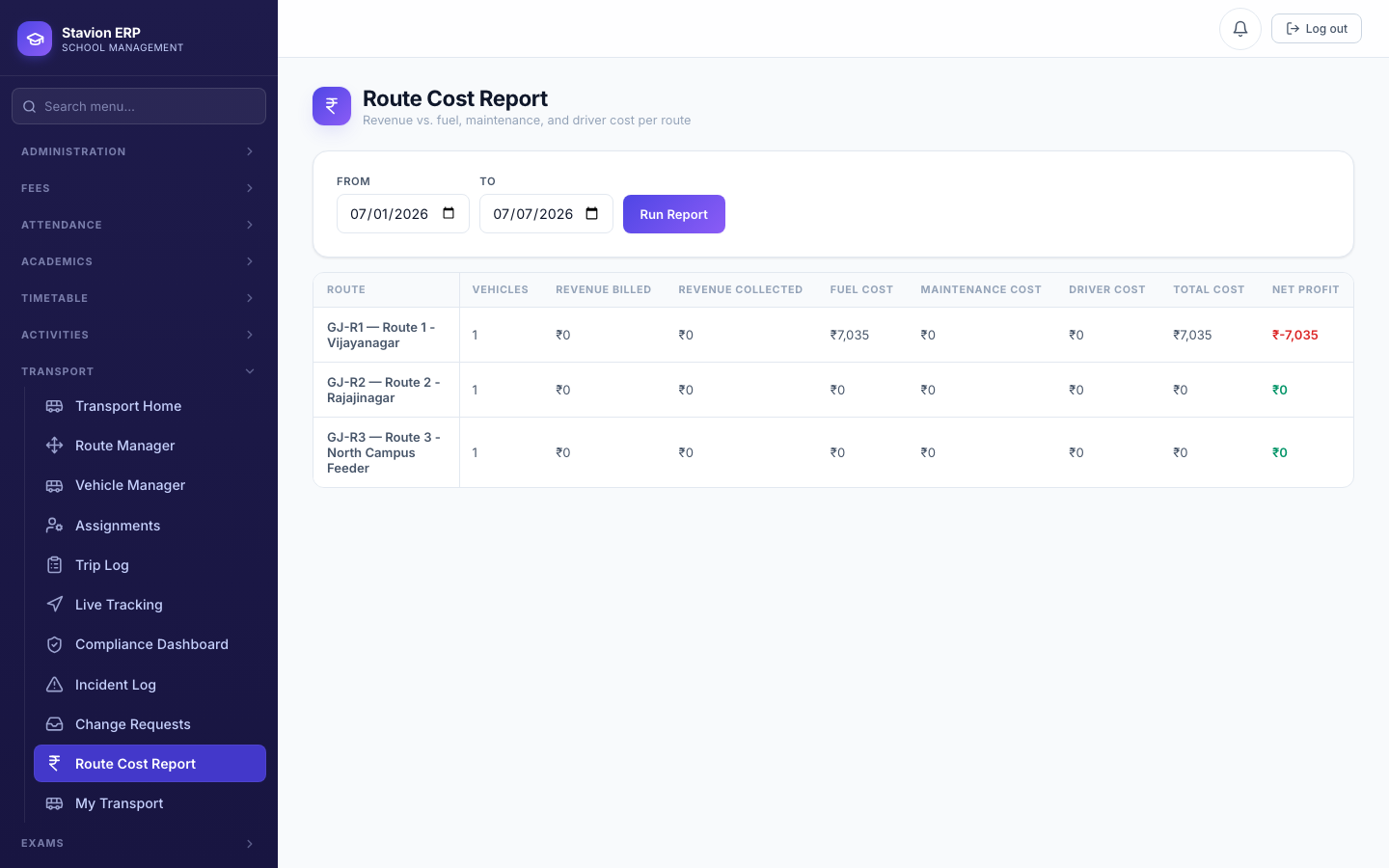
Every vehicle has a Document Register (Insurance, Fitness Certificate, Route Permit, PUC, Road Tax, National Permit, Driver's Licence — some mandatory, some not), a Maintenance Log, and either a Fuel Log (owned vehicles) or a Vendor Contract (outsourced vehicles). The Compliance Dashboard rolls every vehicle's document/maintenance status up into one fleet-wide view, red-flagging any vehicle missing (or overdue on) a mandatory document. The Route Cost Report nets fee revenue against fuel, maintenance, and driver cost, per route, for a chosen date range.
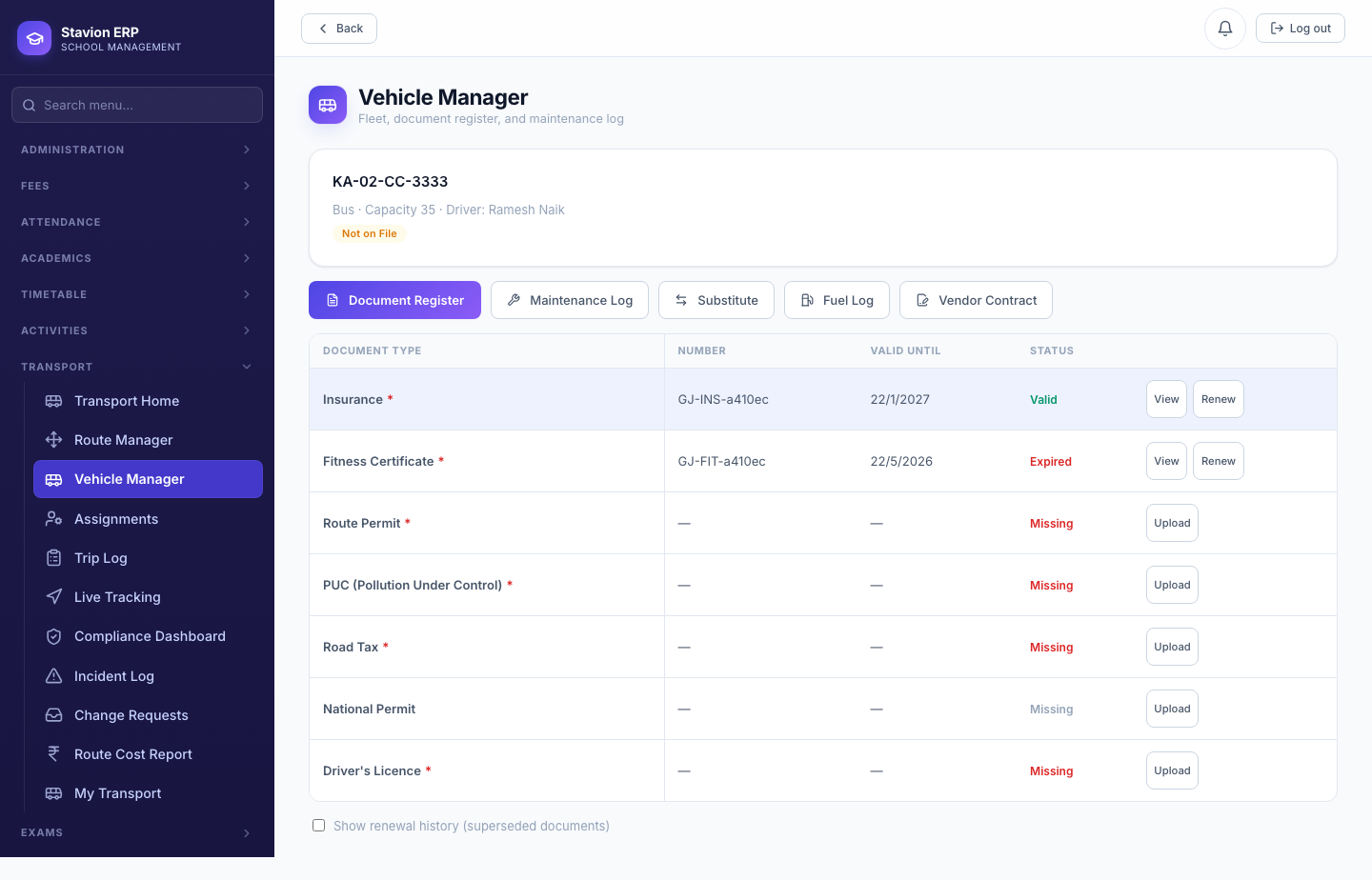
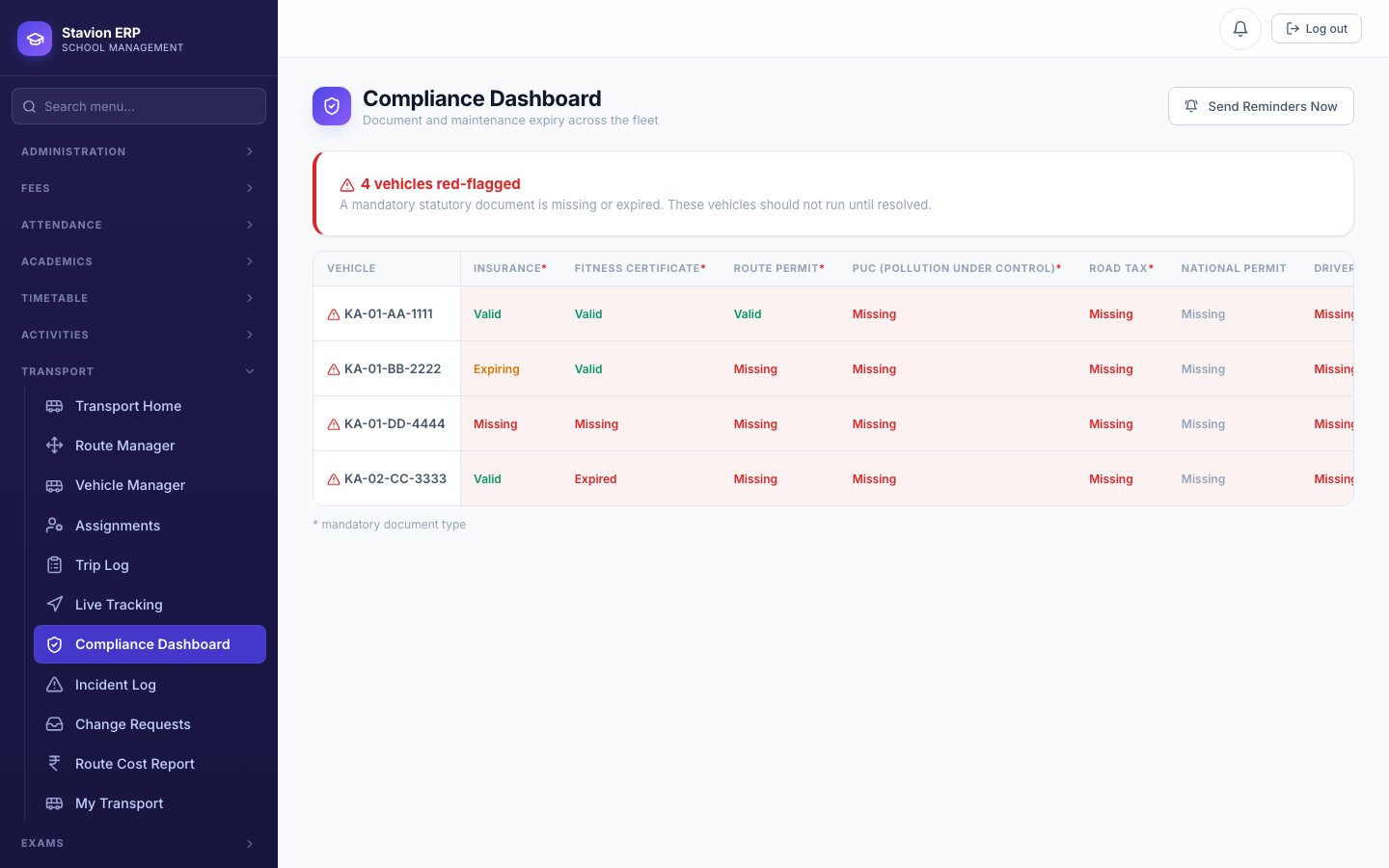
Valid / Expiring / Expired are computed live from each document's validity end date against the real current date (and a configurable reminder threshold, default 30 days) — the same document can silently flip from Valid to Expiring to Expired over time with no admin action at all.
10.9 The Parent Portal
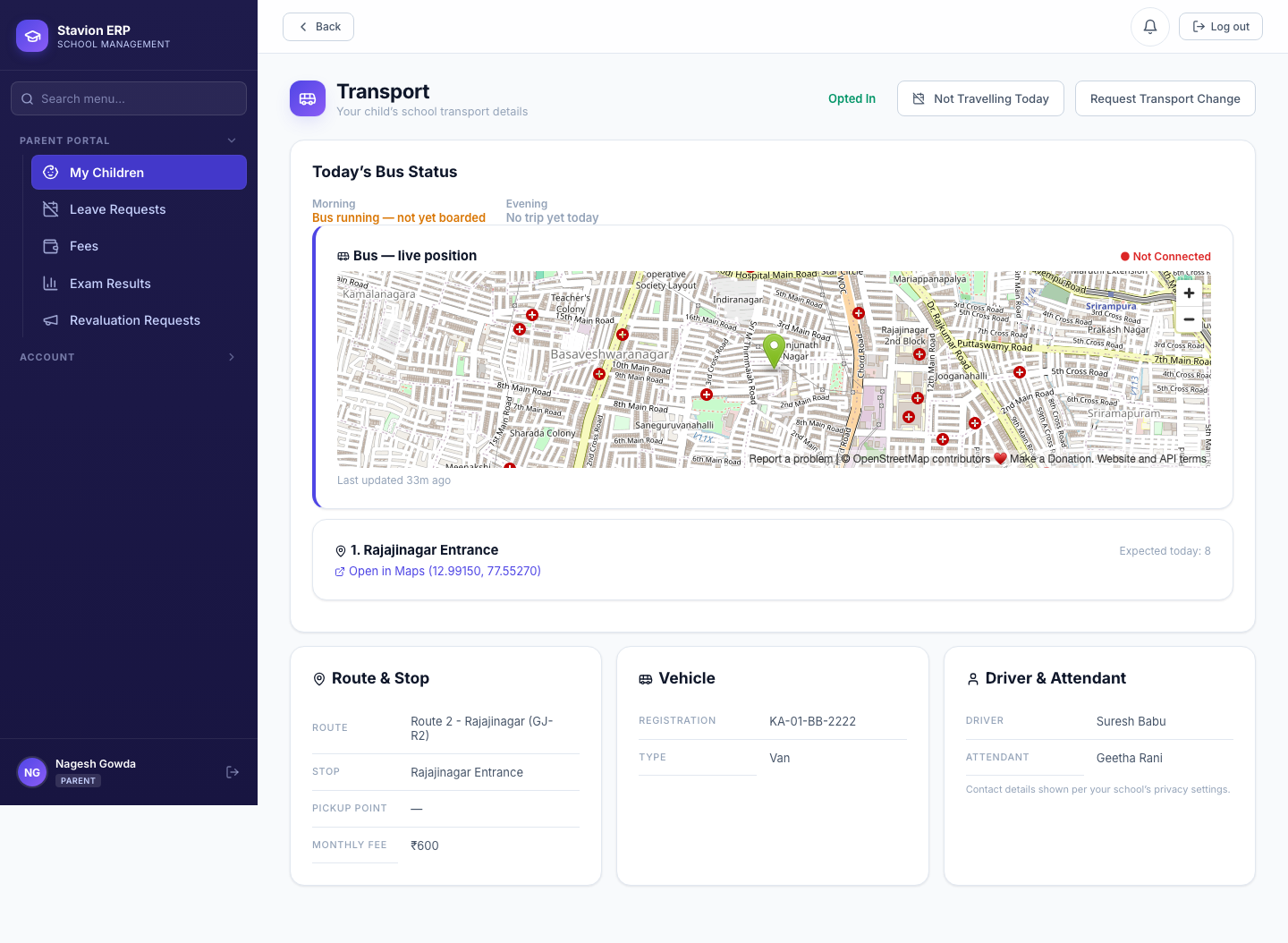
A parent's own Transport view shows their child's route/stop/fee, vehicle, and driver/attendant, plus a live Today's Bus Status card — including a genuinely live map pin whenever that child's bus has a trip actually running.
A vehicle can only ever have one trip in_progress at a time — Start Trip is rejected outright if one is already running. This is also why GPS pings and roll-call taps always land on the correct trip: there's only ever one candidate to write to.
The Fuel Log tab (and therefore the fuel-cost line in the Route Cost Report) only ever appears for an owned vehicle — an outsourced vehicle's running cost is its Vendor Contract's monthly rate instead, since the school doesn't buy its fuel directly.