Exams & Results
Overview
An exam moves through one deliberate pipeline: define what a subject's marks are actually made of, create the exam and add its subjects, let the subject teacher enter and submit marks once the exam has been conducted, have the Principal review and approve (or send back) each subject, then publish. Nothing reaches a student or parent until every subject in the exam has been approved and the exam is explicitly published. This chapter walks all of it for Golden Jubilee CBSE's Unit Test 1, Class 6, subject English — then finishes with the separate Exam Seating Arrangement screen.
Key concepts
- Marks StructureA reusable template of named mark components for a subject — e.g. "Written 80, Viva 20" — optionally scoped to one class. It exists purely to pre-fill the Add Subject form; it is never enforced. A school's exam board (CBSE, ICSE, KSEAB…) suggests a starting Internal/External split, but every component's name, maximum, and pass mark is fully editable, and components can be added or removed freely.
- ComponentOne named, gradable part of a subject's marks on a specific exam — the actual live fields a teacher fills in, copied from the Marks Structure at the moment the subject was added (or built from scratch if no structure applies). Editing a Marks Structure later never changes an exam subject that already copied from it.
- Exam Subject statusEach subject on an exam carries its own approval status —
pending→submitted→approved— independently of every other subject on the same exam. A Principal can reject asubmittedsubject back topendingwith a reason. - Publish & LockAn exam-wide action, only available once every subject on the exam is
approved. Publishing makes results visible to students and parents and simultaneously locks all marks against further teacher edits.
Prerequisites
The class, its subjects, and the subject teacher's Teacher-Subject Mapping must already exist (Chapters 2 and 6). This walkthrough uses the same Class 6 roster Chapter 6 mapped English to.
Marks Structure
Define reusable, fully custom mark components per subject, once.
Create Exam & Add Subjects
Components pre-fill from the structure, then can be edited freely.
Teacher Enters & Submits
Entry opens automatically once the exam date has passed.
Principal Reviews
Approve, or reject back to the teacher with a reason.
Publish & Lock
Once every subject is approved — results, report cards, seating.
Each stage gates the next — a subject teacher cannot submit before the exam date, and the exam cannot publish until every one of its subjects has been approved.
14.1 Marks Structure — board-suggested, fully custom
Before creating an exam, an Admin can define a Marks Structure per subject: a named set of components with their own maximum and pass marks. It is entirely optional and entirely editable — a subject with just one component, or five, is equally valid. This structure only pre-fills the Add Subject form later; it is copied, never linked.
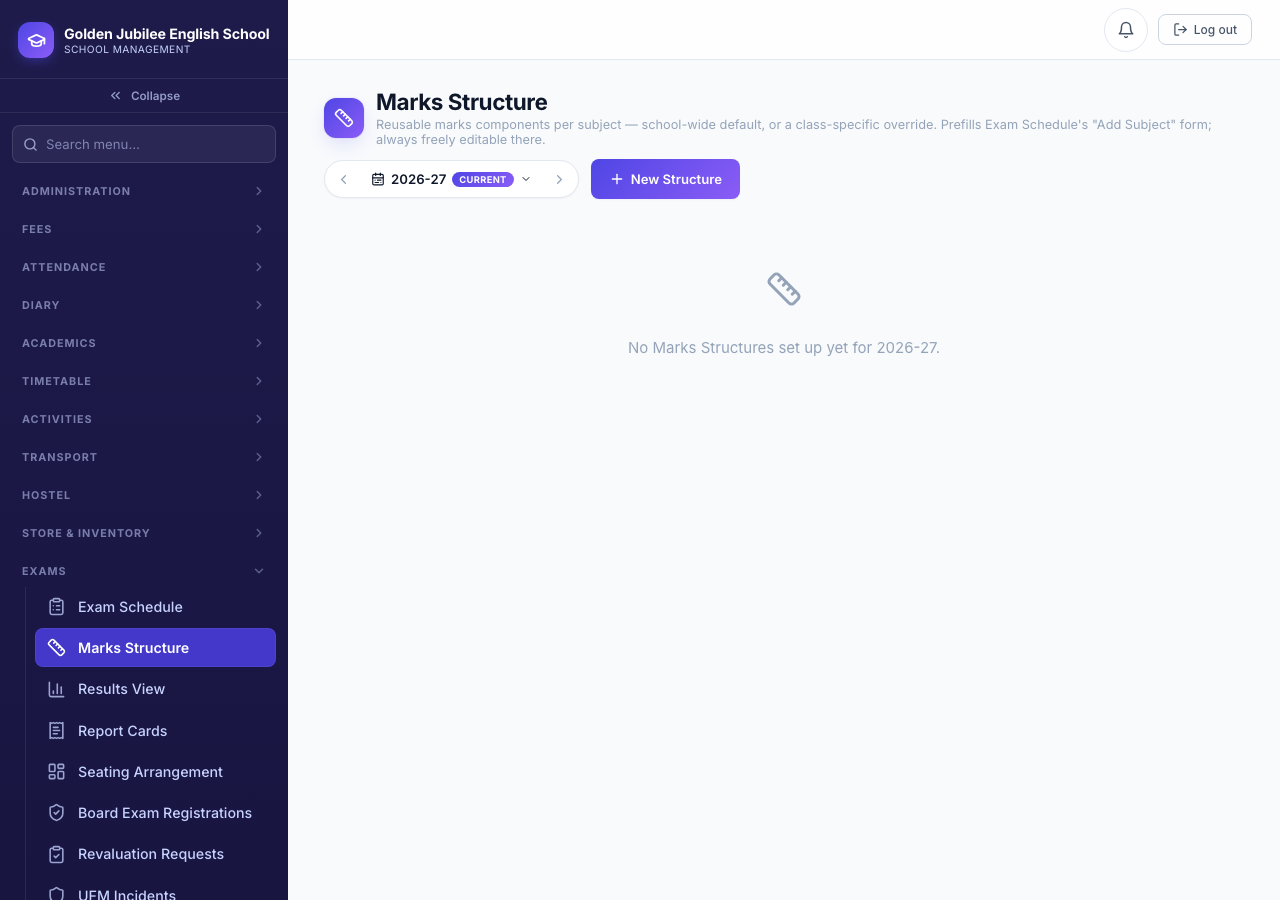
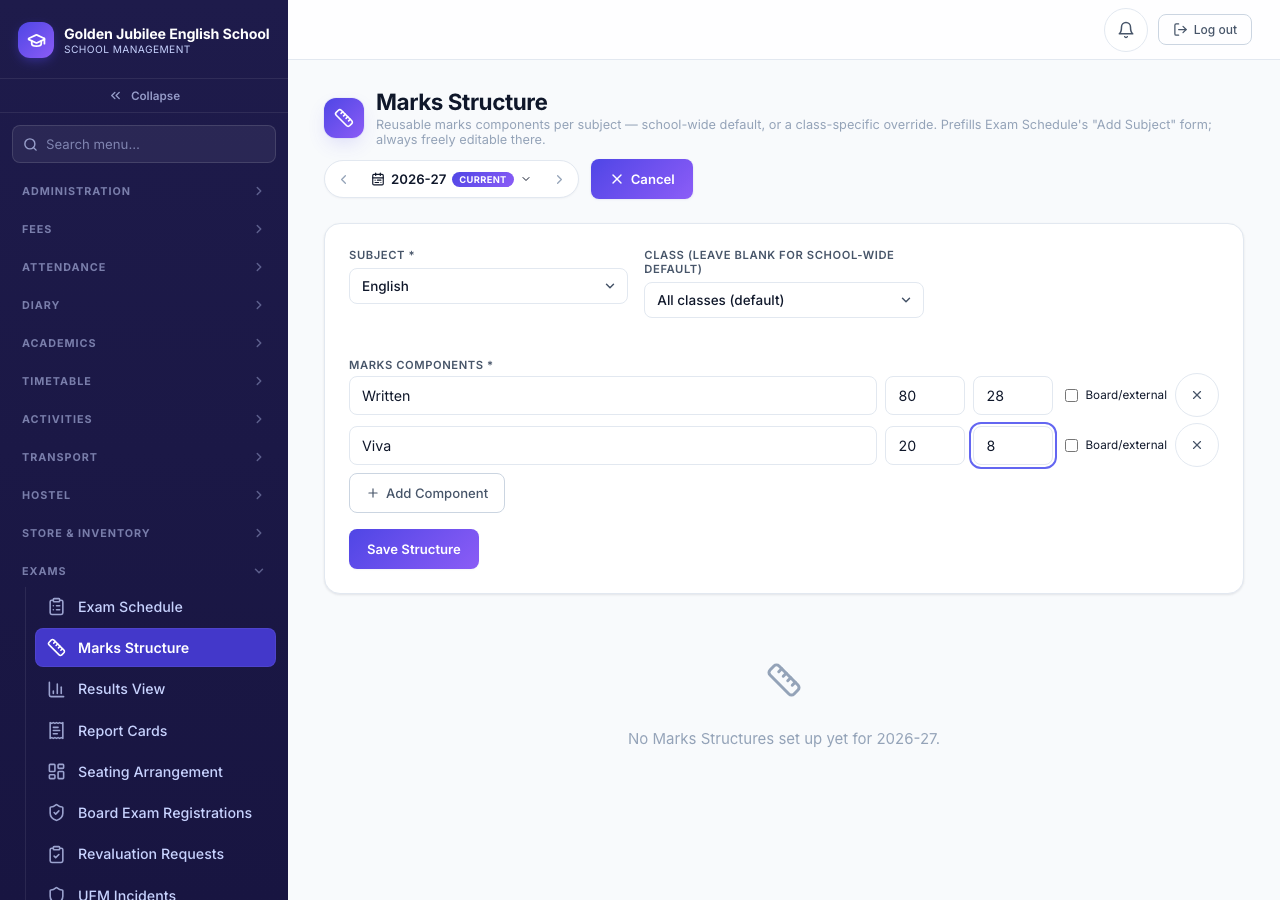
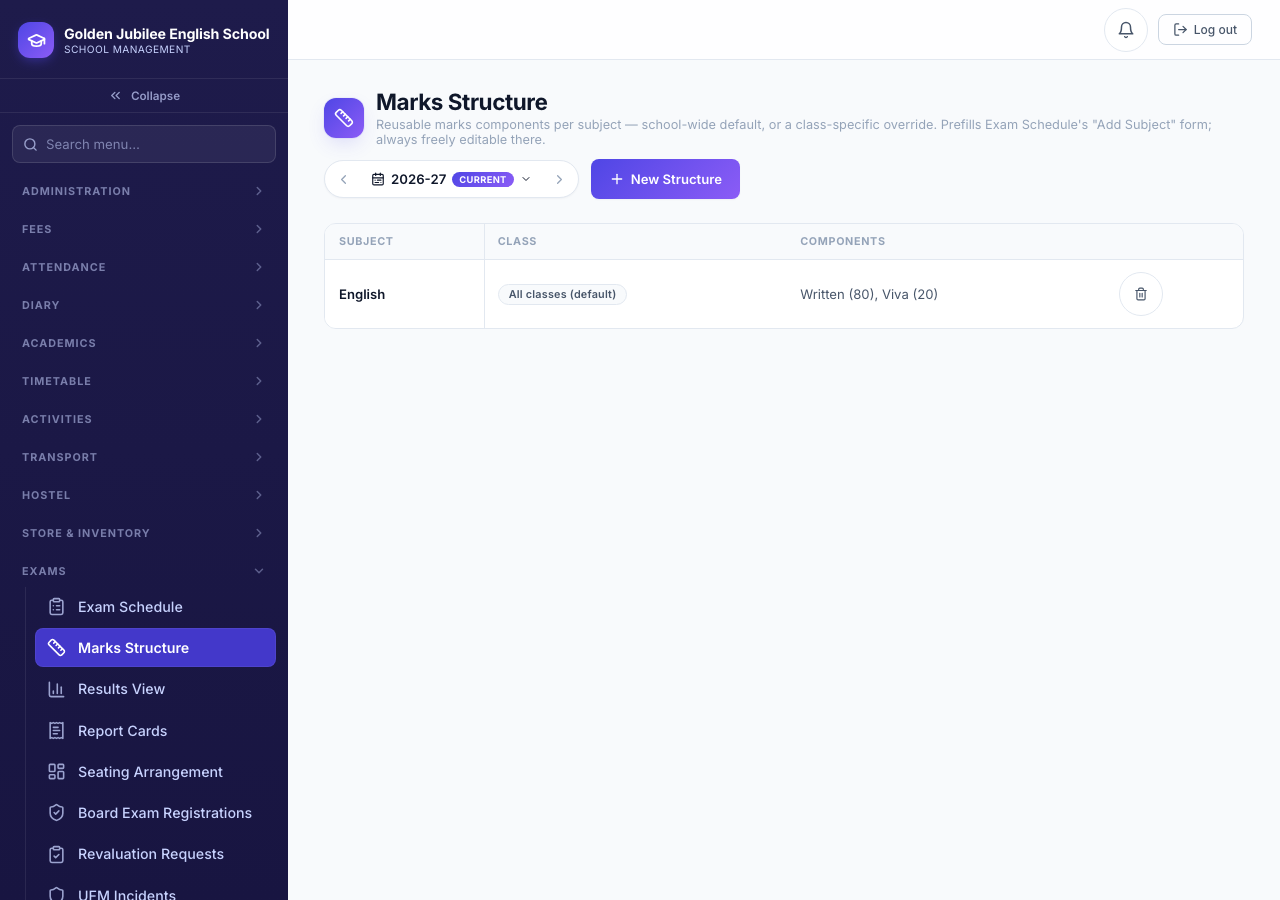
When the school's exam board has real Class 10 figures configured (Chapter 1), the New Structure form offers them as a one-click starting point. Nothing stops an Admin from renaming, removing, or adding components on top of that suggestion — or ignoring it and building the structure from a blank state.
14.2 Create the exam & add subjects
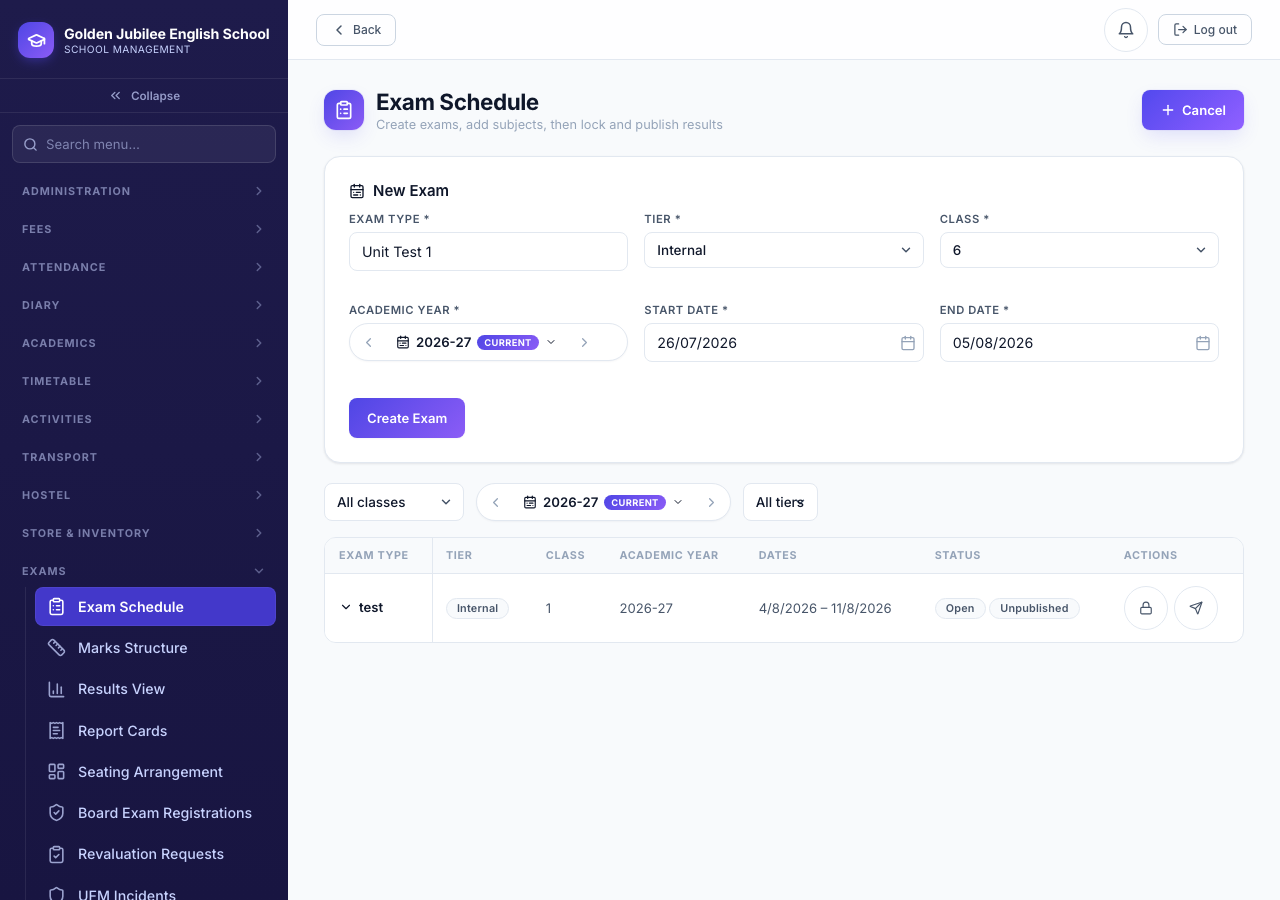
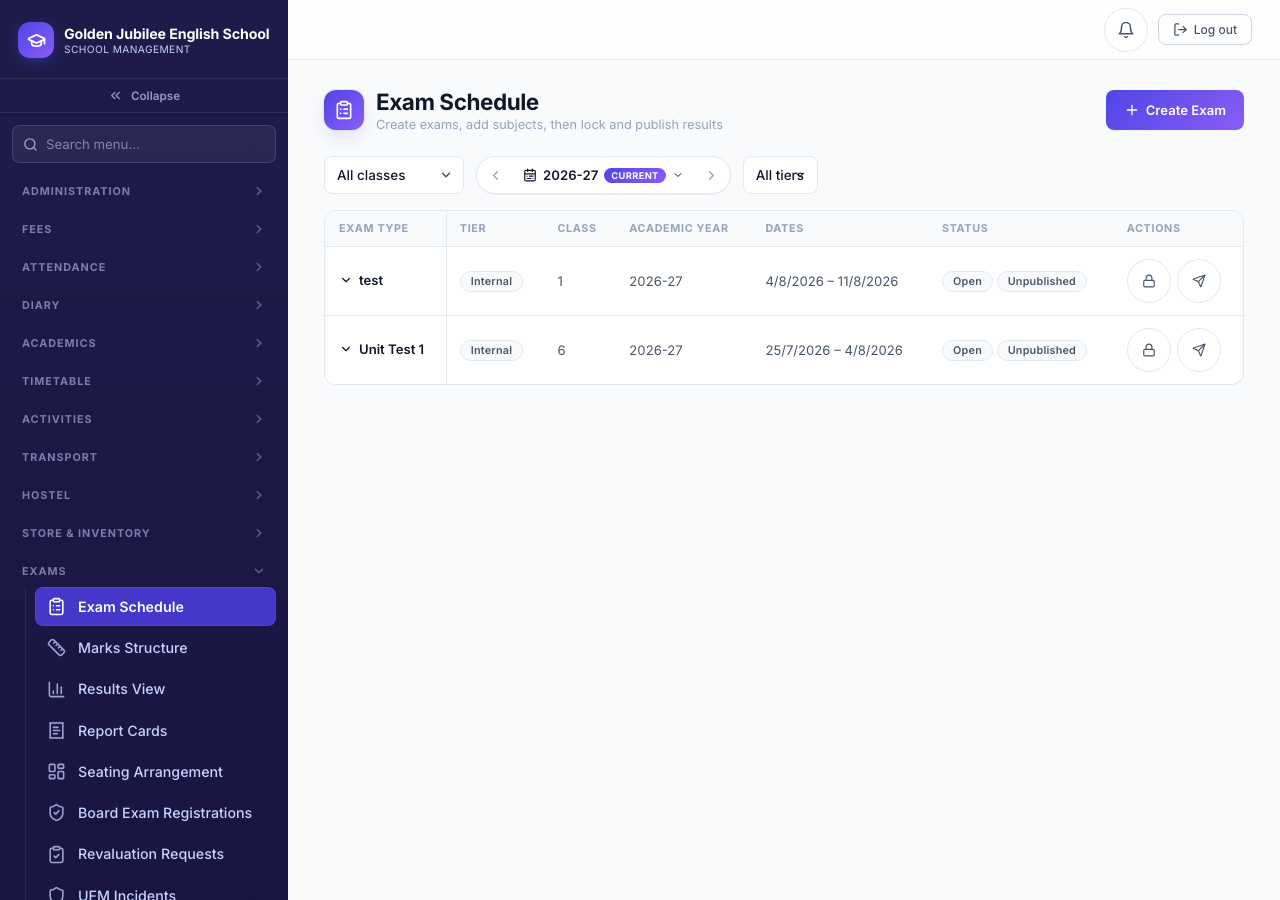
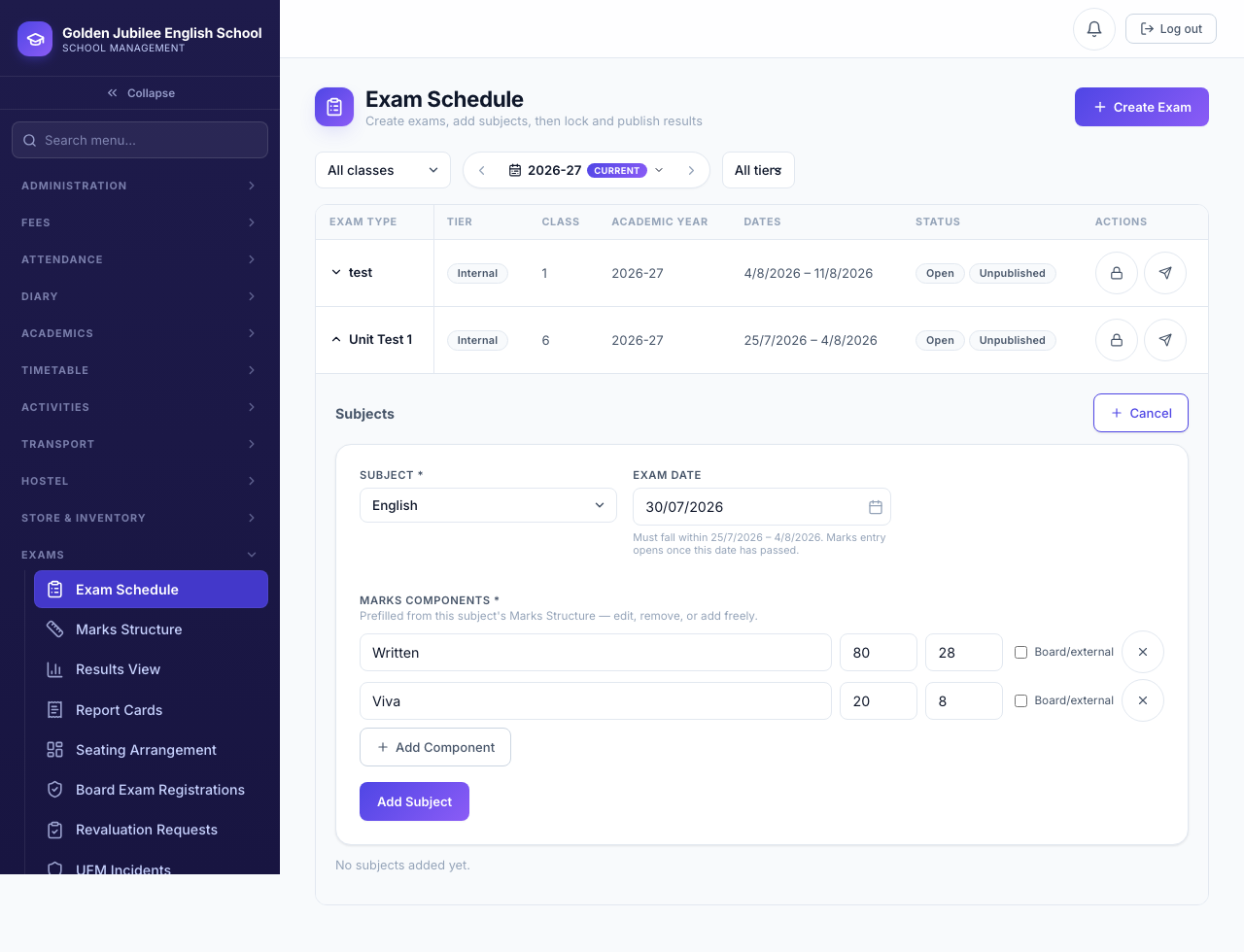
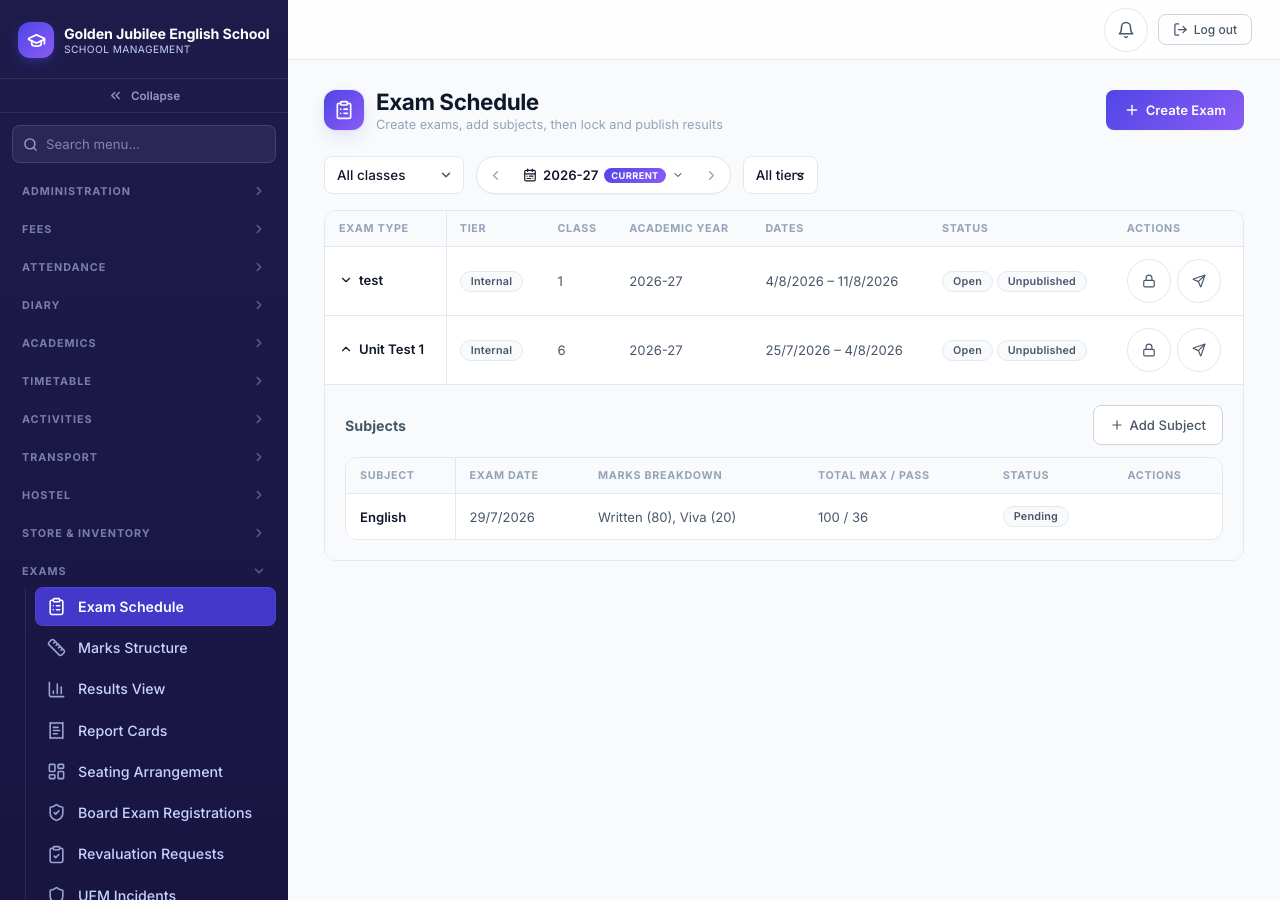
Pending, awaiting its exam date.14.3 Mark entry & submission
The subject teacher's Mark Entry grid only opens once the subject's exam date has passed — there is no separate "mark as conducted" step. Columns are generated dynamically from that subject's own components, so a subject with three components shows three score fields per student.
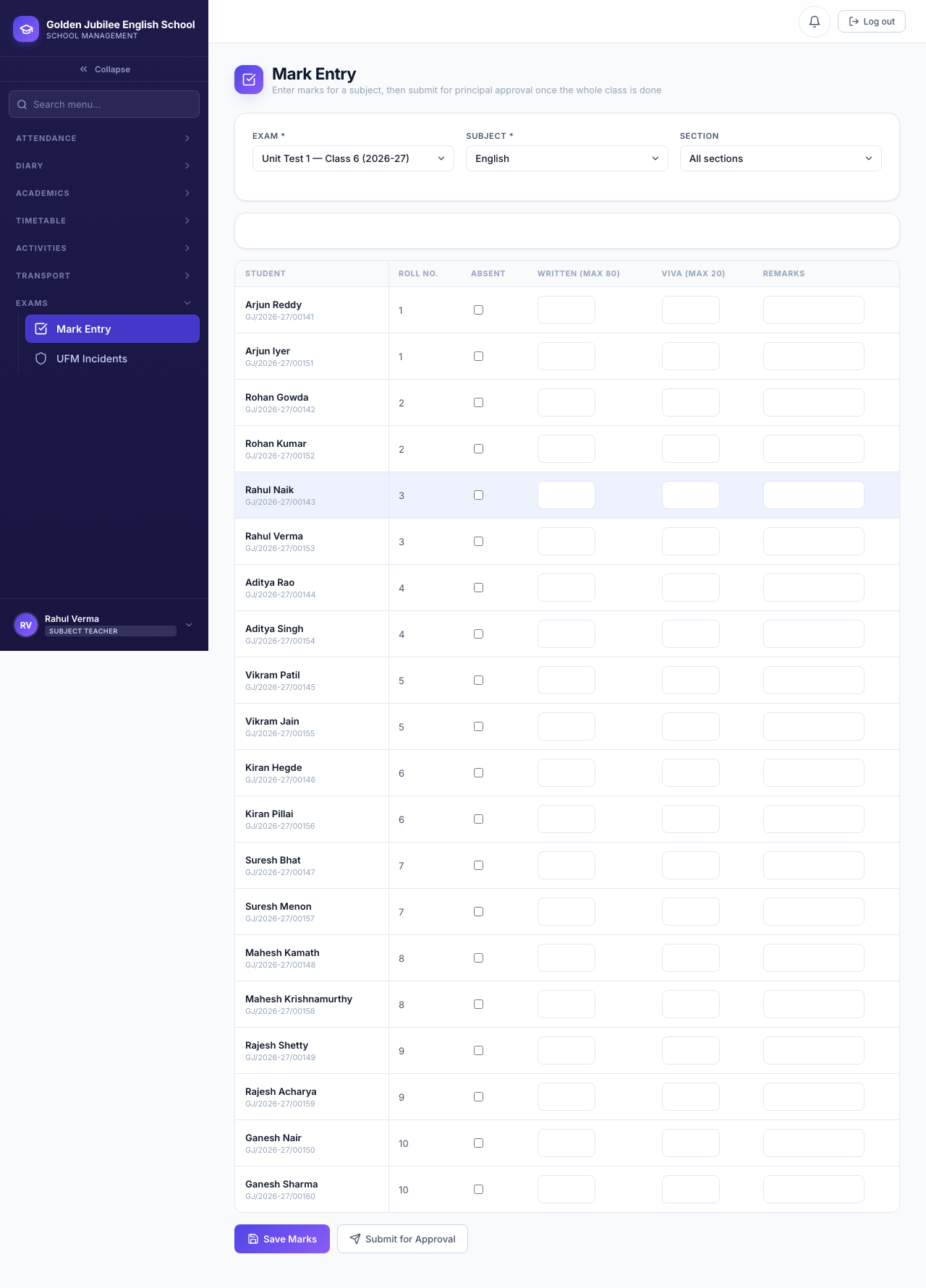
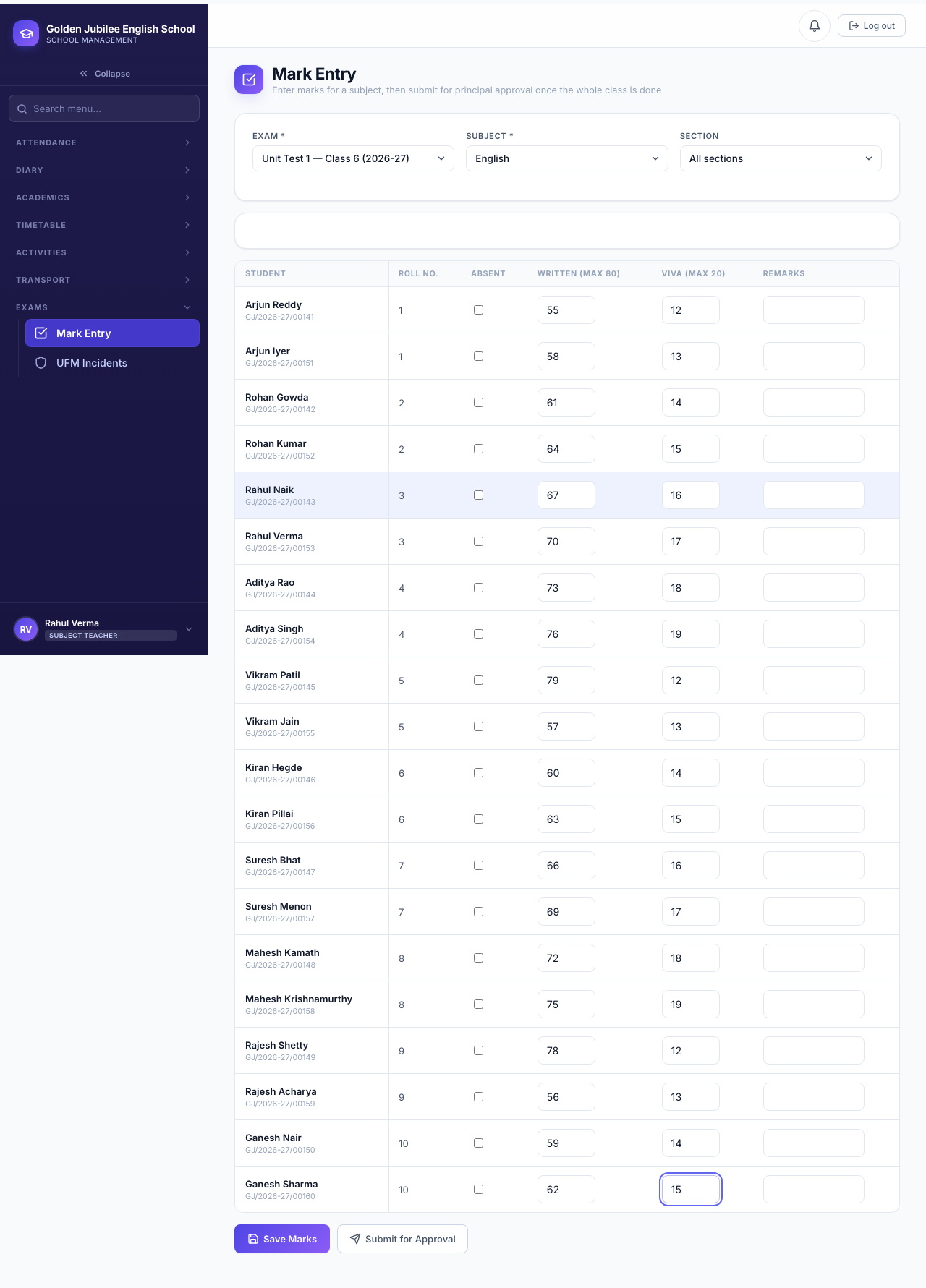
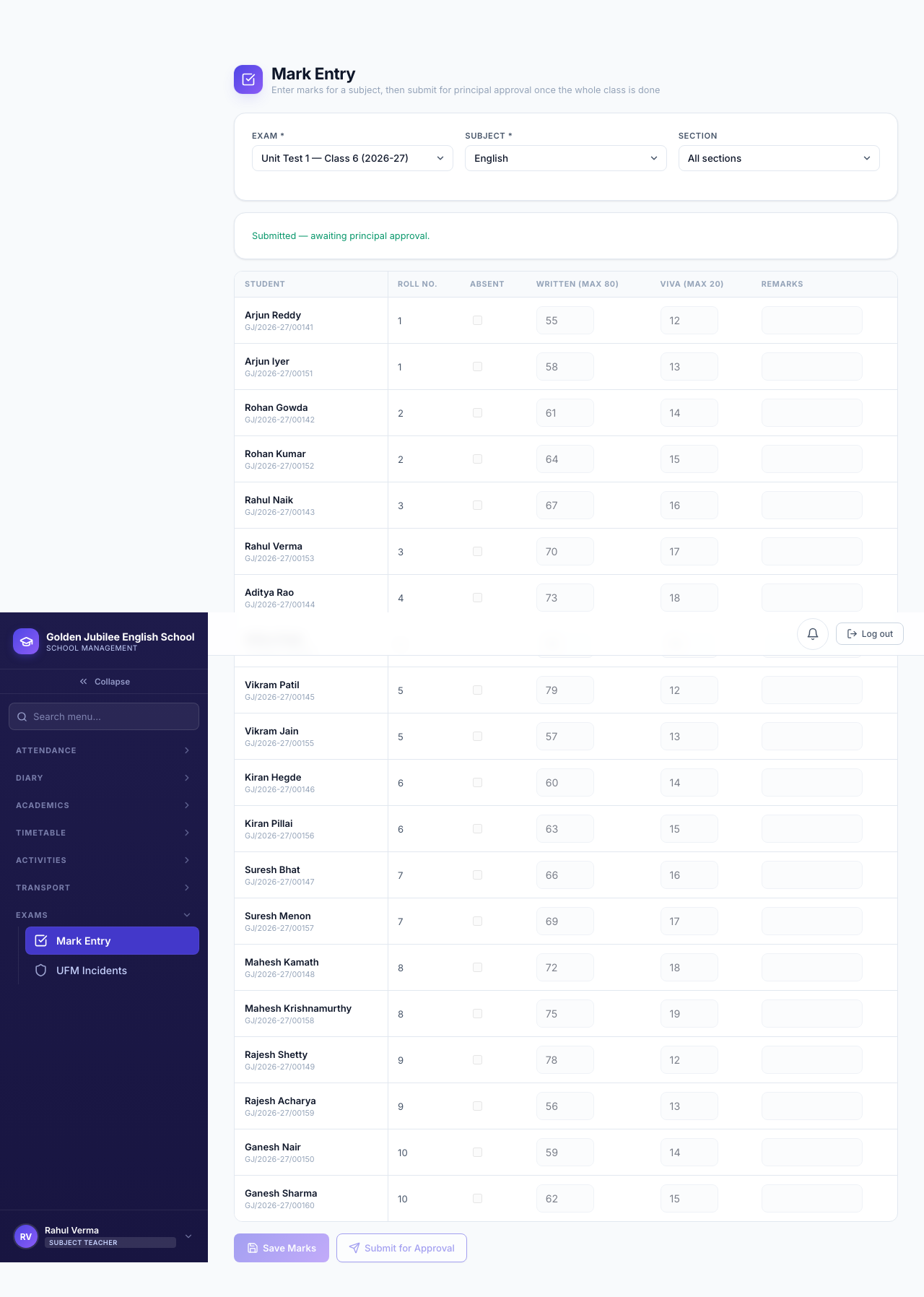
Submit for Approval is blocked with the exact list of missing students until every student in the class has either a mark in every component or is explicitly marked absent. A partially-filled grid cannot be submitted by accident.
14.4 Principal review: approve, reject & publish
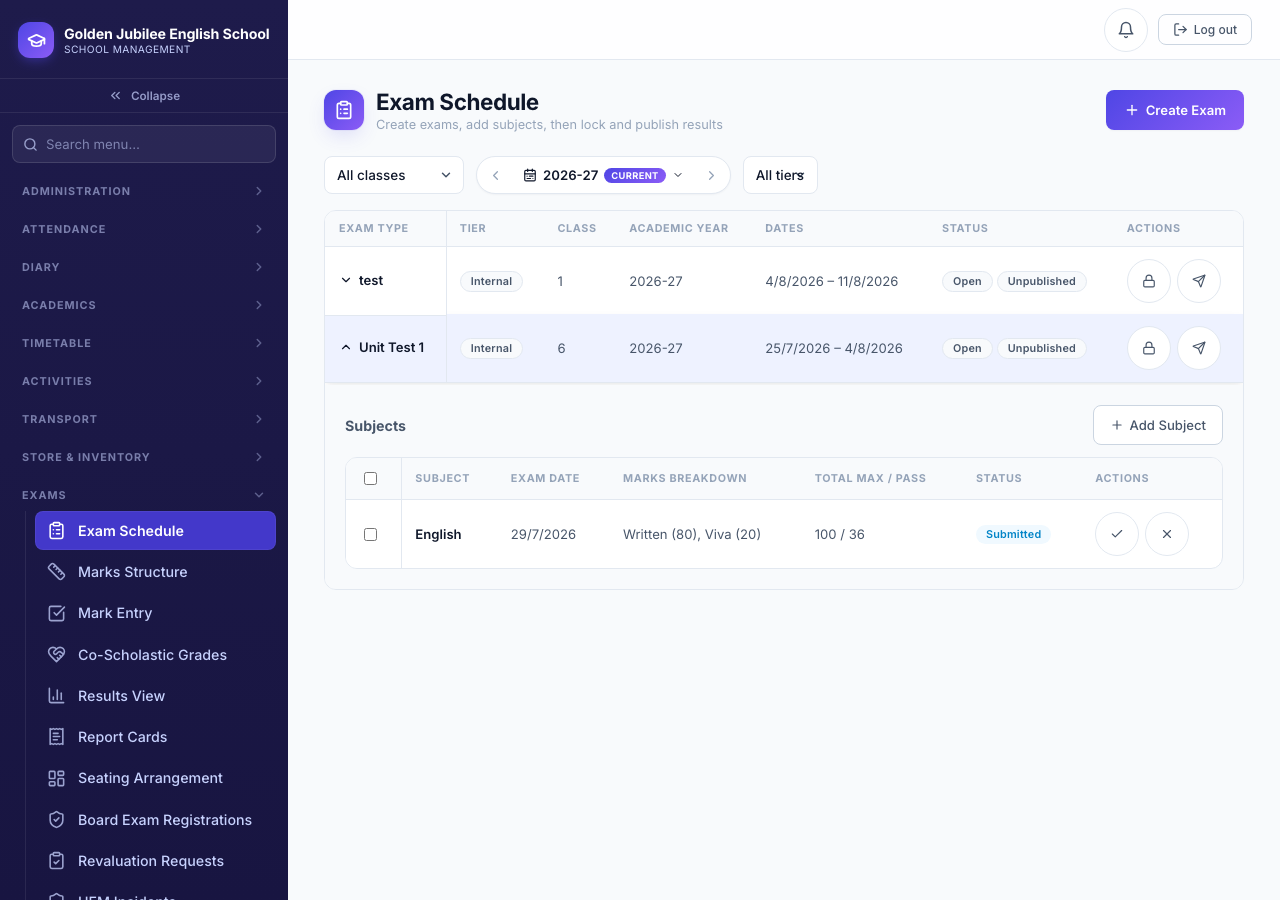
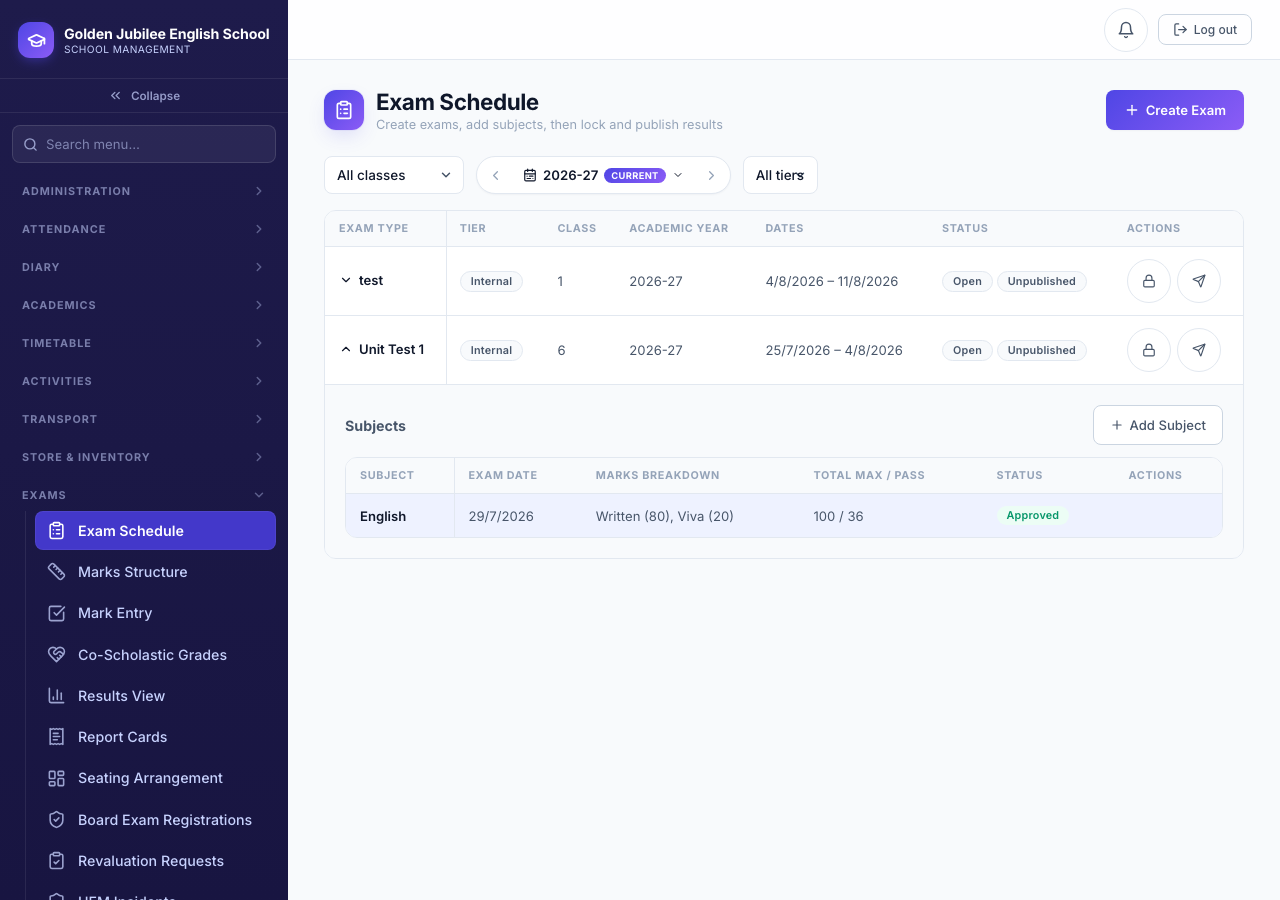
A Principal reviewing a submitted subject makes one of two calls:
Status becomes approved and the subject now counts toward the exam's publish-readiness.
A reason is required. Status returns to pending, the teacher's grid re-opens, and the subject must be corrected and resubmitted.
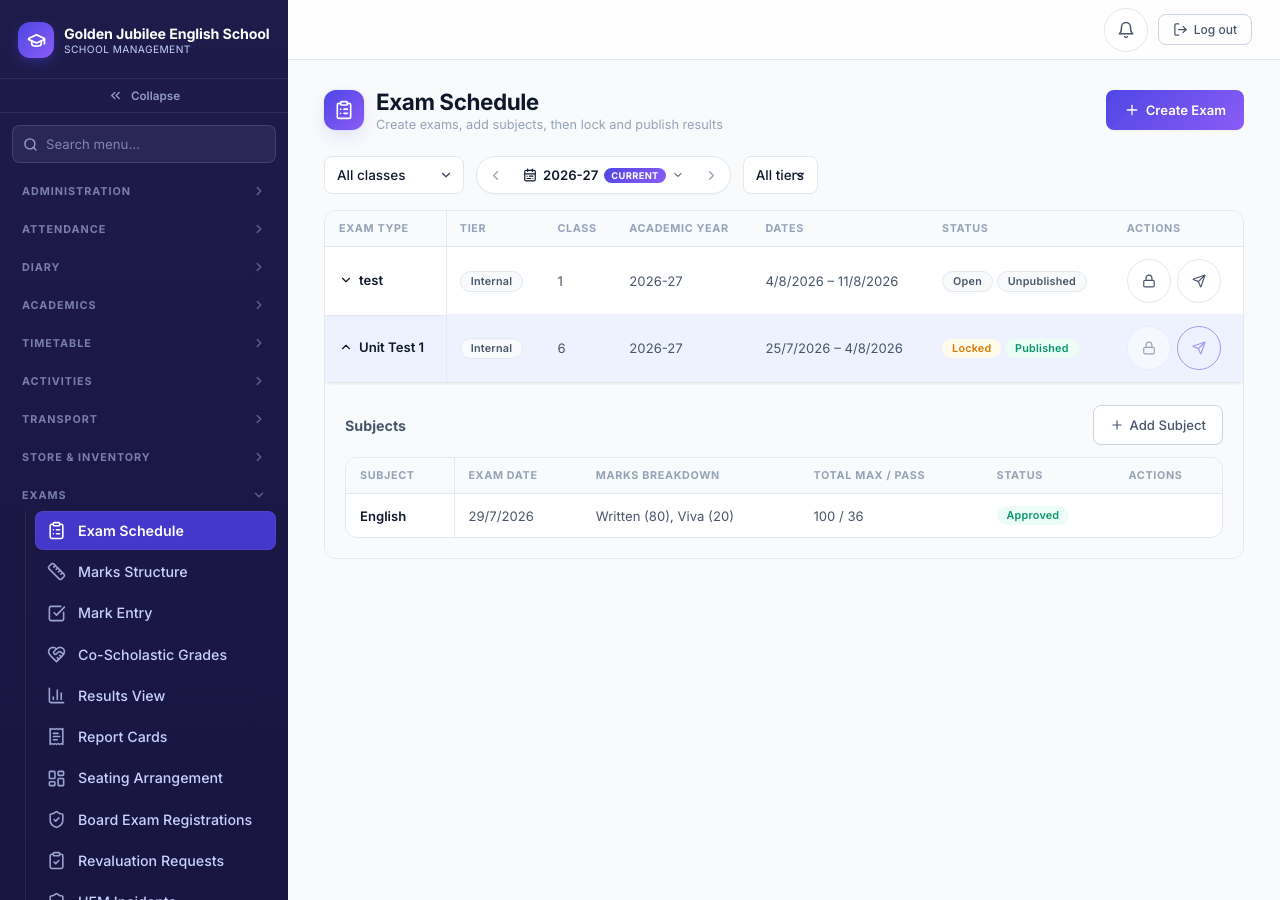
approved. Publishing also locks marks against further edits.An exam with several subjects cannot publish while even one is still short of approved — the Publish action reports exactly which subjects are still pending.
14.5 Results & report cards
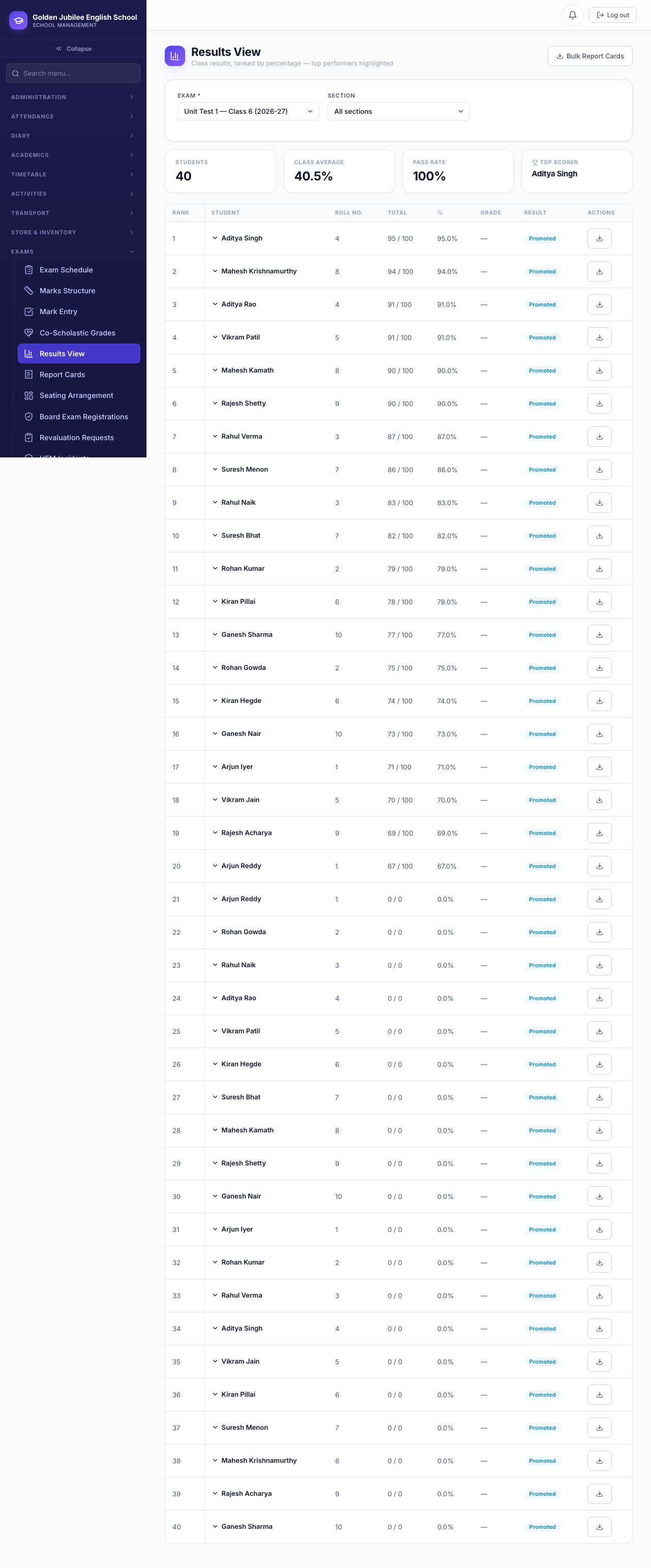
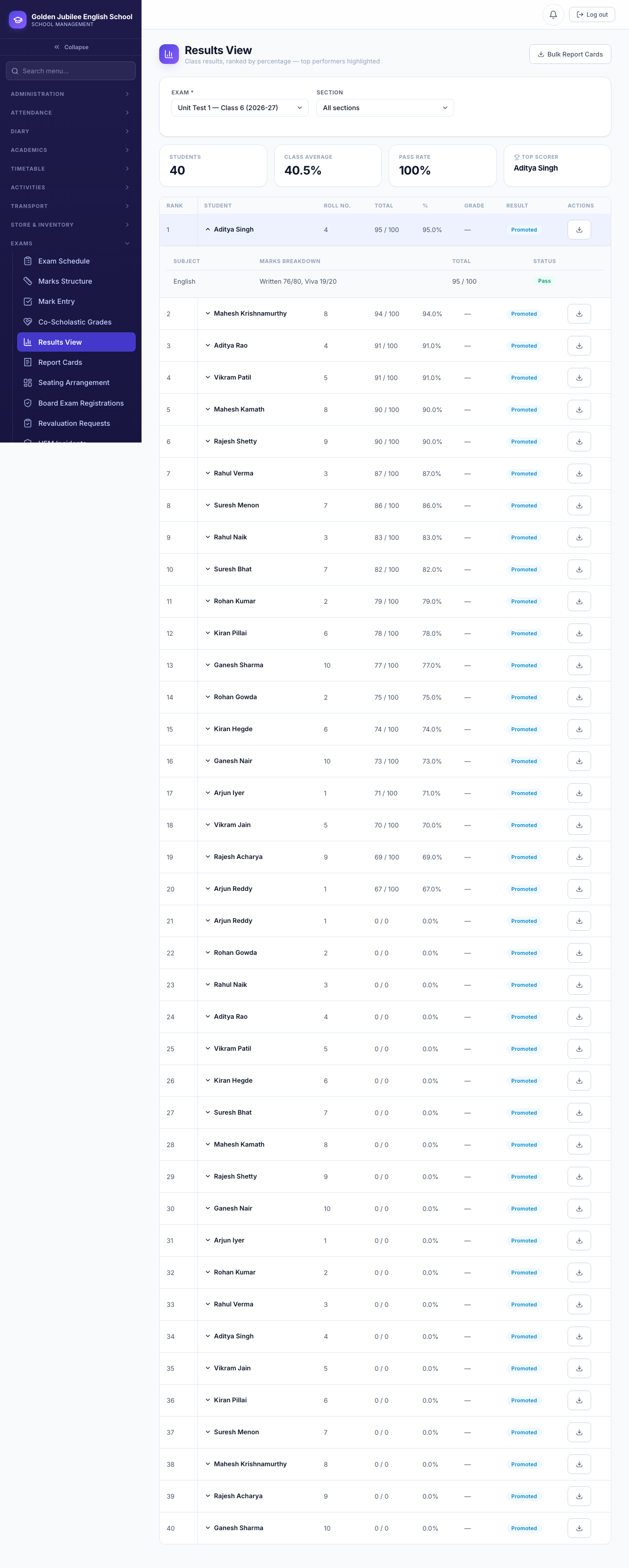
14.6 Exam seating arrangement
Seating is a separate, standalone screen: configure exam rooms once, then generate a seat-by-seat plan for any exam using whichever ordering strategy fits (roll number, alphabetical, interleaved-by-class, or random), and finalise it once it's confirmed.
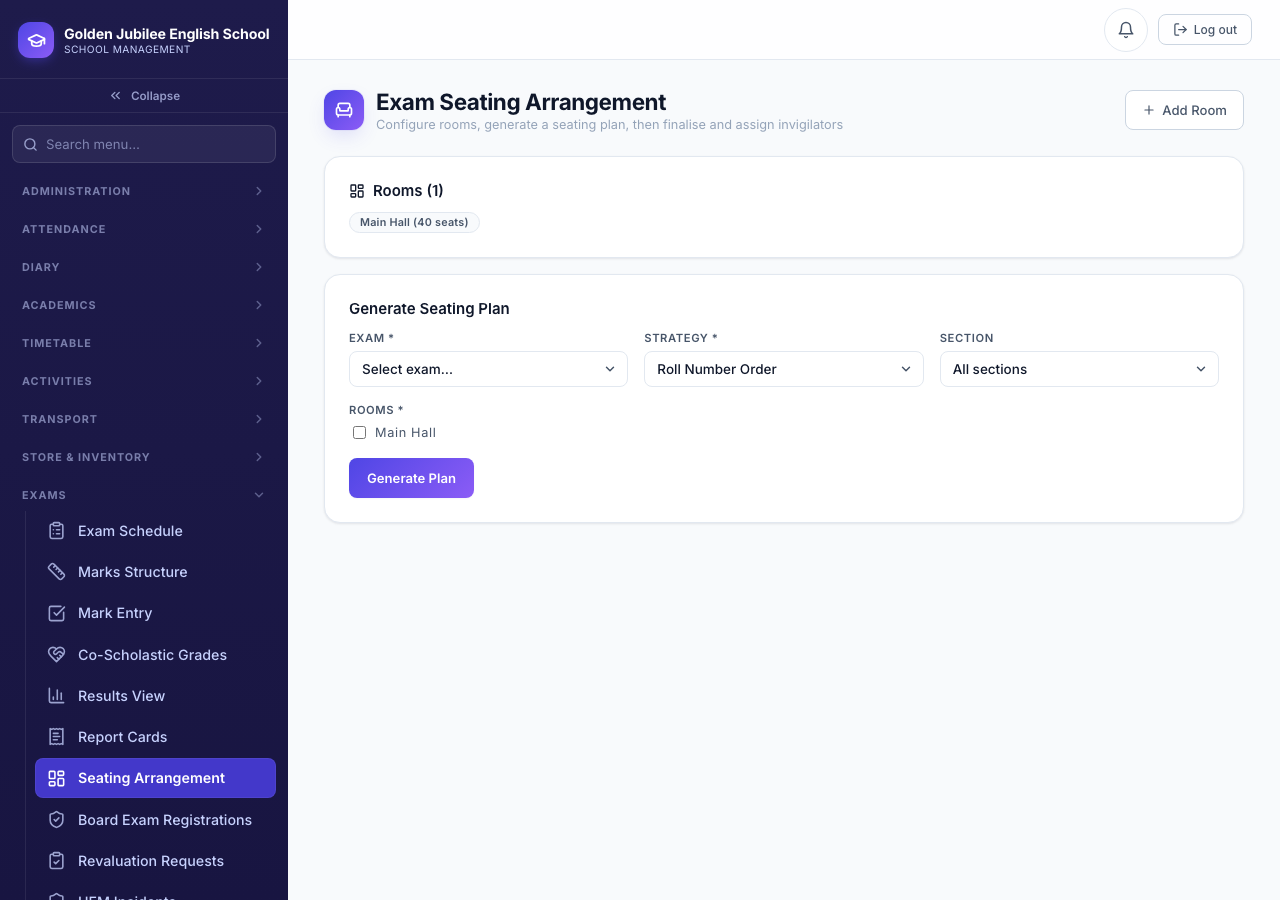
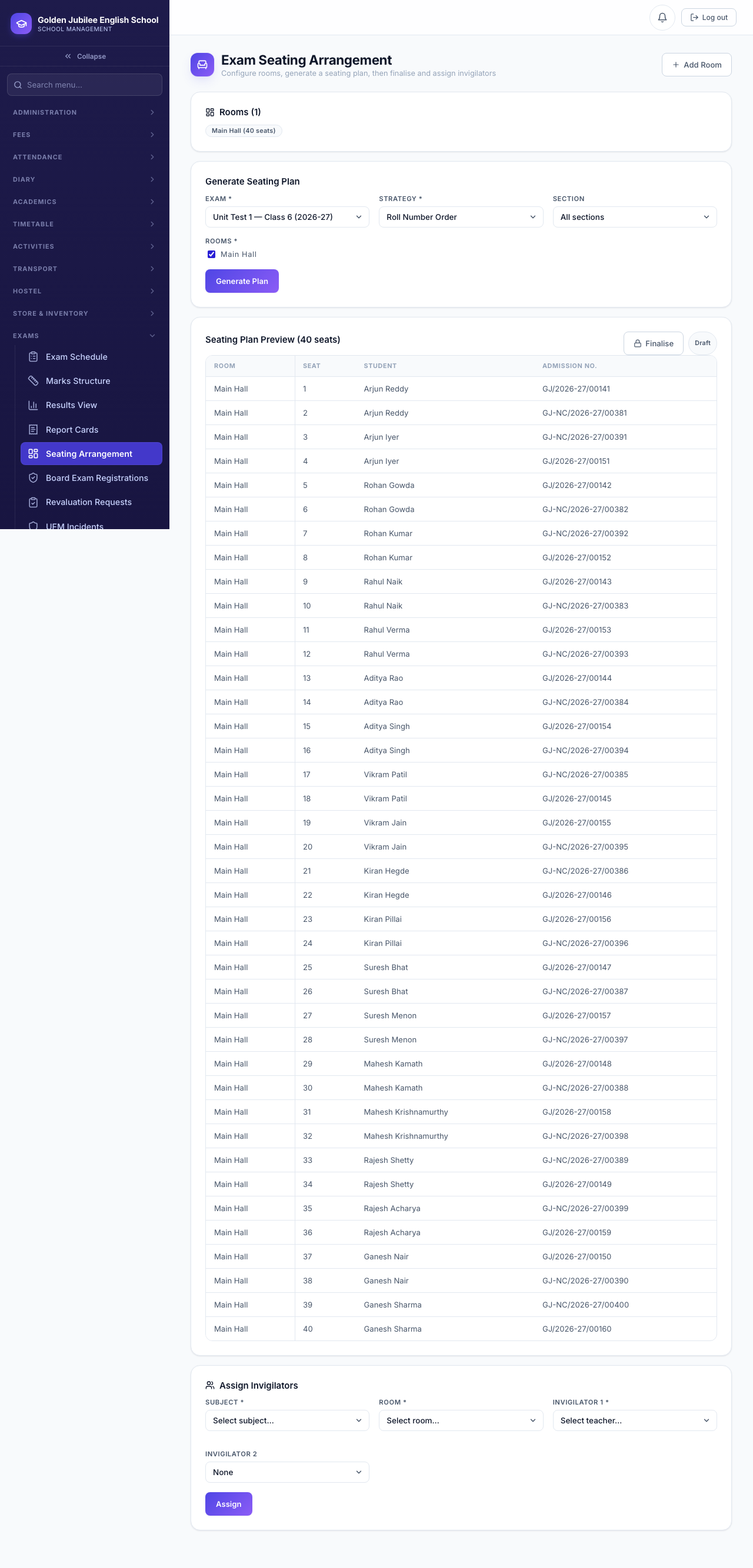
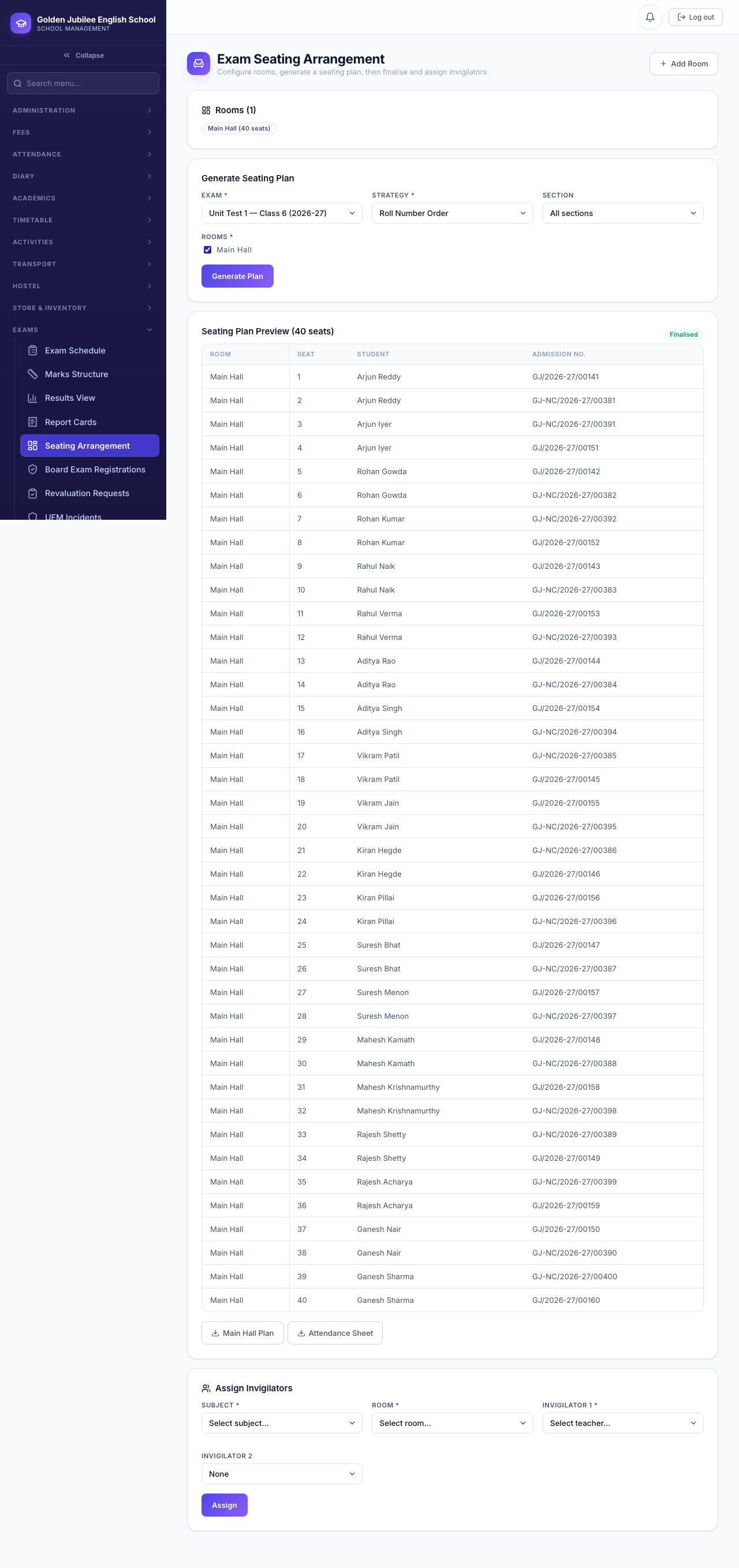
A seating plan can be generated and finalised at any point once the exam exists — it does not wait on mark entry, submission, approval, or publish.